


How to Pay Your Professional Services Invoices in detamoov

Aug 05, 2025
To maintain accurate billing records, it's important to promptly review and pay any outstanding Professional Services invoices. Follow the steps below to access and pay your invoices directly within detamoov.
If you would rather not handle your ProServices invoices manually, you may request that detamoov charge your default payment method immediately. Let us know if you'd prefer this option. We are happy to streamline the payment process to help avoid any delays.
Step-by-Step Instructions
- Access the Admin Console
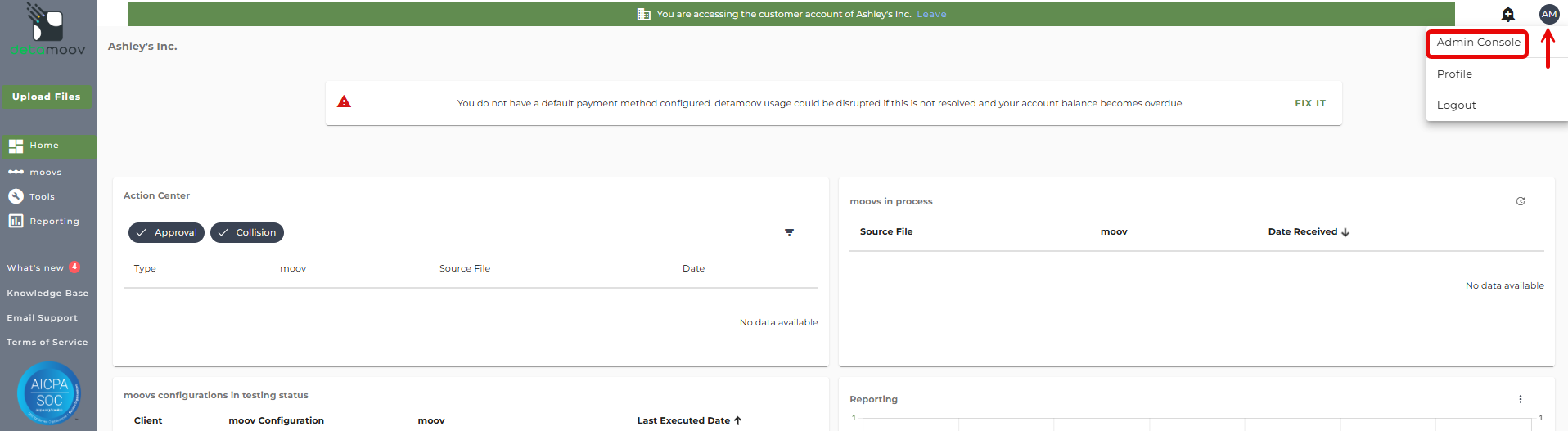
- From the detamoov Home screen, click your initials in the top-right corner of the screen.
- In the dropdown menu, select Admin Console.

- Navigate to the Billing Center
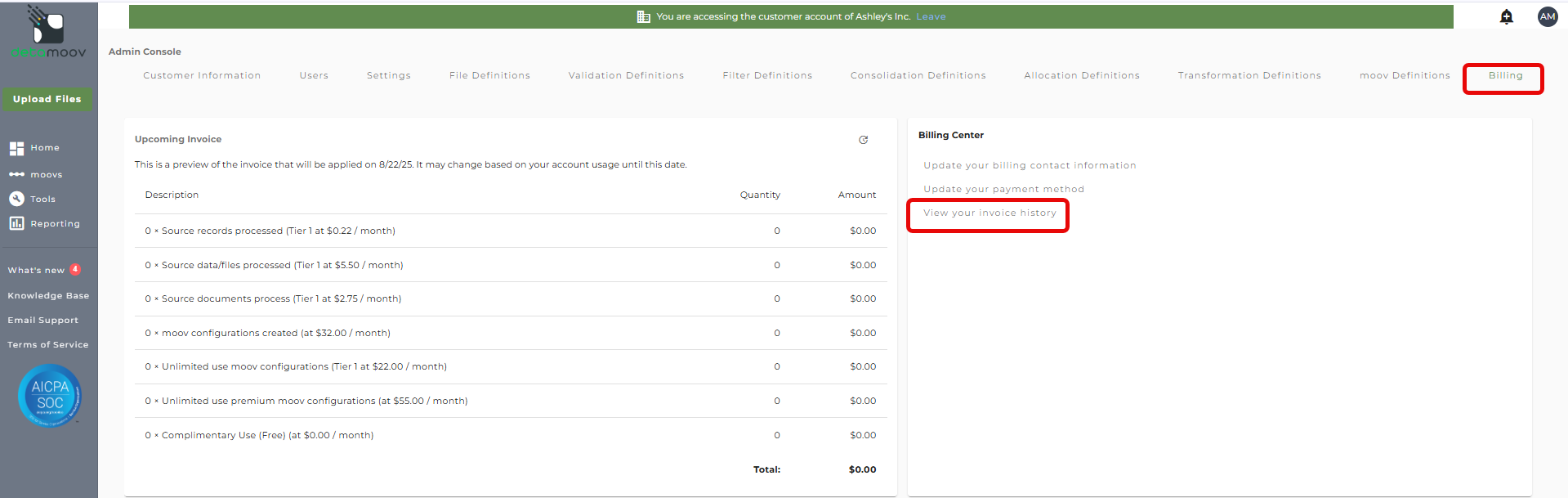
- Within the Admin Console, scroll horizontally to the Billing tab and click it.
- In the Billing Center, click View your invoice history.

- Review Invoice History
- Scroll down to the Invoice History section.
- Any unpaid invoices will be labeled as Open or Past due.


- Pay an Open Invoice
- Click on the row for the invoice marked as Open.
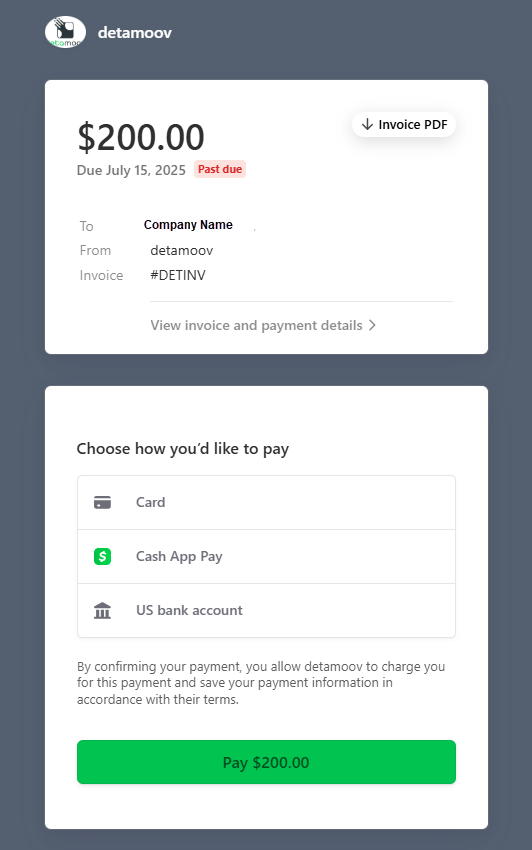
- Scroll down to the payment options section.
- Select your preferred payment method.
- Click the green "Pay" button to complete the transaction.

- Repeat if Needed
- If you have multiple open invoices, repeat the process for each one individually.
Note: When your Professional Services invoice is generated, you may request that detamoov charge your default payment method immediately. Let us know if you'd prefer this option, we’re happy to streamline the payment process to help avoid any delays.

