


This article describes how to configure a client for the Standard Deduction to Lively Financial HSA/FSA Contributions moov definition. Each client configuration will vary based on their plan specification and will need to be configured accordingly.
Lively HSA/FSA Contribution Specifications
The Lively HSA/FSA Contribution integration uses the Standard Deduction format as the source. To ensure a seamless integration, you must produce the Standard Deduction format out of payroll. For more information, including an example of the Standard Deduction format, please review the Standard Deduction to Lively HSA/FSA Contributions article.
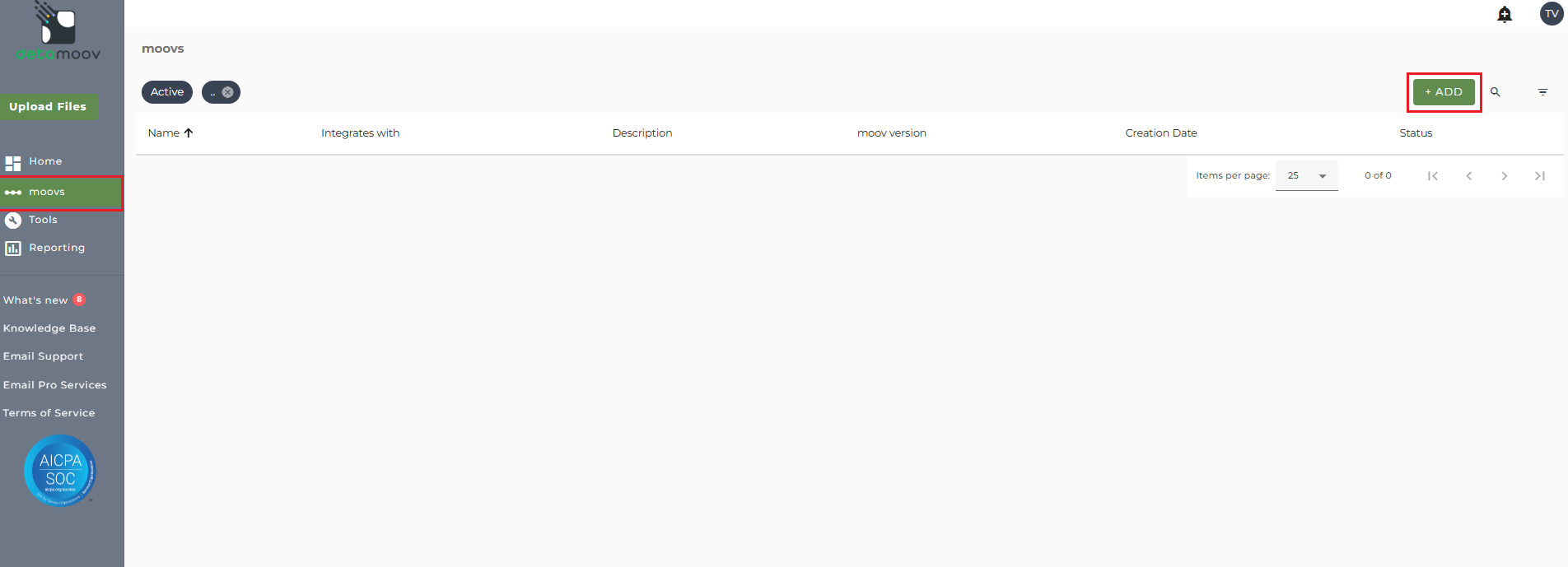
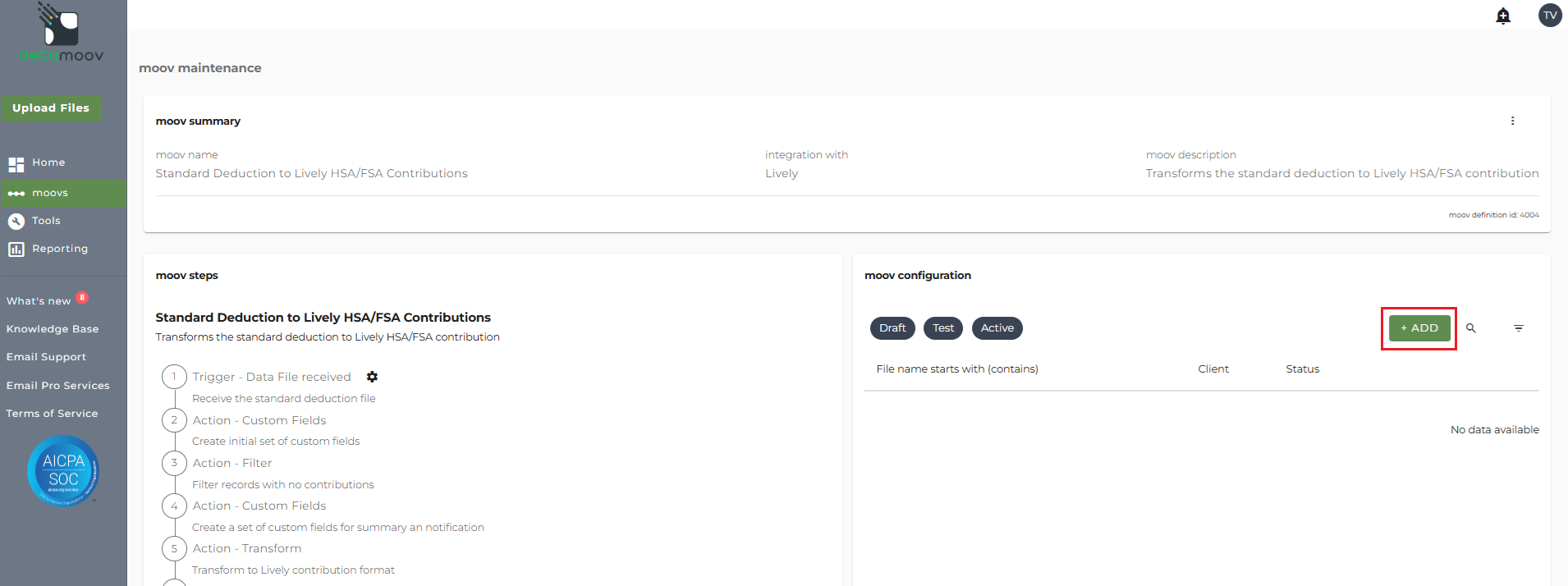
To adopt the Standard Deduction to Lively HSA/FSA Contributions moov to your account, click on the moovs section on the left and click the ADD button.
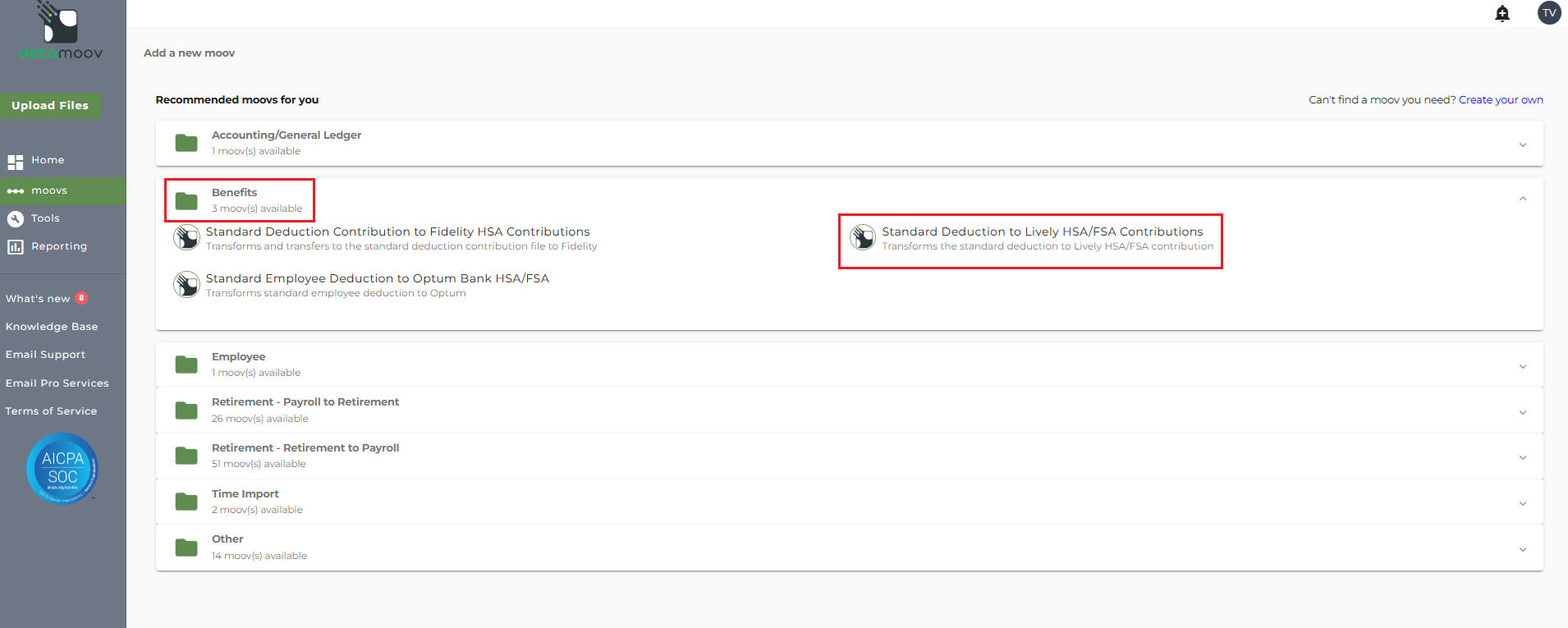
Then expand the Benefits section and click on the Standard Deduction to Lively HSA/FSA Contributions moov.
Then click 'Use This moov' on the right.
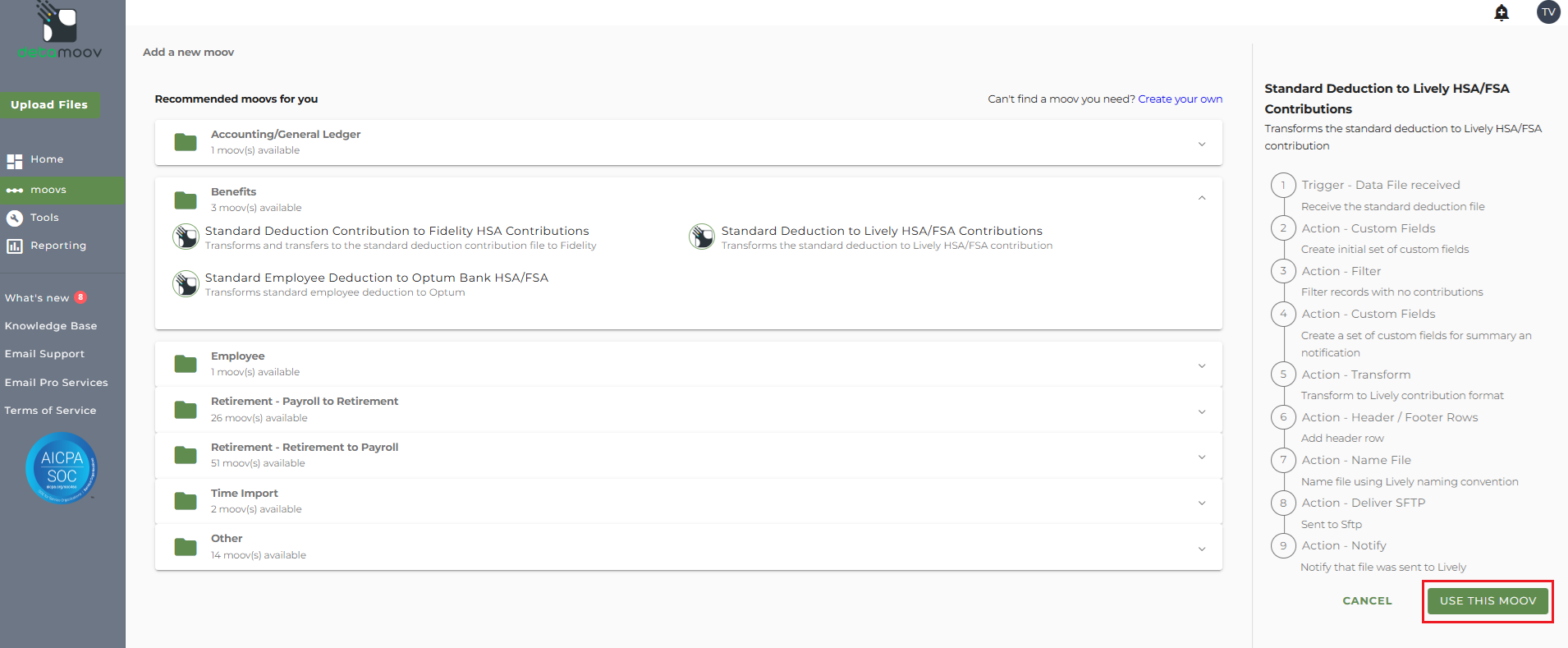
Lively requires the use of payroll provider specific SSH key authentication and client specific username/directory credentials to connect and send contribution data to their SFTP site. An SSH key pair will need to be generated and you must provide Lively with the public key to ensure successful transfer of the contribution data. Please contact us at [email protected] if you need help with generating the SSH key pair.
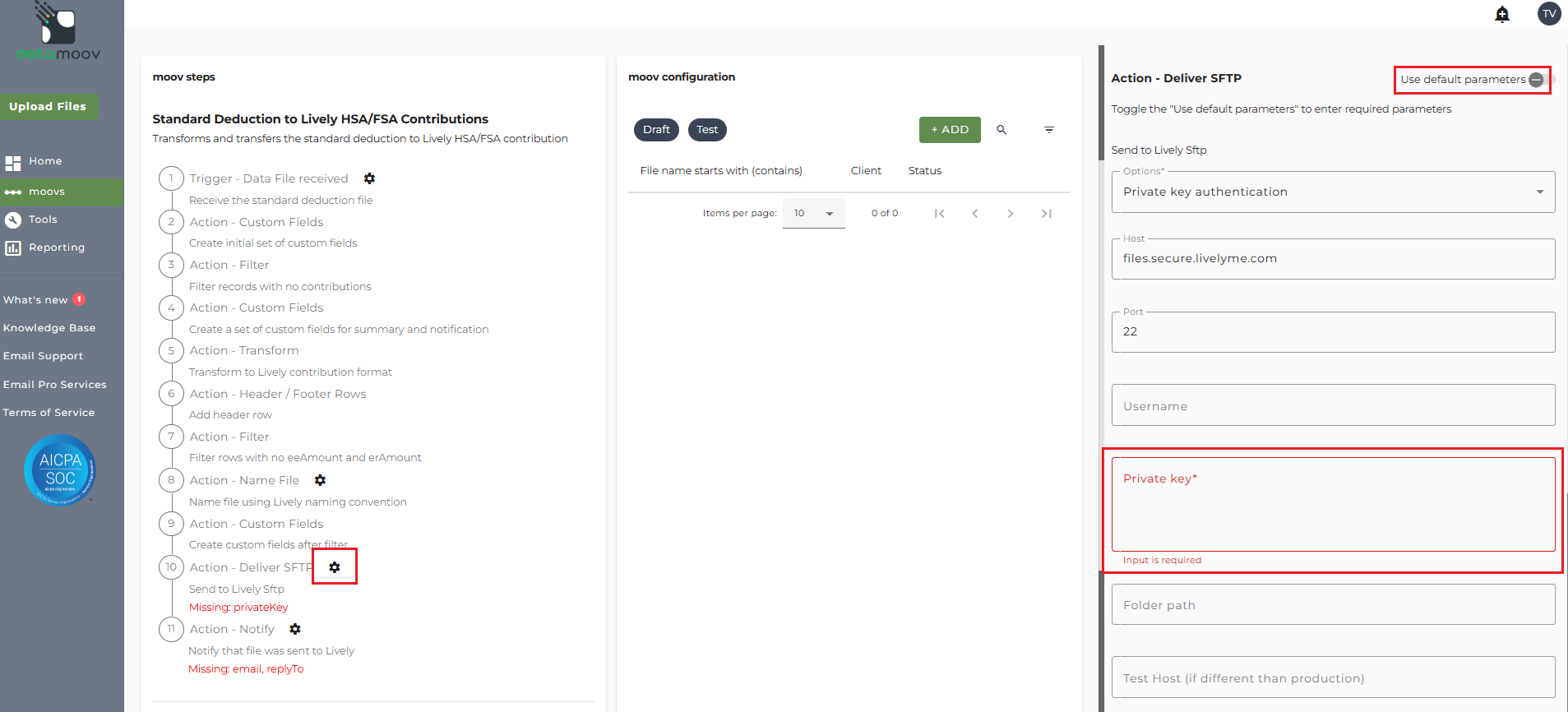
Once you have provided Lively with the public key, you will need to edit the Deliver SFTP step and include the private key. To edit the Deliver SFTP step, click on the cog icon under the Action - Deliver SFTP step on the left and then toggle the "Use default parameters" off. In the Private Key field, enter in your SSH private key and scroll down and click Save Changes.
Note: Only enter in the Private Key here. You will be instructed to provide your client's SFTP username and directory further on in this article.
The Standard Deduction to Lively HSA/FSA Contributions moov provides a notification for when the moov is complete. The notification can be sent to any email address you wish and can also be configured to send to multiple email addresses.
To edit the notification step, click on the cog icon under the Action - Notify step on the left. Then toggle the "Use default parameters" off and enter in the email addresses you would like to receive the notification. If you would like to enter multiple email addresses, separate them with a comma. A Reply to email is also required in the event that a recipient of the notification replies to the email.
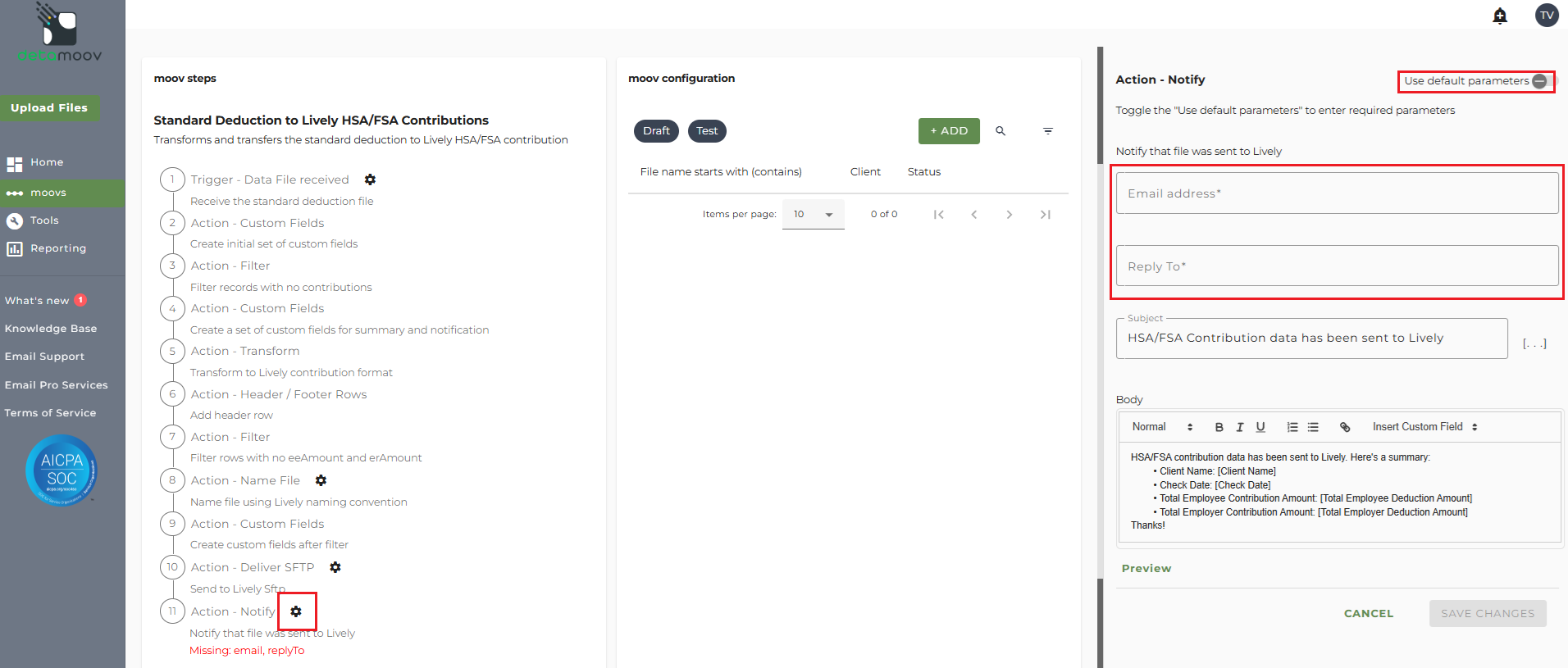
Note: these settings apply to any client configuration you set up for this specific moov. You also have the ability to configure the notification step for each client configuration if you wish to add or remove email addresses per client.
To save your parameters click on the Save Changes button.
In the moov configuration section, click the Add button to add a new client to send data to Lively.
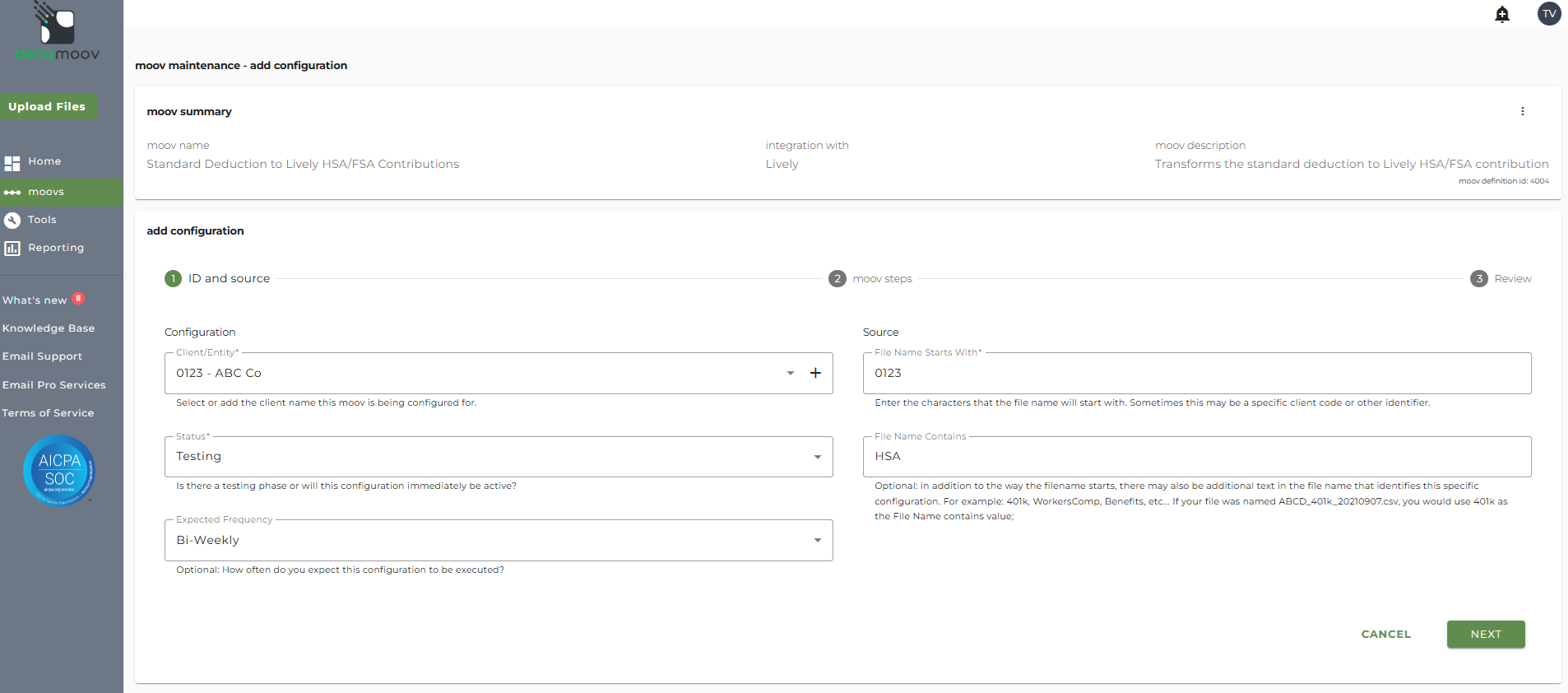
Client/Entity - either select an existing client or click the + sign to create a new client.
Status - this field should be set to 'Testing' until the testing phase has been completed.
Expected Frequency - the client's payroll frequency
File Name Starts With - typically the client or company code within your payroll platform. The value entered into this field is important as the file you send to detamoov must start with this value.
File Name Contains - optional value that is included in the file name
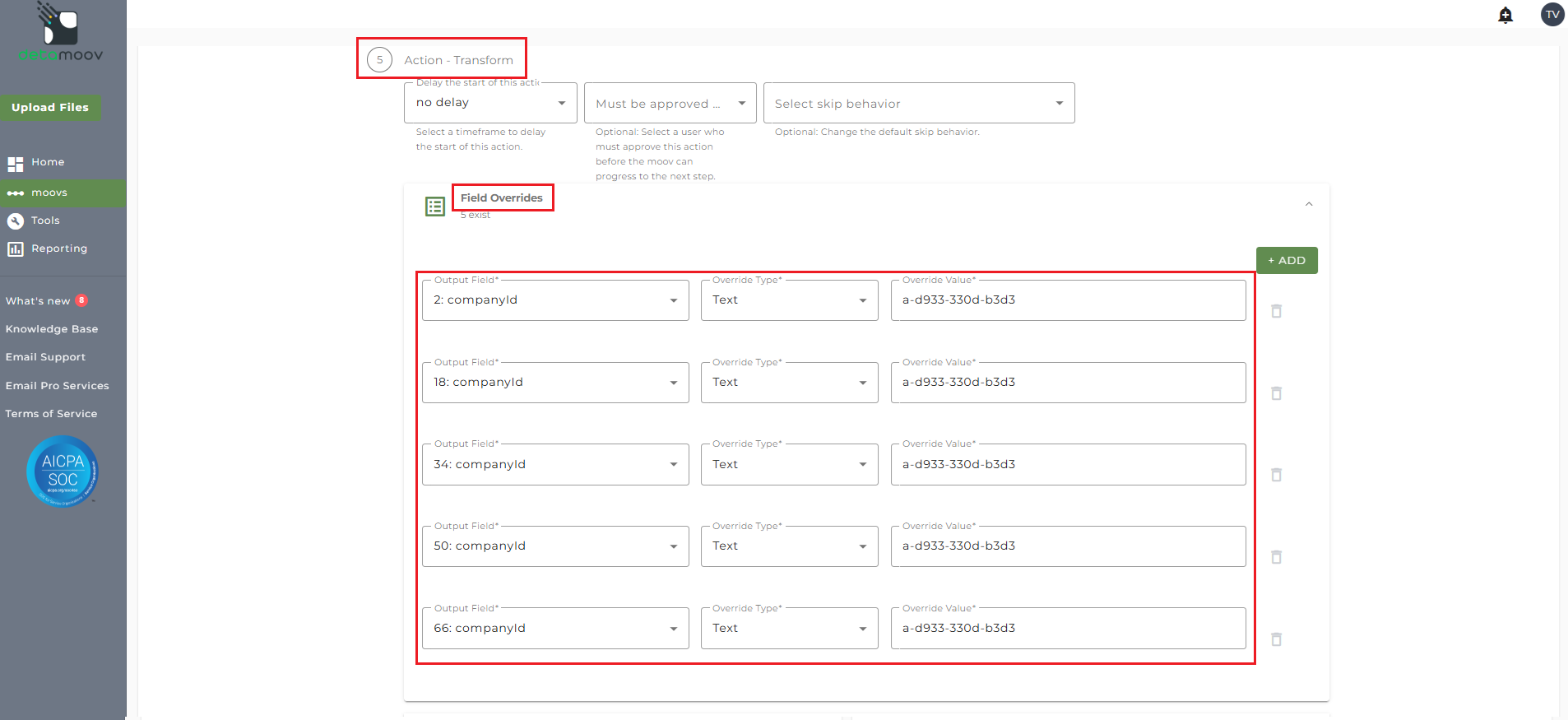
A companyId value is required for each record sent and will be provided by Lively. Please reach out to Lively if you do not have this value.
To include the Billing Group Identifier value, you will need to add a Field Override. Locate the Action - Transform step, expand the Field Overrides panel and click the Add button. The Standard Deduction to Lively HSA/FSA Contributions moov will potentially create multiple output records from a single input record. To ensure the companyId value is passed correctly, you will need to create a field override for the following fields:
2: companyId
18:companyId
34:companyId
50:companyId
66:companyId
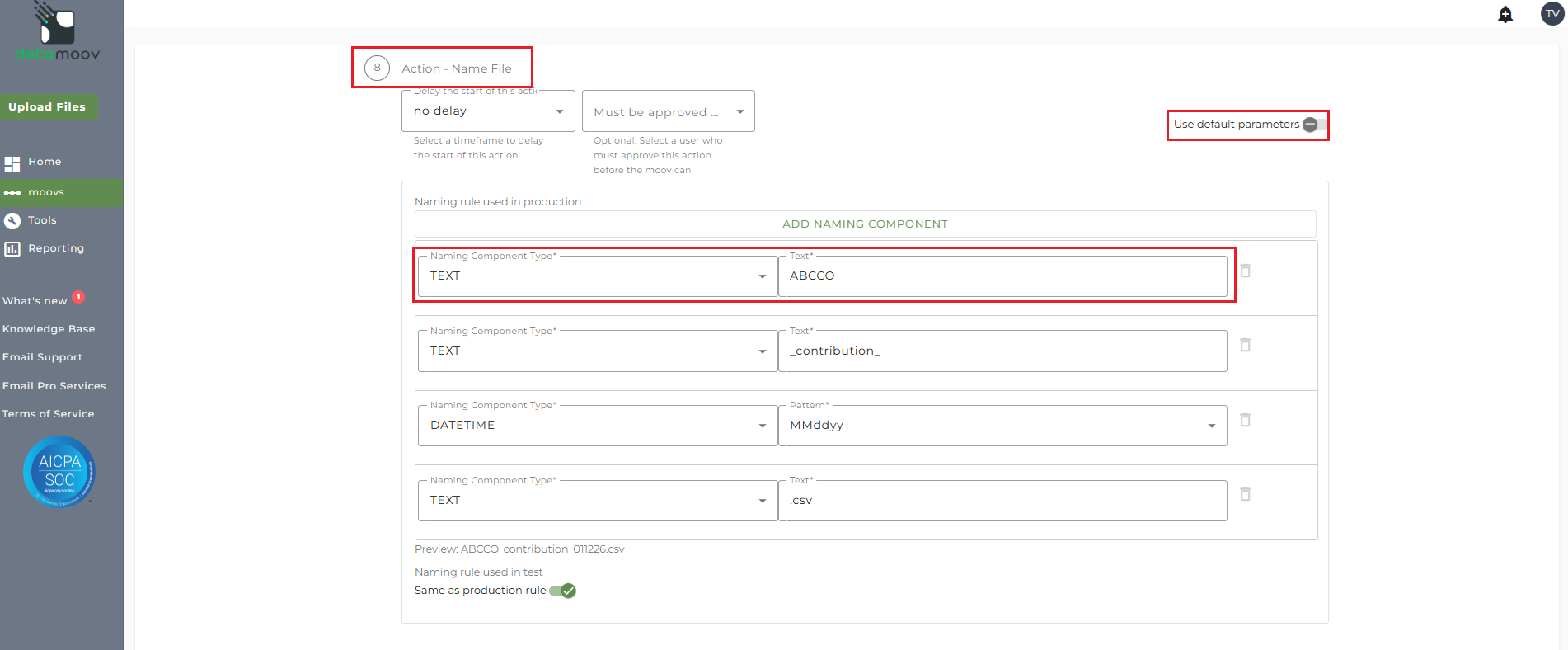
The name of the file sent to Lively requires the Company Name of your client. To override this value, locate the Action - Name File step, toggle the 'Use default parameters' off and replace the text '[Company Name - override]' with the plan's Remittance Group value. This value will need to be replaced in both the 'Naming rule used in production' and 'Naming rule used in test' sections.
Note: this fields should not contain special characters, including back/forward slashes or commas.
SFTP credentials are client specific and are provided by Lively. This means that they will create a separate SFTP username or each client you configure for the Standard Deduction to Lively HSA/FSA Contributions moov. Please contact Lively directly to obtain the credentials for your client.
To override the SFTP parameters, locate the Action - Delivery SFTP step, toggle the 'Use default parameters' off and enter in your client's Username. No other fields or values should be entered or modified.

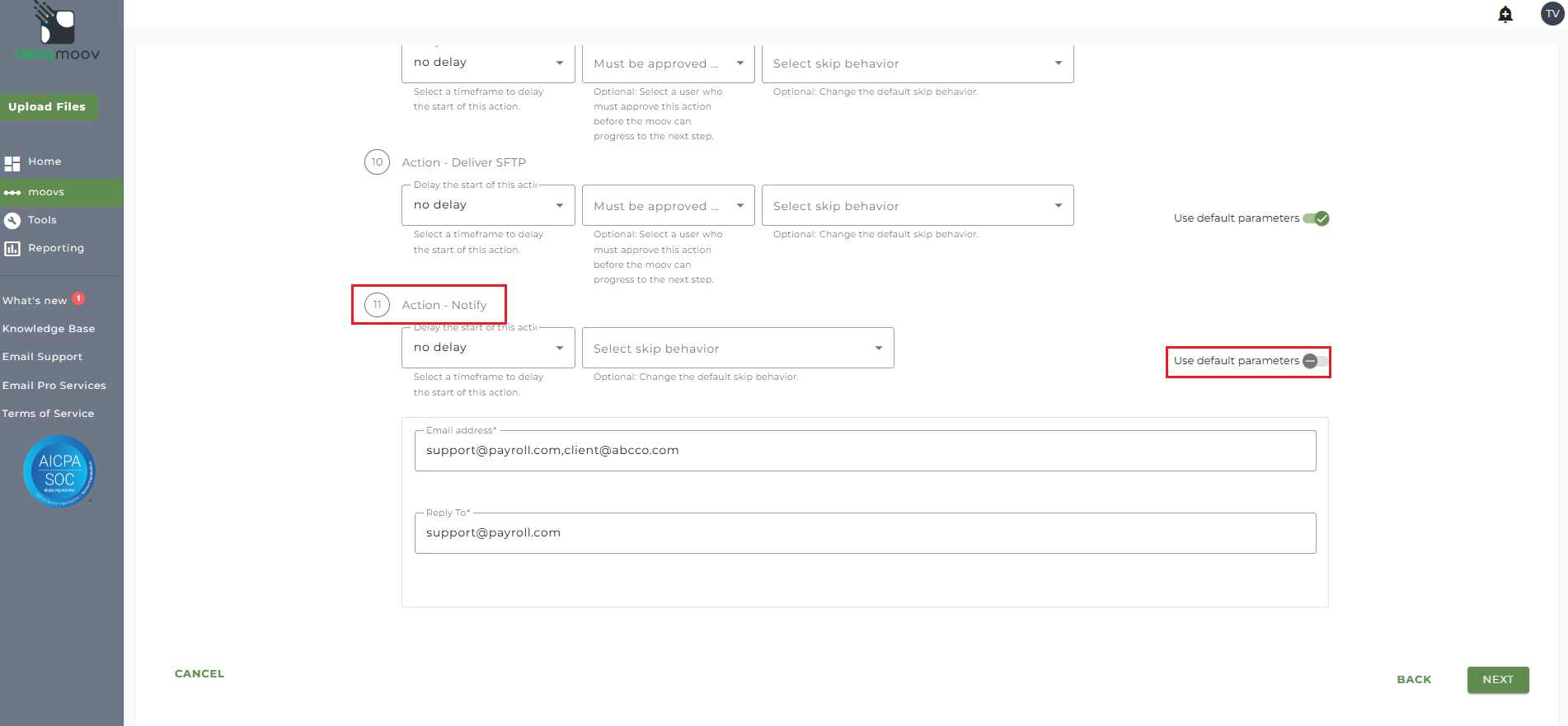
At the beginning of this article you configured the notification step for the moov to send a notification once the moov had completed. You also have the ability to configure the notification step for each client configuration if you wish to add or remove email addresses per client.
To override the notification step, locate the Action - Notify step and toggle the "Use default parameters" off and enter/remove email addresses from Email Address and Reply To fields. If you would like to enter multiple email addresses, separate them with a comma.
To complete the configuration for your client, click the Next button at the bottom of the page and then the Save button on the moov summary page.

