

This article describes how to configure a client for the Standard 401k to Alerus 3(16) - plans with multiple loans moov definition. Each client configuration will vary based on their plan specification and will need to be configured accordingly.
If you have not already done so, please add the Standard 401k to Alerus 3(16) - plans with multiple loans moov to your account by following these steps.
Once the Standard 401k to Alerus 3(16) - plans with multiple loans moov has been added to your account, access the moovs section on the left side menu and click on the Standard 401k to Alerus 3(16) - plans with multiple loans moov.
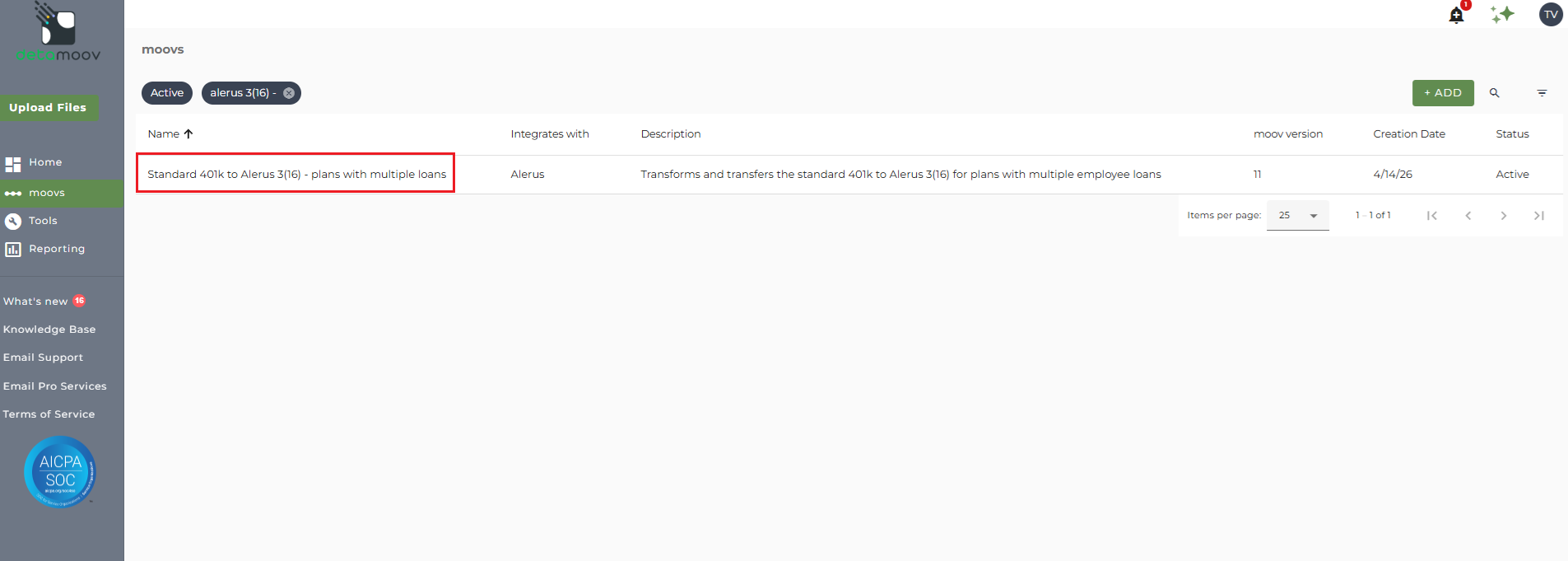
The Standard 401k to Alerus 3(16) - plans with multiple loans moov provides separate summary notifications for contribution and loan data once it has been sent to Alerus. The notifications can be sent to any email address you wish and can also be configured to send to multiple email addresses.
To edit the notification step for contribution data, click on the cog icon under step 9: Action - Notify on the left. Then toggle the "Use default parameters" off and enter in the email addresses you would like to receive the notification. If you would like to enter multiple email addresses, separate them with a comma. A Reply to email is also required in the event that a recipient of the notification replies to the email.
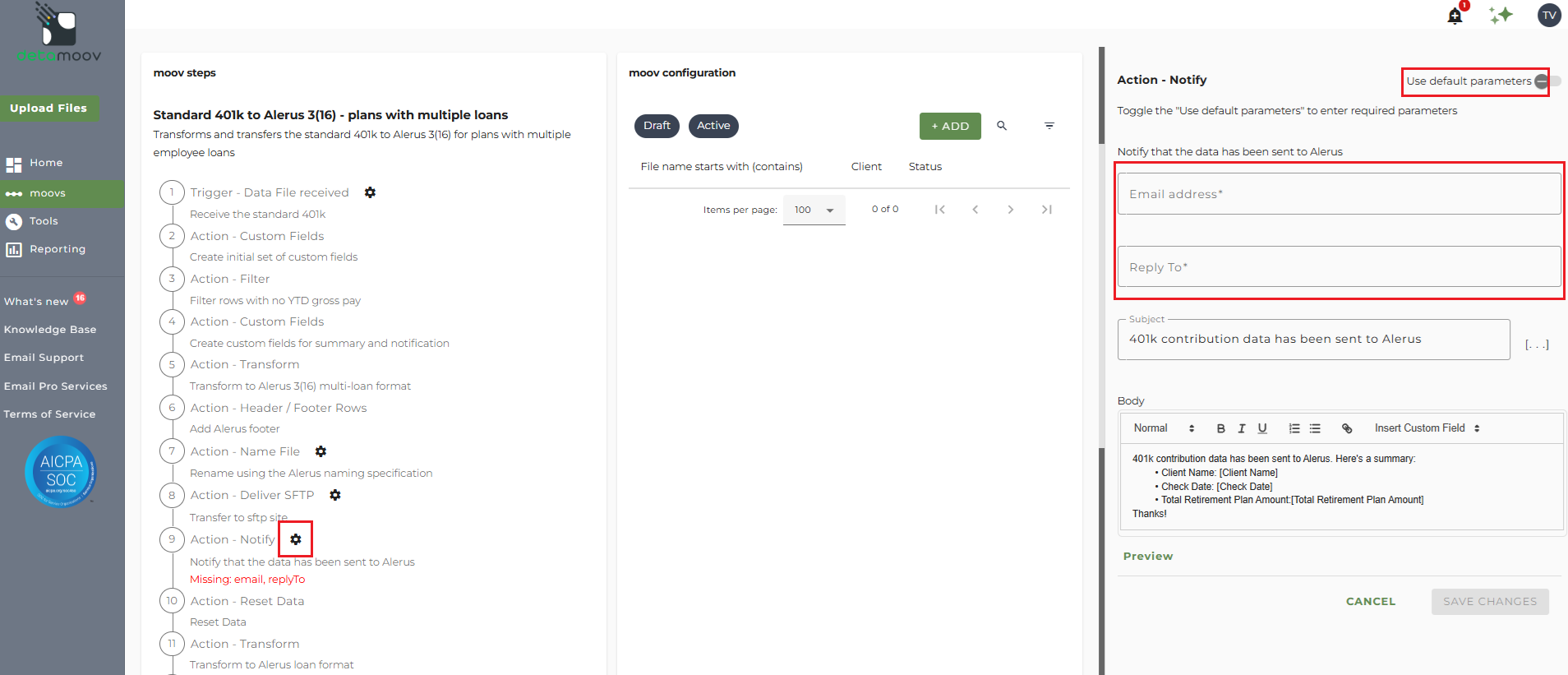
Note: these settings apply to any client configuration you set up for this specific moov. You also have the ability to configure the notification step for each client configuration if you wish to add or remove email addresses per client.
To save your parameters click on the Save Changes button.
To edit the notification step for loan data, click on the cog icon under step 17: Action - Notify on the left. Then toggle the "Use default parameters" off and enter in the email addresses you would like to receive the notification. If you would like to enter multiple email addresses, separate them with a comma. A Reply to email is also required in the event that a recipient of the notification replies to the email.
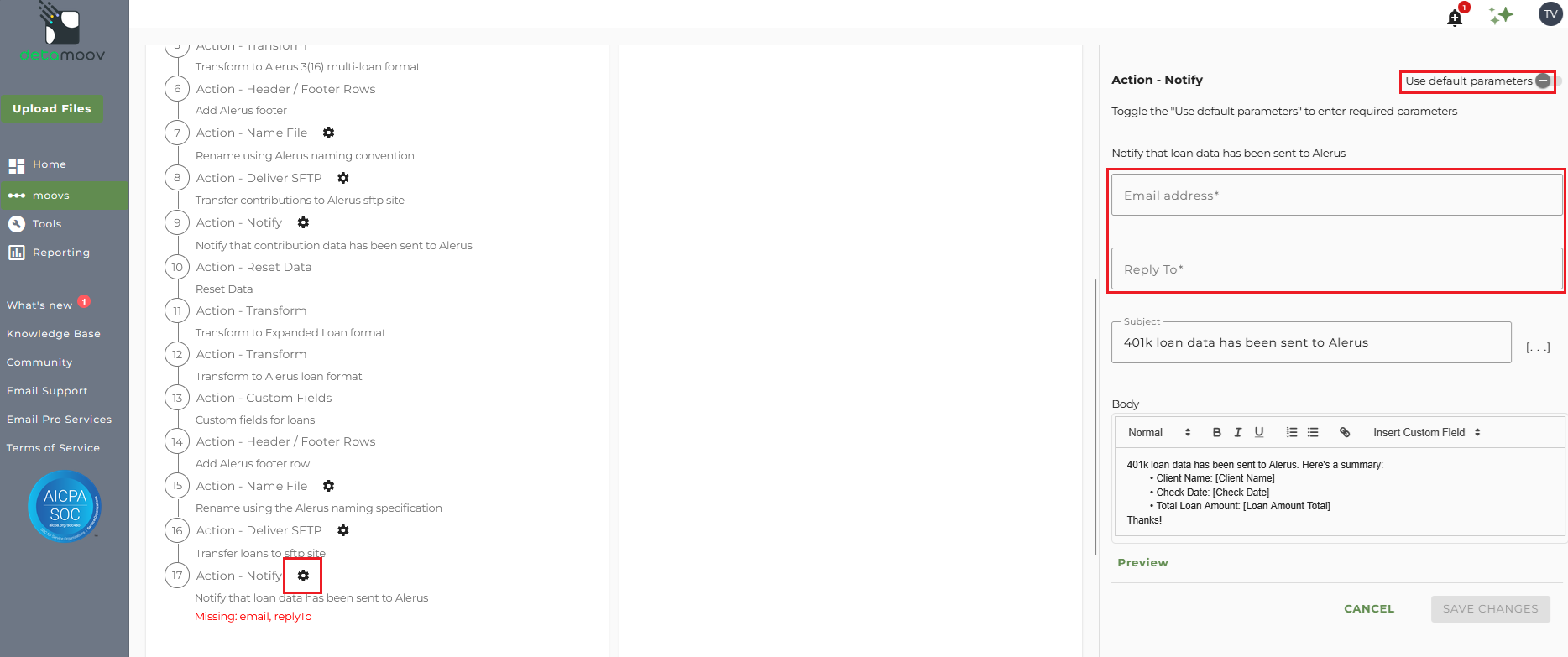
To save your parameters click on the Save Changes button.
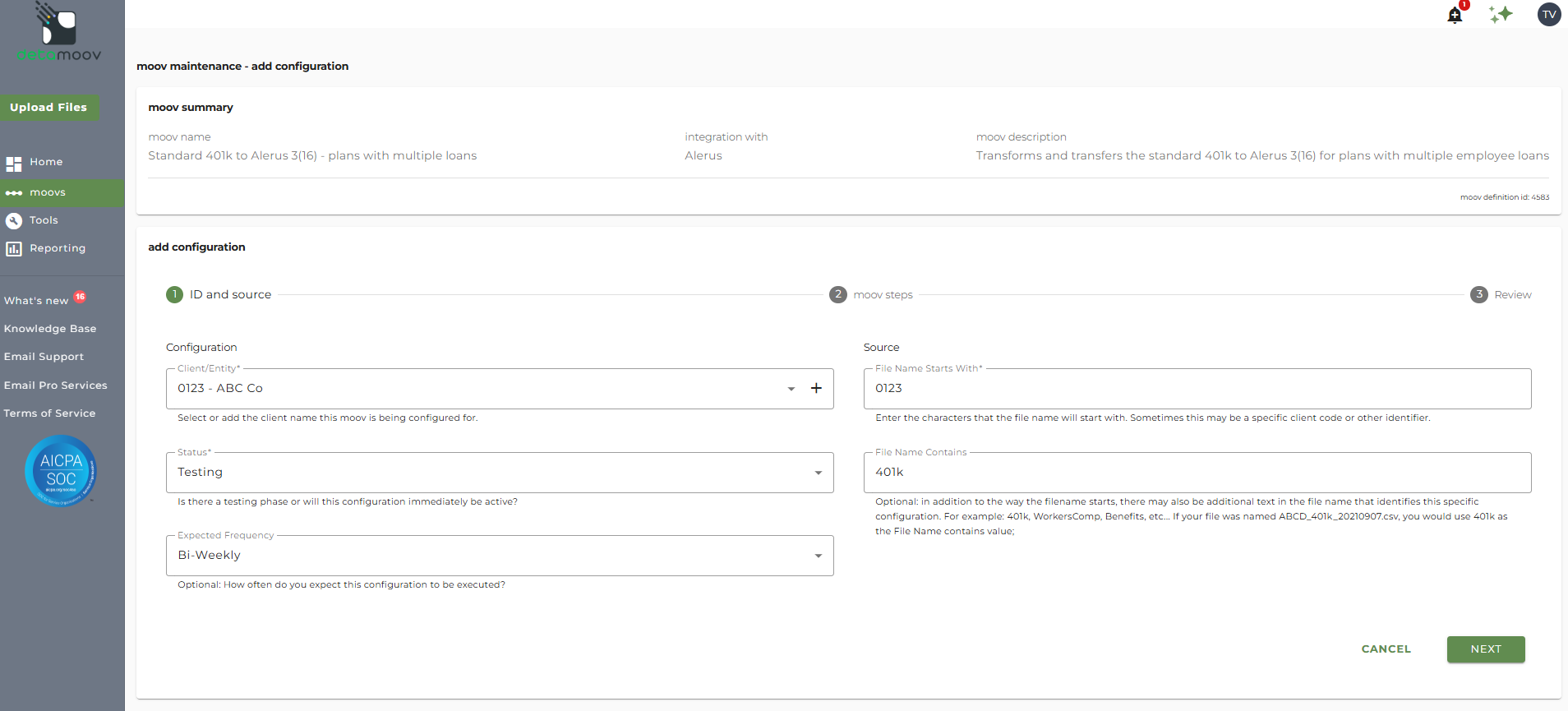
In the moov configuration section, click the Add button to add a new client to send retirement data to Alerus.
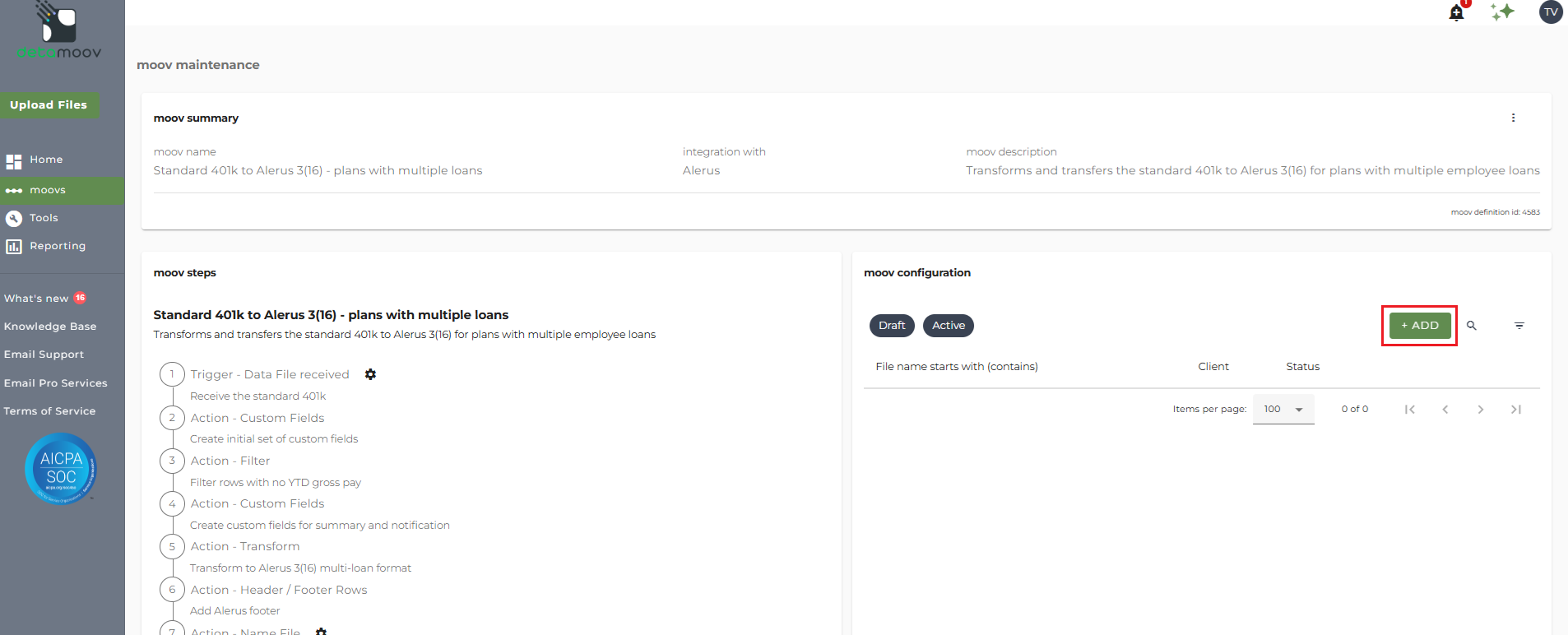
Client/Entity - either select an existing client or click the + sign to create a new client.
Status - this field should be set to 'Testing' until the testing phase has been completed. Please reach out to Alerus before you send a test file.
Expected Frequency - the client's payroll frequency
File Name Starts With - typically the client or company code within your payroll platform. The value entered into this field is important as the file you send to detamoov must start with this value.
File Name Contains - optional value that is included in the file name
Alerus 3(16) Multi Loan File Specifications
For more information on the Alerus 3(16) - plans with multiple loans file specifications detamoov uses to transform the Standard 401k extract file, please visit the Standard 401k to Alerus - plans with multiple loans help page.
Field Overrides - Contributions
Division/Location
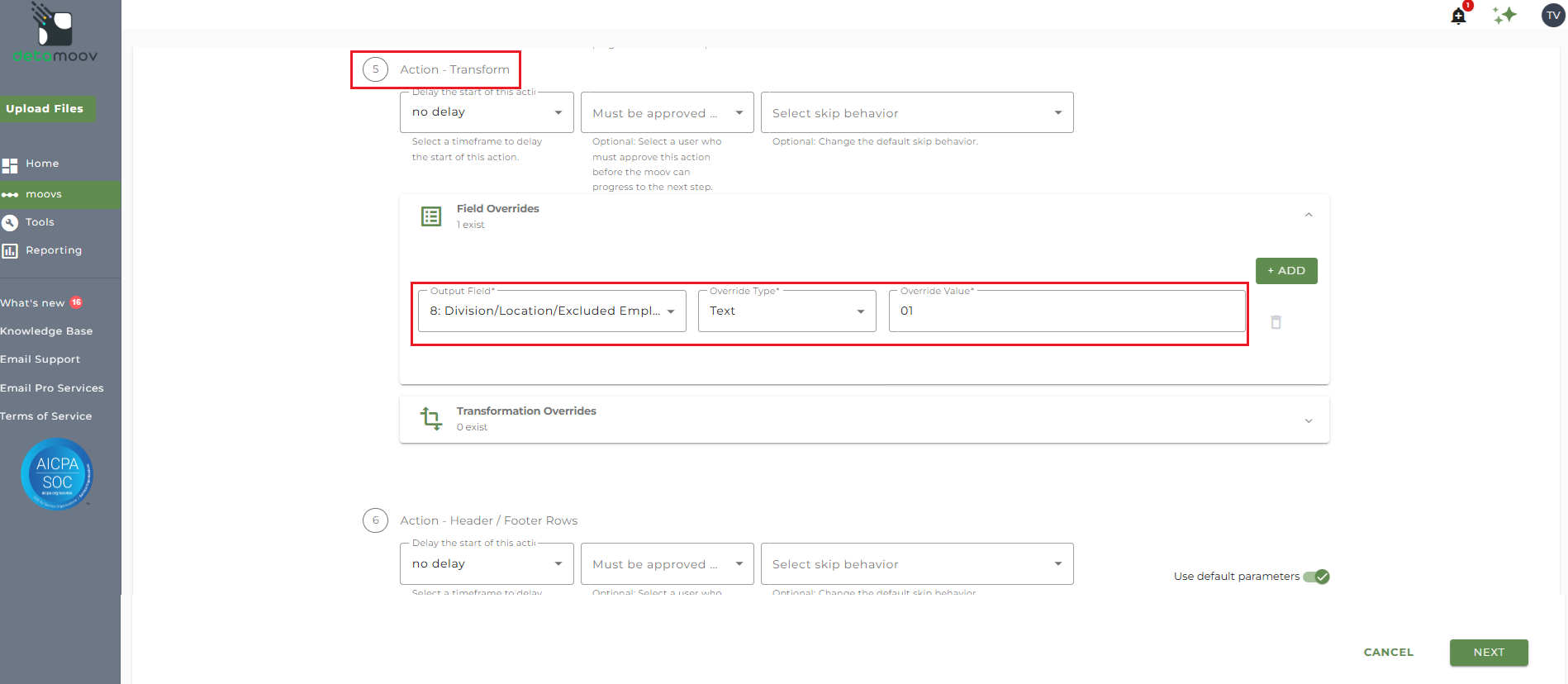
If your client's plan has a Division/Location value, you will need to provide that using a field override. Please contact Alerus to see if your plan requires the Division/Location.
To add a field override for the Division/Location field, locate step 5: Action - Transform and click the Field Overrides panel. Then click the Add button and select '8: Division/Location/Excluded Employees' from the Output field dropdown menu.
Payroll Frequency
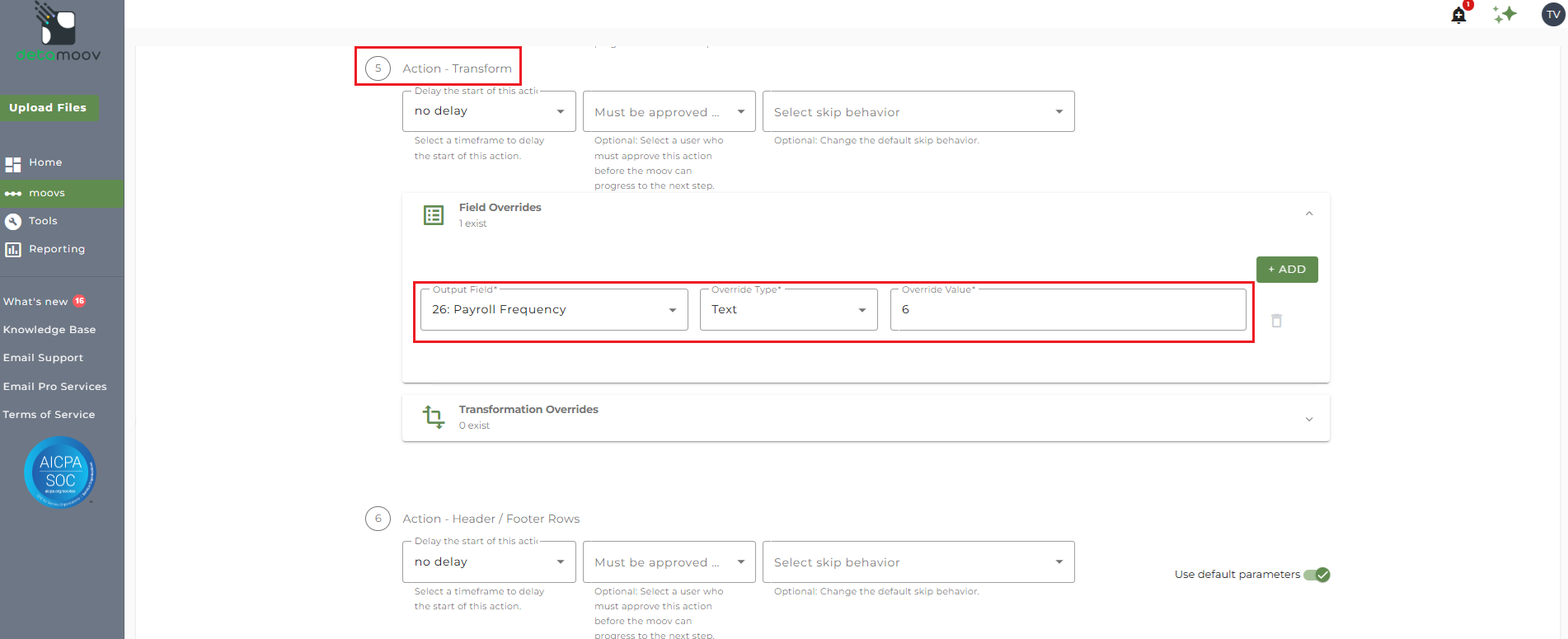
Alerus requires that the Payroll Frequency be included in the contribution file sent to them.
To add a field override for the Payroll Frequency field, locate step 5: Action - Transform and click the Field Overrides panel. Then click the Add button and select '26: Payroll Frequency' from the Output field dropdown menu.
The value you need to enter in the Override Value field will be the Alerus payroll frequency code that corresponds to the client's payroll frequency, here:
Weekly = 7
Bi-Weekly = 6
Semi-Monthly = 5
Monthly = 4
Transformation Overrides - Contributions
Employee Type
Alerus 3(16) format requires that the Employee Type be provider for each employee. The following is a list of employee types and their corresponding Alerus values:
N/A = 0
Full time = 1
Part time = 2
Seasonal = 3
Leased = 4
Union = 5
Non-Resident Alien = 6
Student = 7
Less than Required = 8
Inactive = 9
Expatriate = A
Note: PrismHR Employee Type values are mapped to Reserved4 by default. For other payroll platforms, map the Employee Type in payroll to a reserved field in the Standard 401k extract format.
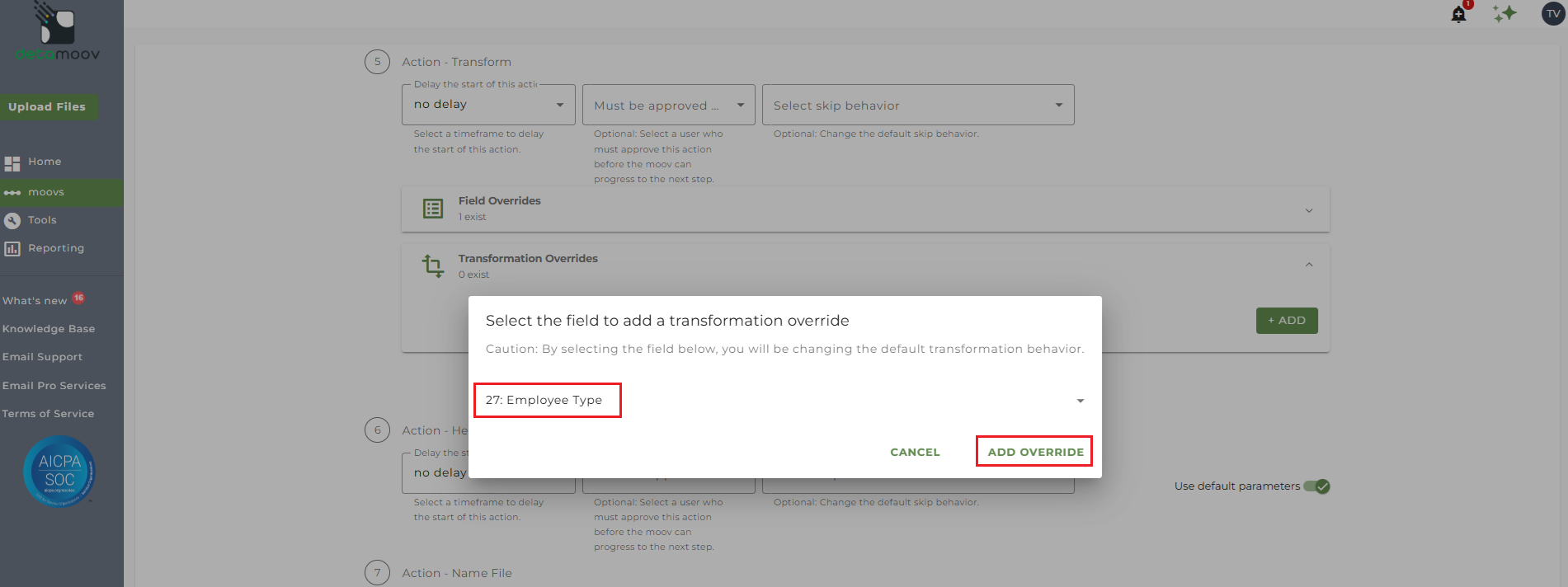
To provide a transformation override to map the employee type in payroll to the Alerus value, locate step 5: Action - Transform , expand the Transformation Overrides panel, and click ADD.
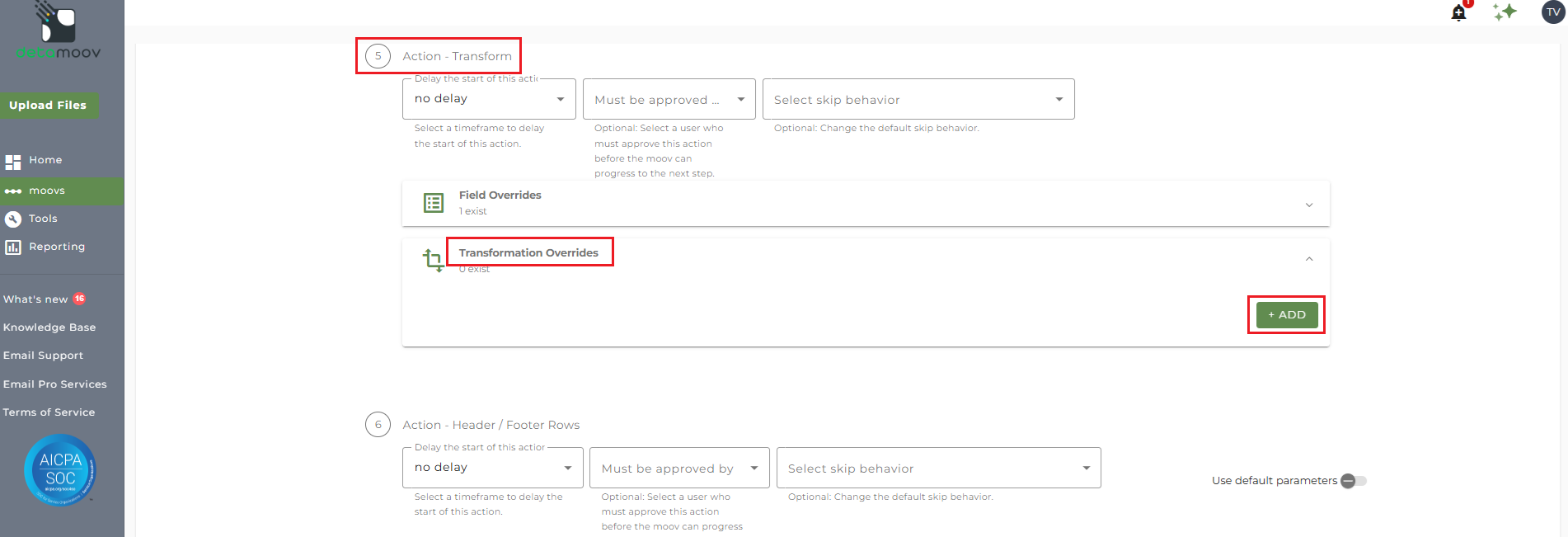
Select field 27: Employee Type and click ADD OVERRIDE.
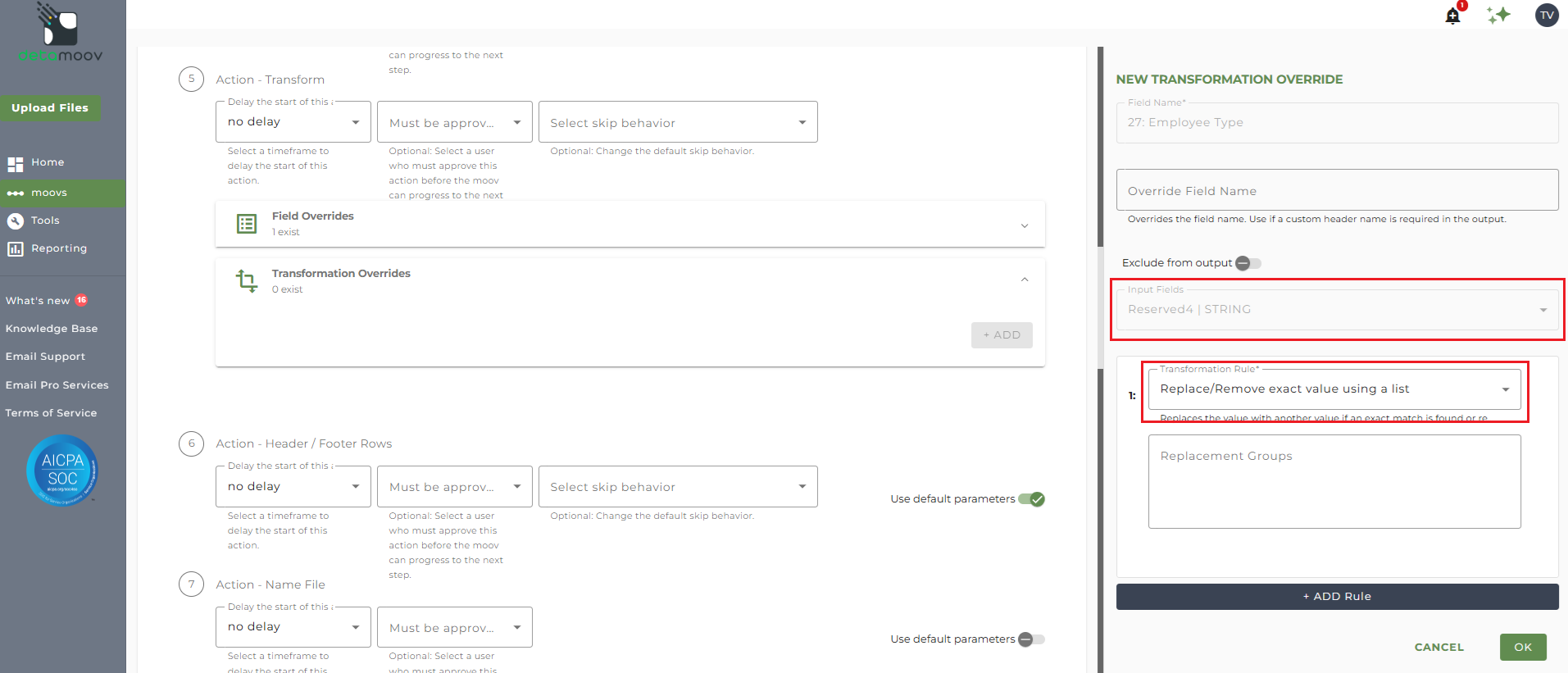
In the Input Field dropdown select the Reserved field where the Employee Type will be passed to detamoov and select the 'Replace/Remove exact value using a list' Transformation Rule.
In the Replacement Groups field, enter in a group for each of the possible Employee Types. For example, if Full Time is coming out of payroll as 'FT', and Part Time as 'PT', enter a replace group for each. A replacement group is the value coming out of payroll and the value to be replaced, separate by a pipe-character. Refer to the client's payroll configuration for the exact values coming out of payroll.
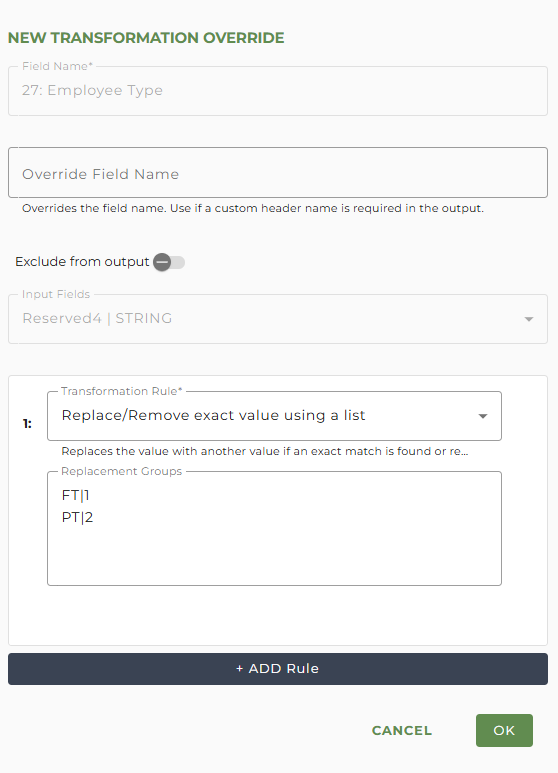
Click OK once you have added the appropriate replacement groups.
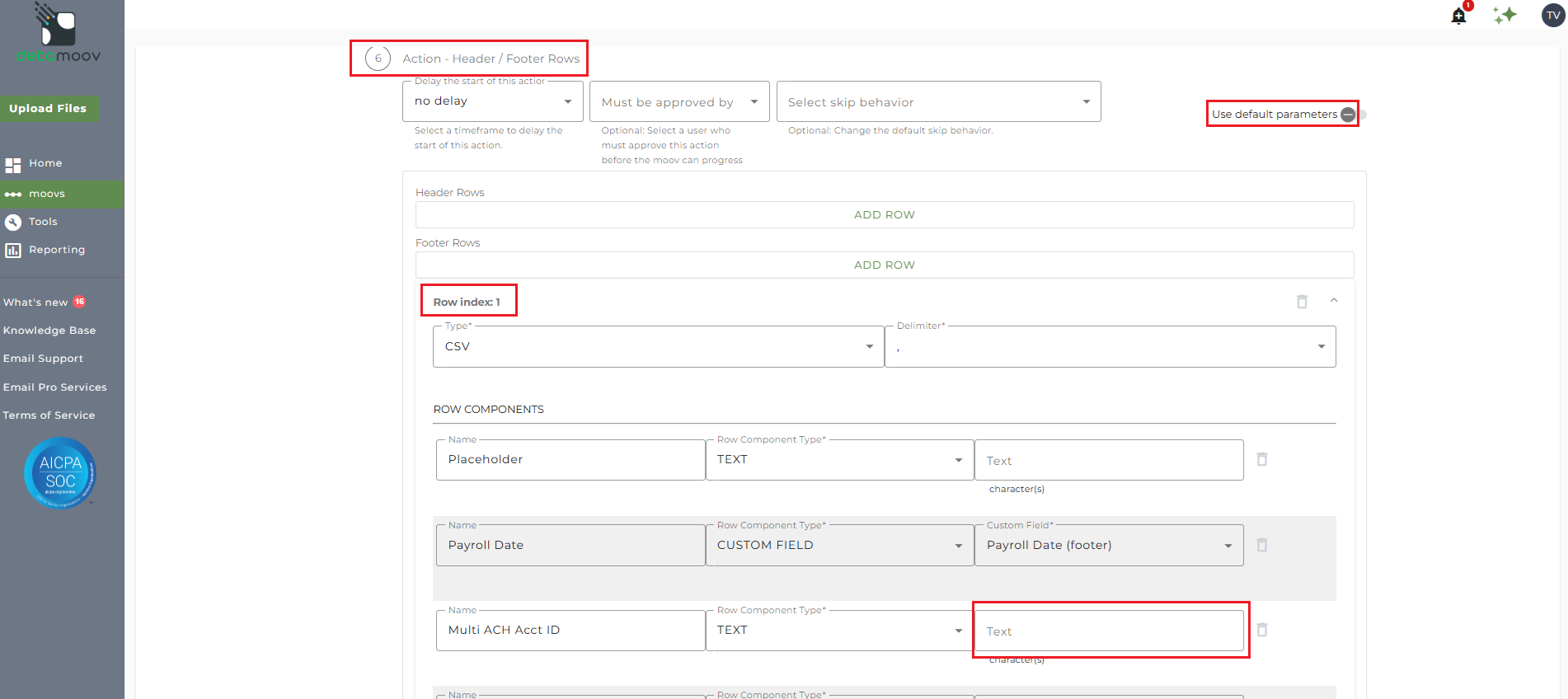
Alerus may require the ACH Account ID be provided in the footer row of the file sent to them. To provide the ACH Account ID, locate step: 6 Action - Header/Footer Rows and click the Row index: 1 to expand the Footer Rows. Then, locate the row component for 'Multi ACH Account ID' and enter in the ACH Account ID in the text field.
File Name Overrides - Contributions
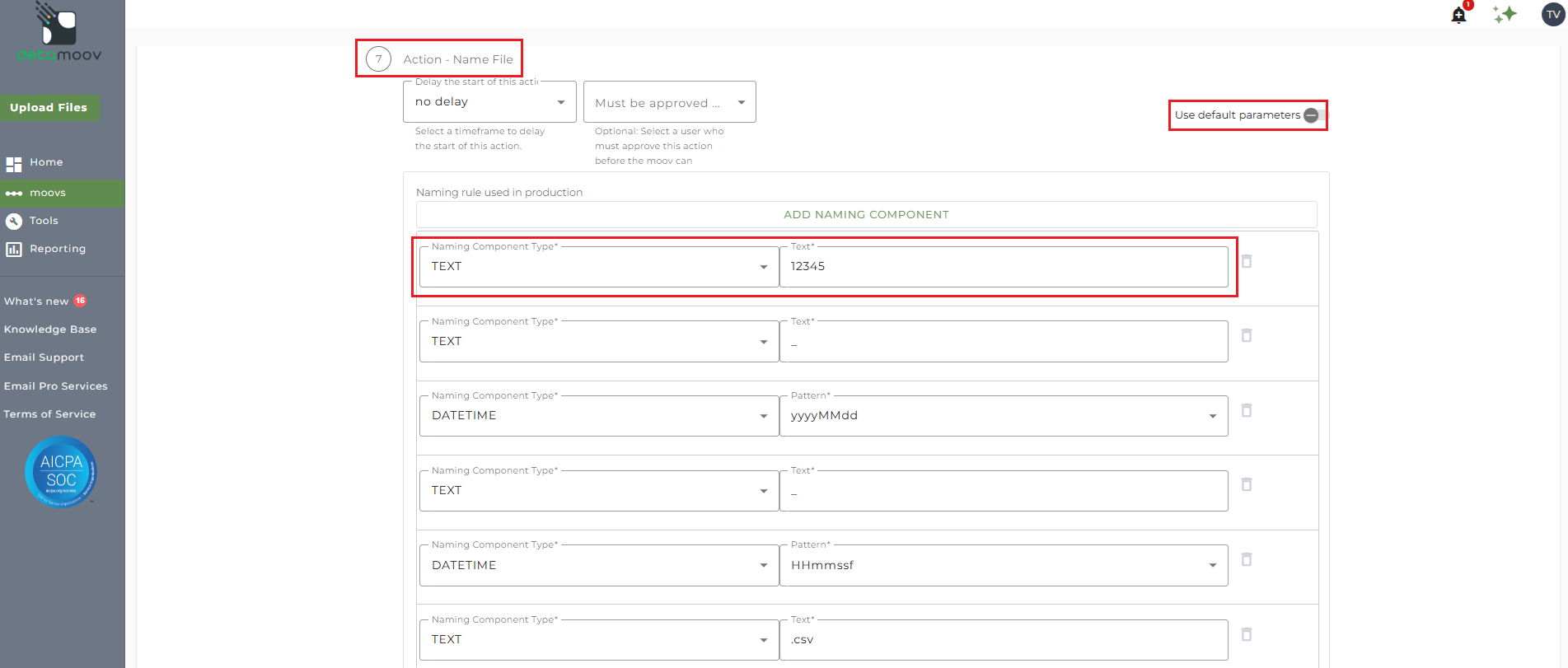
Alerus requires that the Plan ID be included in file name. If you do not store the Plan ID in payroll then you will need to add an override for the Plan ID in the file name.
To add a file name override, locate step 7: Action - Name File and toggle the 'Use default parameters' off. Then change the Naming Component Type Custom Field of Plan ID to Text and enter in the Plan ID.
Notification step overrides - Contributions
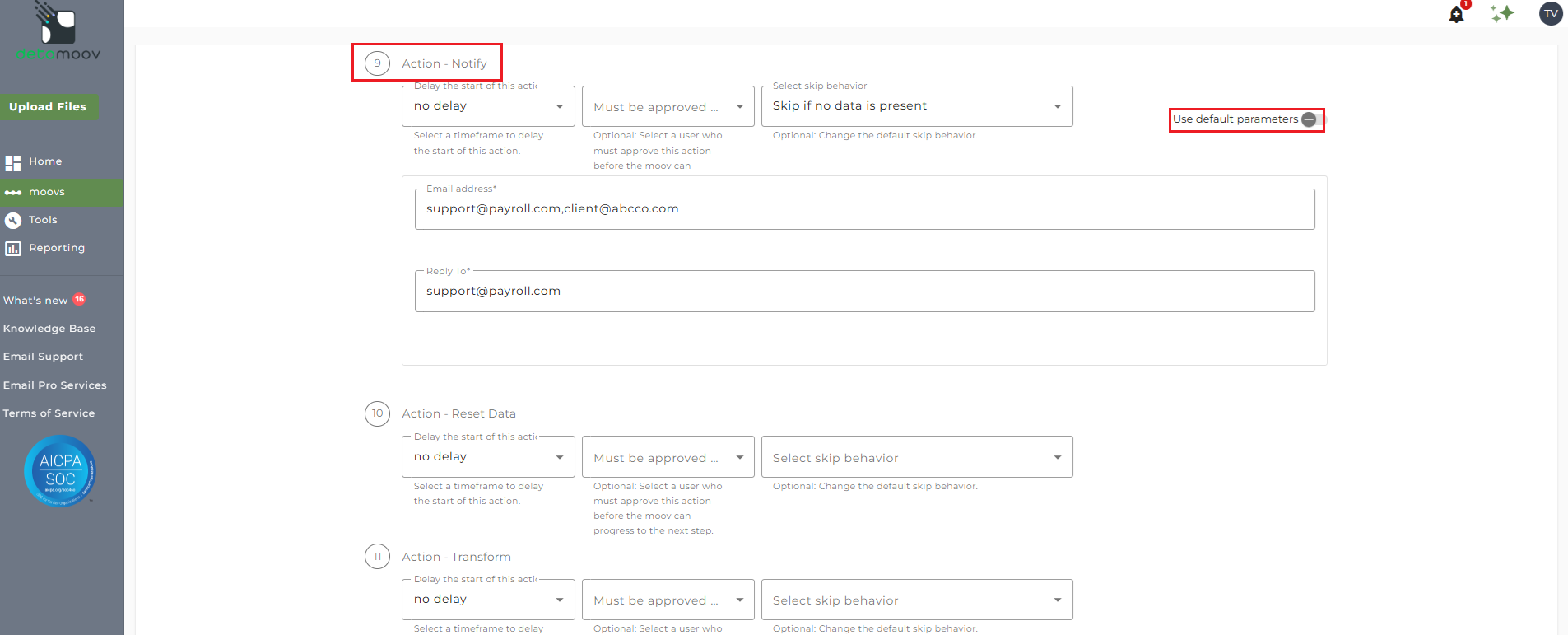
At the beginning of this article you configured the notification step for the moov to send a notification once contribution data has been sent to Alerus. You also have the ability to configure the notification step for each client configuration if you wish to add or remove email addresses per client.
To override the notification step, locate step 9: Action - Notify and toggle the "Use default parameters" off and enter/remove email addresses from Email Address and Reply To fields. If you would like to enter multiple email addresses, separate them with a comma.
Division/Location
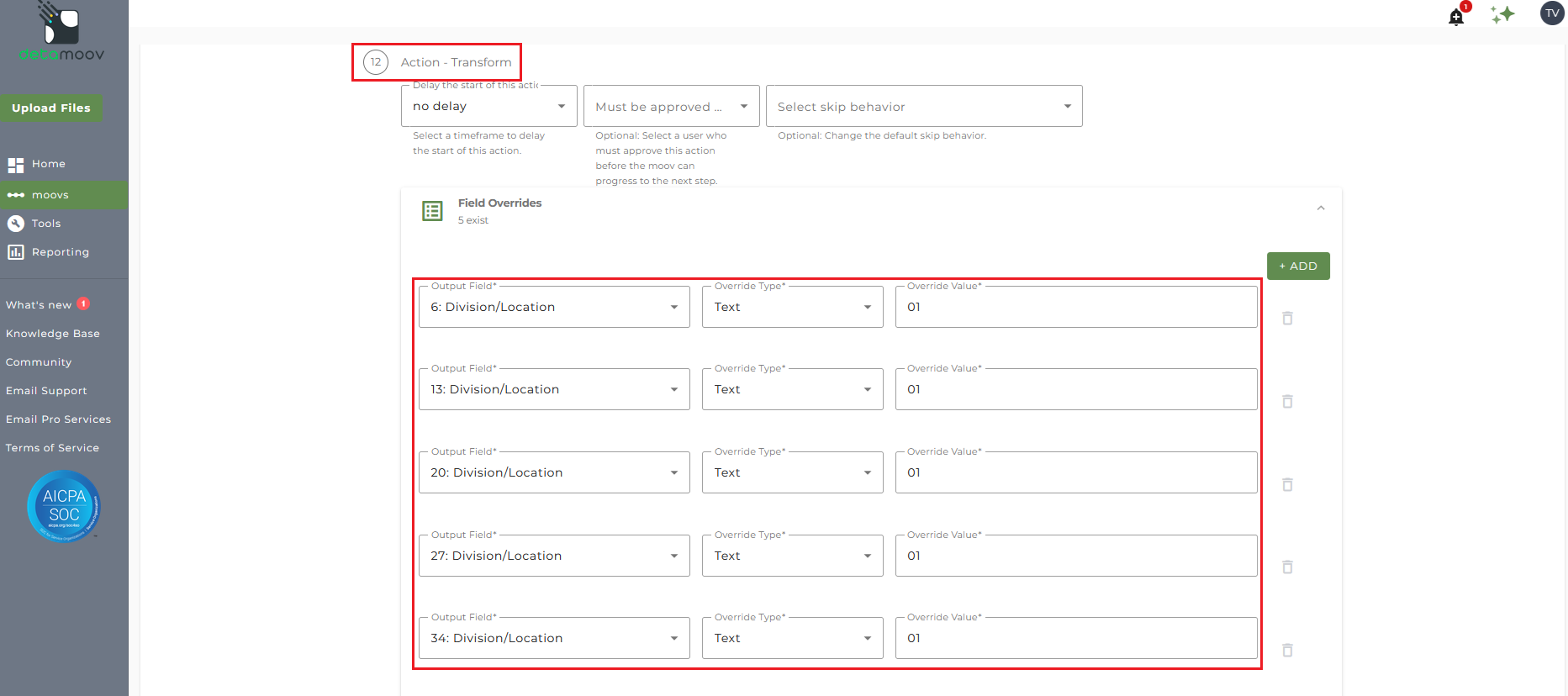
If your client's plan has a Division/Location value, you will need to provide that using a field override. Please contact Alerus to see if your plan requires the Division/Location.
To add a field override for the Division/Location field, locate step 12: Action - Transform and click the Field Overrides panel. Then click the Add button and set an override for the following fields:
6: Division/Location
13: Division/Location
20: Division/Location
27: Division/Location
34: Division/Location
Payroll Frequency
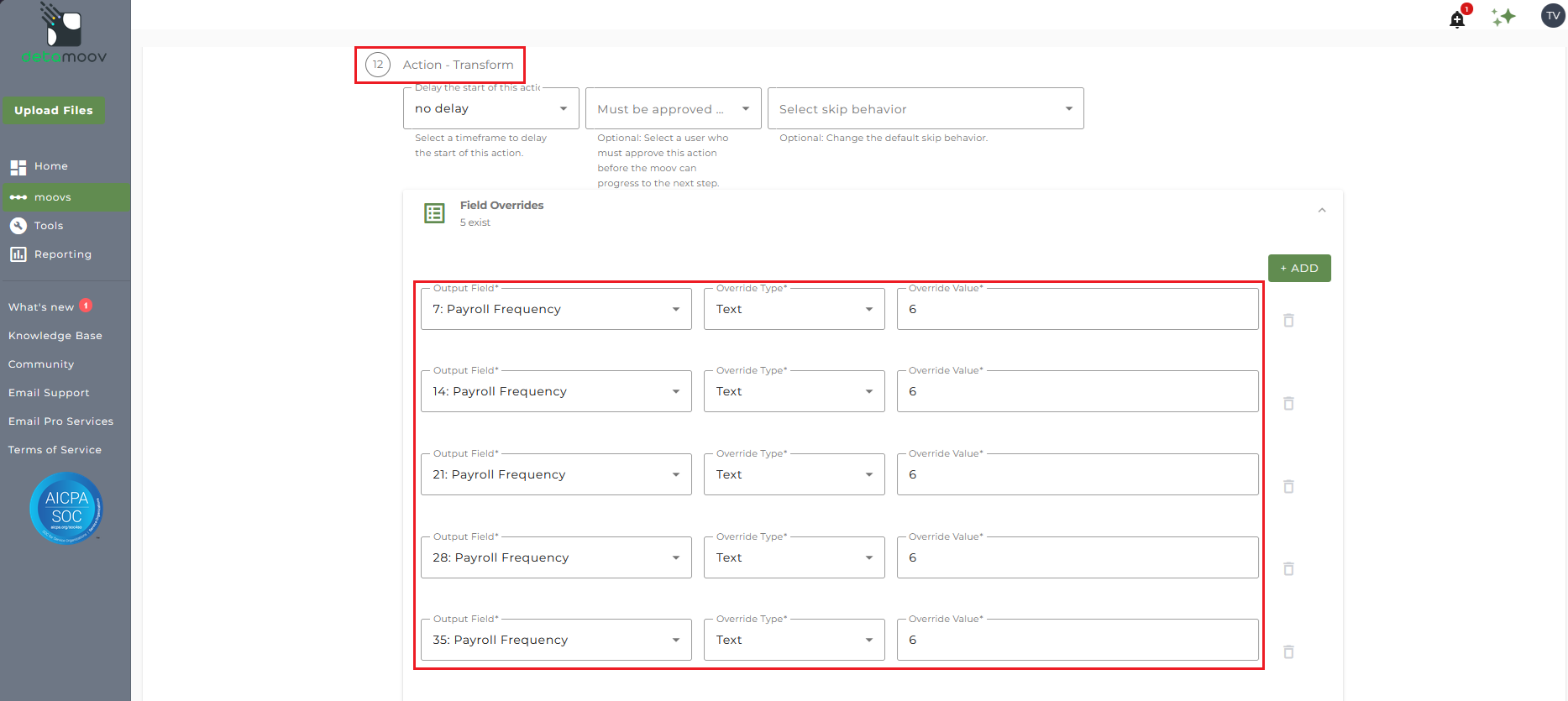
Alerus requires that the Payroll Frequency be included in the loan file sent to them.
To add a field override for the Payroll Frequency field, locate step 12: Action - Transform and click the Field Overrides panel. Then click the Add button and select and enter a value for the following fields:
7: Payroll Frequency
14: Payroll Frequency
21: Payroll Frequency
28: Payroll Frequency
35: Payroll Frequency
The value you need to enter in the Override Value field will be the Alerus payroll frequency code that corresponds to the client's payroll frequency, here:
Weekly = 7
Bi-Weekly = 6
Semi-Monthly = 5
Monthly = 4
Transformation Overrides - Loans
The Alerus 3(16) - plans with multiple loans moov creates a unique record for each loan received for an employee. If any of the employees in your client's plan has 3+ loans, you will need to set a transformation override to provide the amount of each loan. detamoov receives the Loan Number in payroll for any loan past loan 2, but not the loan amount.
For example, employee with payroll employee number A12345 has these three loans:
| Loan Number | Payment Amount | Field to Override |
| 1 | $100 | None |
| 2 | $200 | 12: Loan 2 Payment Amount |
| 3 | $300 | 19: Loan 3 Payment Amount |
Loan #1 amount is received and no transformation override is required.
However, Loan #2 and Loan #3 amounts will need to be mapped to the employee.
Note: These overrides only need to be applied for employees that have three or more loans.
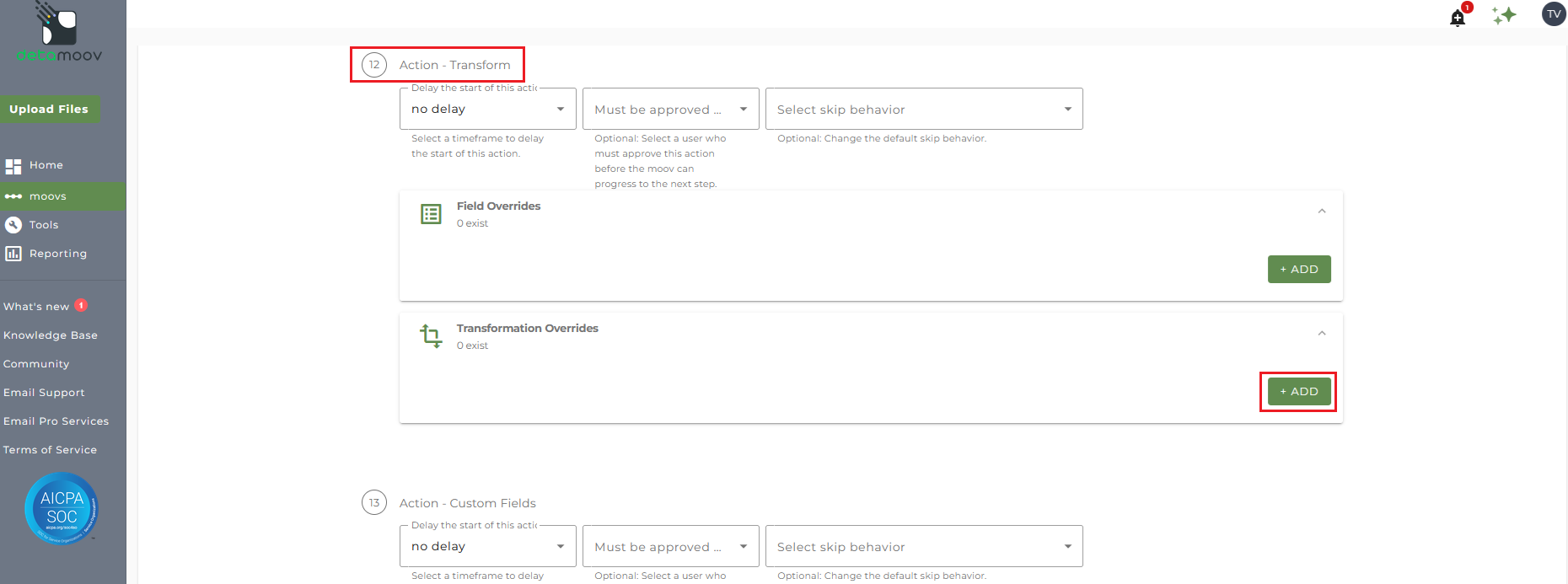
To provide a transformation override to map the Employee Number to the Loan amount in payroll, locate step 12: Action - Transform , expand the Transformation Overrides panel, and click ADD.
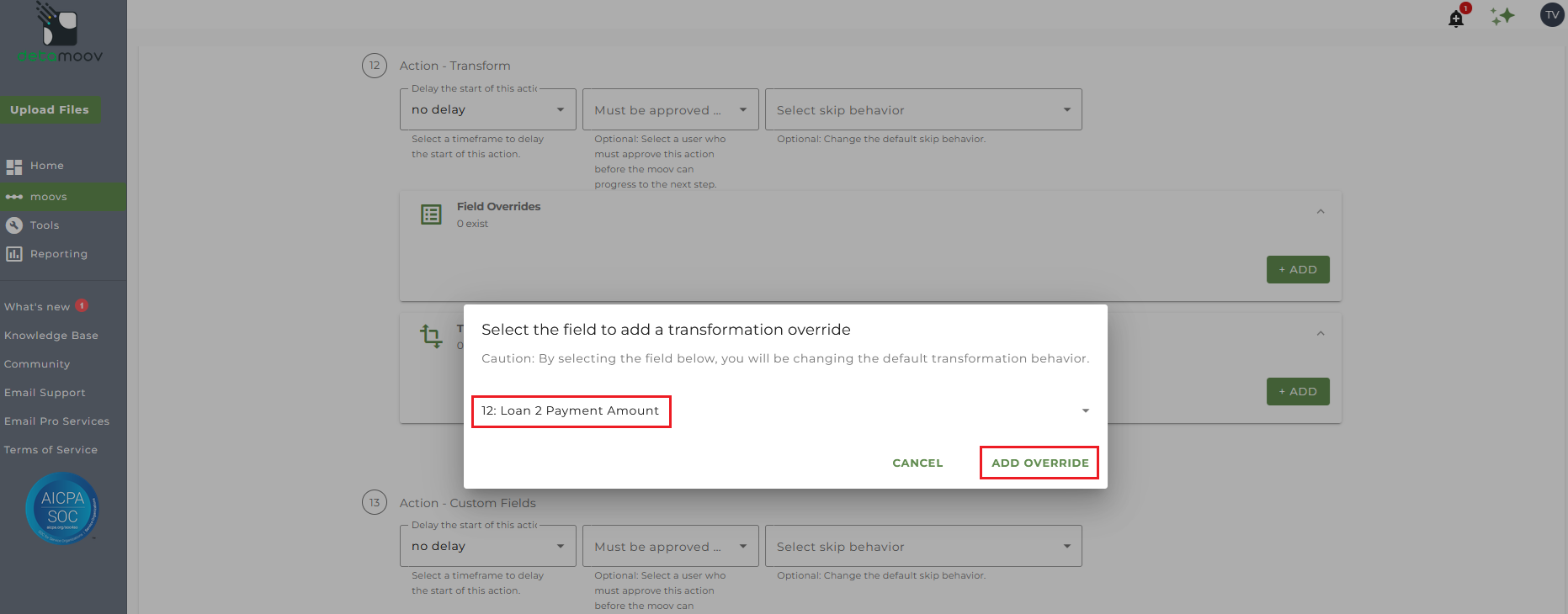
Select field 12: Loan 2 Payment Amount and click ADD OVERRIDE.
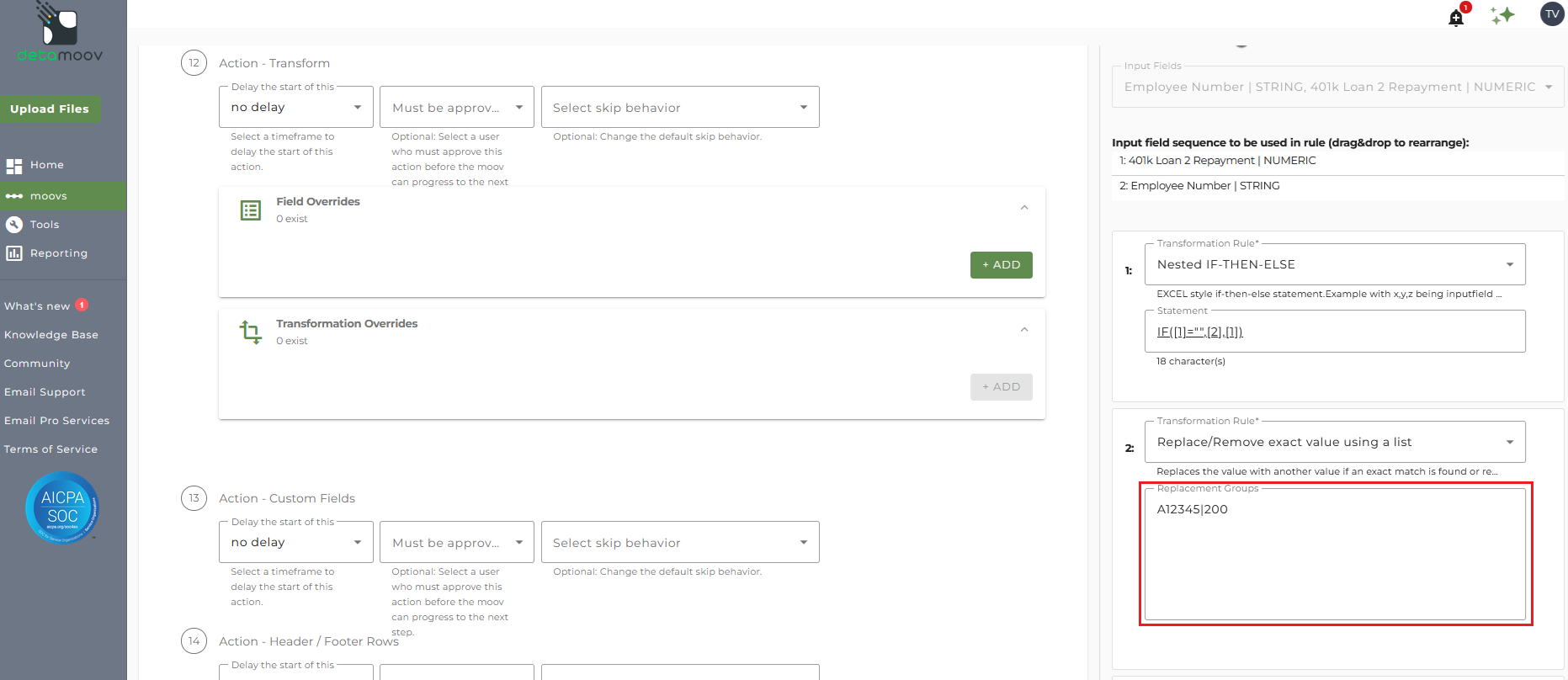
On the side panel that appears, locate the rule 'Replace/Remove exact value using a list'. Using the employee's number in payroll, create a replacement group for the loan amount and click OK at the bottom.
A replacement group is separated by a pipe character. Separate replacement groups are required for any employee that has three or more loans.
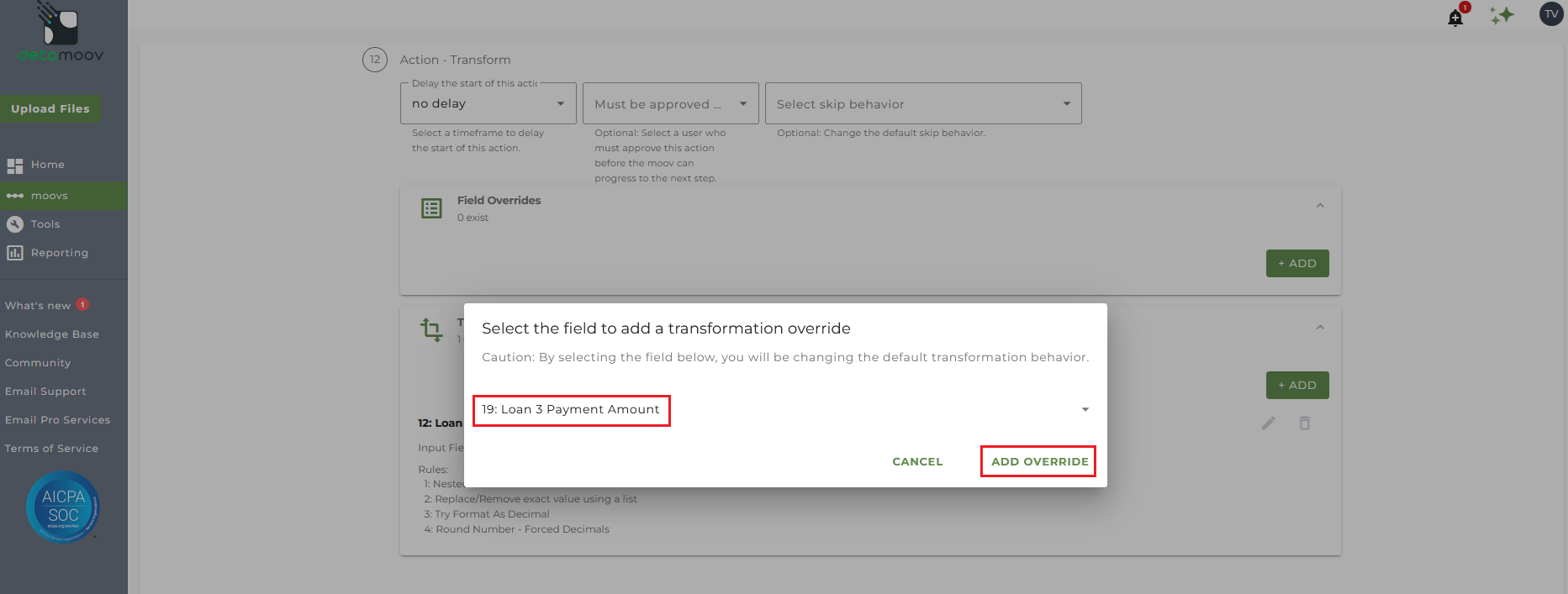
In our example above, the employee has three loans and another transformation override is required to map the employee number in payroll to the loan amount.
Locate step 12: Action - Transform , expand the Transformation Overrides panel, and click ADD.
Select field 19: Loan 3 Payment Amount and click ADD OVERRIDE.
On the side panel that appears, locate the rule 'Replace/Remove exact value using a list'. Using the employee's number in payroll, create a replacement group for the loan amount and click OK at the bottom.
A replacement group is separated by a pipe character. Separate replacement groups are required for any employee that has three or more loans.
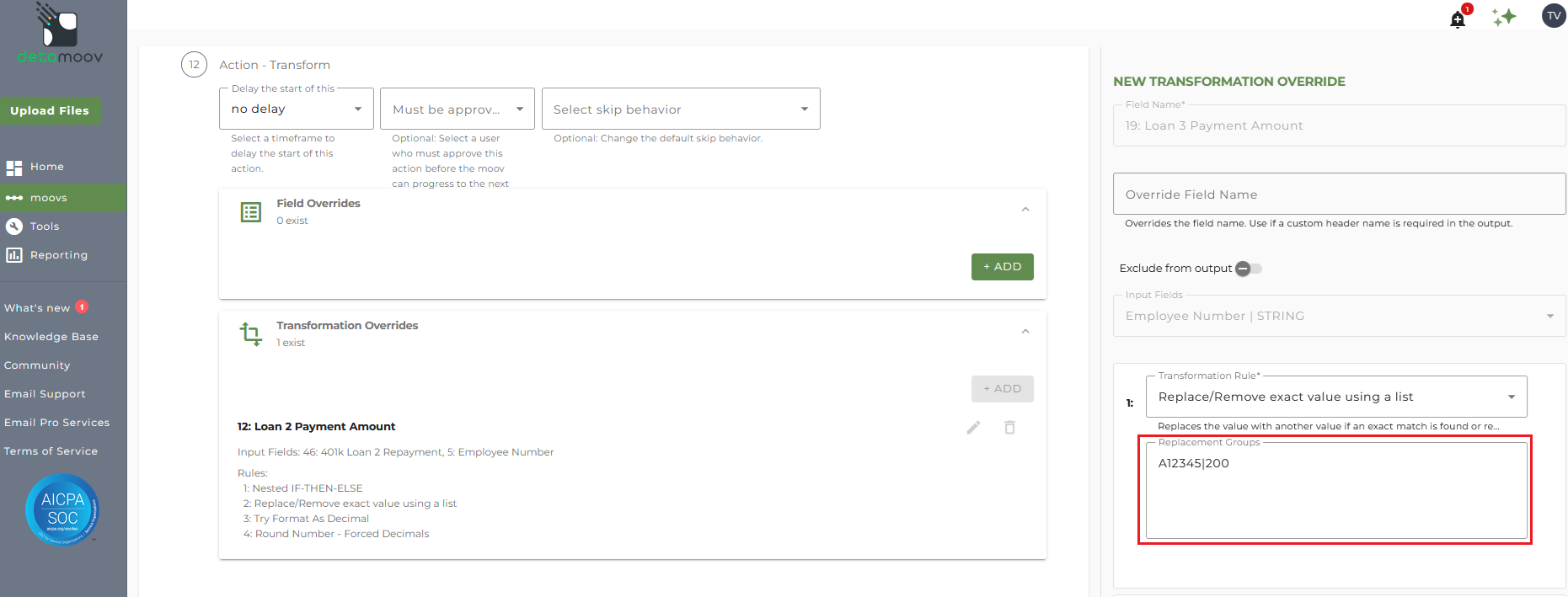
You will need to repeat the transformation override if the employee has a fourth of fifth loan using these fields:
26: Loan 4 Payment Amount
33: Loan 5 Payment Amount
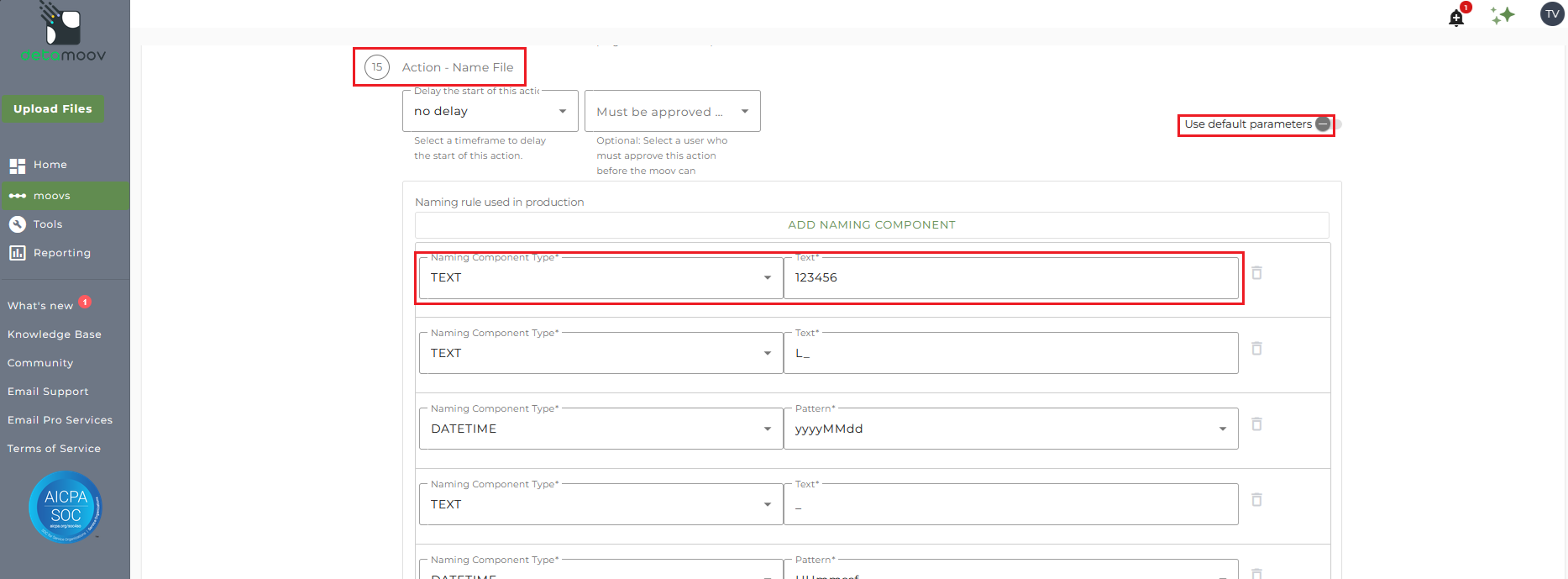
Alerus requires that the Plan ID be included in file name. If you do not store the Plan ID in payroll then you will need to add an override for the Plan ID in the file name.
To add a file name override, locate step 15: Action - Name File and toggle the 'Use default parameters' off. Then change the Naming Component Type Custom Field of Plan ID to Text and enter in the Plan ID.
Notification step overrides - Loans
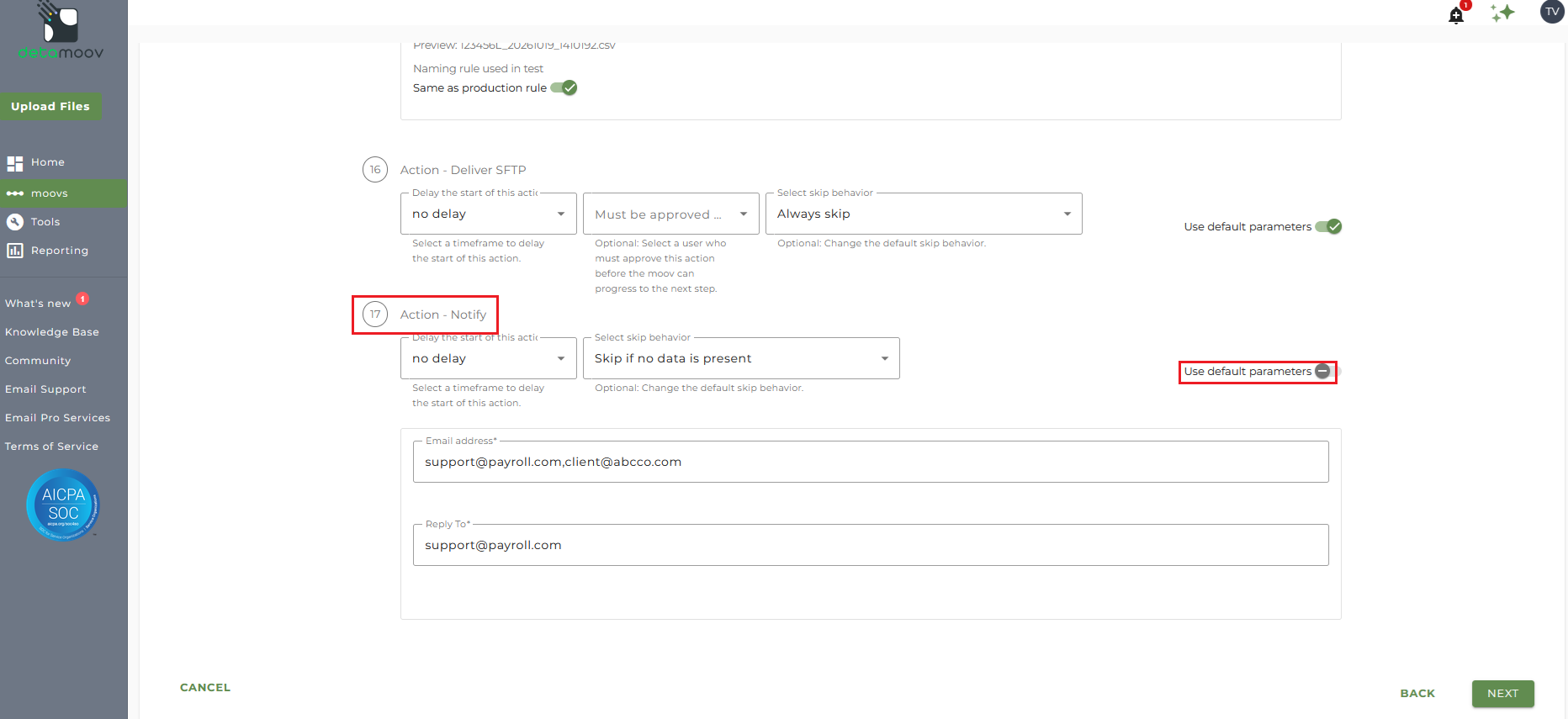
At the beginning of this article you configured the notification step for the moov to send a notification once the moov had completed. You also have the ability to configure the notification step for each client configuration if you wish to add or remove email addresses per client.
To override the notification step, locate step 17: Action - Notify and toggle the "Use default parameters" off and enter/remove email addresses from Email Address and Reply To fields. If you would like to enter multiple email addresses, separate them with a comma.
To complete the configuration for your client, click the Next button at the bottom of the page and then the Save button on the moov summary page.

