

This article describes how to configure a client for the Standard 401k to T. Rowe Price (direct) moov definition. Each client configuration will vary based on their plan specification and will need to be configured accordingly.
NOTE: this moov integrates to T. Rowe Price directly using their set of specifications. detamoov also offers a T. Rowe Price via SS&C as a separate integration. If your client's plan specifications are SS&C, please see the How to configure the T. Rowe Price (SS&C) moov article for help configuring the plan.
If you have not already done so, please add the Standard 401k to T. Rowe Price (direct) moov to your account by following these steps.
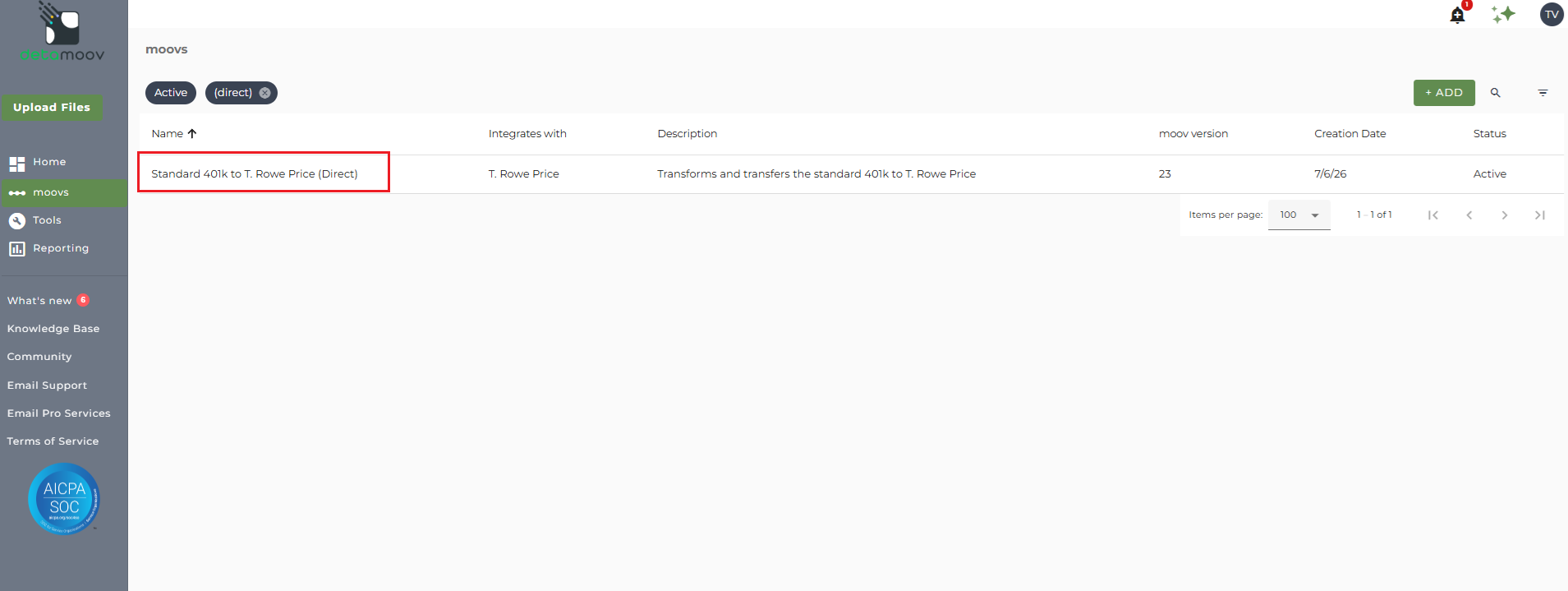
Once the Standard 401k to T. Rowe Price (direct) moov has been added to your account, access the moovs section on the left side menu and click on the Standard 401k to T. Rowe Price (direct) moov.
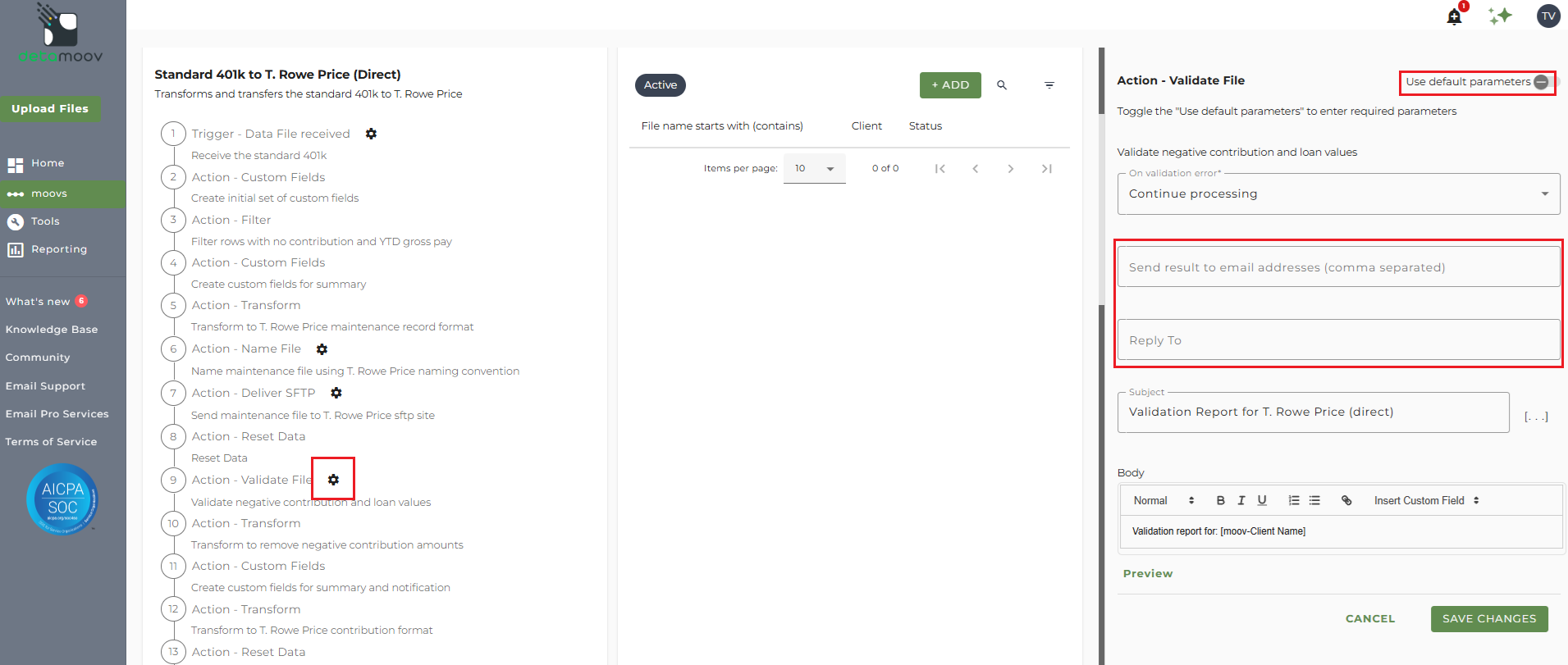
T. Rowe Price will reject negative contribution amounts as the investment cannot be a net amount. detamoov will flag any negative contribution amounts received in the payroll and send an email notification. Negative amounts will be removed from the employee contribution records and the total contribution amounts sent to T. Rowe Price.
To ensure that you receive the notification, click the cog icon under step 9: Action - Validate File on the left. Then toggle the "Use default parameters" off and enter in the email address where you would like to receive the notification. If you would like to enter multiple email addresses, separate them with a comma. A Reply to email is also required in the event that a recipient of the notification replies to the email.
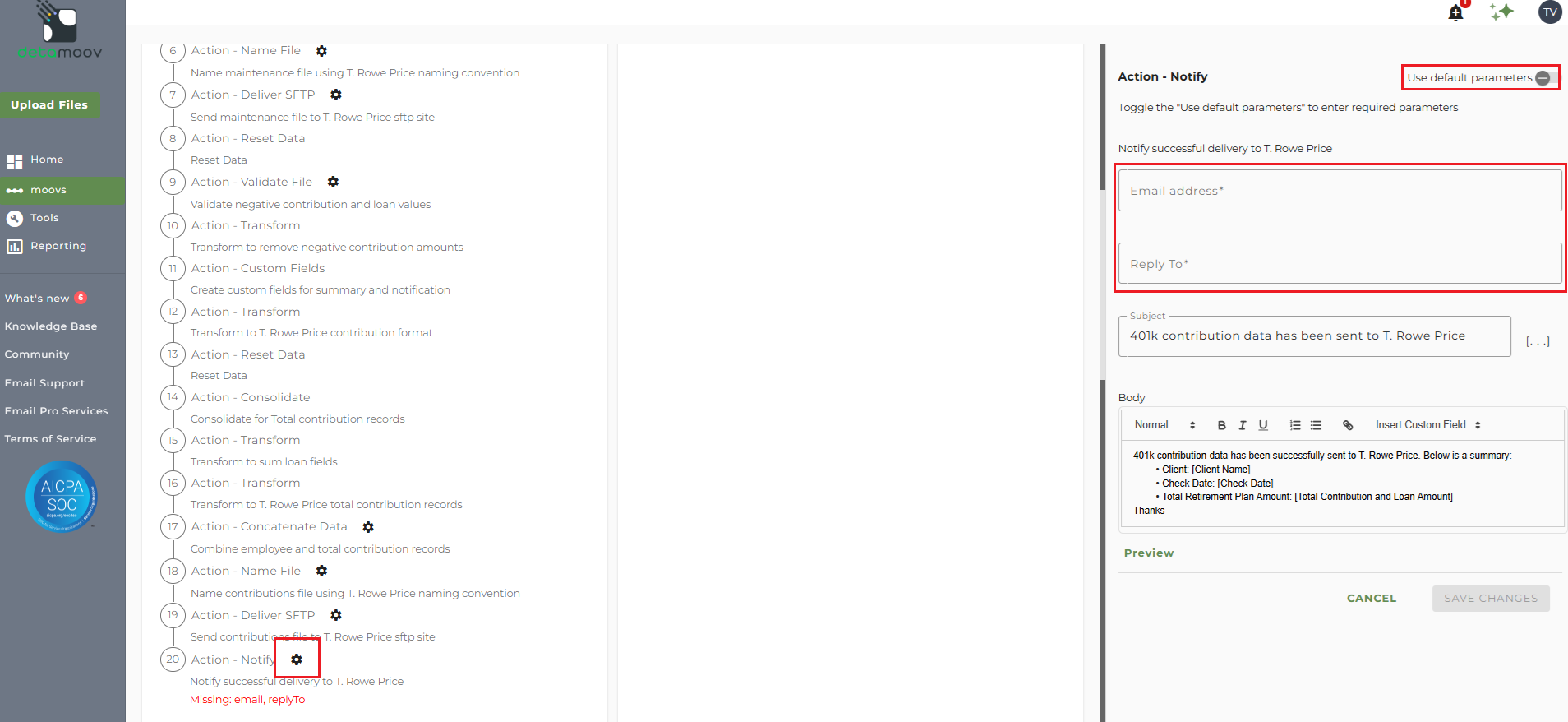
The Standard 401k to T. Rowe Price (direct) moov provides a notification for when both employee maintenance and employee contribution files have been sent and the moov is complete. The notification can be sent to any email address you wish and can also be configured to send to multiple email addresses.
To edit the notification step, click on the cog icon under step 20: Action - Notify on the left. Then toggle the "Use default parameters" off and enter in the email addresses you would like to receive the notification. If you would like to enter multiple email addresses, separate them with a comma. A Reply to email is also required in the event that a recipient of the notification replies to the email.
Note: these settings apply to any client configuration you set up for this specific moov. You also have the ability to configure the notification step for each client configuration if you wish to add or remove email addresses per client.
To save your parameters click on the Save Changes button.
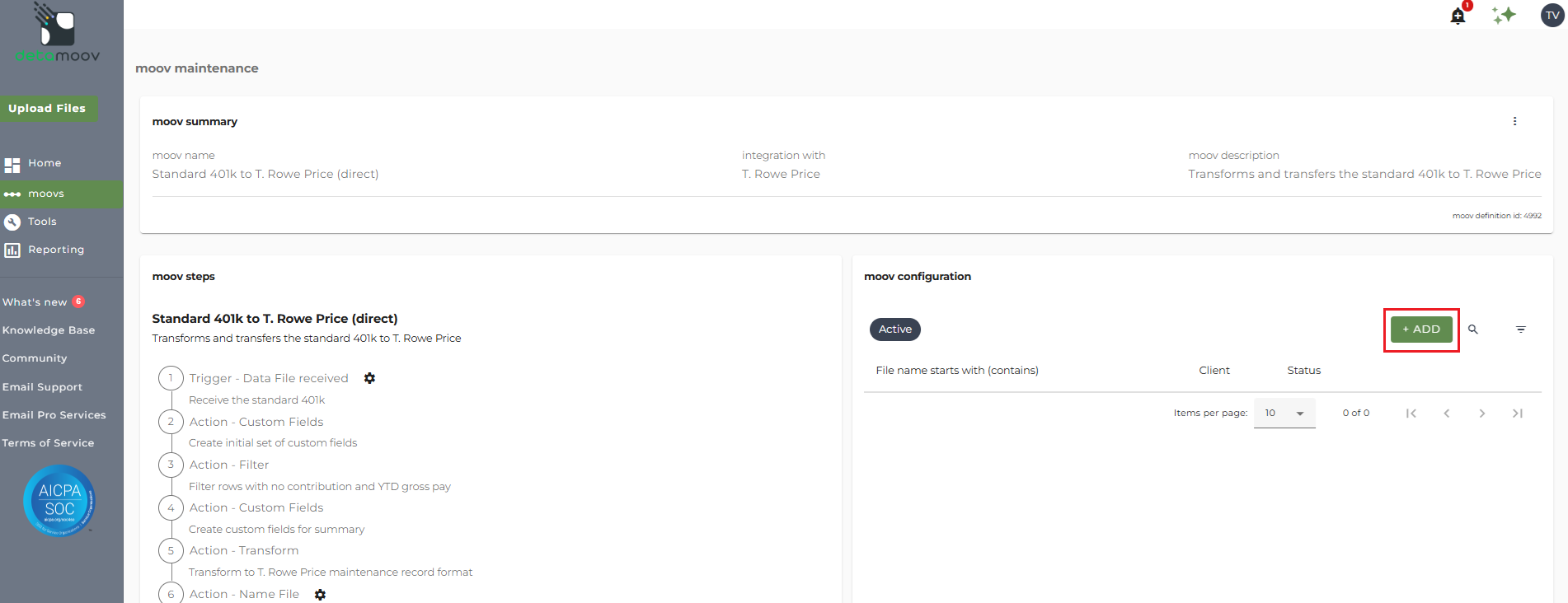
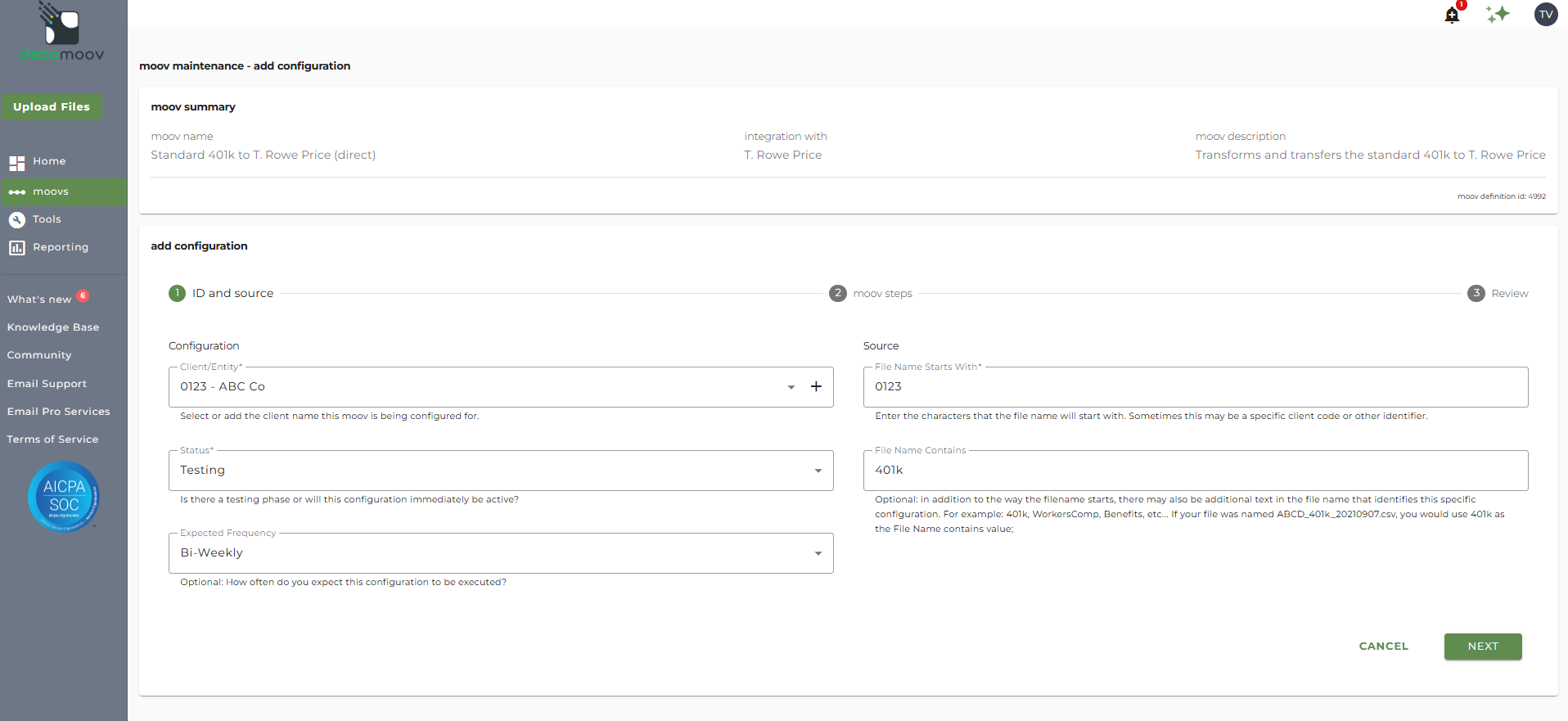
In the moov configuration section, click the Add button to add a new client to send retirement data to T. Rowe Price.
Client/Entity - either select an existing client or click the + sign to create a new client.
Status - the status field is important when configuring a new integration with T. Rowe Price as it provides the correct SFTP directory used to send to T. Rowe Price while in their testing phase. This field should be set to 'Testing' until the testing phase has been completed. Once a test file has been sent, contact T. Rowe Price to notify them that the test file is ready for review.
Expected Frequency - the client's payroll frequency
File Name Starts With - typically the client or company code within your payroll platform. The value entered into this field is important as the file you send to detamoov must start with this value.
File Name Contains - optional value that is included in the file name
T. Rowe Price File Specifications
For more information on the T. Rowe Price file specifications detamoov uses to transform the Standard 401k extract file, please visit the Standard 401k to T. Rowe Price (direct) help page.
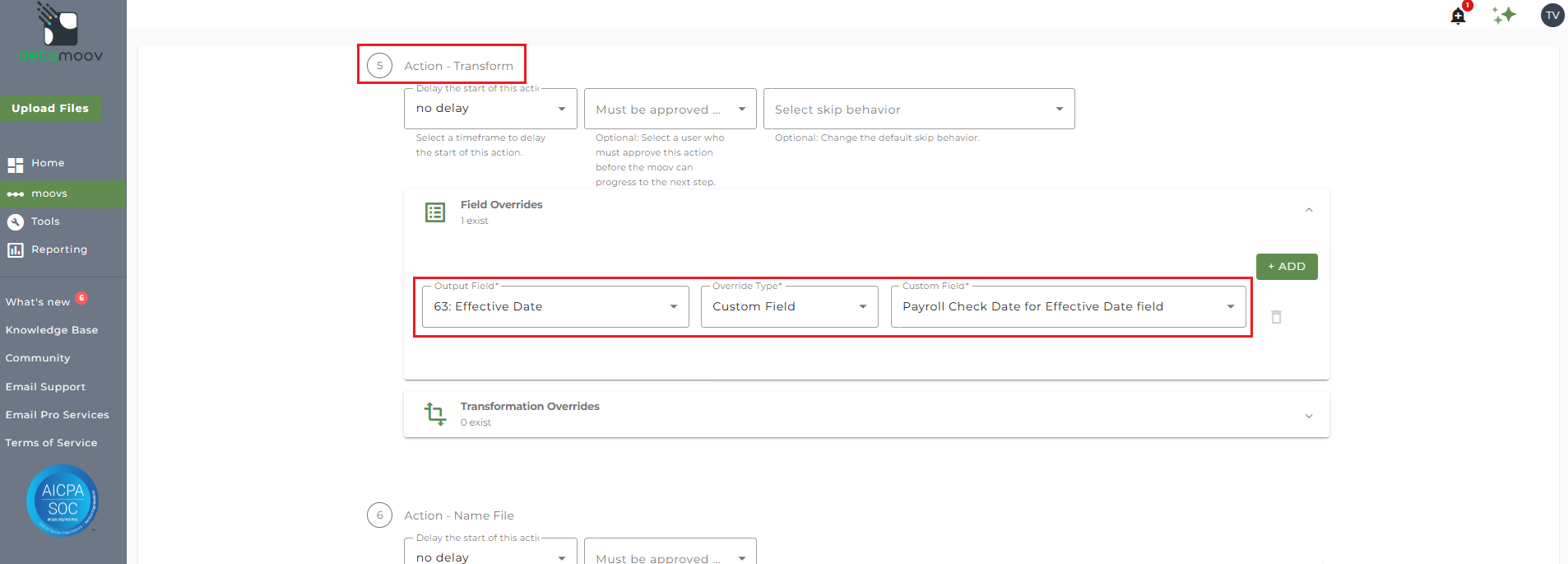
If you are a UKG Ready user and an employee was not paid in the current pay period, a field override is needed to provide the Effective Date. detamoov has provided custom fields that take the existing date from the source file and allow you to apply them to the missing fields.
To provide the override custom fields, locate step 5: Action - Transform, click the Field Overrides panel, and click the Add button. Then select the appropriate field from the Output Field dropdown, change the Override Type to Custom Field, and then select the Custom field from the dropdown menu as shown below:
Field Overrides - Employee Maintenance Data
Plan ID
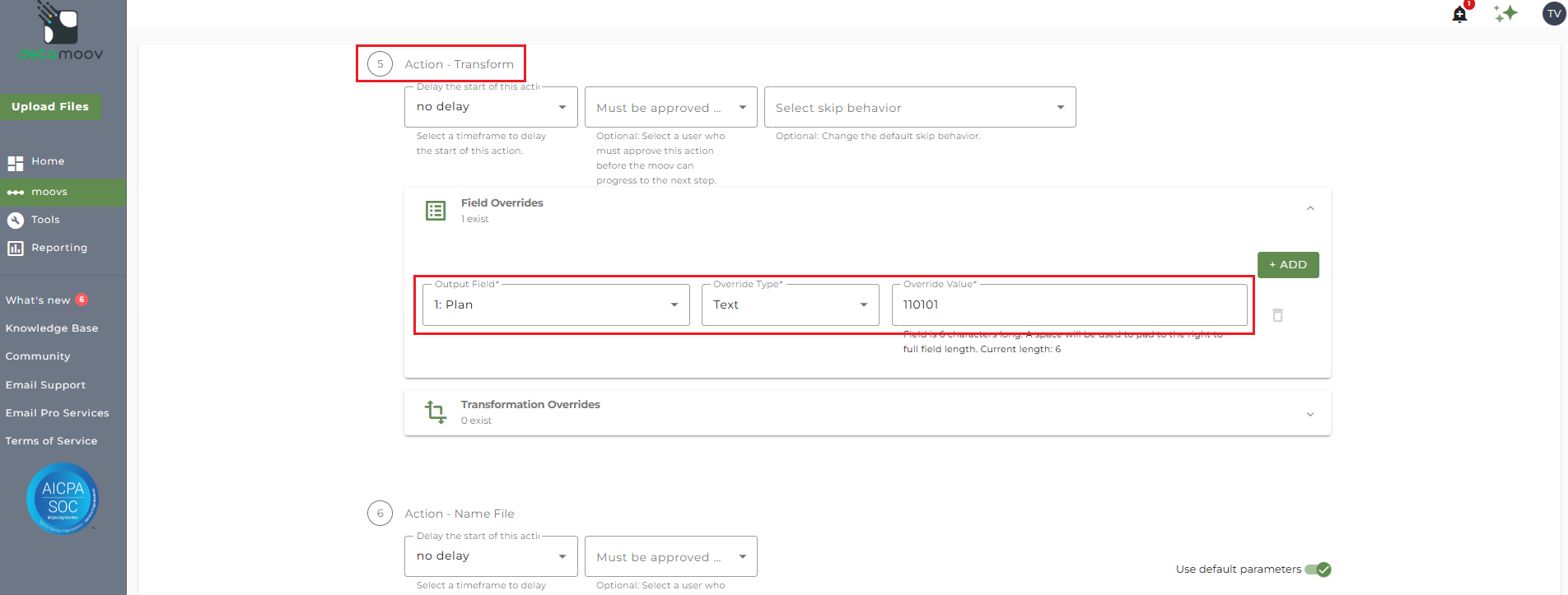
If you do not store the Plan ID in payroll, then a field override is required to provide the Plan ID for each employee maintenance record. To add a Field Override, locate step 5: Action - Transform, expand the Field Overrides panel and click the Add button. Then select the field 1: Plan, set the Override Type to Text and enter the Override Value.
Payroll Frequency
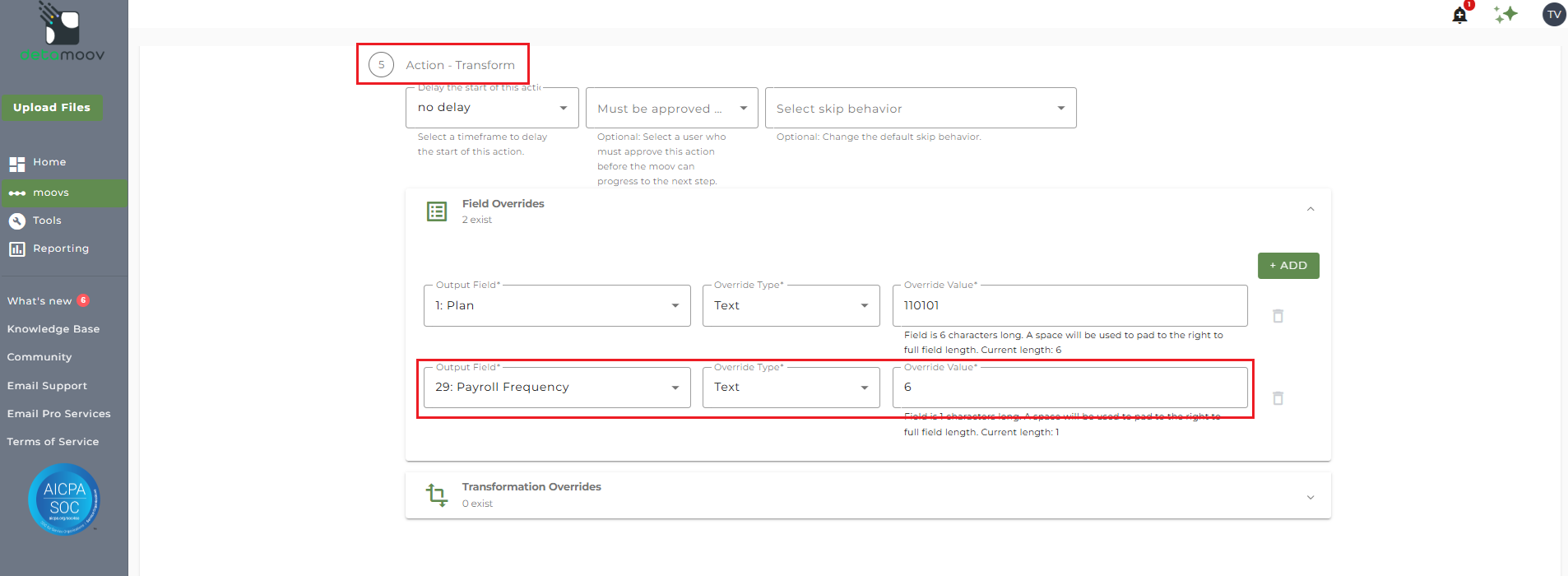
The payroll frequency is required for each employee maintenance record and can be added using a field override. To add a Field Override, locate step 5: Action - Transform, expand the Field Overrides panel and click the Add button. Then select the field 29: Payroll Frequency, set the Override Type to Text and enter the Override Value using the T. Rowe Price values below:
1 = Annually
2 = Semi-Annually
3 = Quarterly
4 = Monthly
5 = Semi-Monthly
6 = Bi-Weekly
7 = Weekly
8 = Daily
File Name Overrides - Employee Maintenance Data
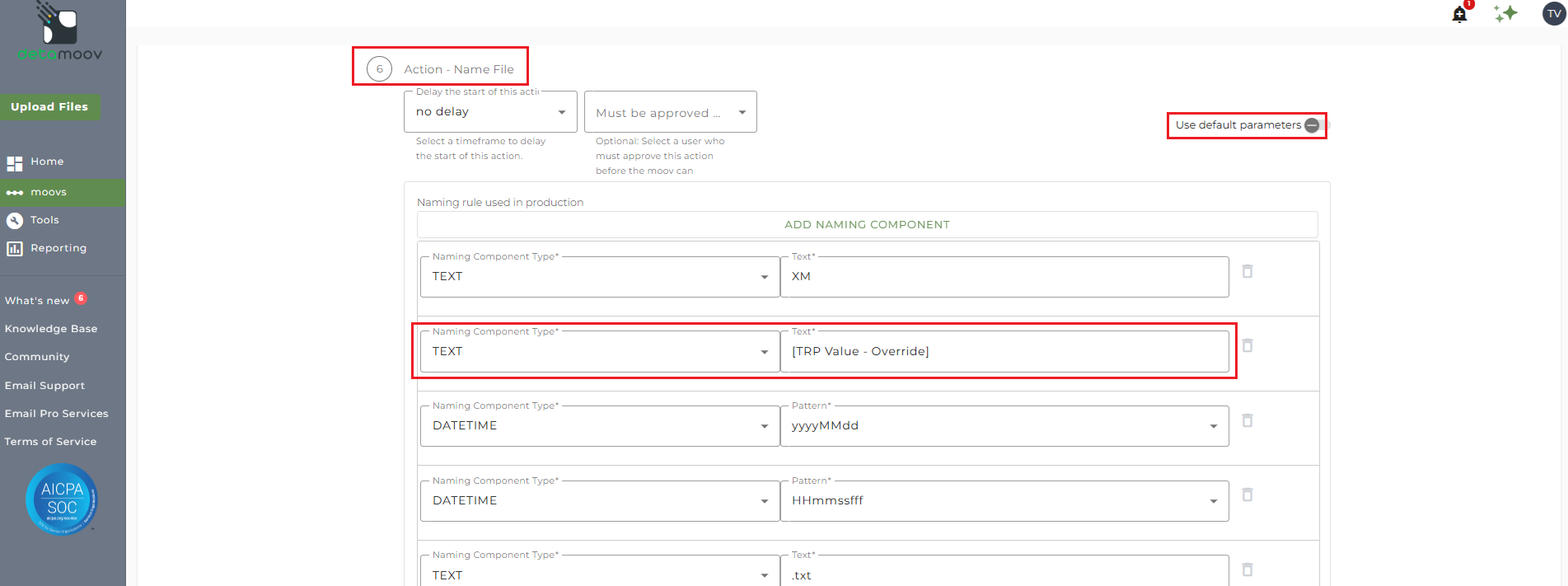
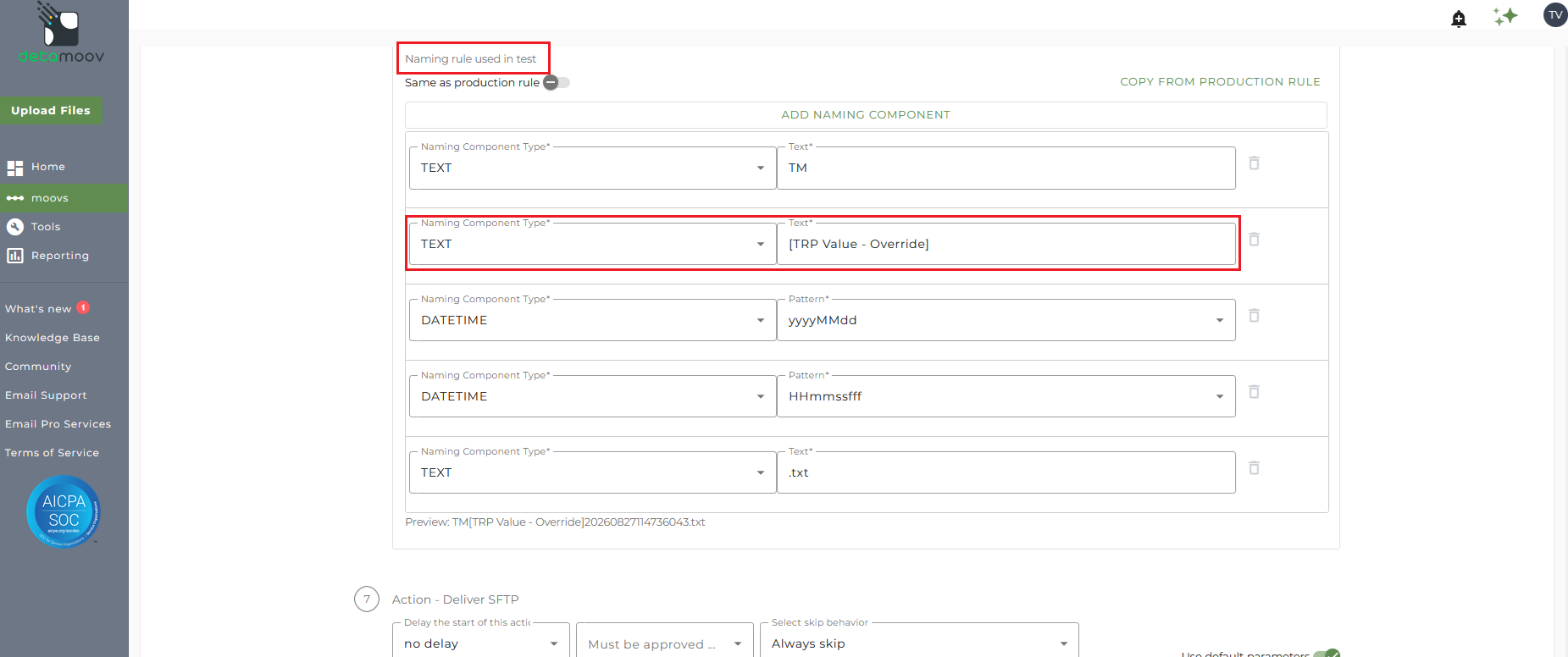
The file naming convention for employee maintenance data is set and provided to you by T. Rowe Price during initial setup. To ensure the correct file name is used, locate step 6: Action - Name File and toggle the "Use default parameters" off. Then replace the value "[TRP Value - Override]" with the value provided by T. Rowe Price.
NOTE: the employee maintenance record file name sent to T. Rowe Price will always start with 'XM' for production files and 'TM' for test files, followed by the value in the override. Refer to the plan specifications provided by T. Rowe Price for the correct file names needed for your client's plan.
Provide and override for the naming rule used in production:
And provide an override for the naming rule used in test:
Field Overrides - Employee Contribution Data
Plan ID
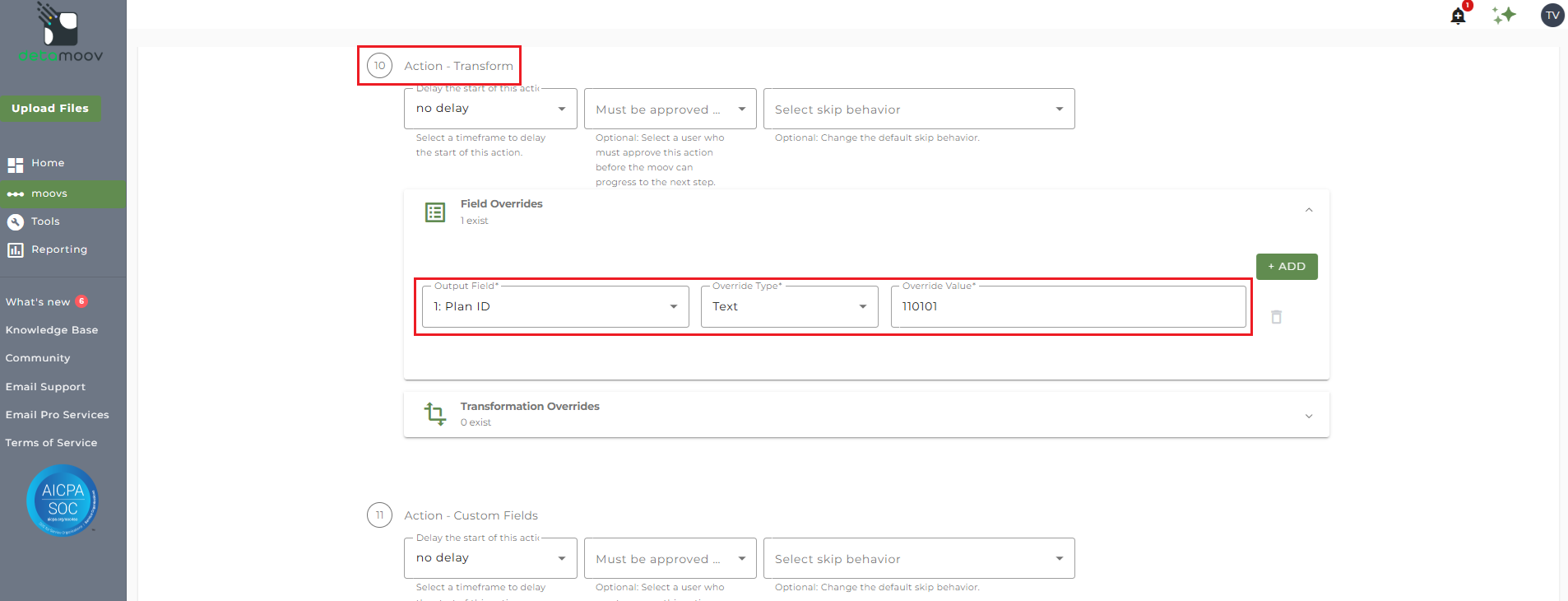
If you do not store the Plan ID in payroll, then a field override is required to provide the Plan ID for each employee contribution record. To add a Field Override, locate step 10: Action - Transform, expand the Field Overrides panel and click the Add button. Then select the field 1: Plan, set the Override Type to Text and enter the Override Value.
Transformation Overrides - Employee Contribution Data
The Source/Fund values used to represent an employee's contribution type are plan specific. These values are provided by T. Rowe Price during initial setup and will need to be set using a transformation override. Below is a table that provides the mapping detamoov uses to each contribution type and the associated field to override for each one:
|
Field |
Contribution Type |
|
6 |
PreTax |
|
20 |
ROTH |
|
34 |
Employer Match |
|
48 |
PostTax |
|
62 |
Safe Harbor Non Elective |
|
76 |
Safe Harbor Match |
|
90 |
Non Elective (Profit Sharing) |
|
104 |
Qualified Elective |
|
118 |
Qualified Matching |
|
132 |
Loans |
As an example, the following specifications are for a plan that has a PreTax, ROTH, Profit Sharing, and Loan repayment options:

To provide the correct Source/Fund values, locate step 12: Action - Transform, expand the Transformation Overrides panel, and click the ADD button.
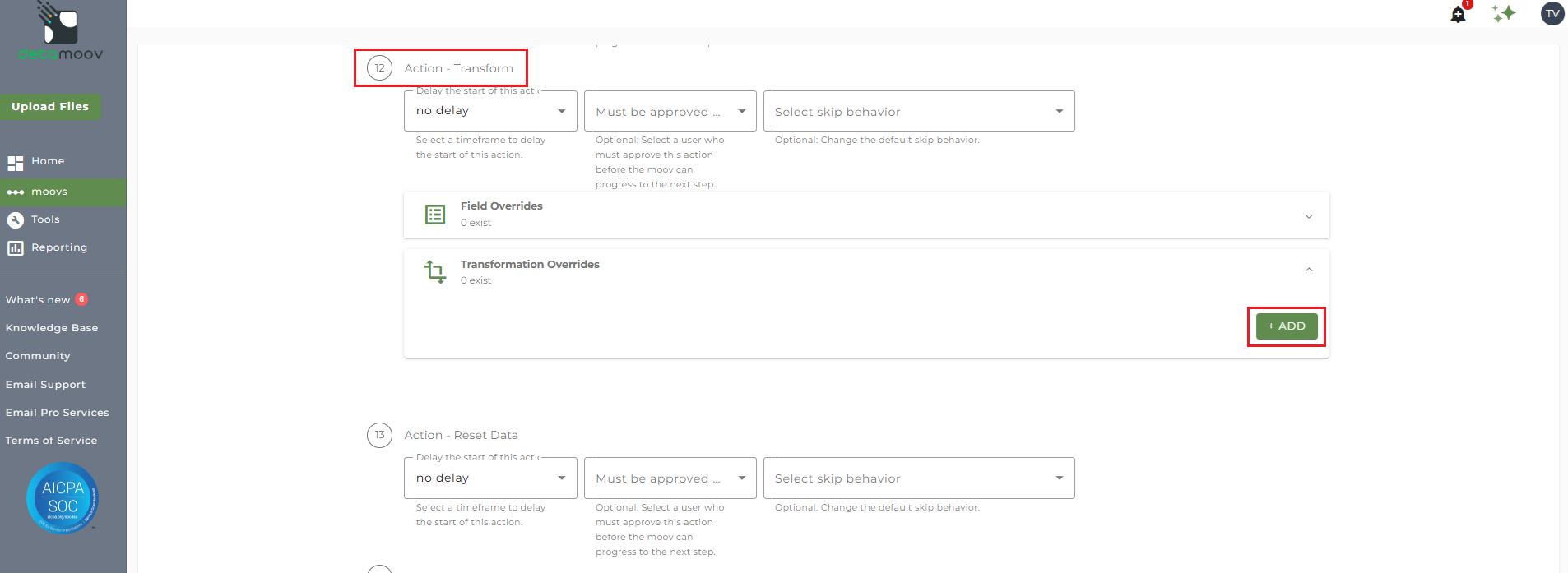
Select the field associated with the client's contribution type and click ADD OVERRIDE.
In the example above, the PreTax contribution Source/Fund value is in field 6. Select field 6: Source/Fund (PreTax) from the dropdown and click ADD OVERRIDE.
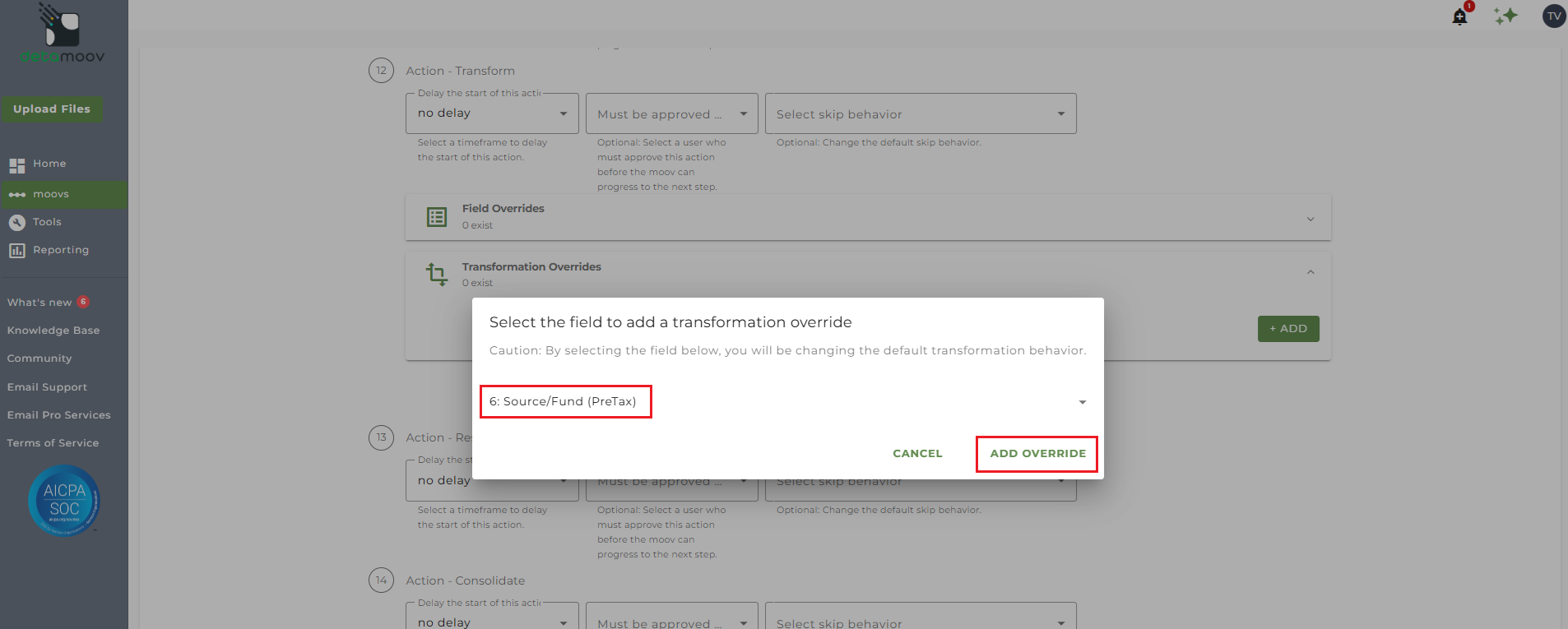
Click the ADD RULE button.
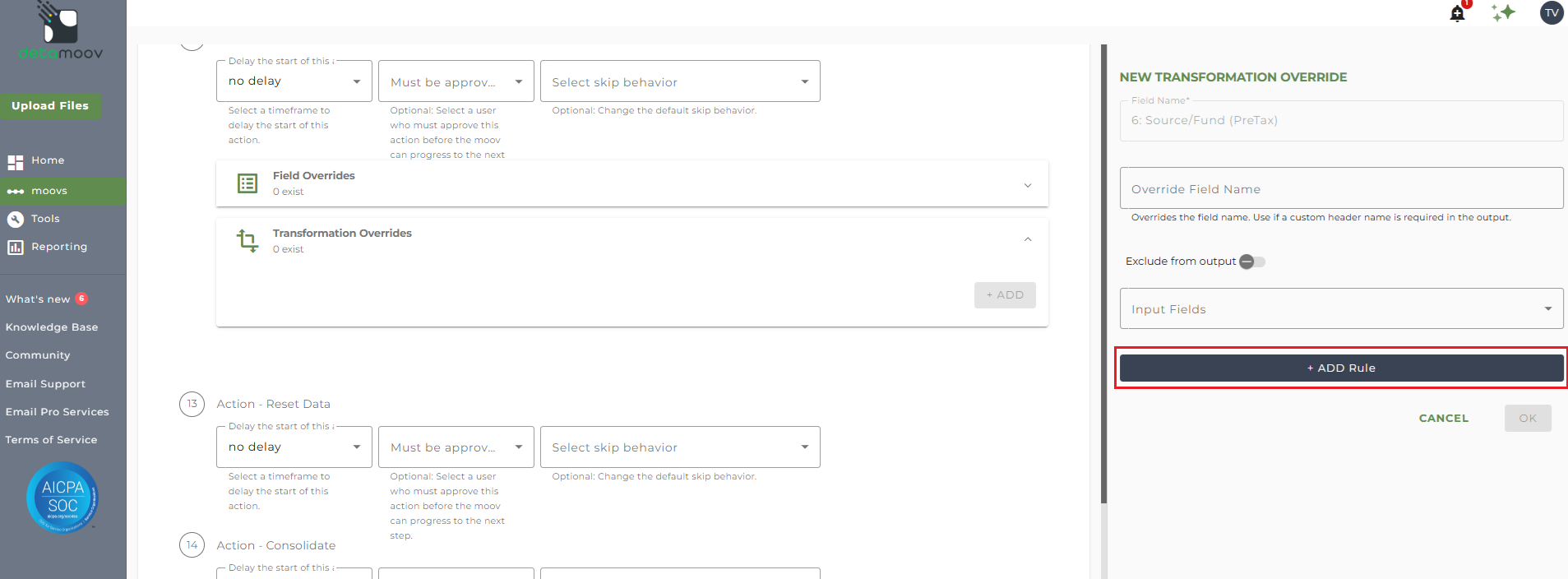
Select Default Value in the Transformation Rule dropdown, enter the plan's Source/Fund code for PreTax, and click OK.
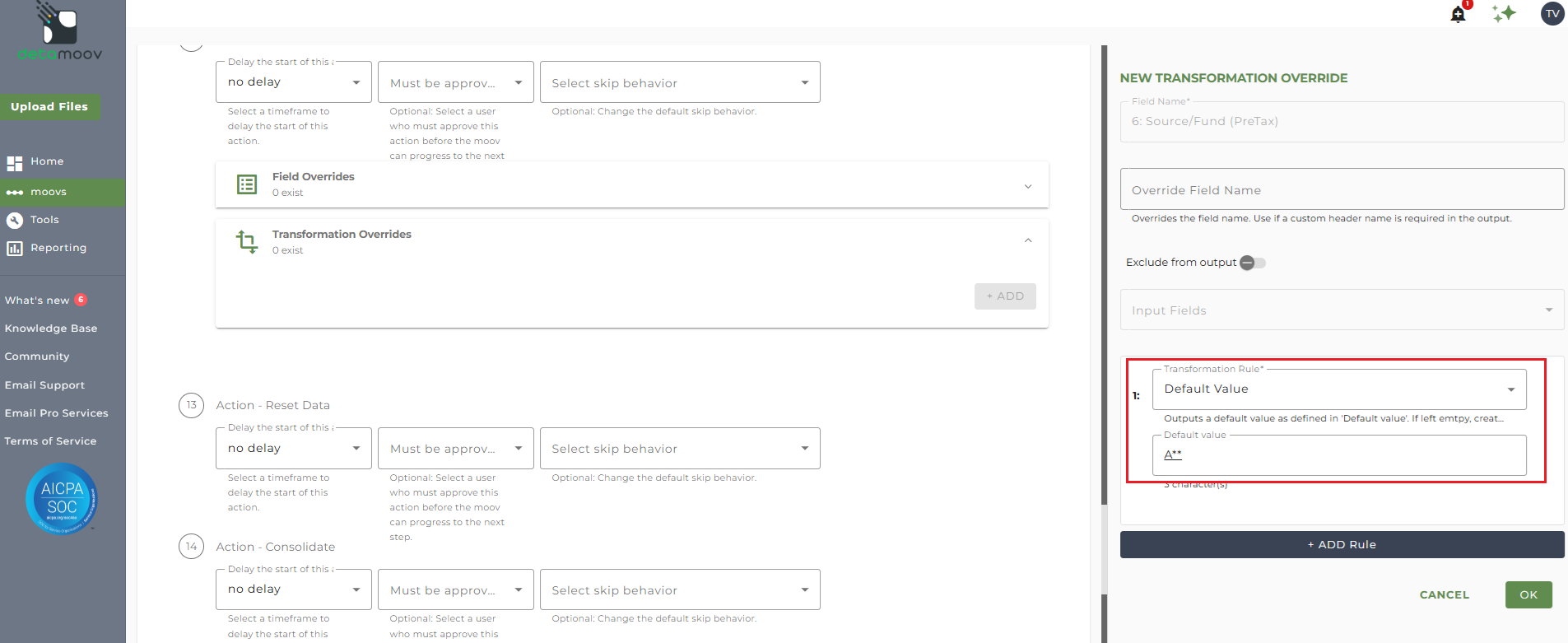
Repeat adding the Source/Fund code for each contribution/loan type listed in the plan specifications.
Field Overrides - Total Contribution Data
Plan ID
If you do not store the Plan ID in payroll, then a field override is required to provide the Plan ID for each total contribution record. To add a Field Override, locate step 15: Action - Transform, expand the Field Overrides panel and click the Add button. Then select the field 1: Plan, set the Override Type to Text and enter the Override Value.
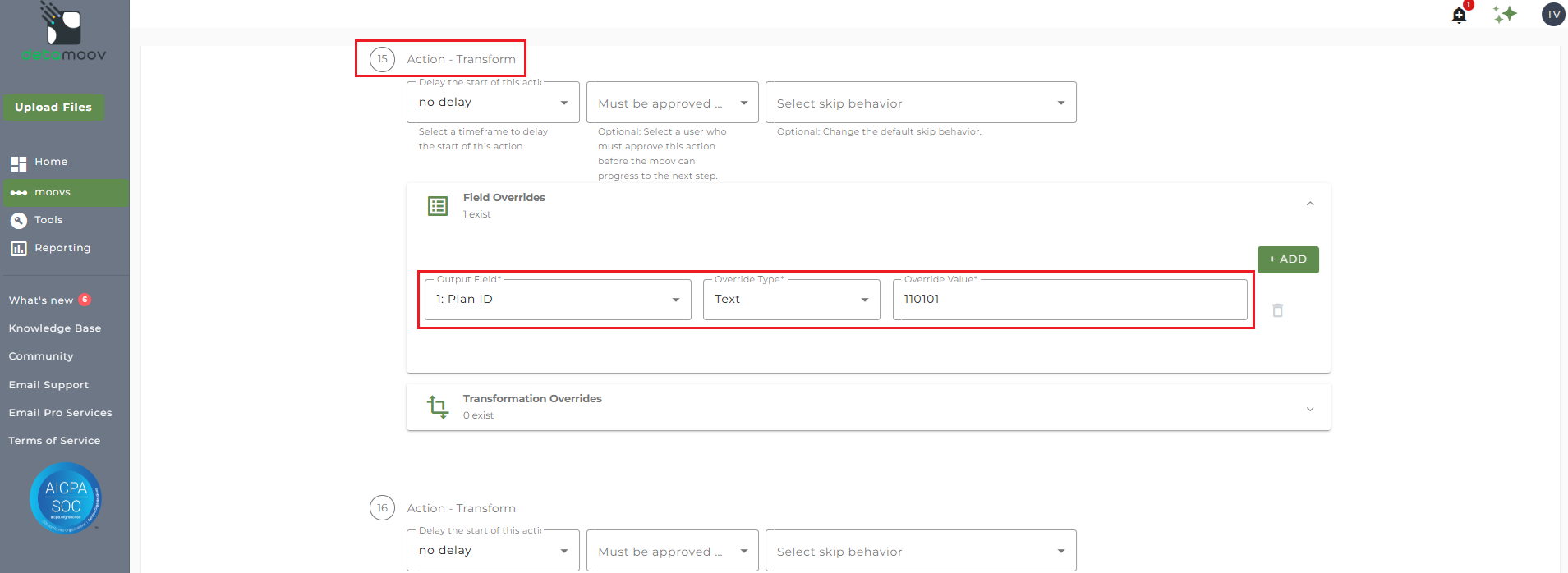
Transformation Overrides - Total Contribution Data
T. Rowe Price requires a source total record for each Source/Fund on the plan. The Source/Fund values used to represent each contribution type are plan specific. These values are provided by T. Rowe Price during initial setup and will need to be set using a transformation override. Below is a table that provides the mapping detamoov uses to each contribution type and the associated field to override for each one:
|
Field |
Contribution Type |
|
6 |
PreTax |
|
15 |
ROTH |
|
24 |
Employer Match |
|
33 |
PostTax |
|
42 |
Safe Harbor Non Elective |
|
51 |
Safe Harbor Match |
|
60 |
Non Elective (Profit Sharing) |
|
69 |
Qualified Elective |
|
78 |
Qualified Matching |
|
87 |
Loans |
NOTE: these field positions are different from the field positions list in the previous Transformation Override section.
As an example, the following specifications are for a plan that has a PreTax, ROTH, Profit Sharing, and Loan repayment options:
To provide the correct Source/Fund values, locate step 16: Action - Transform, expand the Transformation Overrides panel, and click the ADD button.
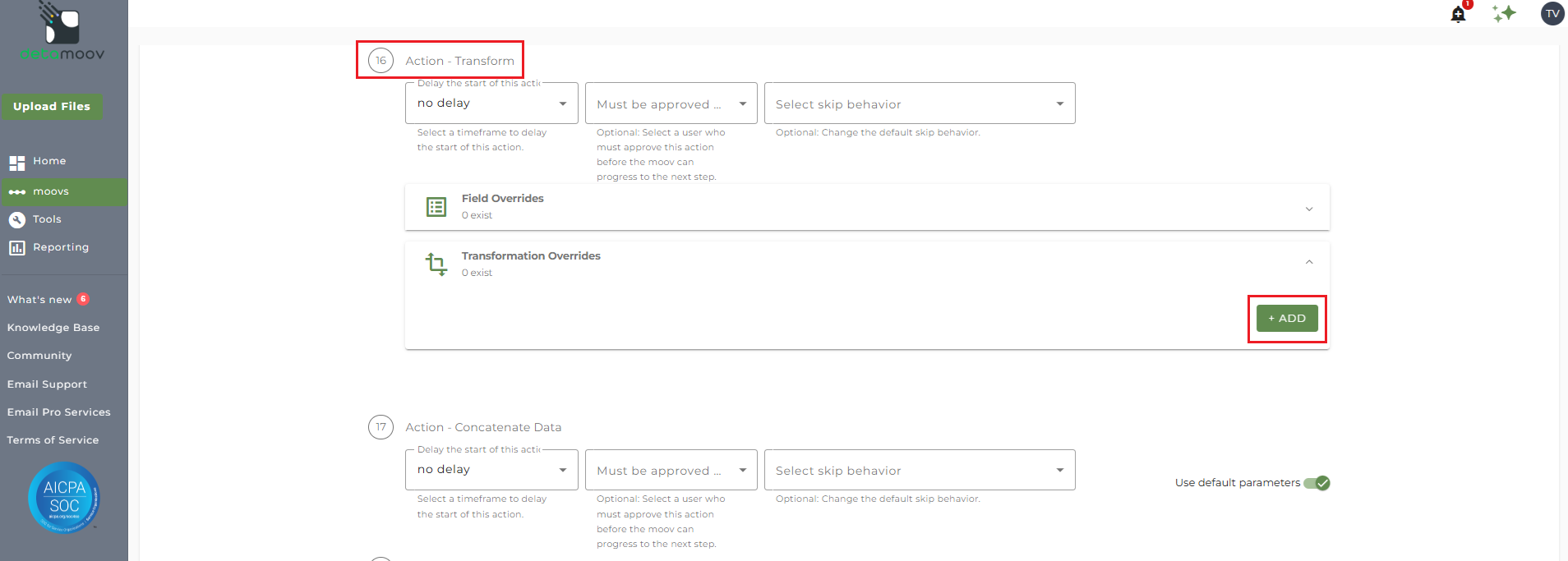
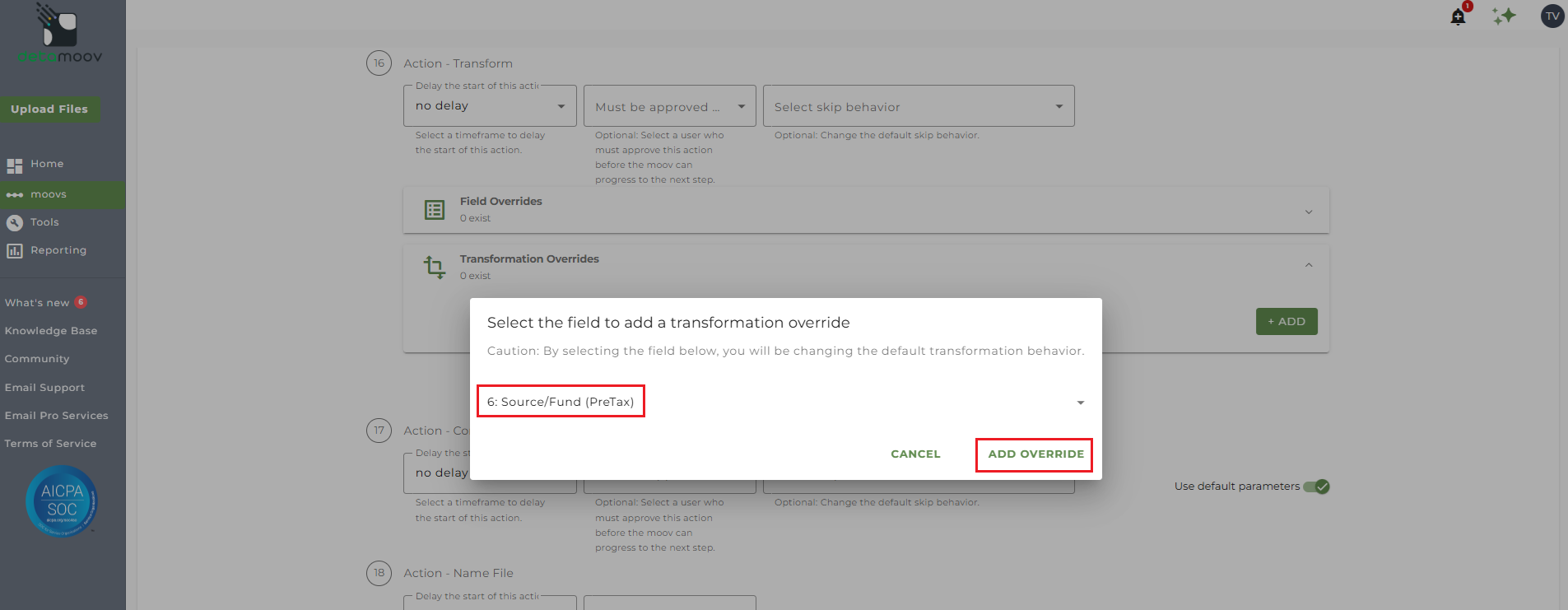
Select the field associated with the client's contribution type and click ADD OVERRIDE.
In the example above, the PreTax contribution Source/Fund value is in field 6. Select field 6: Source/Fund (PreTax) from the dropdown and click ADD OVERRIDE.
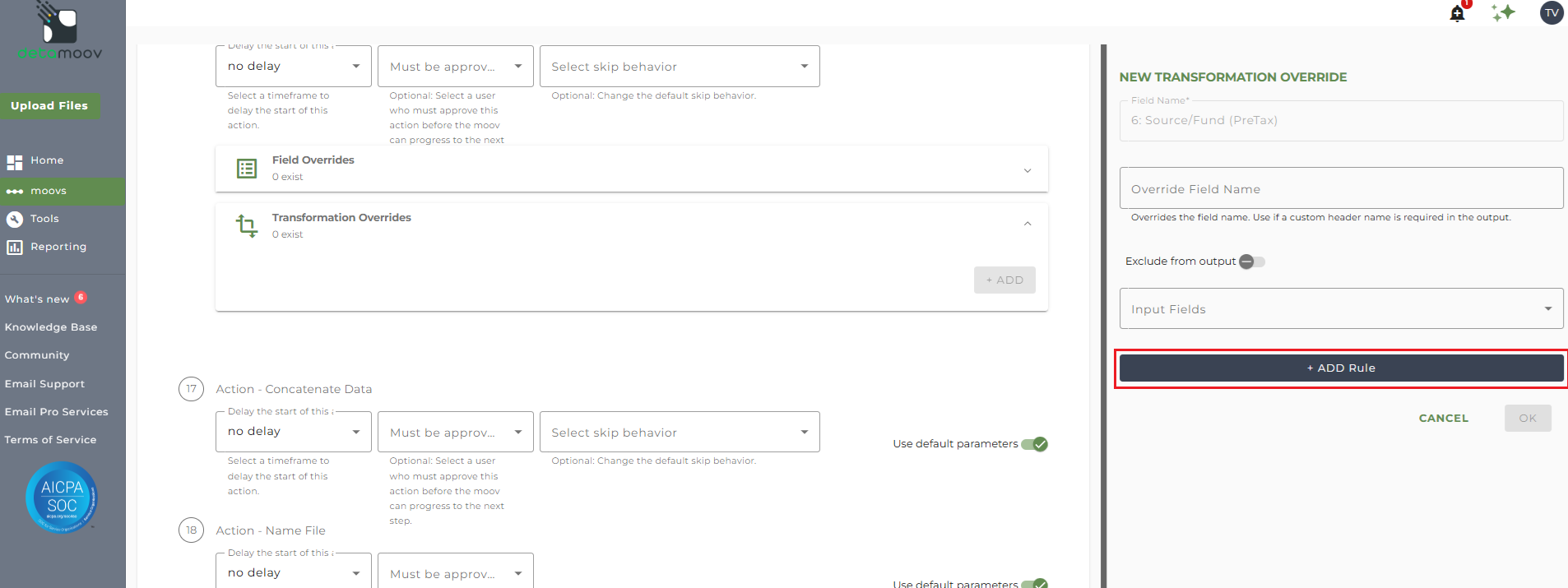
Click the ADD RULE button.
Select Default Value in the Transformation Rule dropdown, enter the plan's Source/Fund code for PreTax, and click OK.
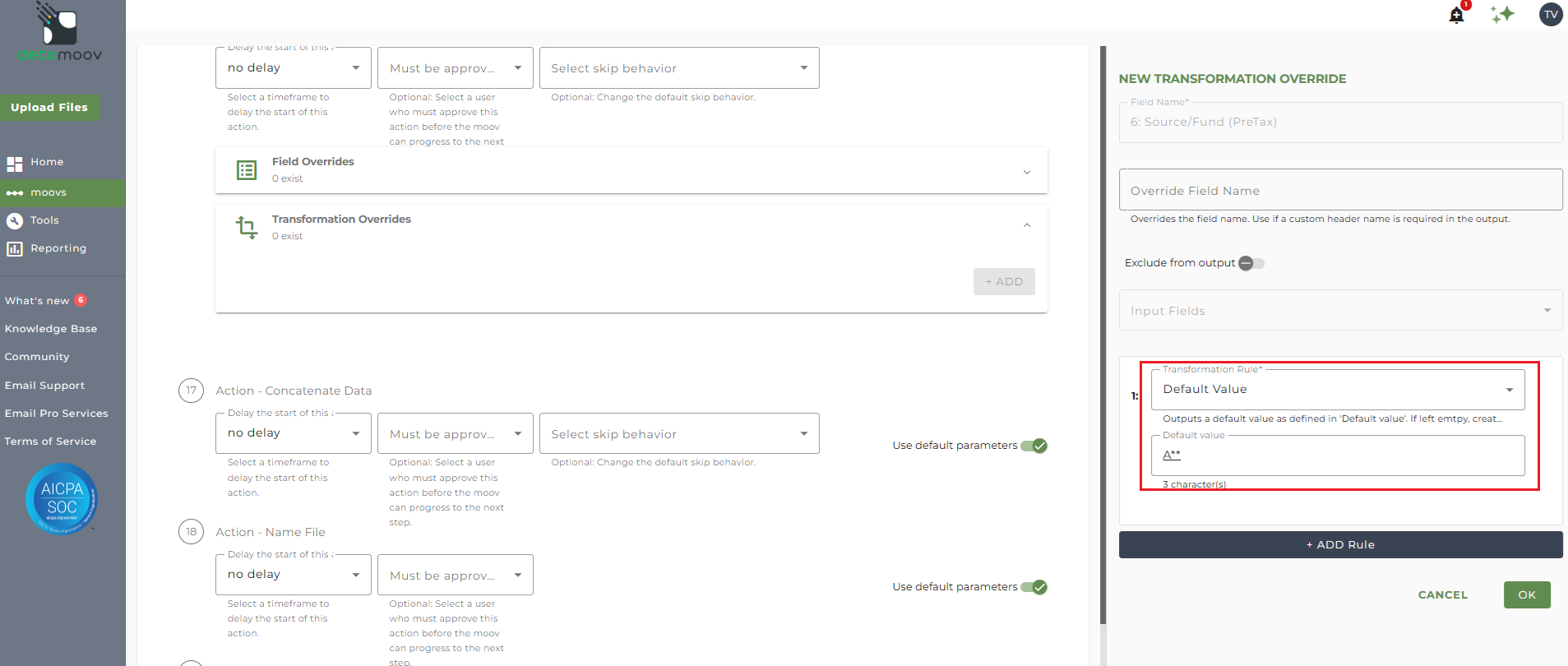
Repeat adding the Source/Fund code for each contribution/loan type listed in the plan specifications.
File Name Overrides - Contribution Data
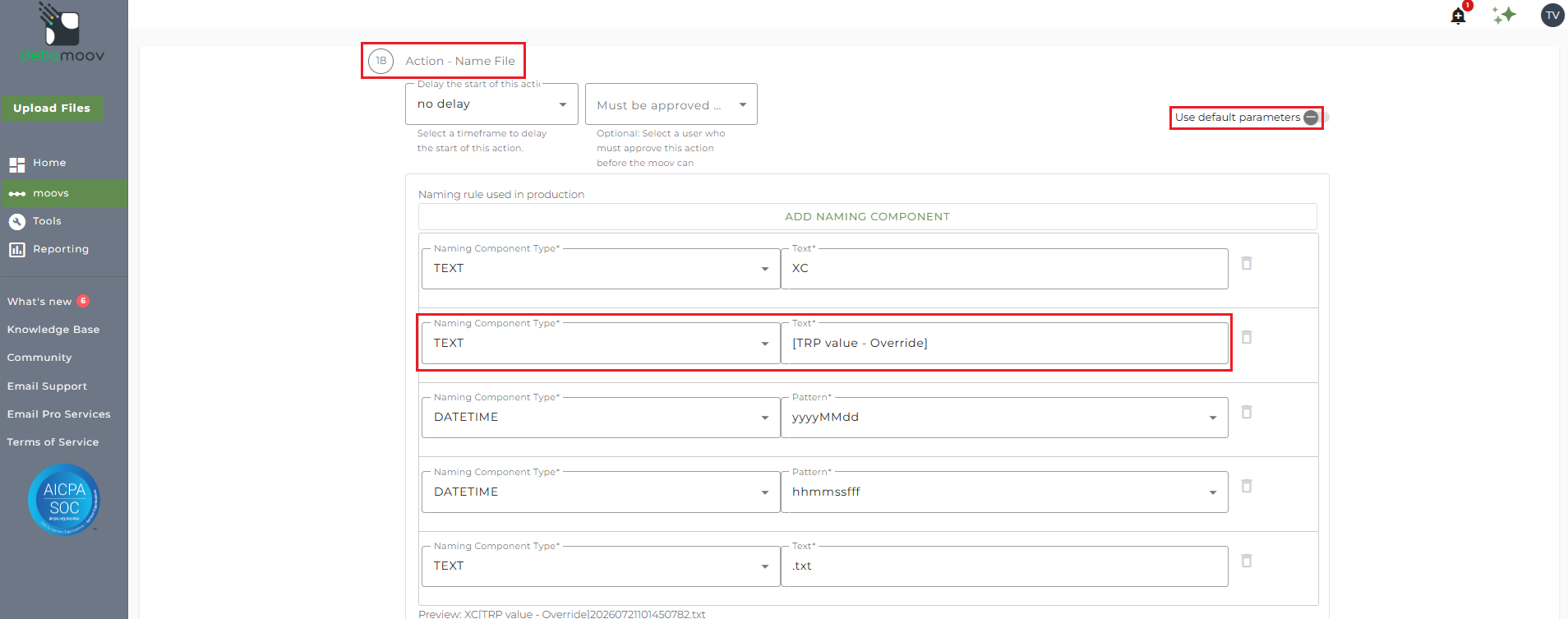
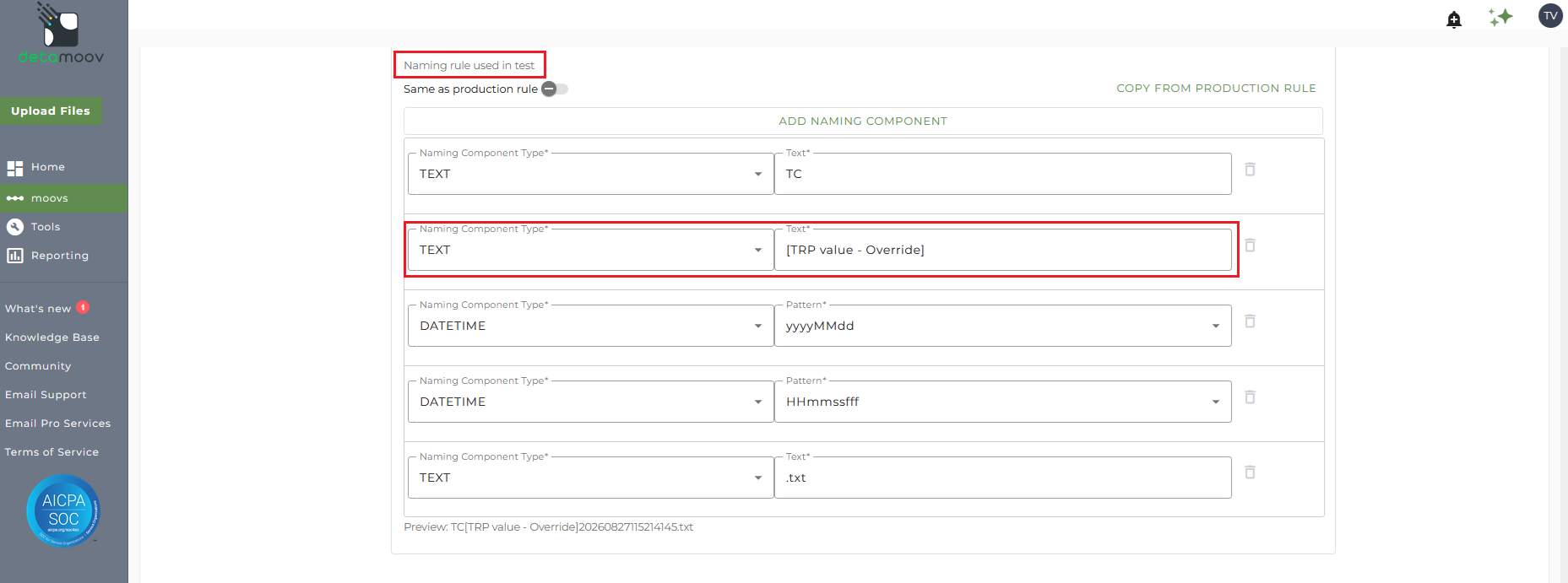
The file naming convention for employee contribution and total contribution data is set and provided to you by T. Rowe Price during initial setup. To ensure the correct file name is used, locate step 18: Action - Name File and toggle the "Use default parameters" off. Then replace the value "[TRP Value - Override]" with the value provided by T. Rowe Price.
NOTE: The contribution record file name sent to T. Rowe Price will always start with 'XC' for production files and 'TC' for test files, followed by the value in the override. Refer to the plan specifications provided by T. Rowe Price for the correct file names needed for your client's plan.
Provide and override for the naming rule used in production:
And provide an override for the naming rule used in test:
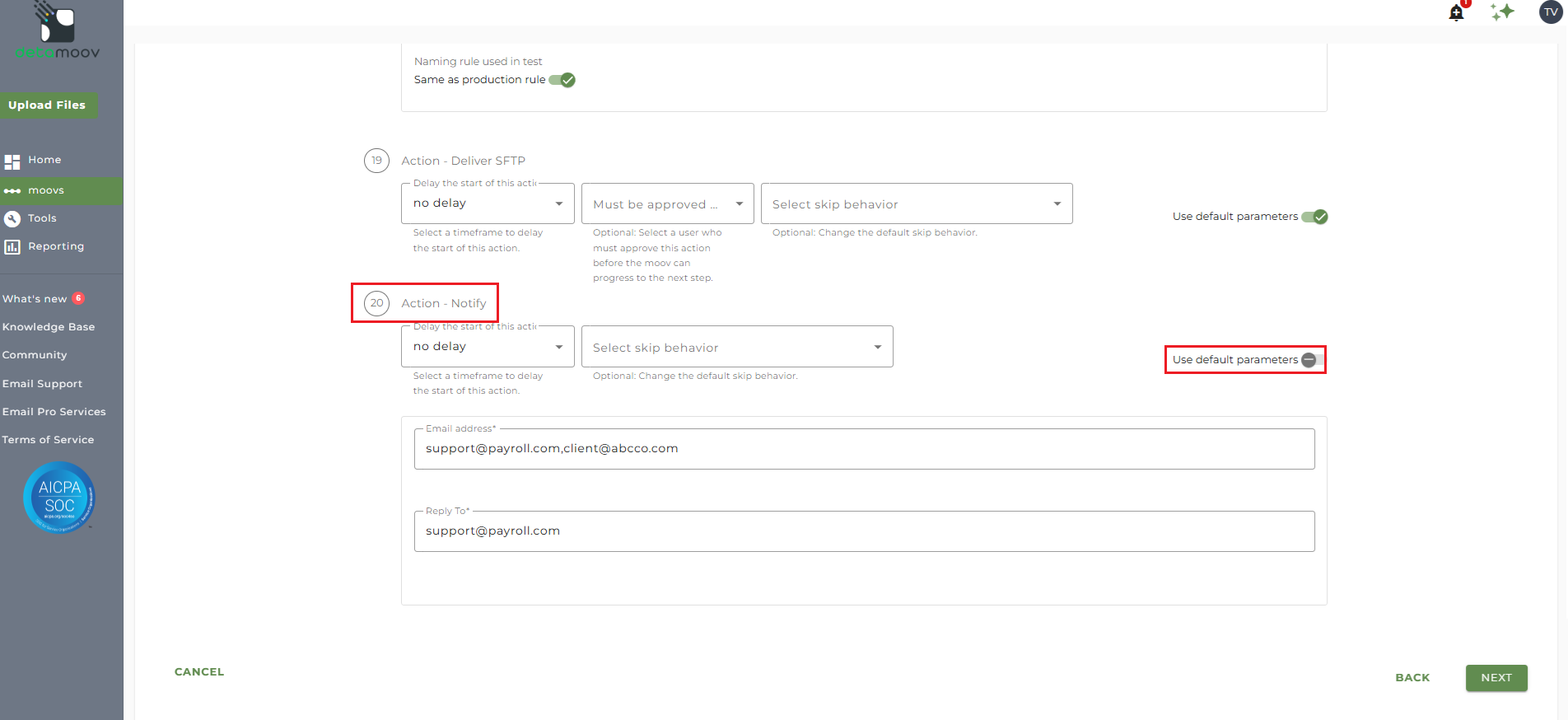
At the beginning of this article you configured the notification step for the moov to send a notification once the moov had completed. You also have the ability to configure the notification step for each client configuration if you wish to add or remove email addresses per client.
To override the notification step, locate step 20: Action - Notify and toggle the "Use default parameters" off and enter/remove email addresses from Email Address and Reply To fields. If you would like to enter multiple email addresses, separate them with a comma.
To complete the configuration for your client, click the Next button at the bottom of the page and then the Save button on the moov summary page.

