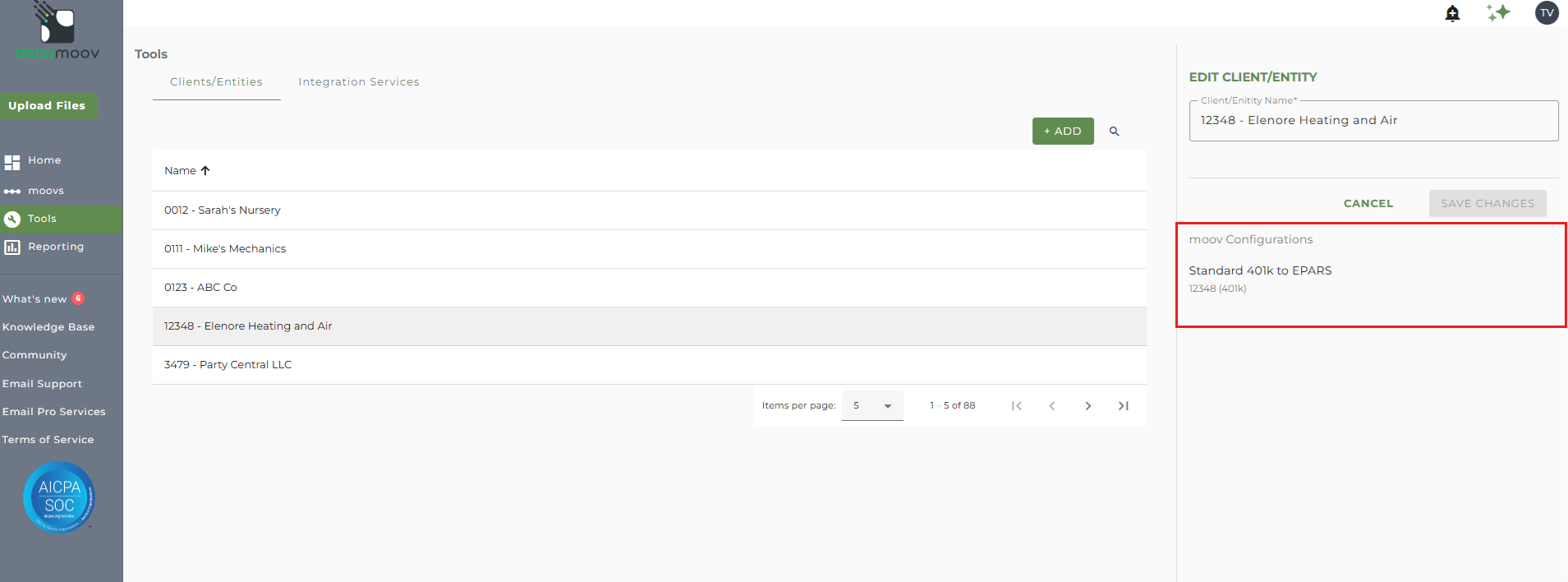
The Clients/Entities list is where you can view the current clients/entities you have created inside detamoov. This can be useful for a few reasons:
- Create a new Client/Entity
- Make an update to their name
- View their current integration configurations
- Revoke an authorization for QBO, Xero, or Dropbox
How to access the Clients/Entities list
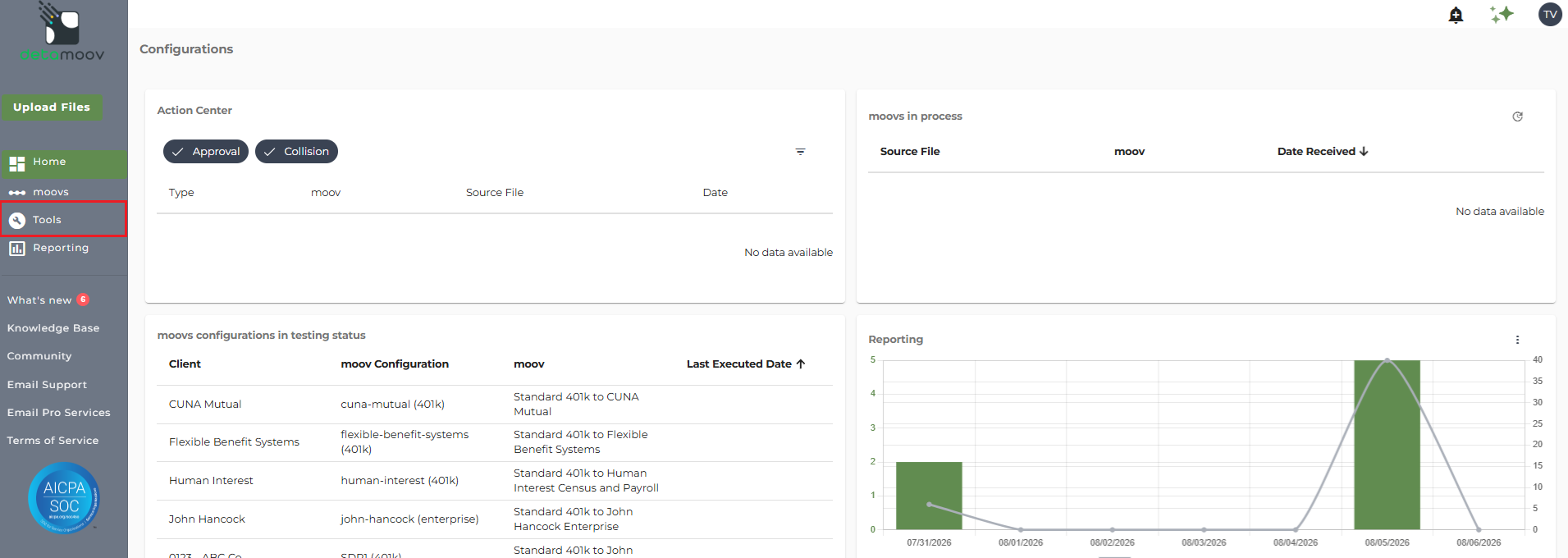
To access the Clients/Entities list in detamoov, go to Tools in the left-hand menu of your home page.
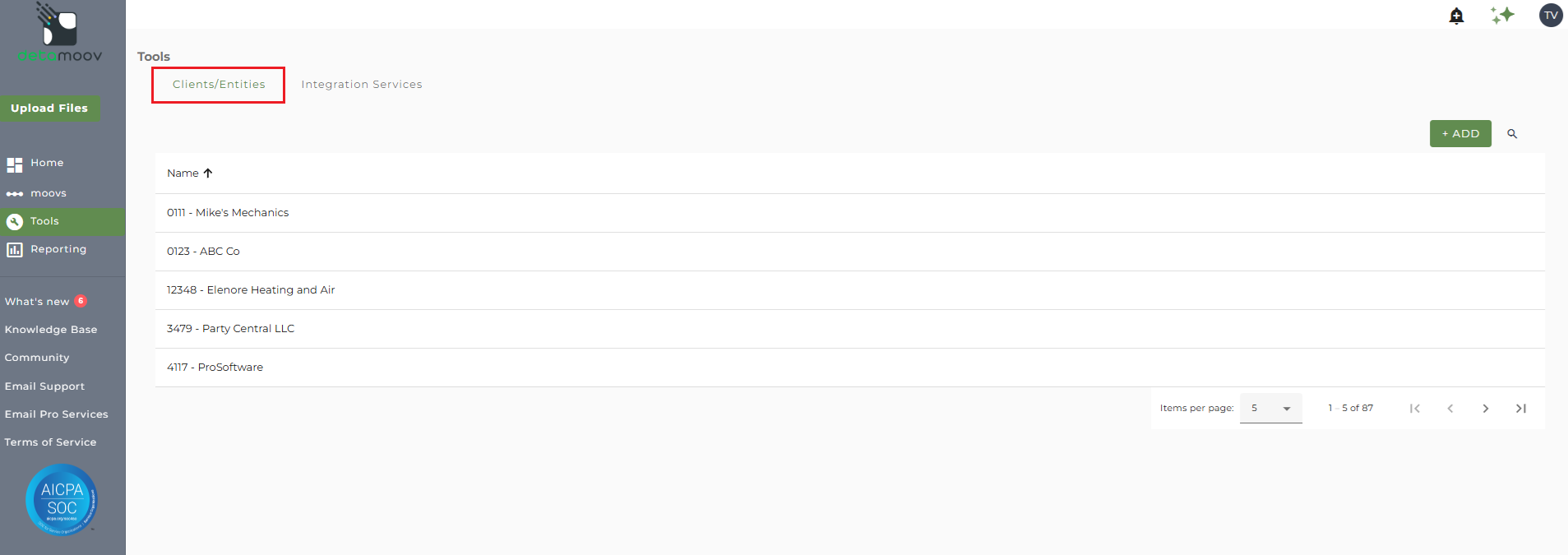
Click on the Clients/Entities tab. This will bring you to a list of the Clients/Entities created in detamoov.
How to create a new Client/Entity
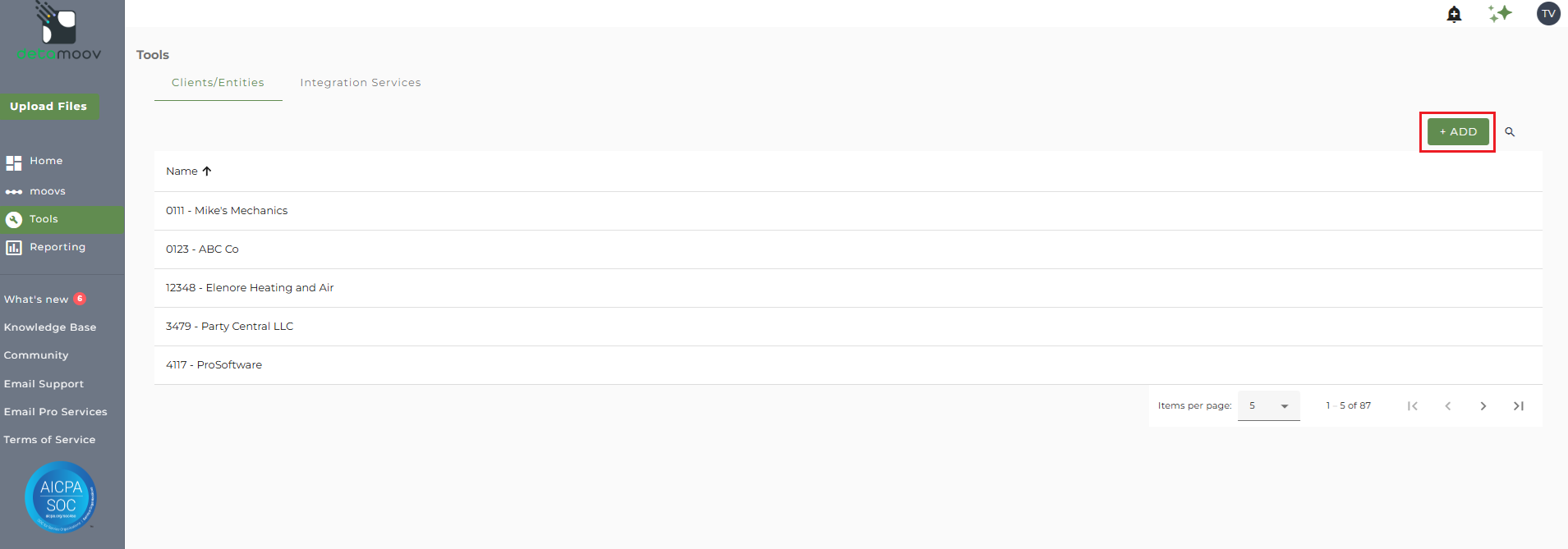
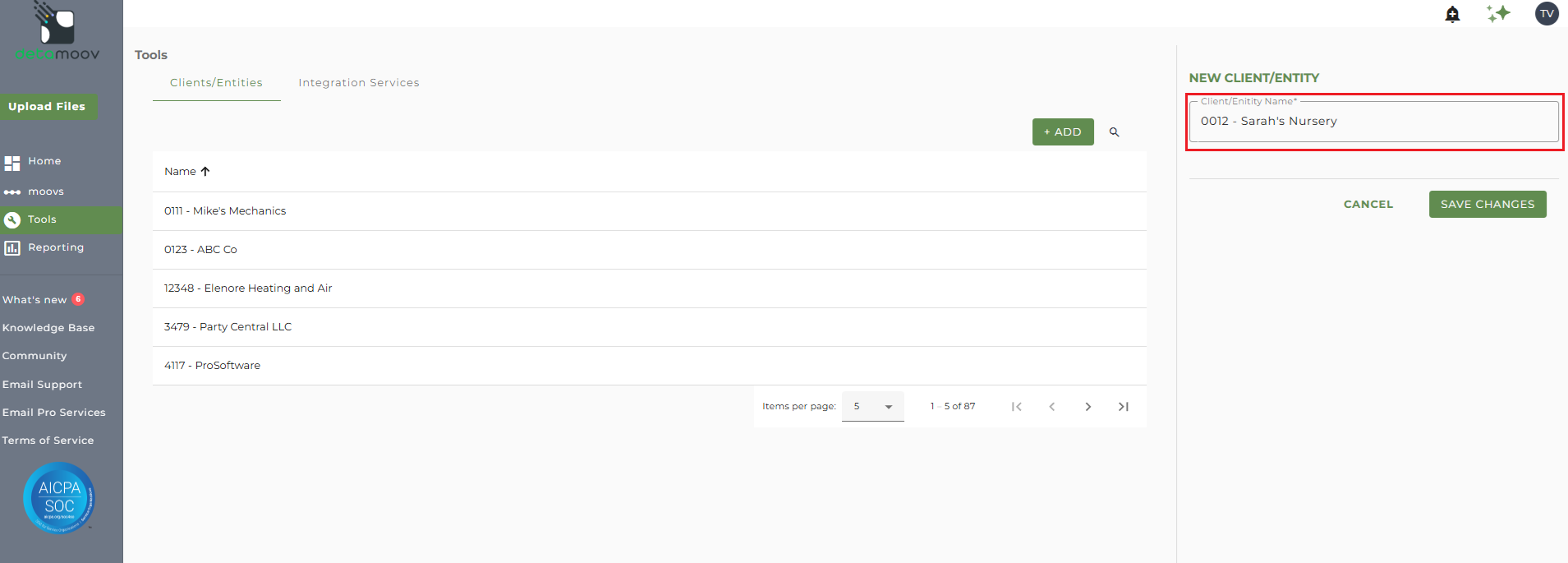
To create a new Client/Entity, click on the ADD button on the upper right-hand corner.
On the New Client/Entity side-view, enter in the Name of the Client/Entity and click SAVE CHANGES.
How to edit the Client/Entity name
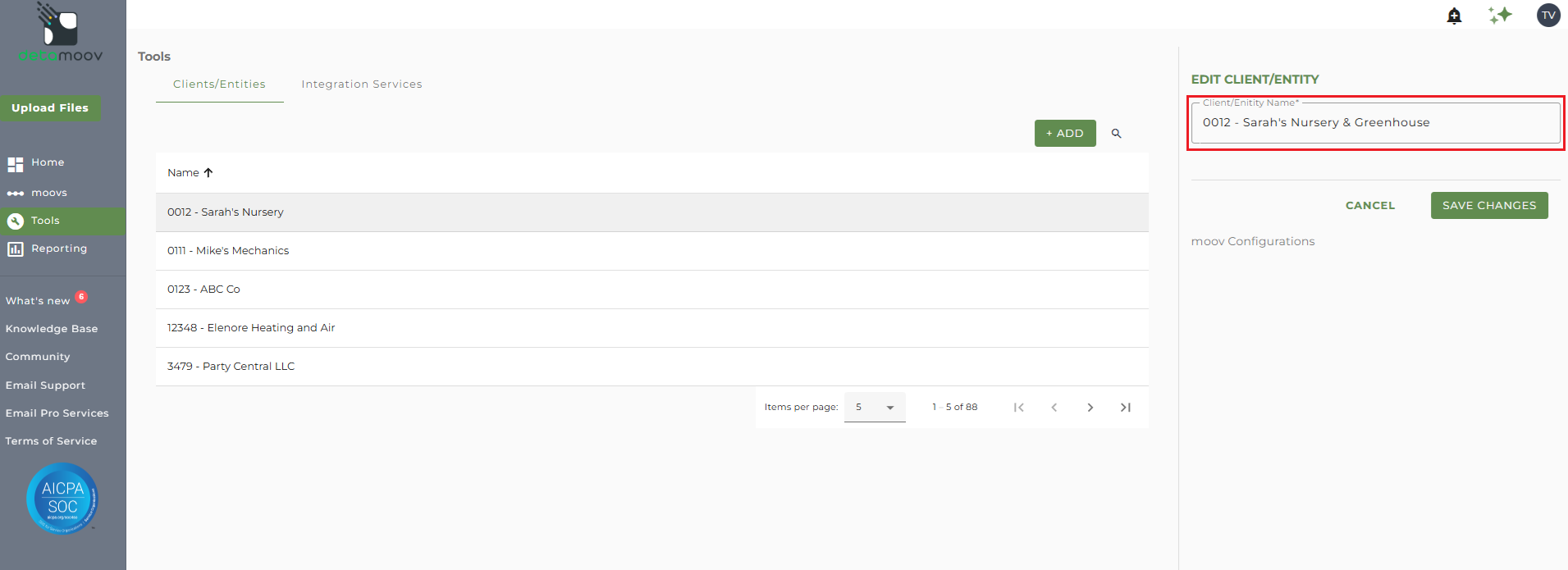
To edit an existing Client/Entity, select them from the table, update the Client/Entity Name field and click SAVE CHANGES.
How to access moov configurations for the client/entity
To view and access the configurations for a specific client/entity, select them from the table. Any configurations created for this client will appear under the Client/Entity Name in the moov configurations section.
Click on the configuration to access it for this client/entity.