


To re-authorize a client's QuickBooks Online authorization, you will need to do the following:
In detamoov, click on the Tools option on the left-hand side and access Clients/Entities.

Then click on the client name you want to remove the QBO Authorization and click the 'Remove QBO Authorization' button.

Disconnect from the detamoov QuickBooks Online App
To disconnect detamoov from the QuickBooks Online app, login to QuickBooks Online, access the QuickBooks company that you connected to detamoov (if your QuickBooks account can access multiple companies) and click on the Apps section on the left-hand menu. The detamoov app will appear under the My Integration section tab.
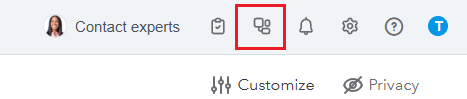
Click on the Integrations Icon in the QBO Online menu bar in the upper right and select the detamoov integration.
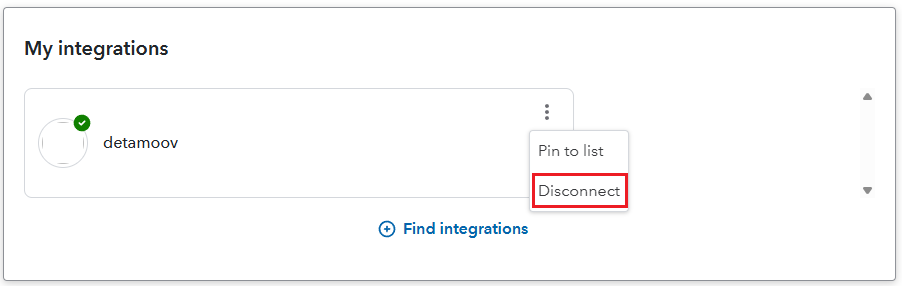
Then click on the more menu and select 'Disconnect.
Select a reason for the disconnect and click the Disconnect button:

QuickBooks Online will then redirect to the detamoov website and display the following message:
"You have disconnected detamoov from your QuickBooks account. If this was unintentional, please contact your service provider."

To confirm that your customer no longer has a connection to the QuickBooks Online detamoov app, login to your detamoov account and access the QBO Import moov. In the moov configuration section hover over the  icon for the client's configuration to confirm that the client is no longer QuickBooks Authorized:

NOTE: please refresh your browser if you are not seeing the  icon after your client disconnects from the QuickBooks Online detamoov app.
Once the detamoov authorization has been removed from the QuickBooks Online account, you can re-establish the connection. Hover over the client name and click on the  icon button to generate the Upload Link for your client.


Copy the Url. This link can now be sent to your client so they can connect their QuickBooks account to detamoov.
Once the Url you copied is accessed, your client can click the 'Connect to QuickBooks' button to be redirected to the Intuit authorization page.

A QuickBooks/Intuit authorization process will now commence. Your client will then be prompted to login to the QuickBooks Online account to connect their account to detamoov. If your client has more than one company in QuickBooks, they need to select the appropriate company from the dropdown menu and click Next.
Once the authorization is successful your client will be redirected back to detamoov showing the QuickBooks Online panel in a Connected status.


