The Requeue Data feature allows you to take data received for a single client moov configuration and requeue to back to detamoov. This feature can accomplish the following:
- Historical Data: process multiple executed data sets to collate and consolidate YTD values for retirement plans to recordkeepers for compliance reasons
- Reprocess Data: select one more data sets to reprocess through a moov
Historical Data - moov configuration
As an example, Human Interest would like a YTD specific file sharing the summation of contribution and loan repayment amounts for each employee. Requeue Data allows you to select a date range of moov executions for a moov configuration to generate a report. Since the YTD report is different from the Standard 401k to Human Interest Census and Payroll moov used to send retirement data per payroll period, detamoov has created the Standard 401k to Human Interest (year to date) moov definition.
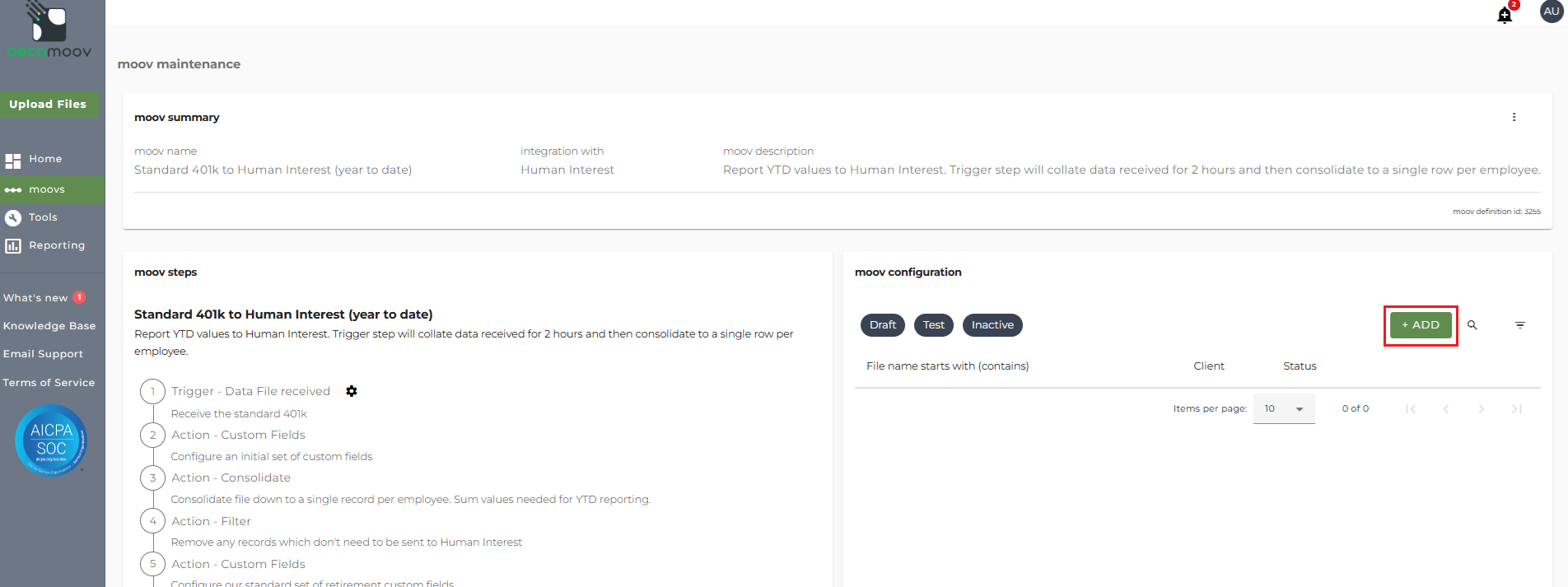
Before you can requeue the data to a consolidated YTD report, you must first configure the YTD report moov for the client. Using the Standard 401k to Human Interest (year to date) moov as our example, we would adopt the moov and then configure our client by clicking the Add button in the moov configuration section.
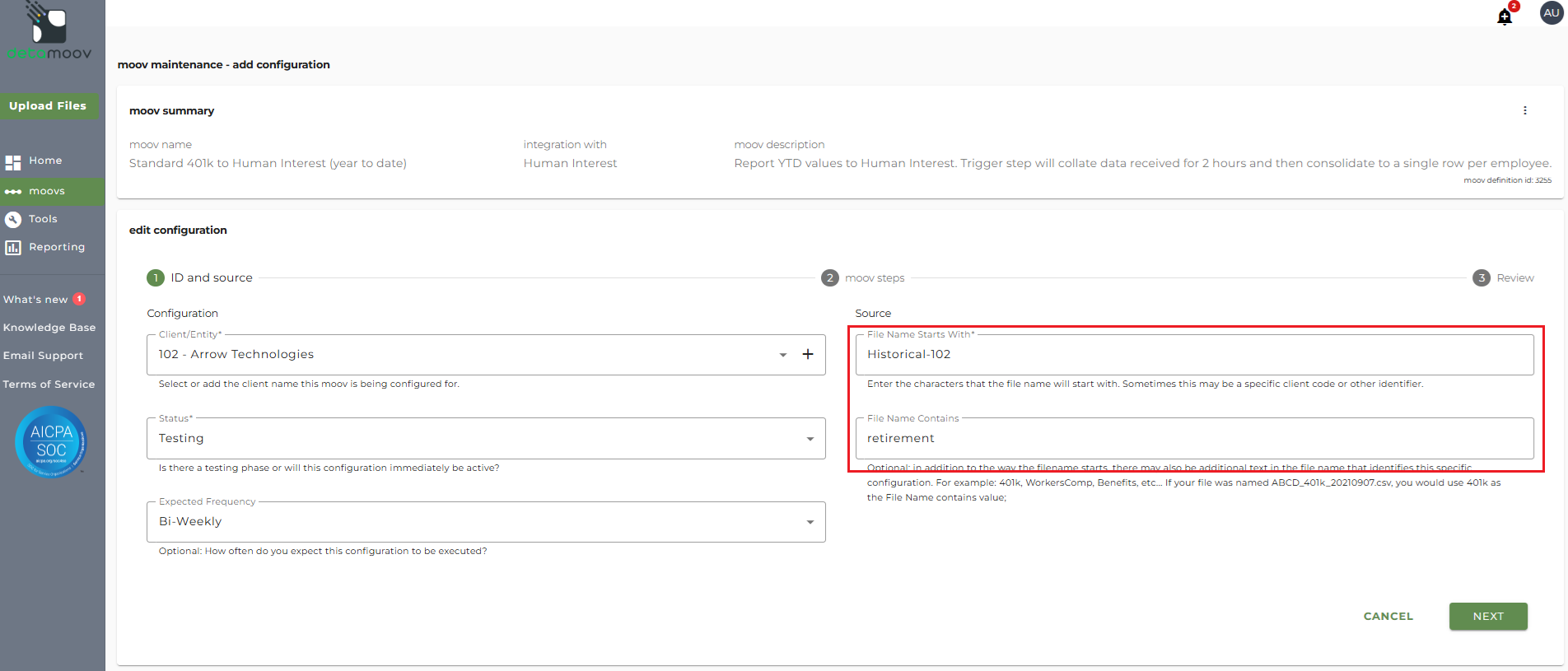
Then complete the ID and source section to associate the YTD report moov to the data you will requeue and click Next.
Client/Entity - select the client associated with the YTD report to be generated
Status - Set to Active or Testing if the provider has a testing phase
Expected Frequency - the client's payroll frequency
File Name Starts With - A unique value associated with this client. In our example we will use: Historical-[Client Code]
File Name Contains - A unique value associated with the report. in our example will will use: retirement
Note: The values in the File Name Starts With (contains) fields are used in the Requeue Data steps below. Make note of these as you will need to enter them again to ensure the data is requeued to the proper client moov configuration.
After you click next, scroll down to the bottom of the page, click Next again and Save on the Preview page.
Historical Data - requeue data
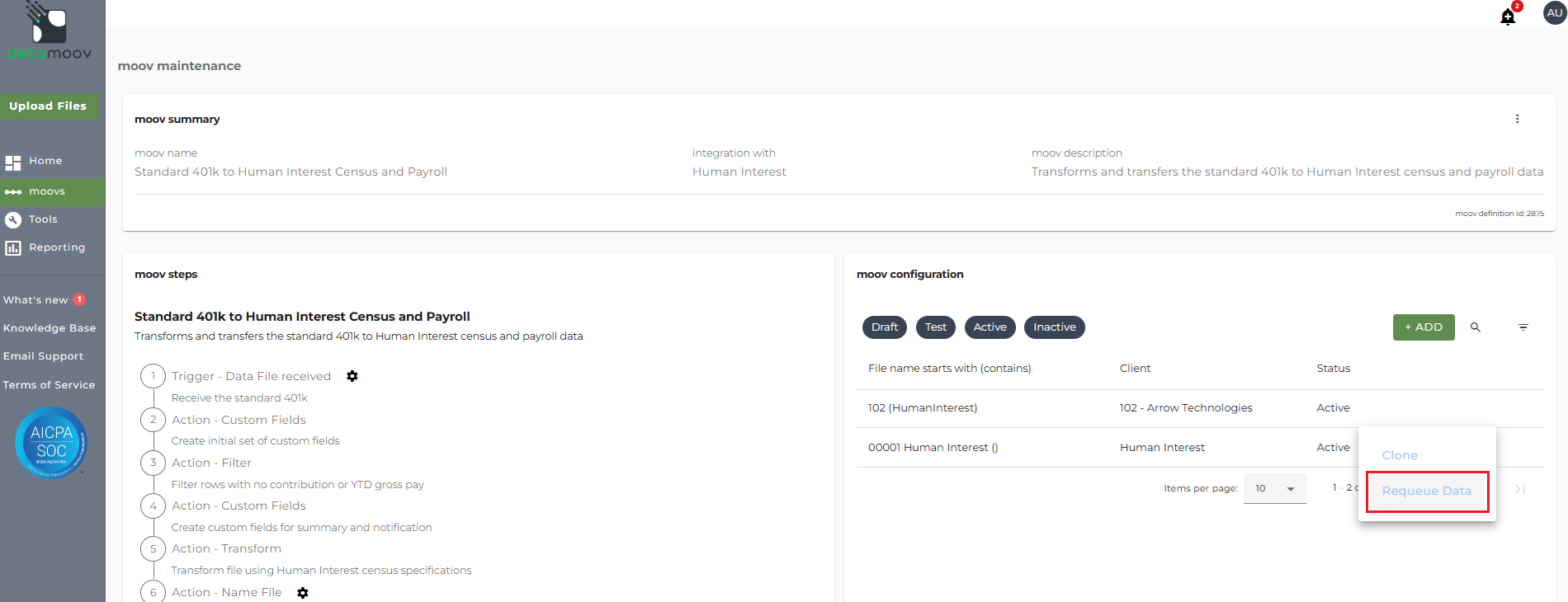
To select data sets to requeue for a consolidated YTD report, access the moov definition associated with the report (in our example, we will use the Standard 401k to Human Interest Census and Payroll moov), hover over the client configuration, click the ... icon and select Requeue Data.
By default, a search will be performed from the 1st of the year to the current date for any moov configurations with an execution status of Completed.
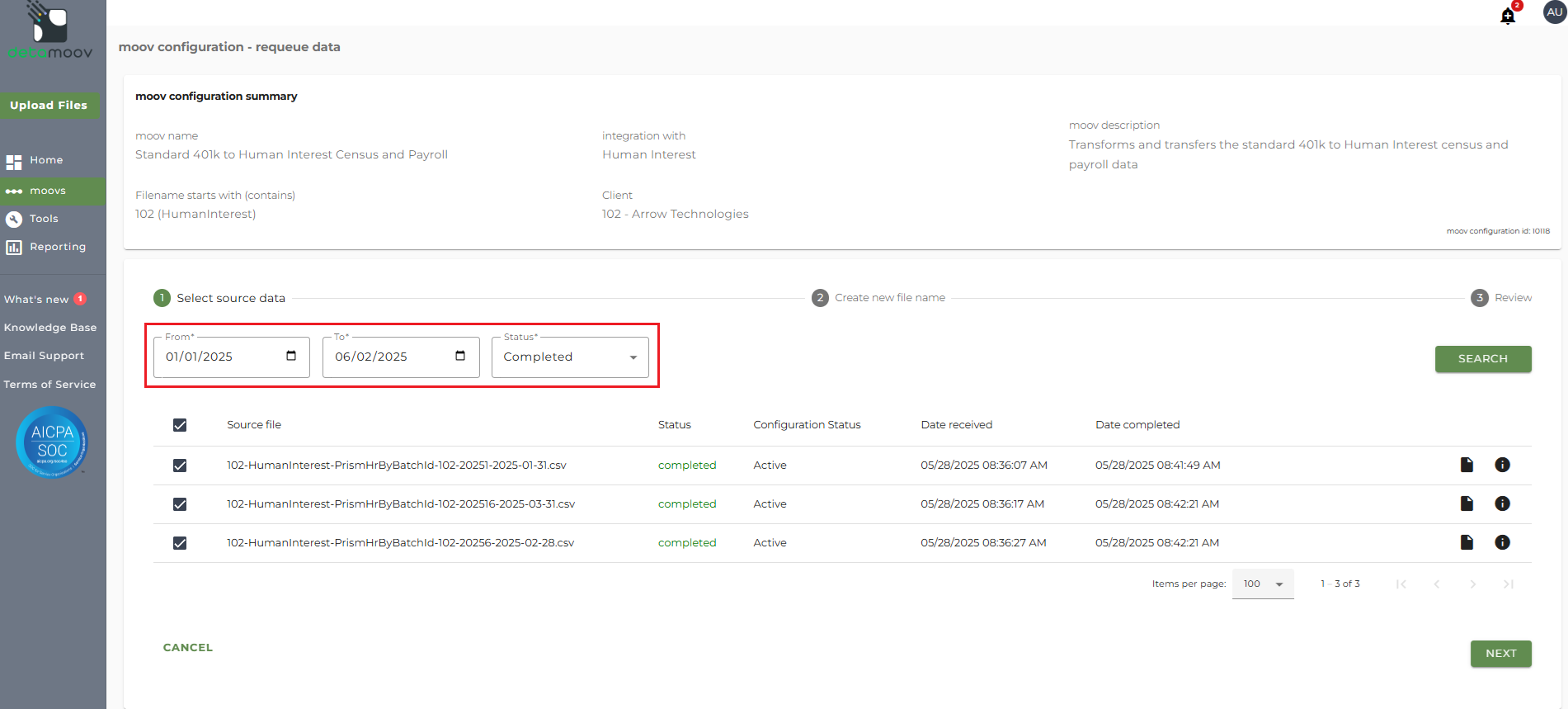
You can change the date range and status to search for additional parameters. You can also review the source data and custom fields created for each source data by click on the File icon and i icon on the right.
Once you have the source data you would like to requeue, click the Next button.
On the create new file name section, enter in the parameters you used to configure the YTD moov configuration above. Once a match it found, the information about the moov configuration will appear:
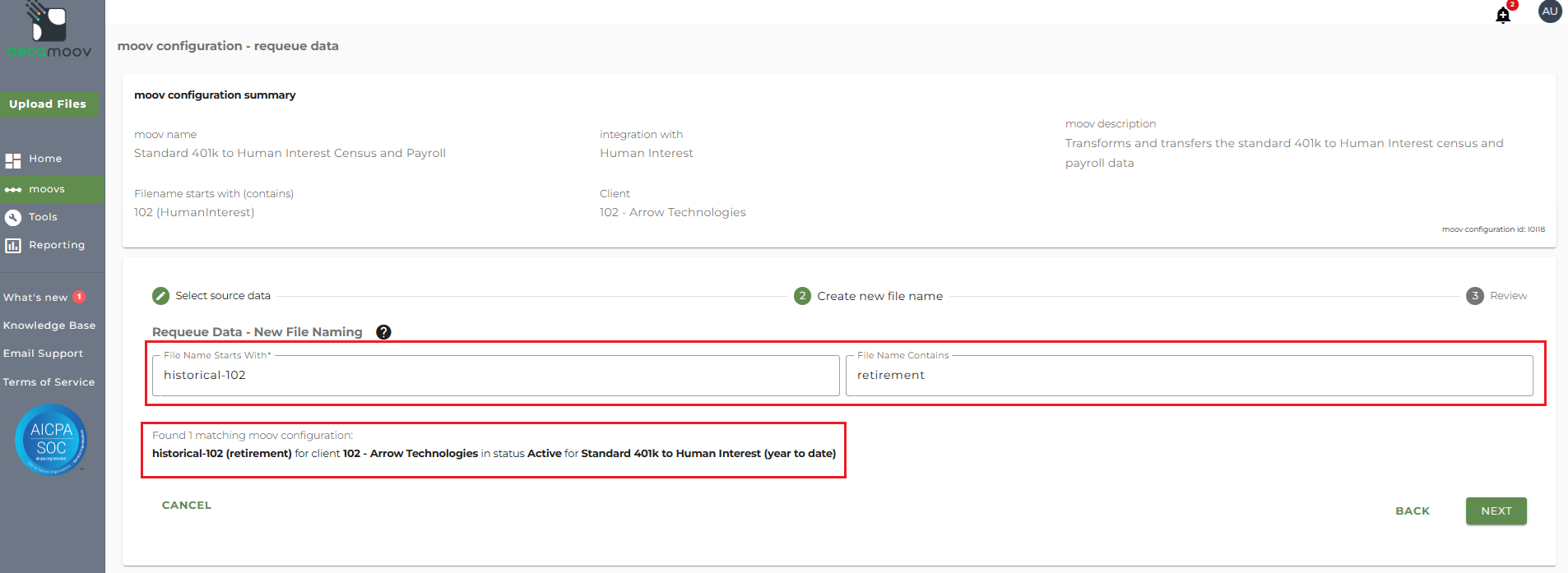
Note: If no match is found, requeuing the data will result in a processing error and the data will not be picked up and processed.
Click Next.
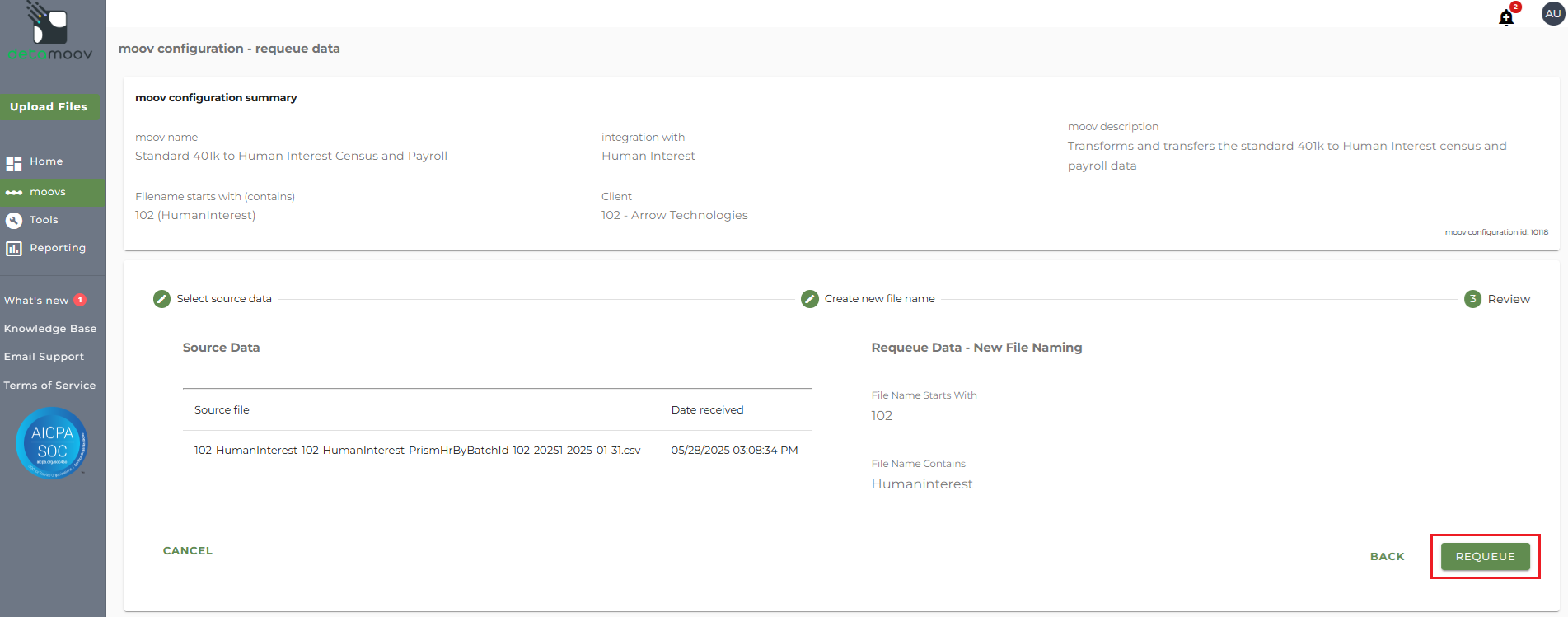
You can see the selected source data and new file naming parameters on the Review page. To requeue the data, click the Requeue button.
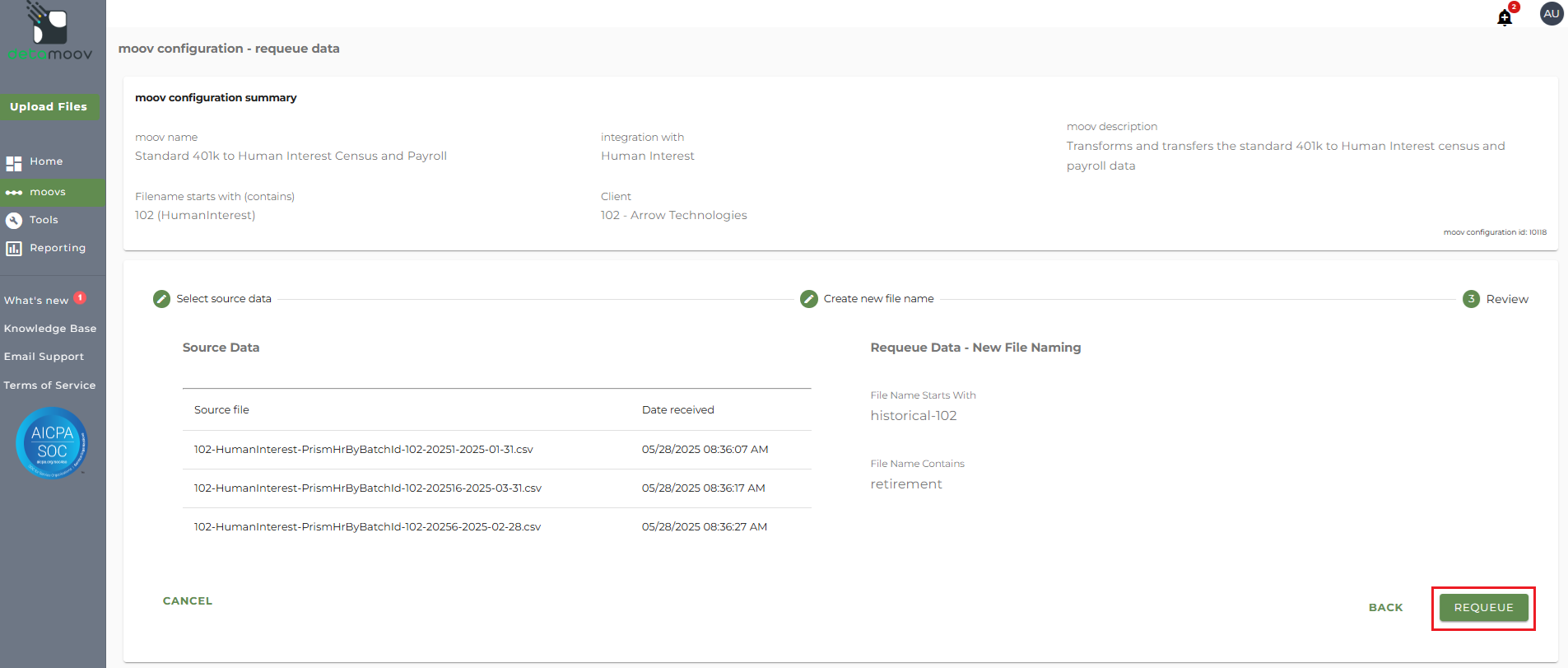
The selected source files will then be requeued back to detamoov and processed for the moov configuration that matches the File Name Starts With and File Name Contains values.
The Requeue Data feature can be used to reprocess an existing data set. This can be useful in the event that a moov step failed due to various reasons (the SFTP credentials were incorrect, an override was required, etc.).
Using the Standard 41k to Human Interest Census and Payroll moov as an example, say a moov execution was deleted because the SFTP credentials were incorrect. After we updated the credentials, we want to re-execute the deleted file.
On the moov configuration section, hover over the client configuration, click the ... icon and select Requeue Data.
The default search will show any moov execution from the beginning of the year until today with a status of Completed. Click the Status dropdown, uncheck Completed and check Deleted and click Search.
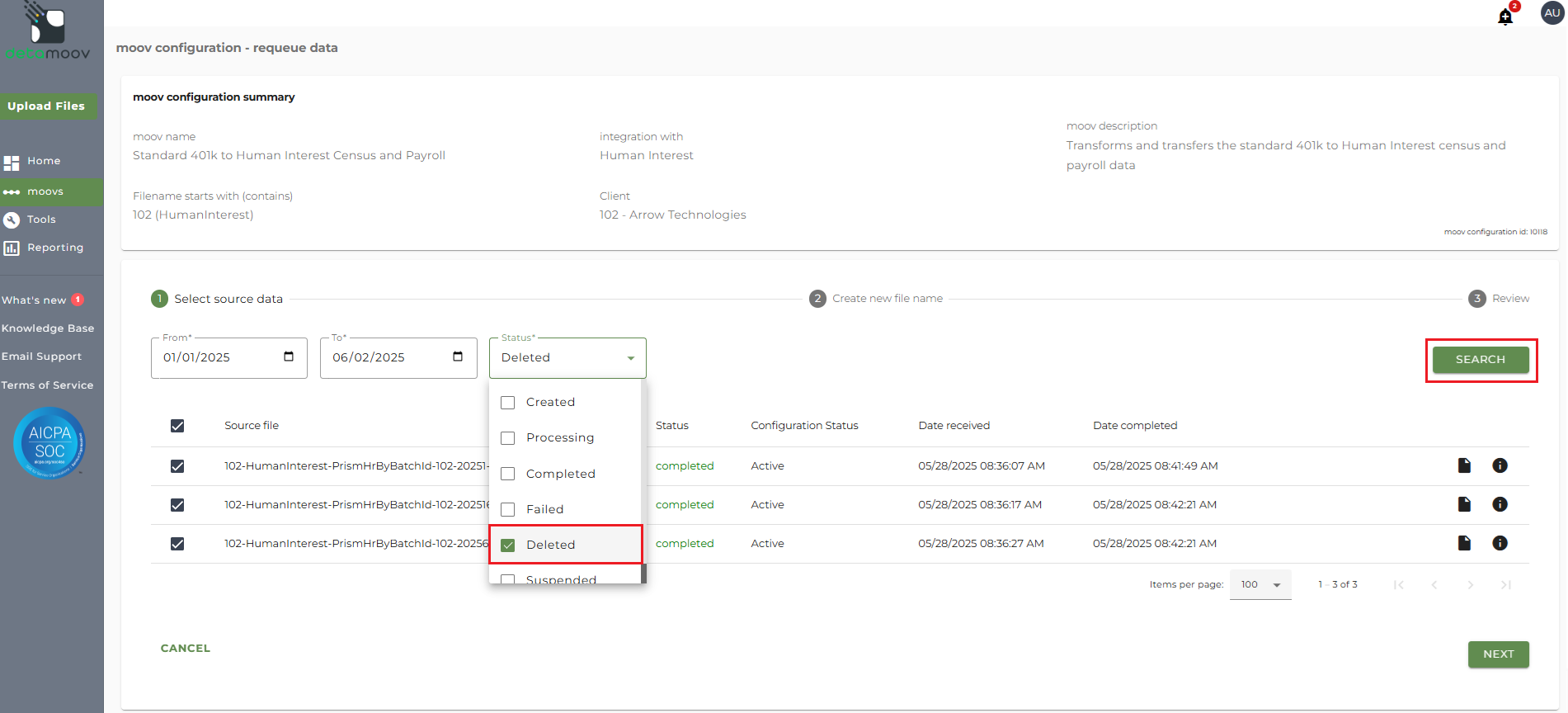
This will select the deleted moov execution. Click Next.
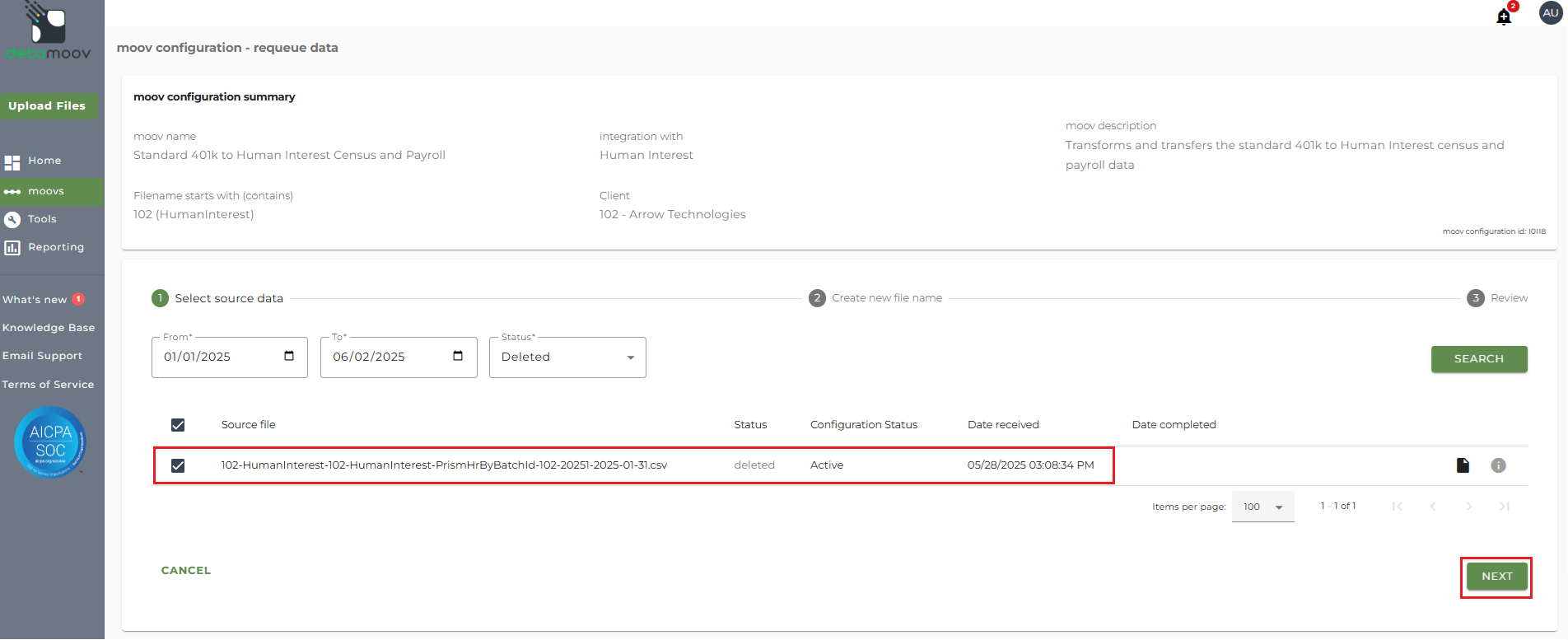
Since we are simply requeuing the data back to the same moov configuration, we will use the same File Name Starts With and File Name Contains values. These values have been provided in the moov configuration summary.
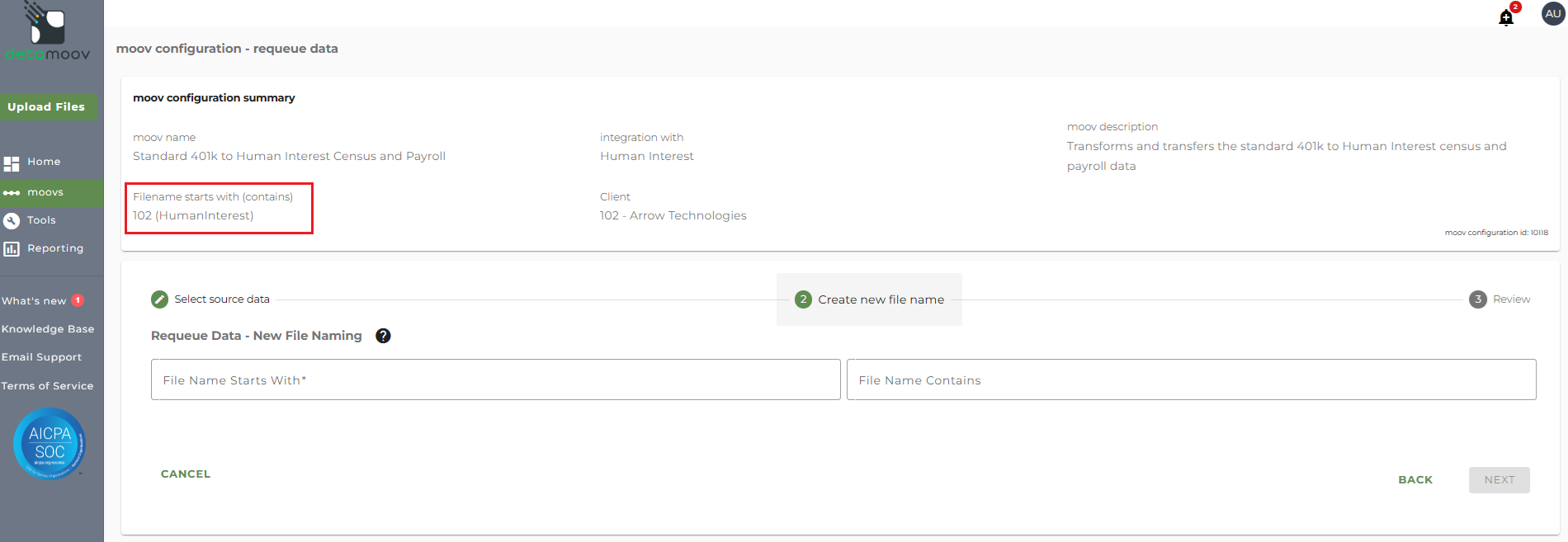
We will use these to fill in the Requeue Data - New File Naming section.
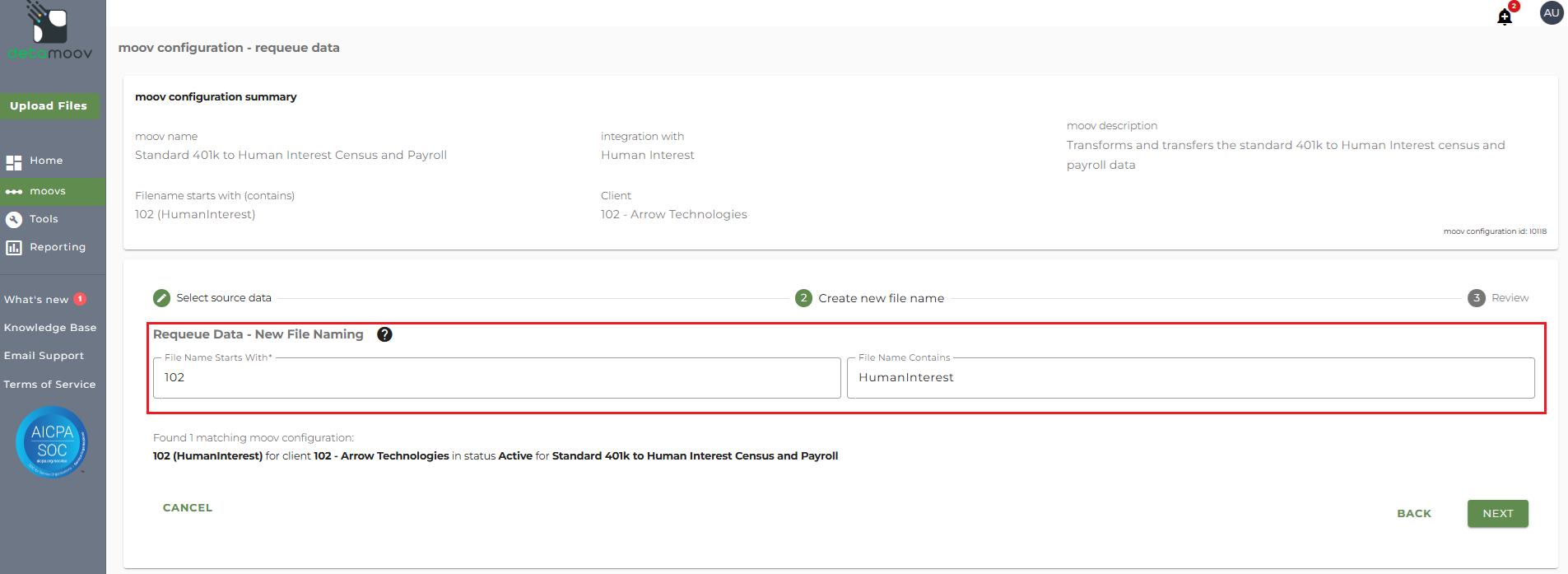
A matching moov configuration will be found showing the File Name Starts With(Contains), the Client, the moov configuration Status, and the moov Definition name.
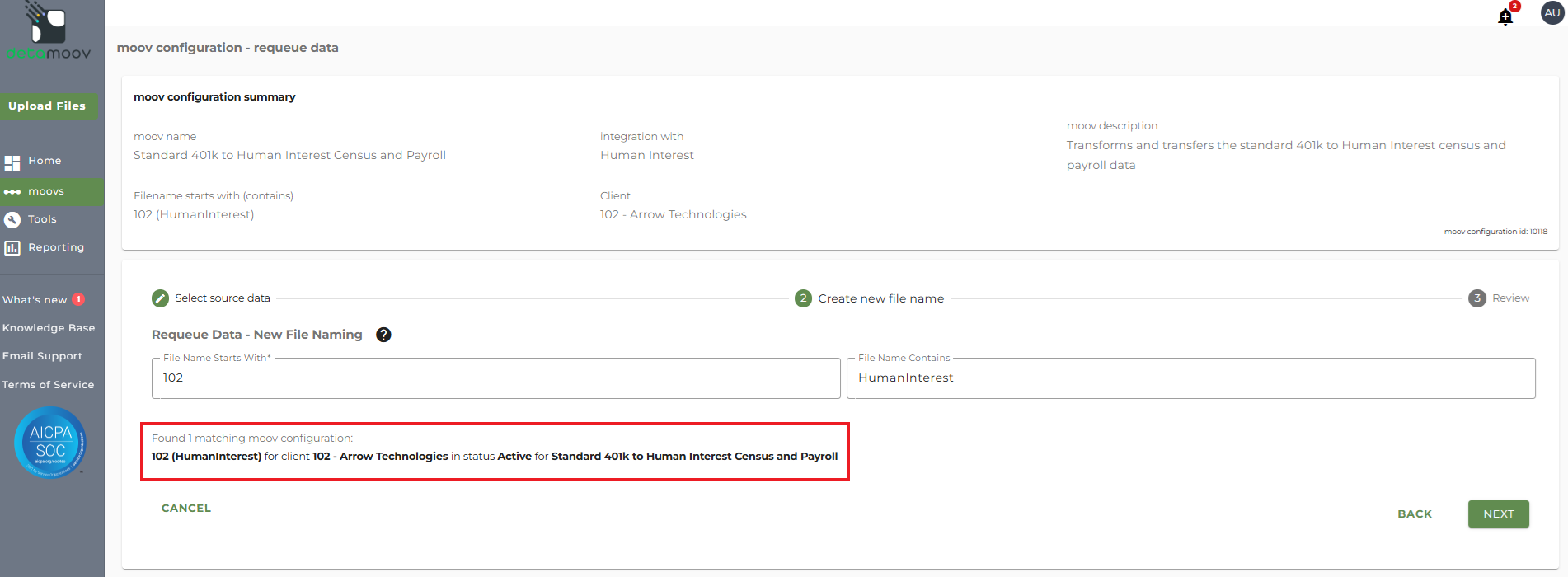
Note: If no match is found, requeuing the data will result in a processing error and the data will not be picked up and processed.
Click Next.
You can see the selected source data and file naming parameters on the Review page. To requeue the data, click the Requeue button.