


When configuring a retirement provider to automate processing of PrismHR batches, there may be situations where your client has multiple pay groups and you need to send each pay group to the retirement provider separately. detamoov allows you to create a configuration that will process batches for a specific client's pay group and then filter out the unwanted employees not in that pay group.
Note: if you have multiple pay groups in payroll, you will need to create a configuration for each one separately.
Configure the PrismHR Premier Integration
To specify a specific Pay Group to pull, access the moovs section and select the retirement provider moov.
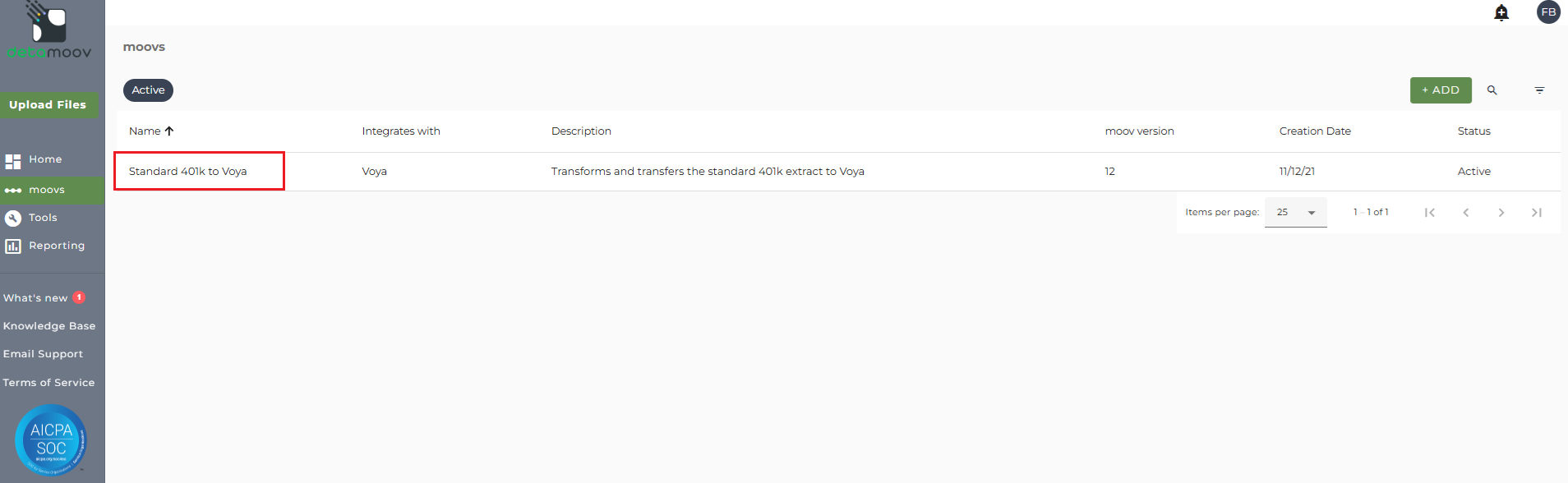
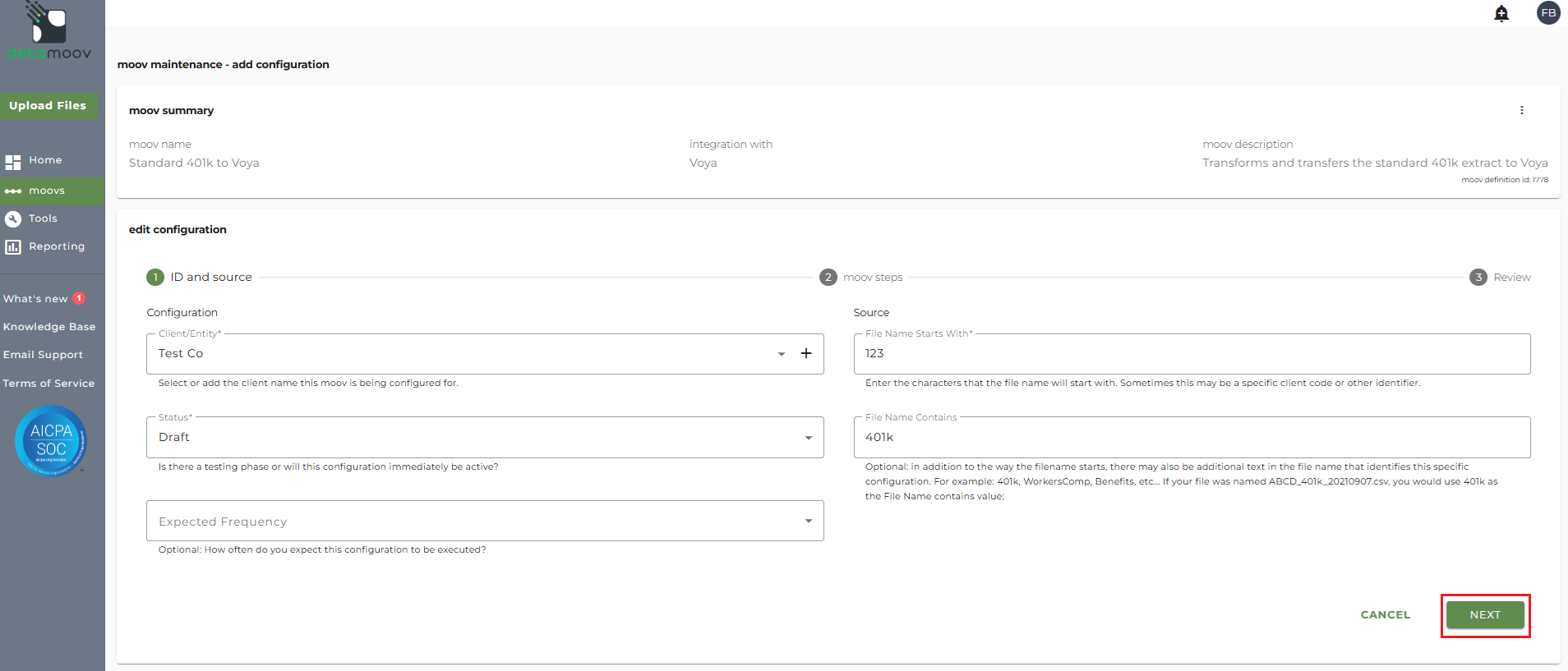
Then either select an existing configuration or create a new one. On the edit configuration page, click Next.
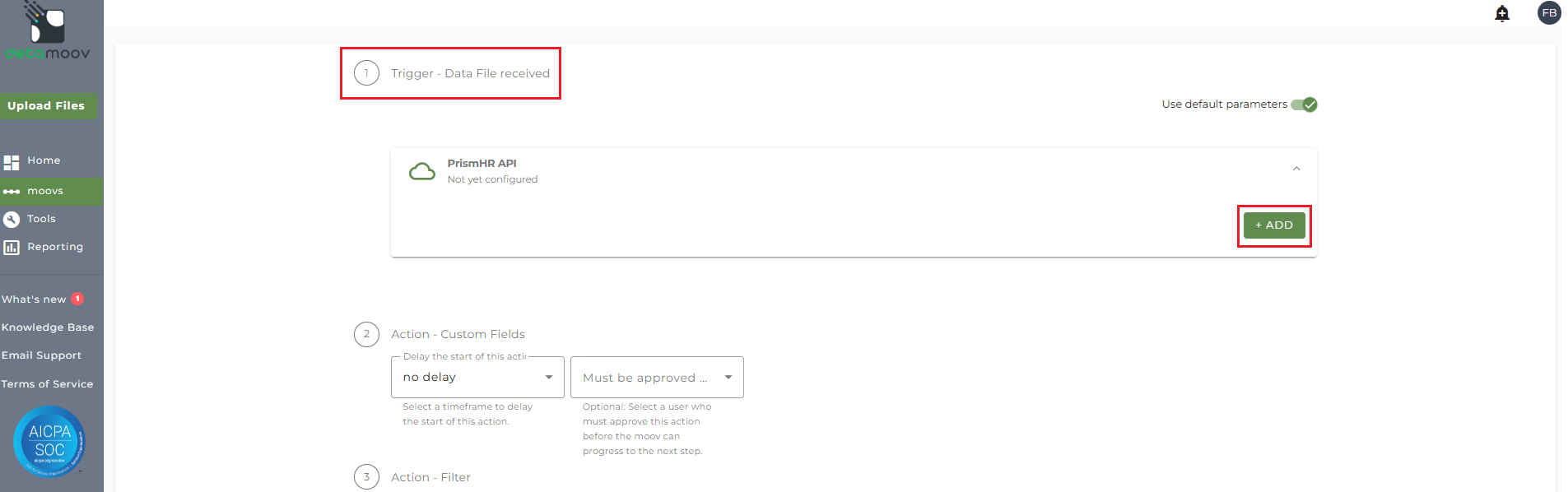
You will then see the PrismHR API panel under step 1 Trigger - Data File Received. Click the panel and then click ADD or click on an existing configuration if listed.
Under Premier Integration select your PrismHR integration. This will show the fields required for the PrismHR integration. To only process specific batches by pay group, fill in the required fields and enter the client's pay group in the Pay Group field.
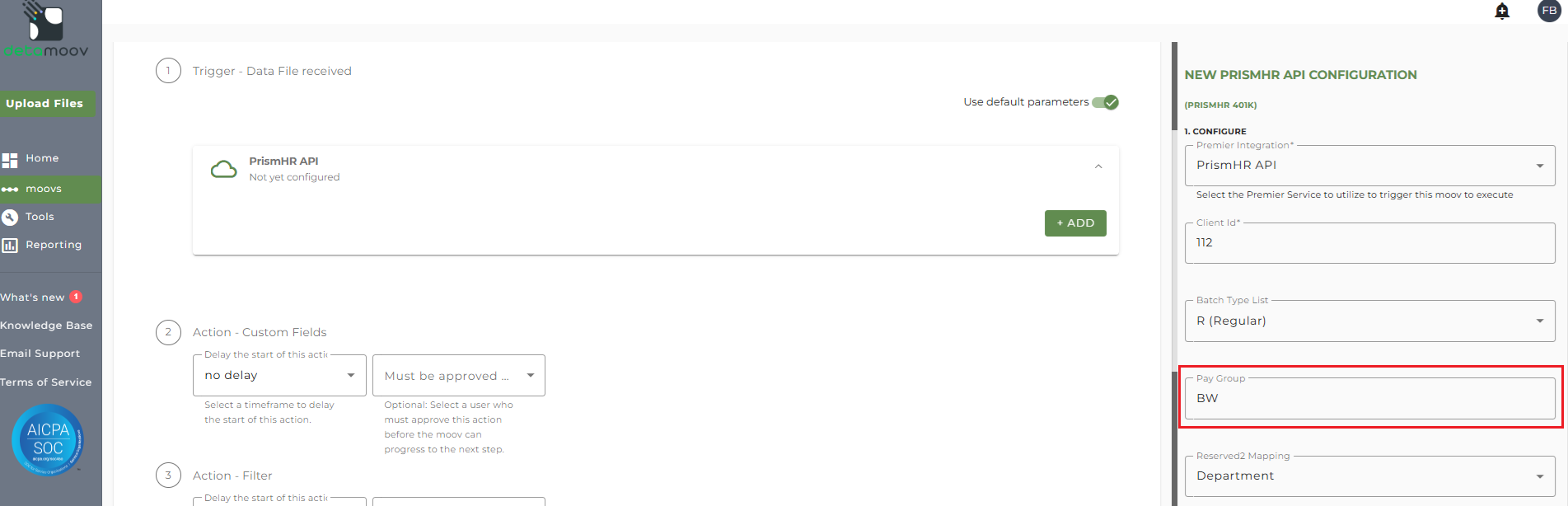
Mapping the Pay Group Reserved Field
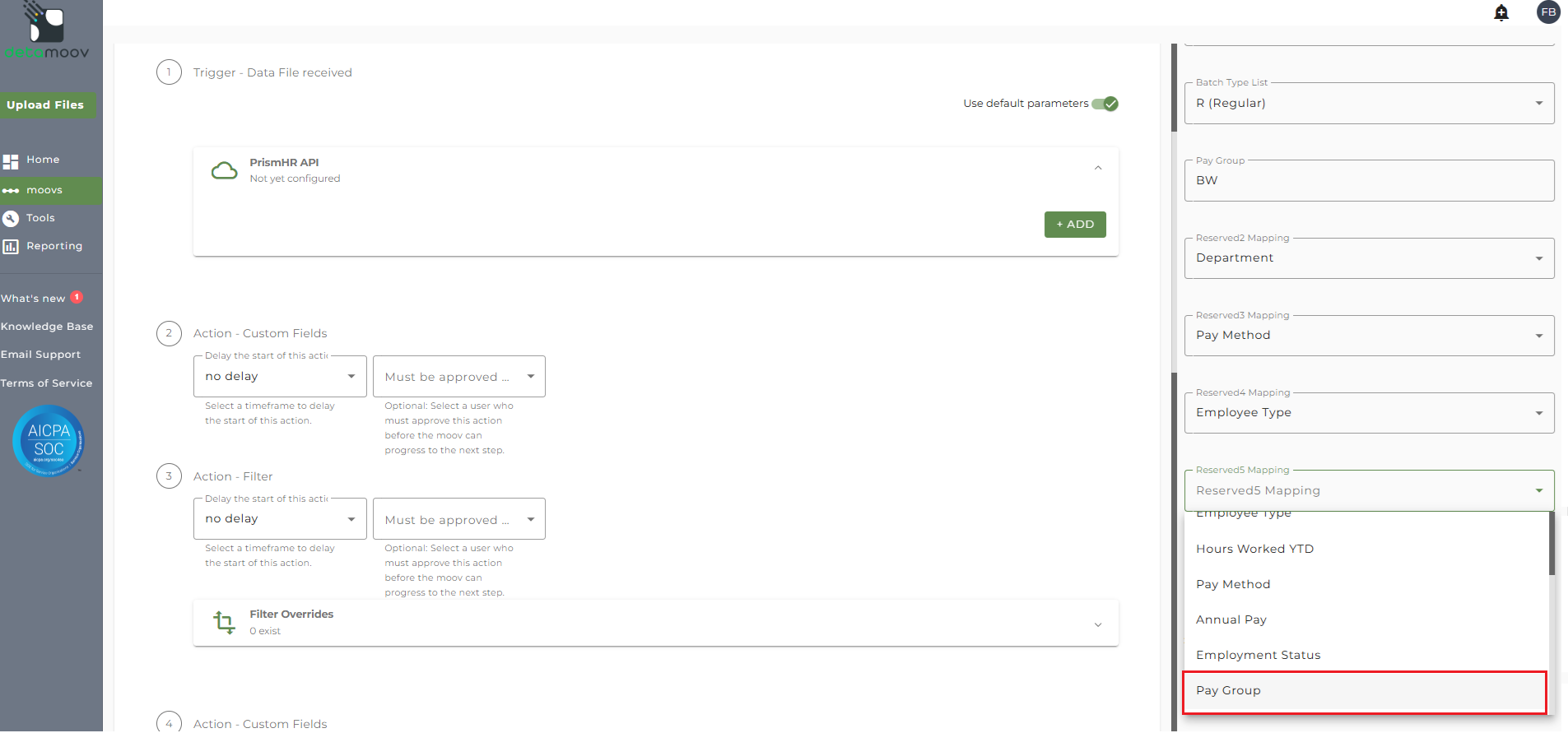
To make the Pay Group value available for each employee (used to filter out employees not in this pay group), scroll down on the PrismHR API Configuration page on the right and click the Reserved5 Mapping dropdown menu. Then select Pay Group from the menu.
If this is a new configuration, create a schedule of when you want detamoov to check for new batches to process under section 2. SCHEDULE.
Scroll to the bottom of the PrismHR API Configuration page on the right and click OK.
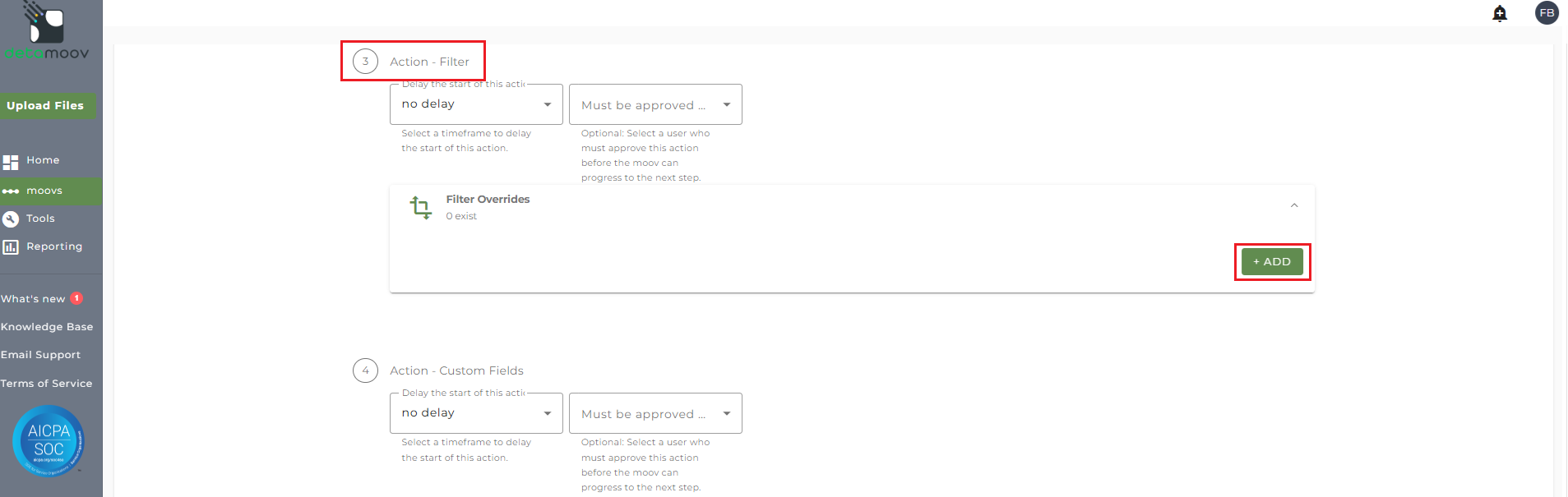
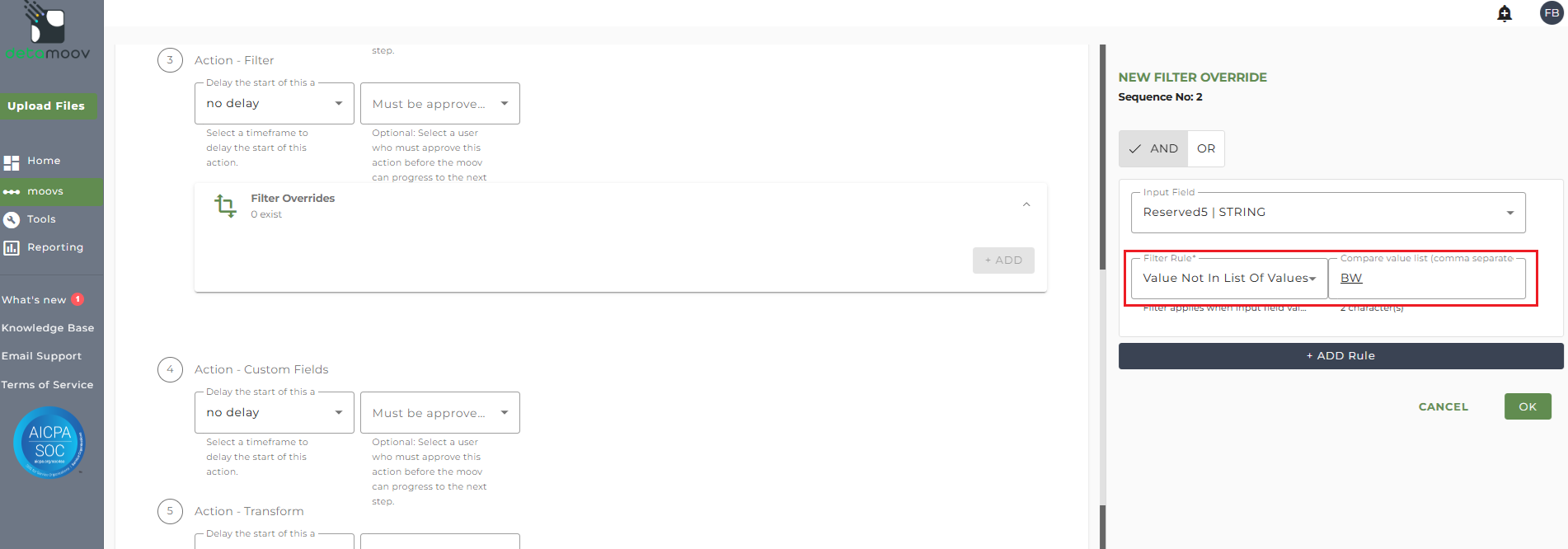
To filter out employees that are not in the specified pay group, locate the first Filter Step after the Trigger - Data File received step, click the Filter Overrides panel, and then click ADD.
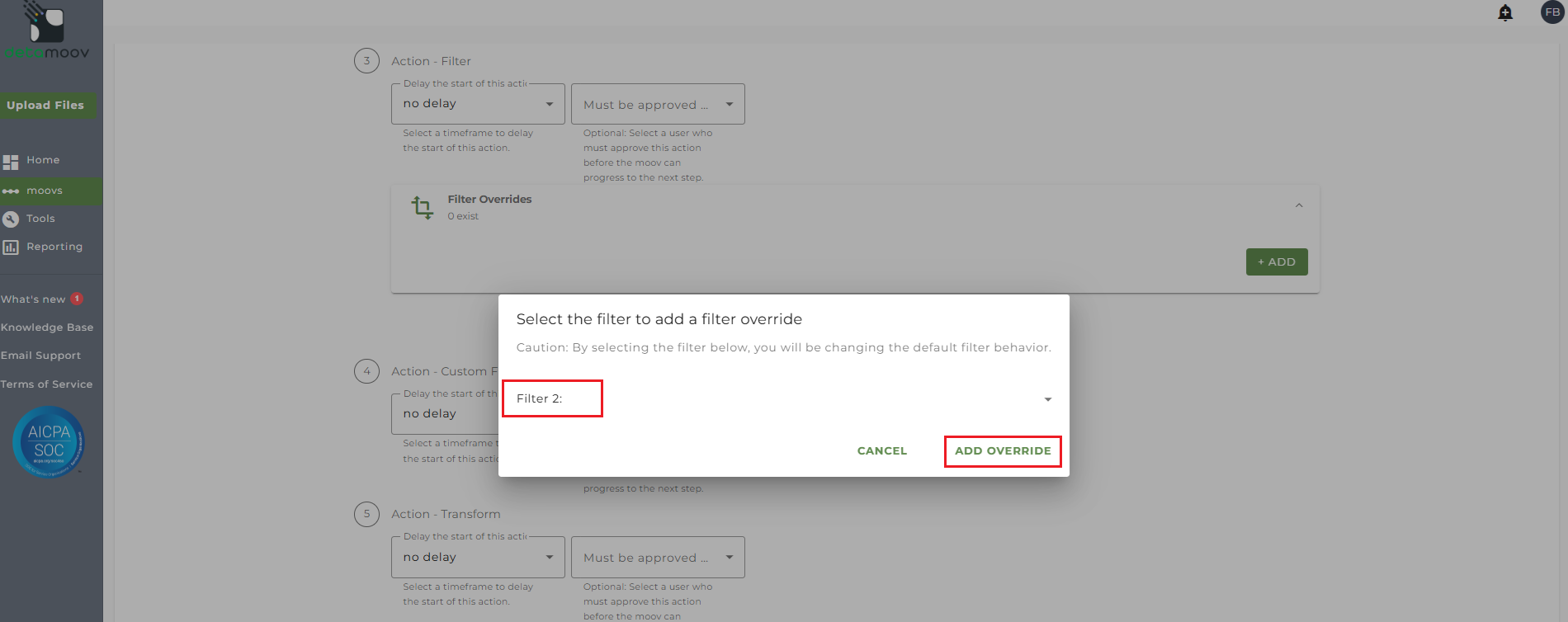
Then click the Select Filter dropdown, select the Filter 2: option and click ADD OVERRIDE.
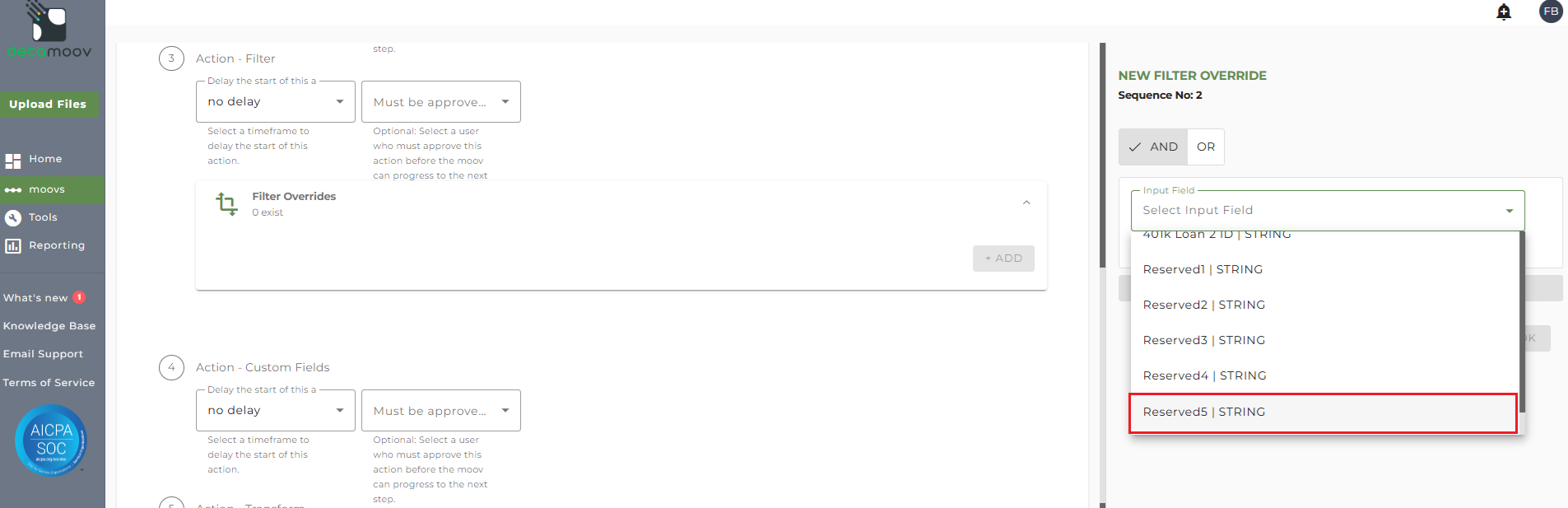
Click ADD Rule and select Reserved5 from the dropdown menu.
In the Filter Rule dropdown menu, select the 'Value Not In List Of Values' rule. Then enter in the Pay Group value in the 'Compare value list' field that you specified in the PrismHR Premier Integration and click OK.
If this is a new configuration, please see the How to configure a moov - Payroll to Retirement help section for specific retirement provider configuration.
To complete the changes, scroll down to the bottom of the page, click NEXT, and then SAVE on the summary page.

