This article describes how to configure a client for the NestEggs Deduction Feedback to isolved moov definition used for 360 integration. Each client configuration will vary based on their plan specification and will need to be configured accordingly.
To proceed in configuring the isolved moov, you will need the isolved API premier service enabled on your detamoov account. In isolved you will need to have the detamoov API enabled. If not currently enabled, please contact isolved support to enable the detamoov API for you within your isolved environment. Once complete, isolved support will send your API credentials to detamoov for us to add these into your detamoov account.
Once the API credentials have been added to your detamoov account, you will need to give the client access to the detamoov API user. Please see Configuring client access to the detamoov API user article.
After the isolved Premier Integration has been activated on your account, please add the NestEggs Deduction Feedback to isolved moov to your account by following these steps.
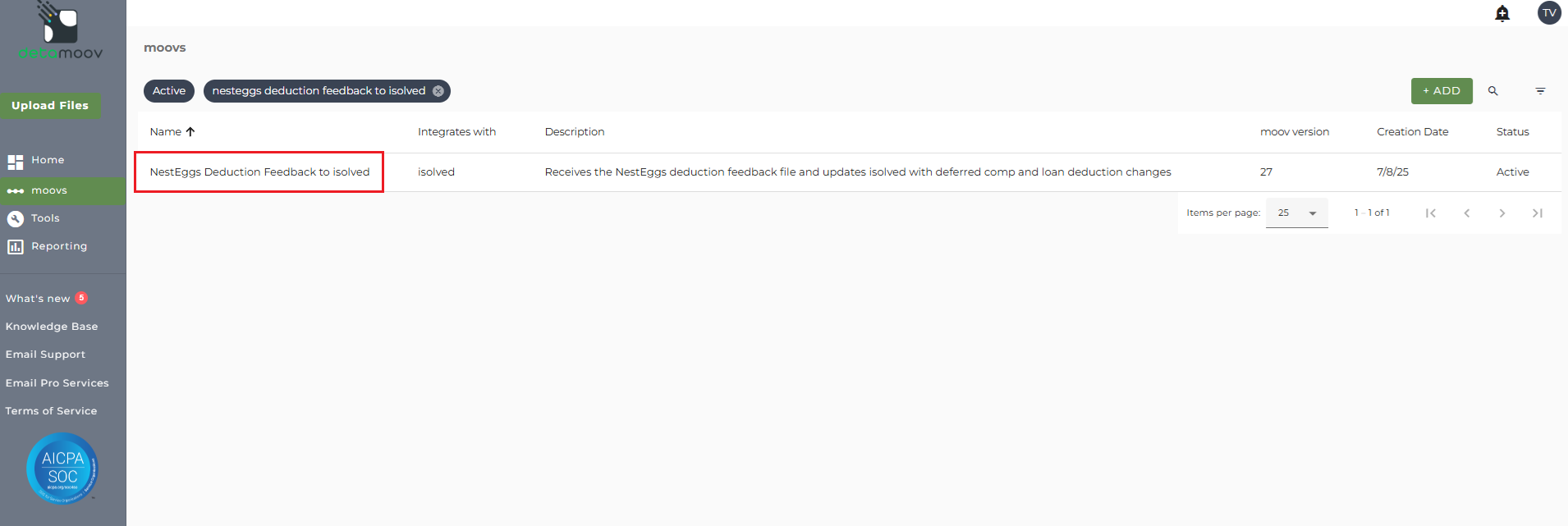
Once the NestEggs Deduction Feedback to isolved moov has been added to your account, access the moovs section on the left side menu and click on the NestEggs Deduction Feedback to isolved moov.
Note: The NestEggs Deduction Feedback to isolved moov will validate both the Deferred Comp Plan Update and the Employee Loan Update data before importing to isolved. You will need to configure two separate Validation steps to ensure you receive the validation reports.
Validating Deferred Comp Plan Update data
detamoov will prepare the NestEggs deduction data before importing it to isolved. During the preparation step, if the Pay Item or Benefit Plan are missing or invalid, or if an error occurs connecting to the isolved API, a validation report will be sent via email.
Note: If the Pay Item is missing or invalid, or there is an error connecting to the isolved API, those employee records will be filtered out of the isolved import. Records that do not have a Benefit Plan will be allowed to import into isolved, but no update will be made to the Deferred Comp Plan for the employee.
An example of the validation report generated:

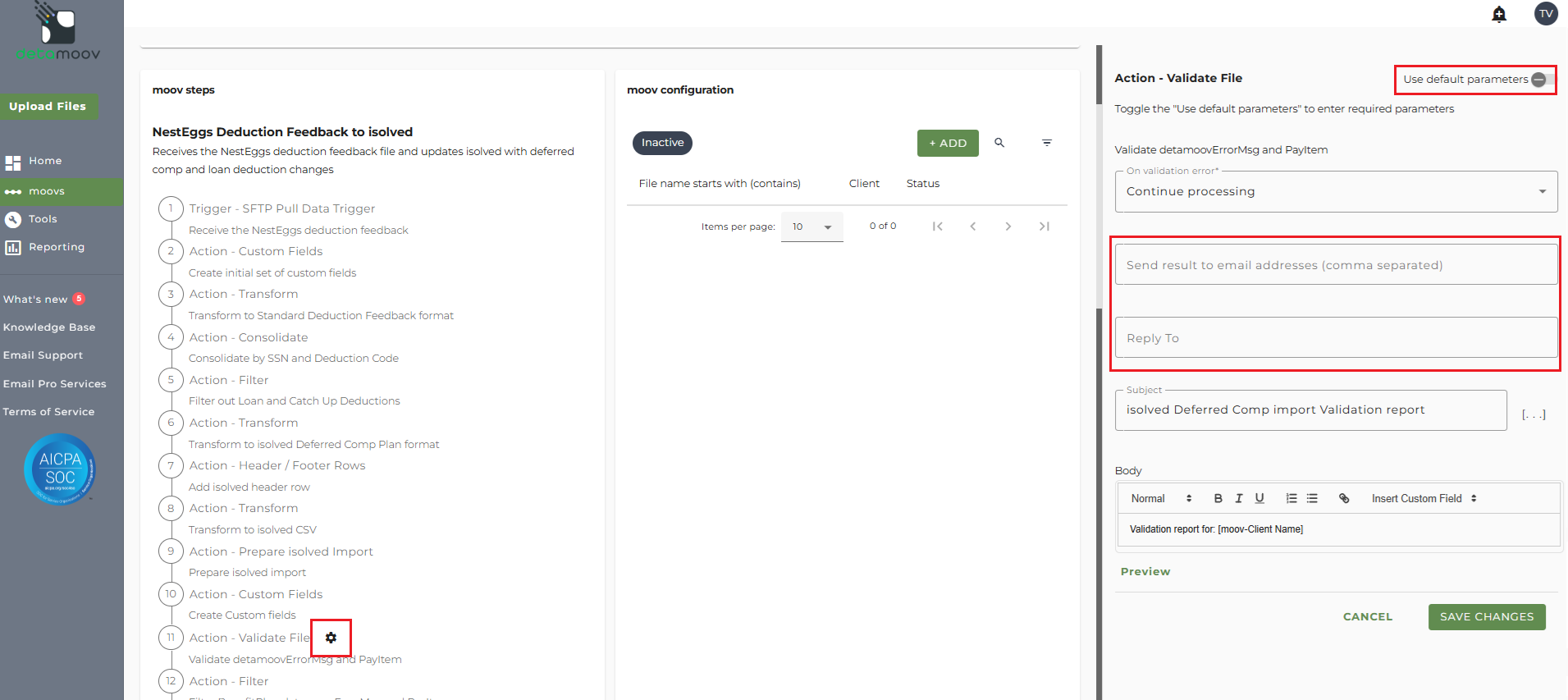
To ensure that you receive the validation notifications, click the cog icon under the step 11: Action - Validate File on the left. Then toggle the "Use default parameters" off and enter in the email addresses you would like to receive the notification. If you would like to enter multiple email addresses, separate them with a comma. A Reply to email is also required in the event that a recipient of the notification replies to the email.
Validating Employee Loans data
detamoov will prepare the NestEggs loan data before importing it to isolved. During the preparation step, if the Pay Item is missing or invalid, if the Reference Number (loan number) is missing, or if an error occurs connecting to the isolved API, a validation report will be sent via email.
Note: If the Pay Item is missing or invalid, or if there is an error connecting to the isolved API, those employee records will be filtered out of the isolved Import. Records that do not have Reference Numbers (loan numbers) will be allowed to be imported into isolved.
An example of the validation report generated:

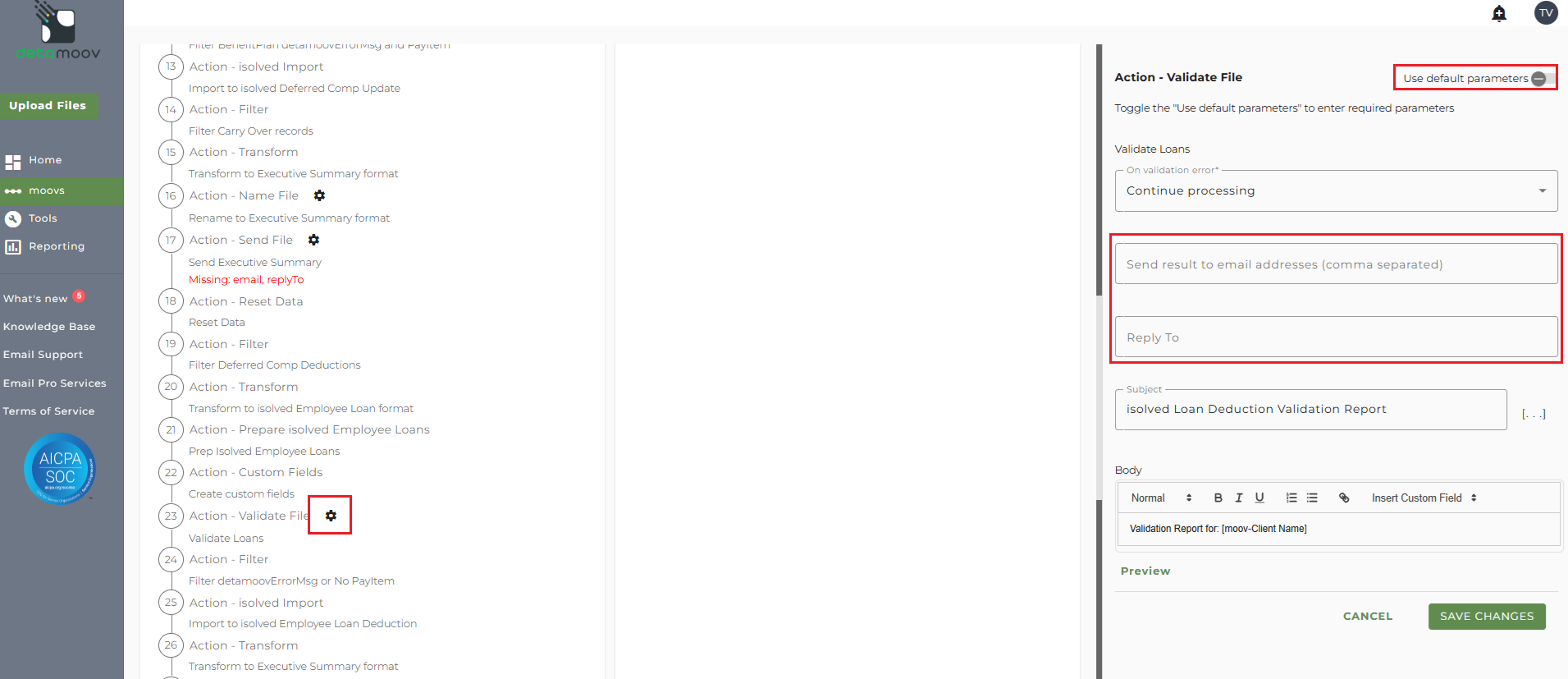
To ensure that you receive the validation notifications, click the cog icon under the step 23: Action - Validate File on the left. Then toggle the "Use default parameters" off and enter in the email addresses you would like to receive the notification. If you would like to enter multiple email addresses, separate them with a comma. A Reply to email is also required in the event that a recipient of the notification replies to the email.
Note: The NestEggs Deduction Feedback to isolved moov provides a notification email that includes a summary of the NestEggs deduction and loan feedback data sent to isolved. You will need to configure two separate Send File steps to ensure you receive the summary reports.
The notification can be sent to any email address you wish and can also be configured to send to multiple email addresses.
Deferred Comp Plan Notification
To edit the send file step, click on the cog icon under the step 17: Action - Send File on the left. Then toggle the "Use default parameters" off and enter in the email addresses you would like to receive the notification. If you would like to enter multiple email addresses, separate them with a comma. A Reply to email is also required in the event that a recipient of the notification replies to the email.
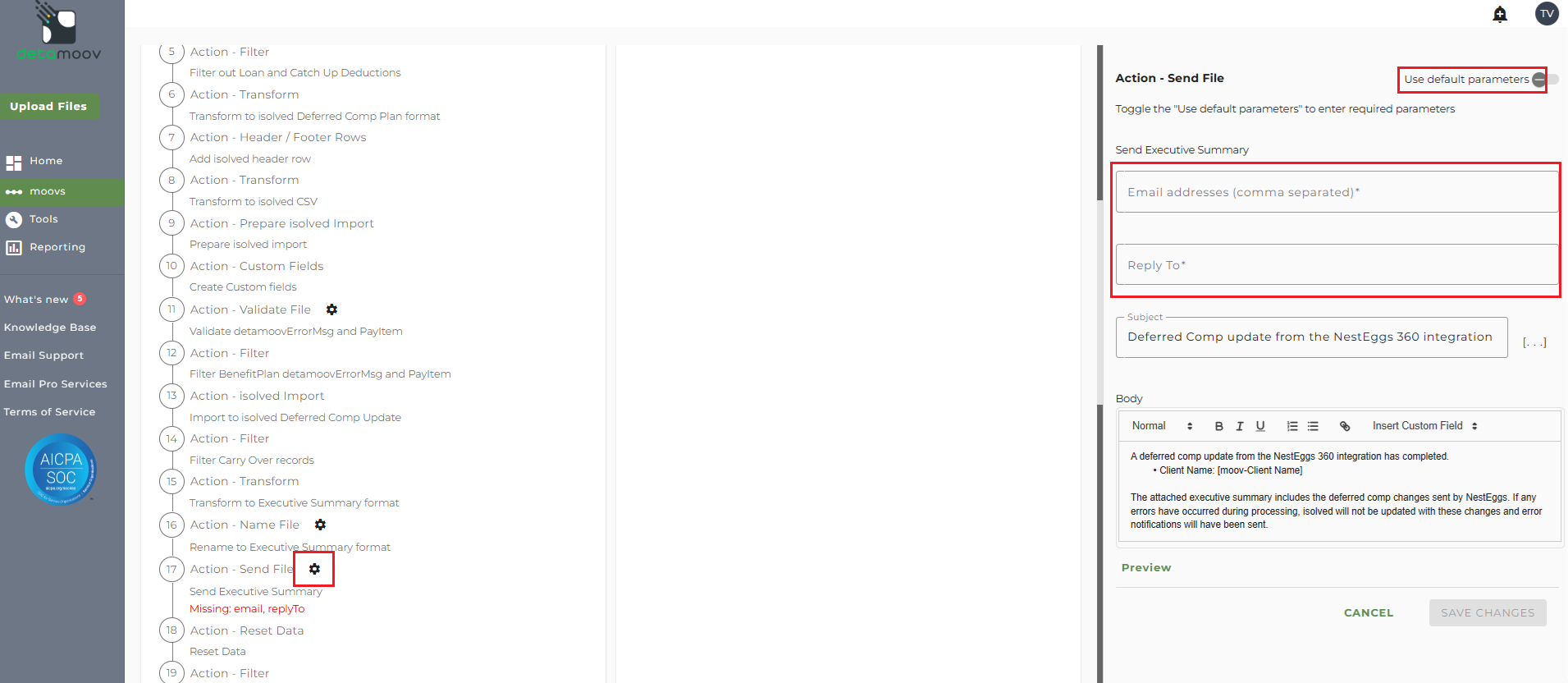
Note: these settings apply to any client configuration you set up for this specific moov. You also have the ability to configure the send file step for each client configuration if you wish to add or remove email addresses per client.
To save your parameters click on the Save Changes button.
Employee Loan Notification
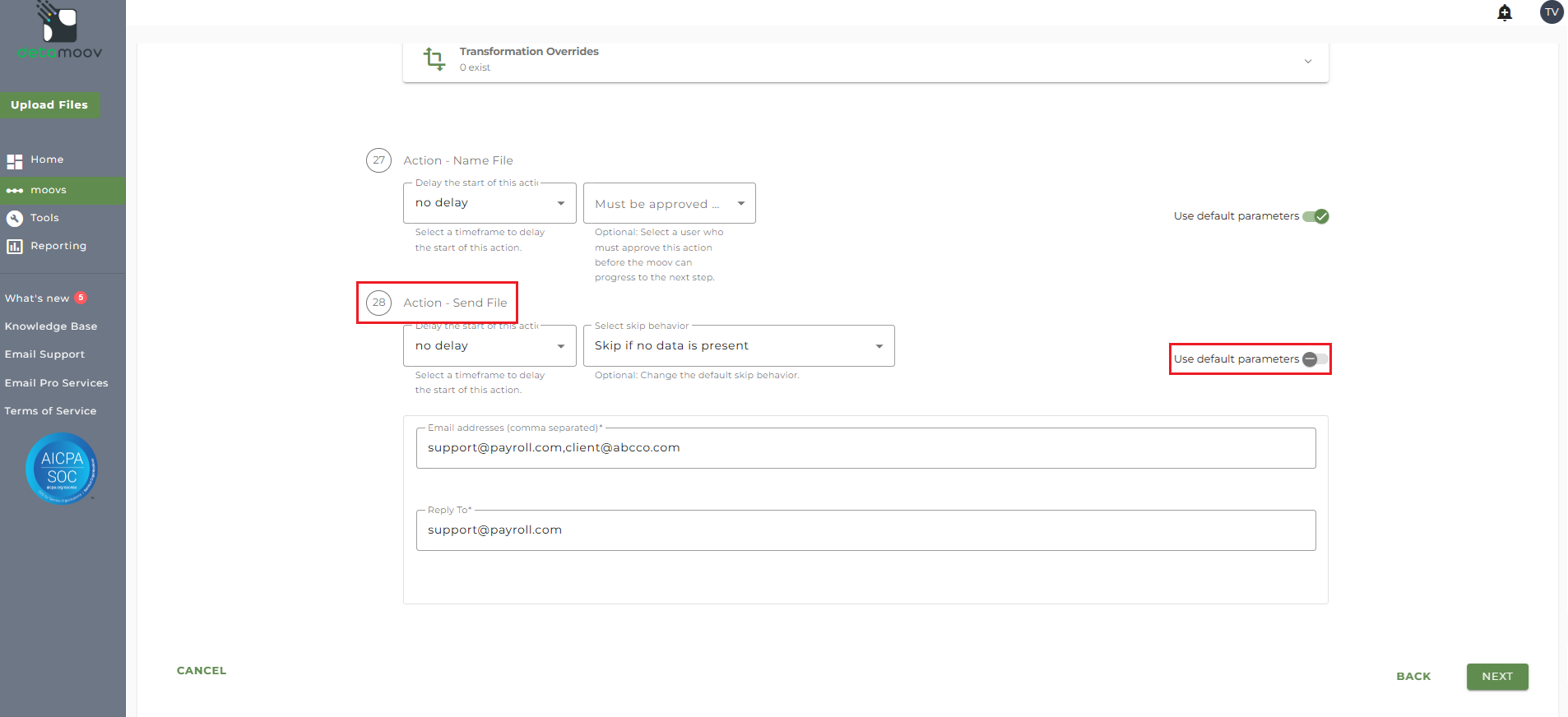
To edit the send file step, click on the cog icon under the step 28: Action - Send File on the left. Then toggle the "Use default parameters" off and enter in the email addresses you would like to receive the notification. If you would like to enter multiple email addresses, separate them with a comma. A Reply to email is also required in the event that a recipient of the notification replies to the email.
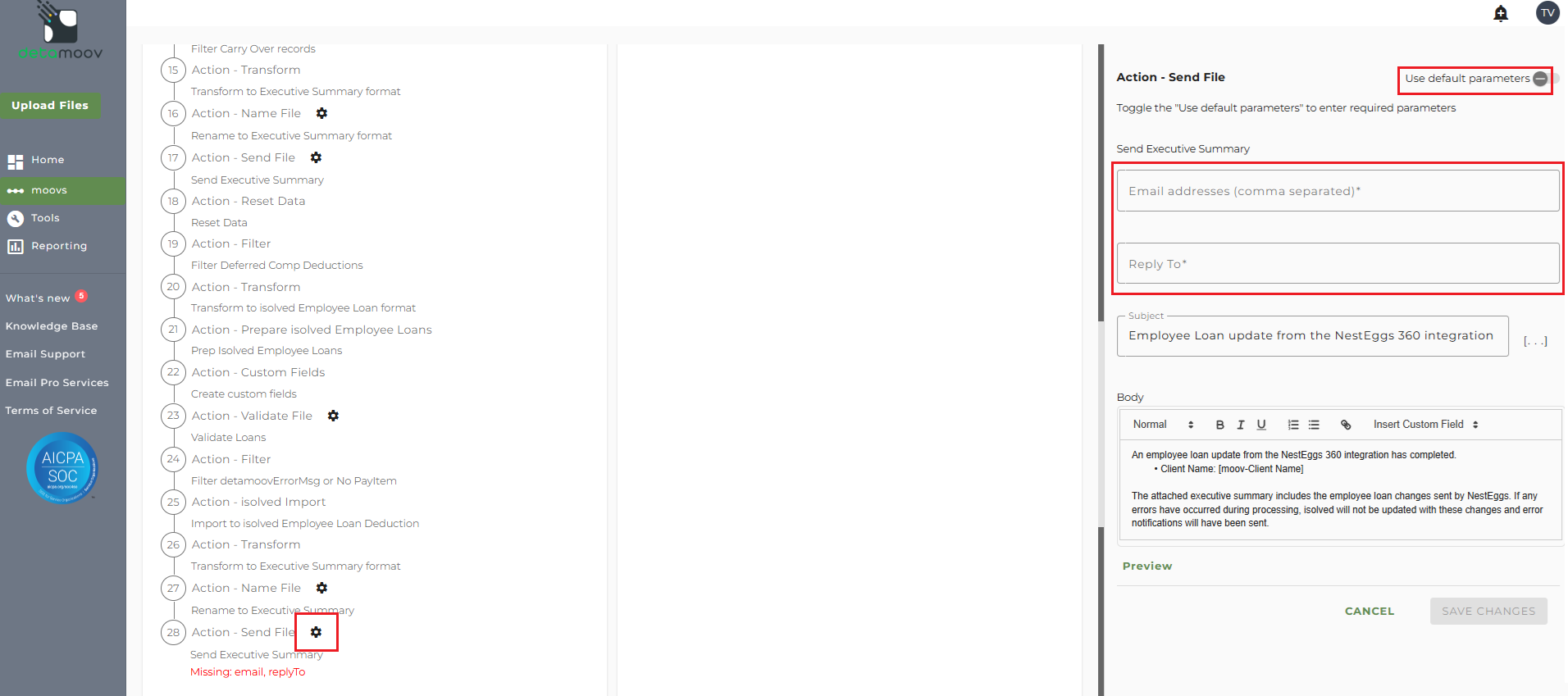
Note: these settings apply to any client configuration you set up for this specific moov. You also have the ability to configure the send file step for each client configuration if you wish to add or remove email addresses per client.
To save your parameters click on the Save Changes button.
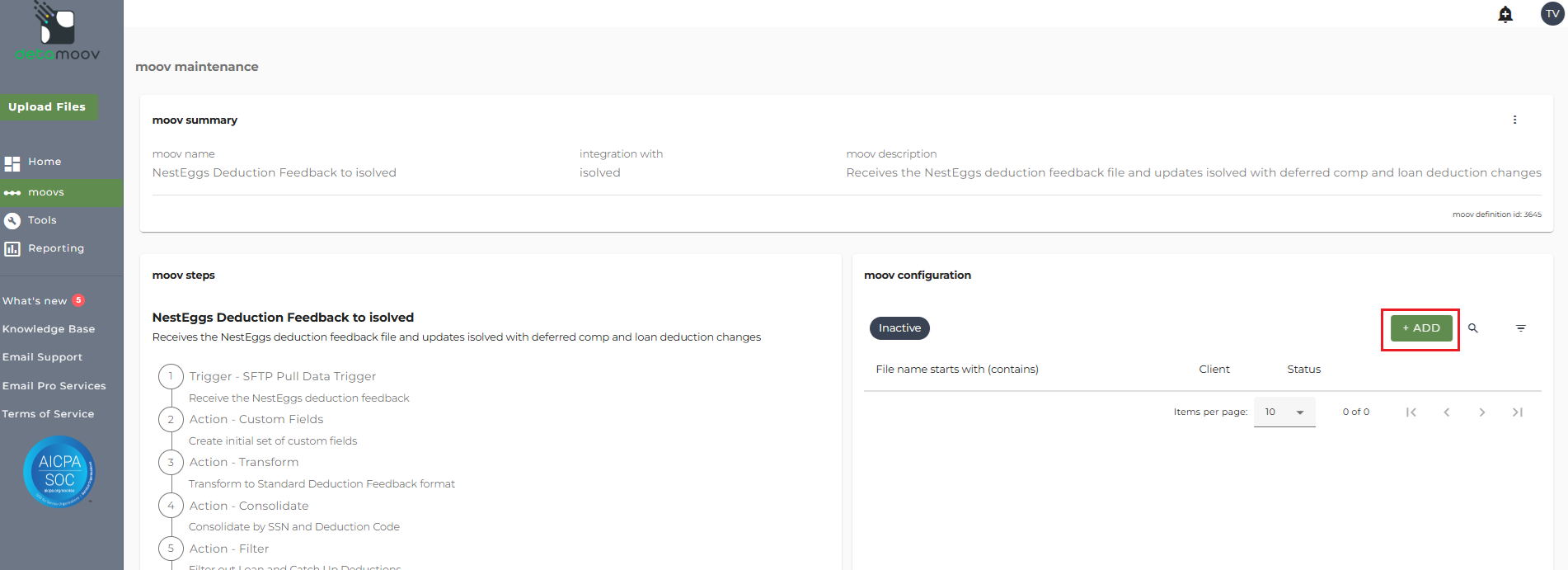
In the moov configuration section, click the Add button to add a new client to the moov.
Client/Entity - either select an existing client or click the + sign to create a new client.
Status - Set to Active
Expected Frequency - the client's payroll frequency
File Name Starts With - EGG_UPDATE_[your client's NestEggs Plan ID]
File Name Contains -
Note: make sure that the File Name Starts with field matches as this can cause issues pulling the NestEggs feedback file and updating isolved.
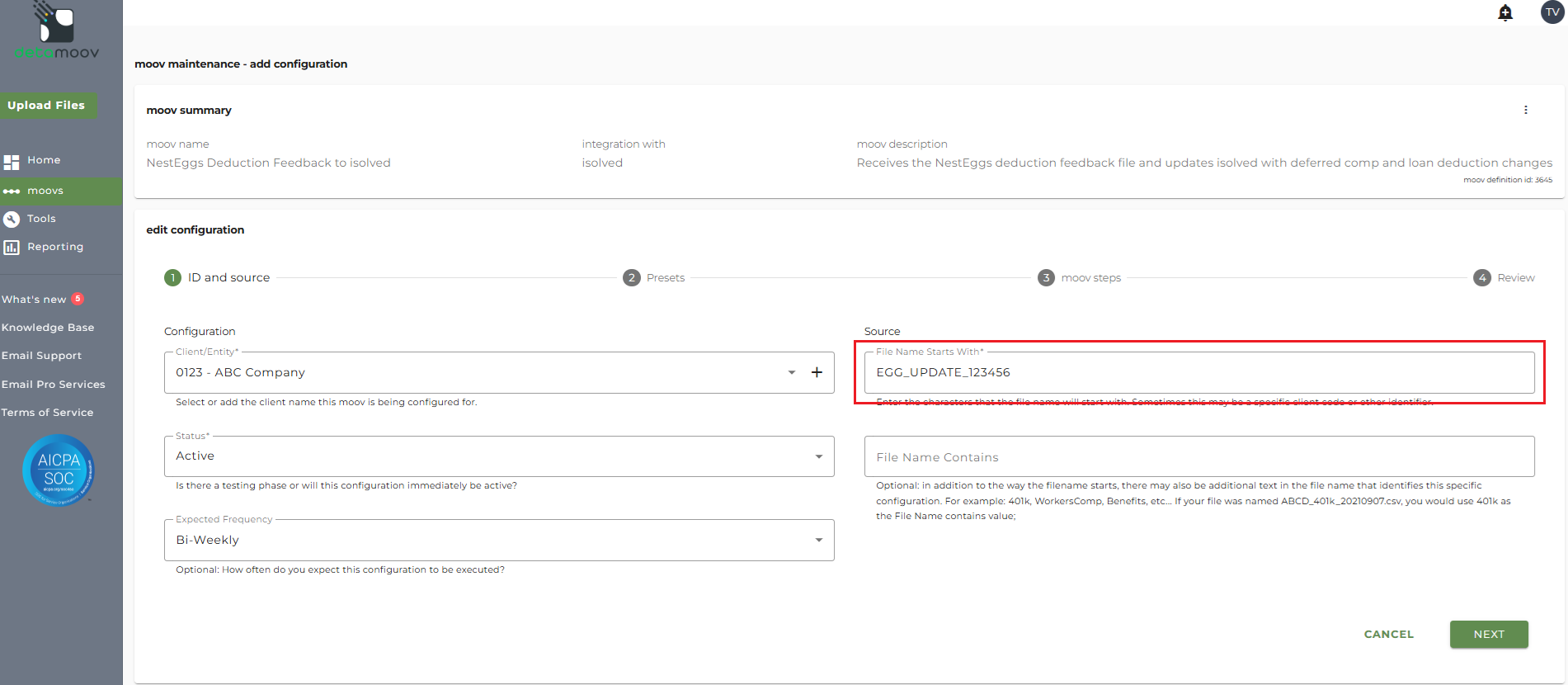
Click Next once you have completed the ID and source section.
To make configuring the isolved API easy, detamoov allows you to provide preset data for your client. On step 2: Presets you can fill in information that will be used to connect to your client's isolved account to make the necessary updates from NestEggs.
- Premier Integration: Select your isolved Premier Integration from the dropdown
- Client Code: Enter the client code from isolved
- Legal Company Code: Enter the legal company code from isolved
- Pay Group Name: Enter the pay group name (case-sensitive) from isolved
- Pay Item Codes (one per line): Enter the deferred comp plan Pay Item Codes for your client's plan. Enter these as they appear in the Code field inside isolved for each Pay Item, one code per line
- Deferred Comp Plan Update Import Type: This field is set and should be left as 'Deferred Comp Plan Update' by default
- Duplicate employee row for each active legal company found: Select this option if your client has employees in multiple legal companies and you want the deduction changes to apply to all legal companies
- Apply Pay Group for each row: Select this option if you want the Pay Group to be applied to each employee row
- Import Key: This field is set and should be left as 'SSN' by default
- Loan Pay Item Codes (one per line): Enter the isolved deduction Pay Item codes for loans. Enter these as they appear in the Code field inside isolved for each Pay Item, one code per line
- Loan Deduction Import Type: This field is set and should be left as 'Deductions' by default
- isolved Error Messages Email: Allows you to limit who will receives notifications if there are errors when connecting to the isolved API. Enter one or more email addresses (separated by a comma). or leave this field blank and all detamoov users on your account will receive the notifications
- isolved Validation Messages Email: Allows you to limit who will receives notifications if there are validation issues when connecting to the isolved API. Enter one or more email addresses (separated by a comma). or leave this field blank and all detamoov users on your account will receive the notifications
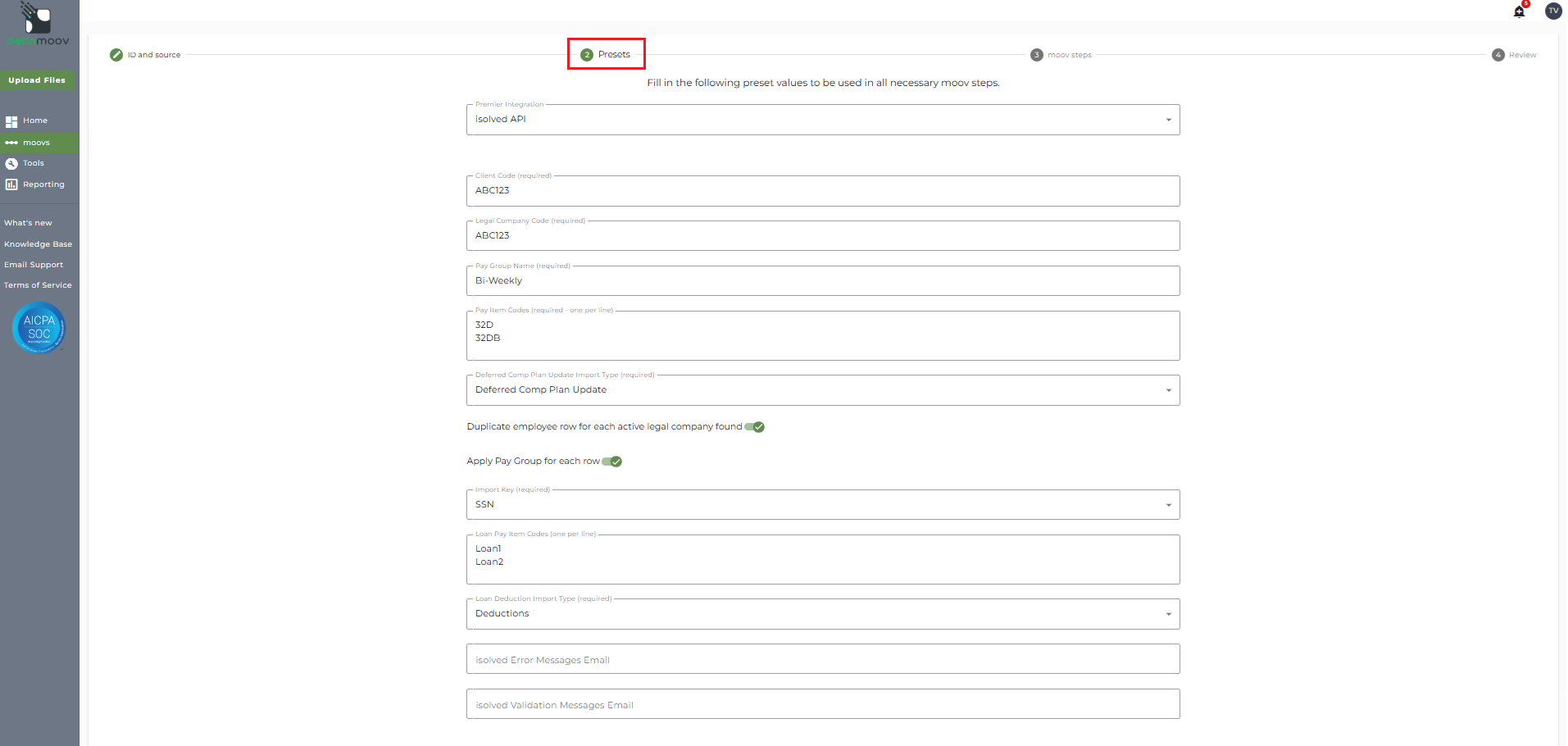
Click Next at the bottom of the page once you have entered in the preset fields.
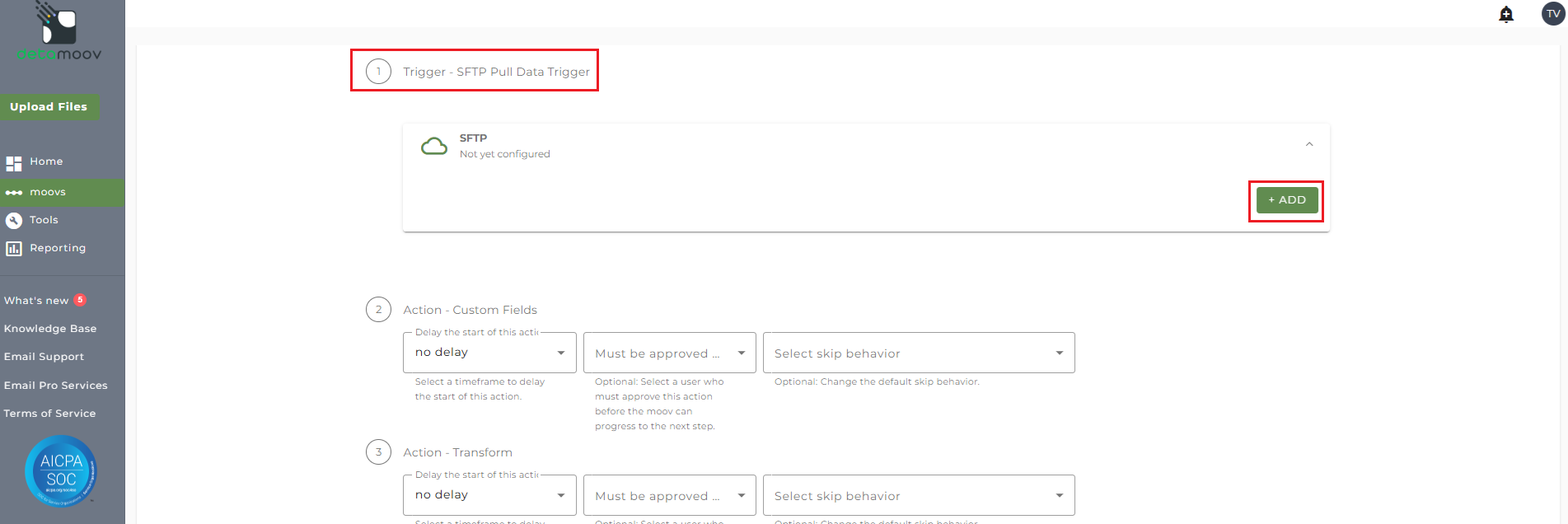
To automate the 360 integration, configure the SFTP schedule. Click the SFTP banner under the Trigger - SFTP Pull Data Trigger step and click Add.
On the New SFTP Configuration section on the right, select the SFTP Pull option from the Premier Integration menu. Then select either "Every X weeks" or "On certain days of the month", depending on how often you would like detamoov to check for new deduction files. We recommend that you check for feedback files at least twice a week. In the example below, we have set up a schedule to check for files twice a week on Tuesdays and Fridays.
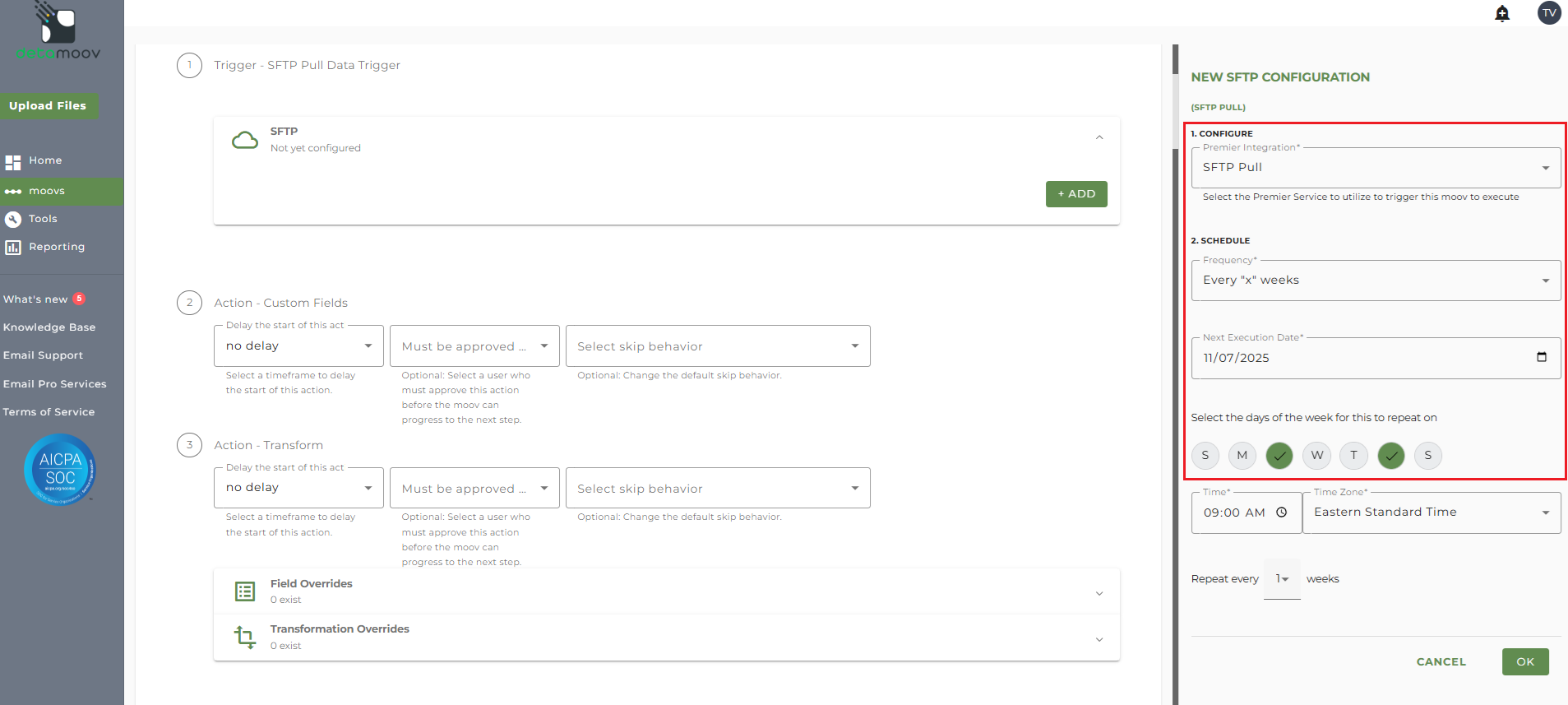
Click OK once you have created your SFTP configuration.
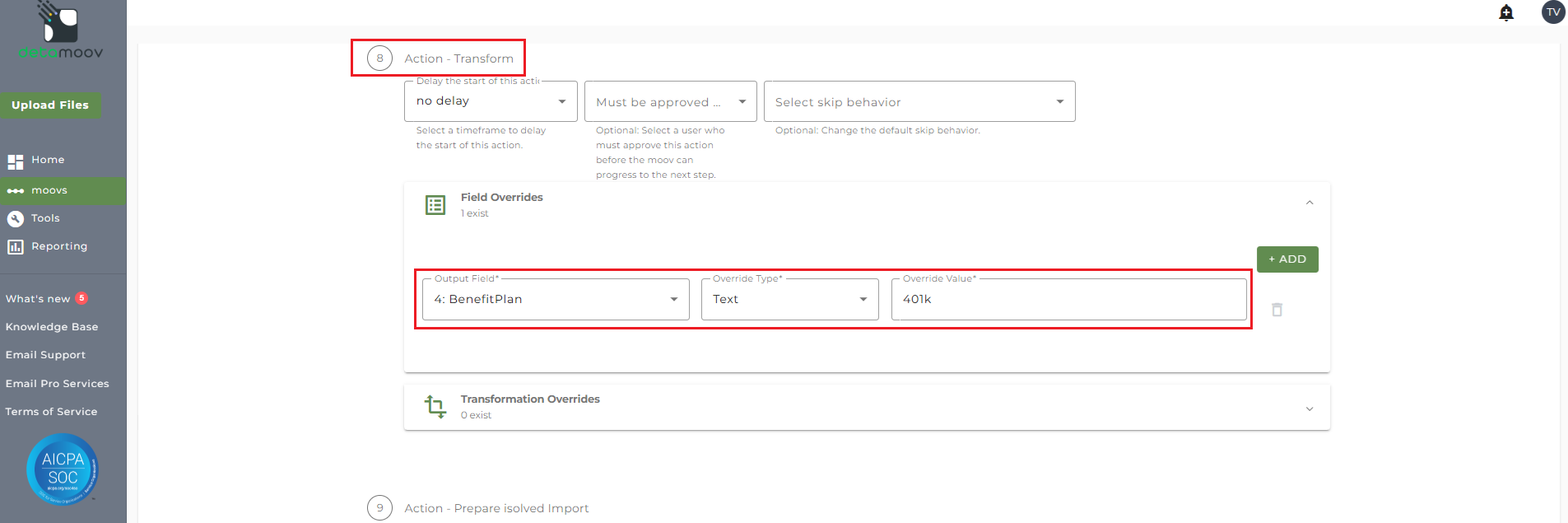
Before detamoov can prepare the NestEggs deduction data for import, you must provide your client's isolved Deferred Comp Benefit Plan name using a Field Override.
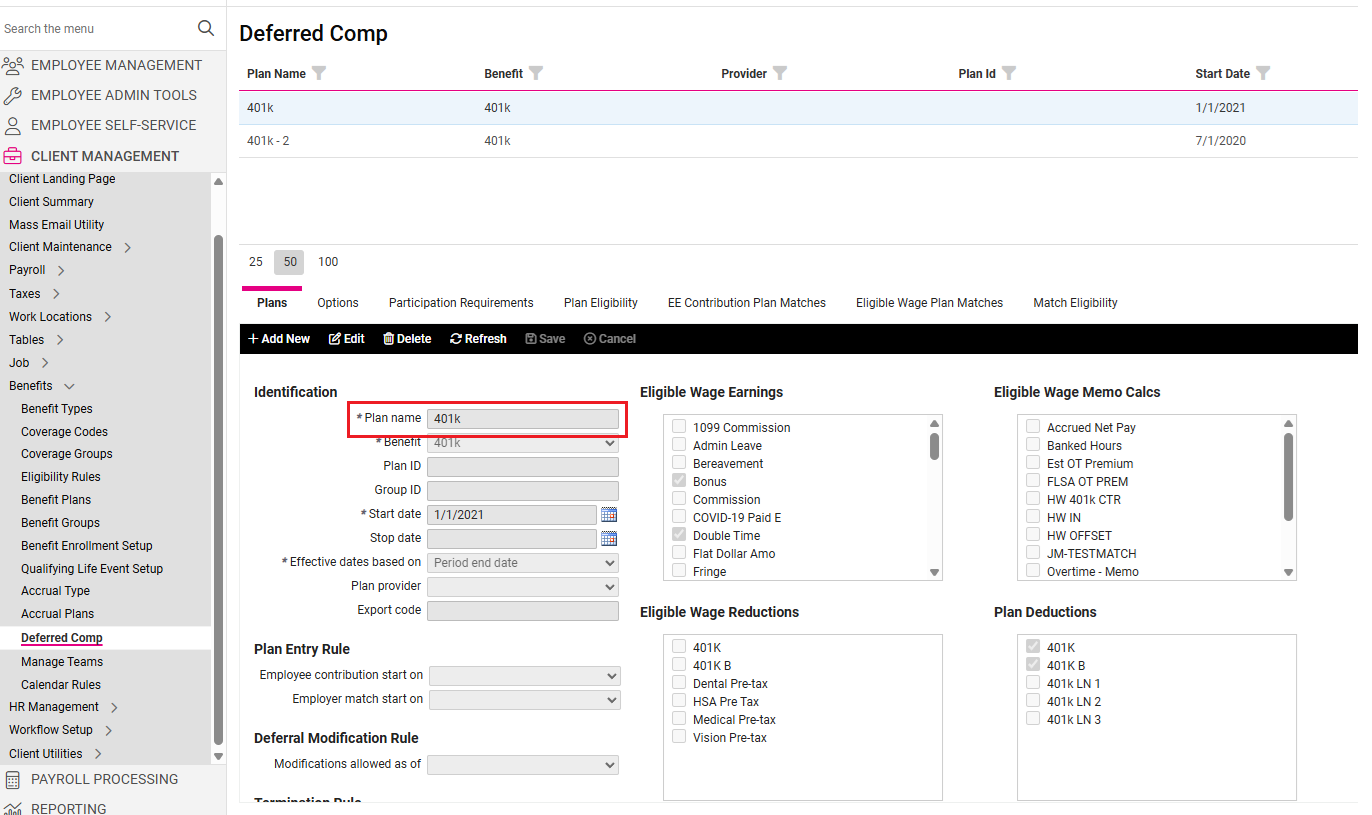
To create a field override, locate step 8: Action Transform and expand the Field Overrides section.
IMPORTANT: the isolved API will allow a record to be imported if there is no Benefit Plan specified. If no Benefit Plan is specified on the record, isolved will not make changes to the employee's Deferred Comp Benefit.
NOTE: There are 6 separate Transform steps on the estEggs Deduction Feedback to isolved moov. Make sure are you creating the field override on step 8: Action - Transform.
Then click the ADD button and select field 4: Benefit Plan and enter your client's isolved Benefit Plan name in the Override value field.
Transformation Override - Pay Item
To ensure proper mapping from the NestEggs deduction code to the isolved Pay Item, a transformation override is required. The table below shows the NestEggs deduction code for the employee and the code detamoov uses in the transformation:
| NestEggs Deduction Code | detamoov Code |
|
PTXP PTXD |
401k |
|
RTHP RTHD |
401k Roth |
Override Existing Pay Item Mapping
Each configuration requires that a transformation override be provided to convert the detamoov code to the isolved Pay Item code.
Below is an example of an isolved Deduction. detamoov uses the value in the Code field as show below:
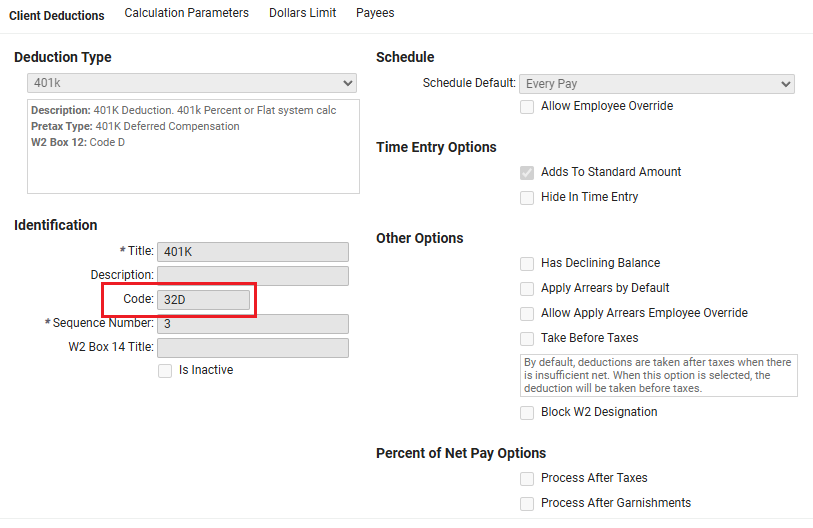
As an example, say that detamoov receives the NestEggs deduction code 'PTXP' and converts it to '401k'. By default, no Pay Item codes are set in detamoov and you will need to provide a transformation override for the Pay Item field to replace the detamoov 401k value. In our deduction above, the Pay Item code for 401k is '32D'.
Note: The NestEggs Deduction Feedback to isolved moov contains 6 separate Transform steps. The following information relates to step 8: Action - Transform only.
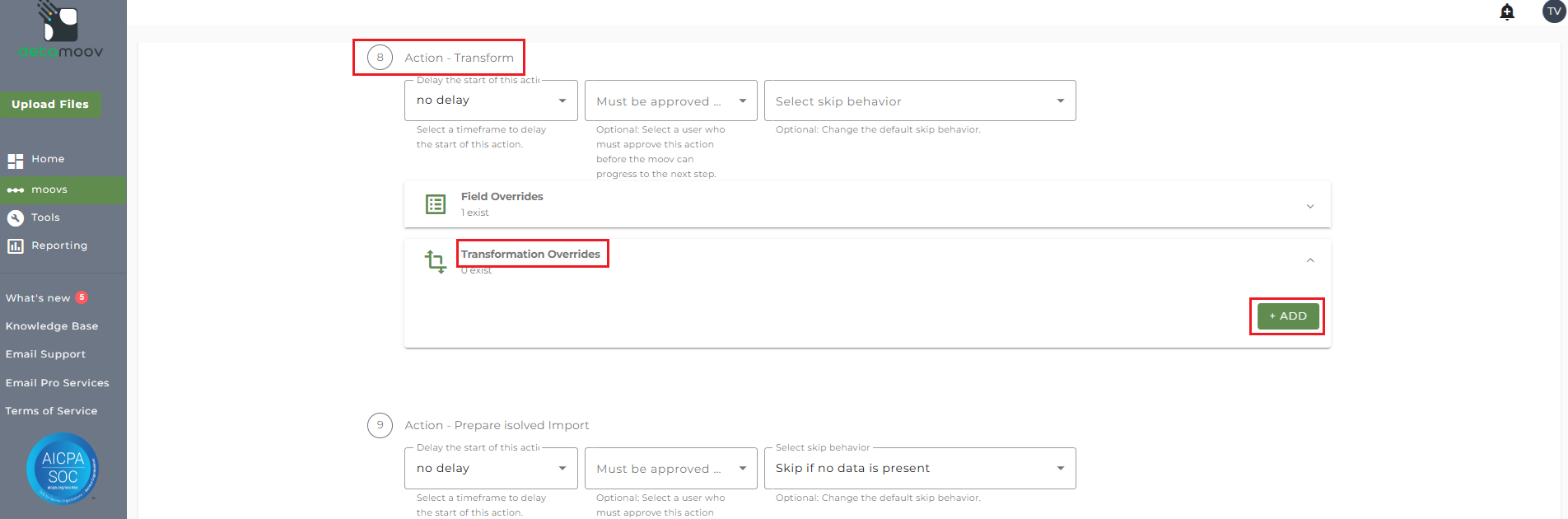
To provide a transformation override, locate step 8: Action - Transform, expand the Transformation Overrides panel and click ADD.
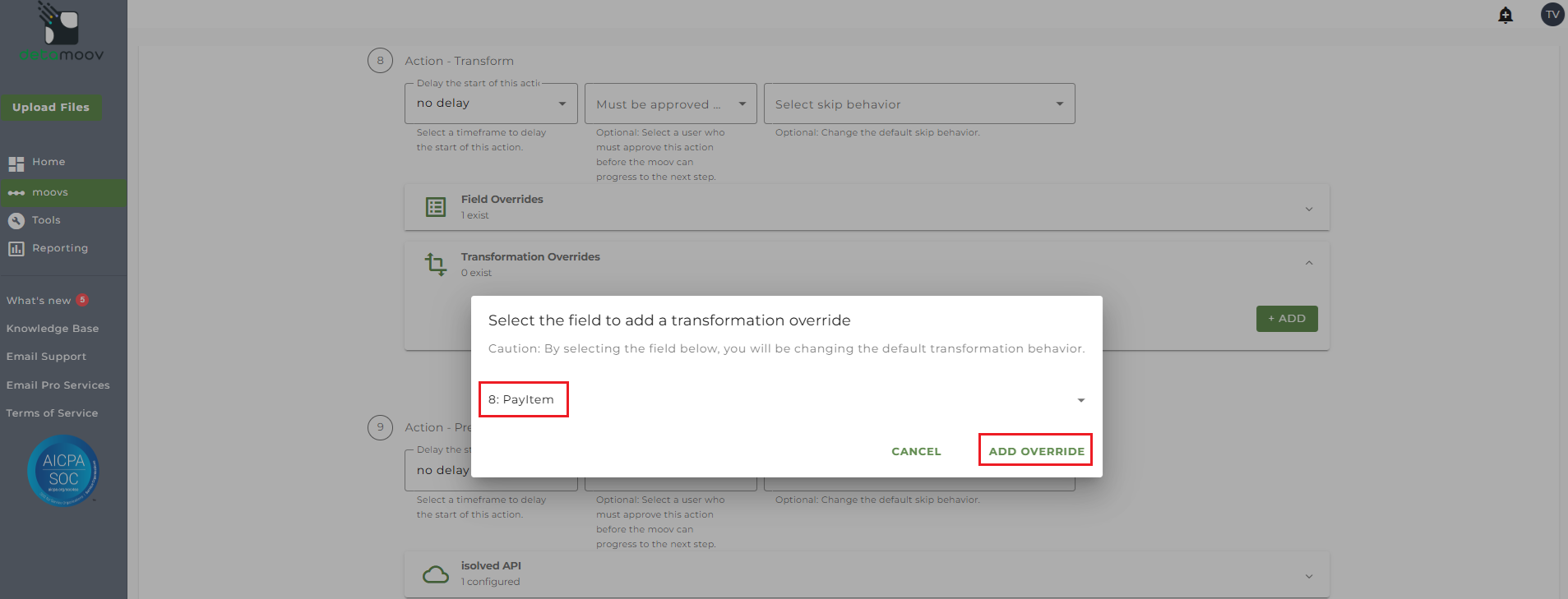
Then select field 8: PayItem and click ADD OVERRIDE.
On the side panel that appears, in the Replacement Groups field, replace the right side of 401k| with your client's deduction code.
Note: isolved PayItem codes entered in the PayItem field always start with an upper-case 'D'. In our example, we will add D32D after the pipe character and then click OK.
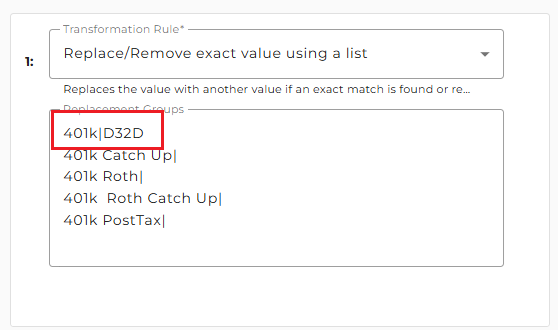
Provide any additional deduction code replacements with any other Pay Item codes in your client's plan.
Send File Step Override - Deferred Comp Update
At the beginning of this article you configured the send file step for the moov to send a notification once the moov had completed. You also have the ability to configure the send file step for each client configuration if you wish to add or remove email addresses per client.
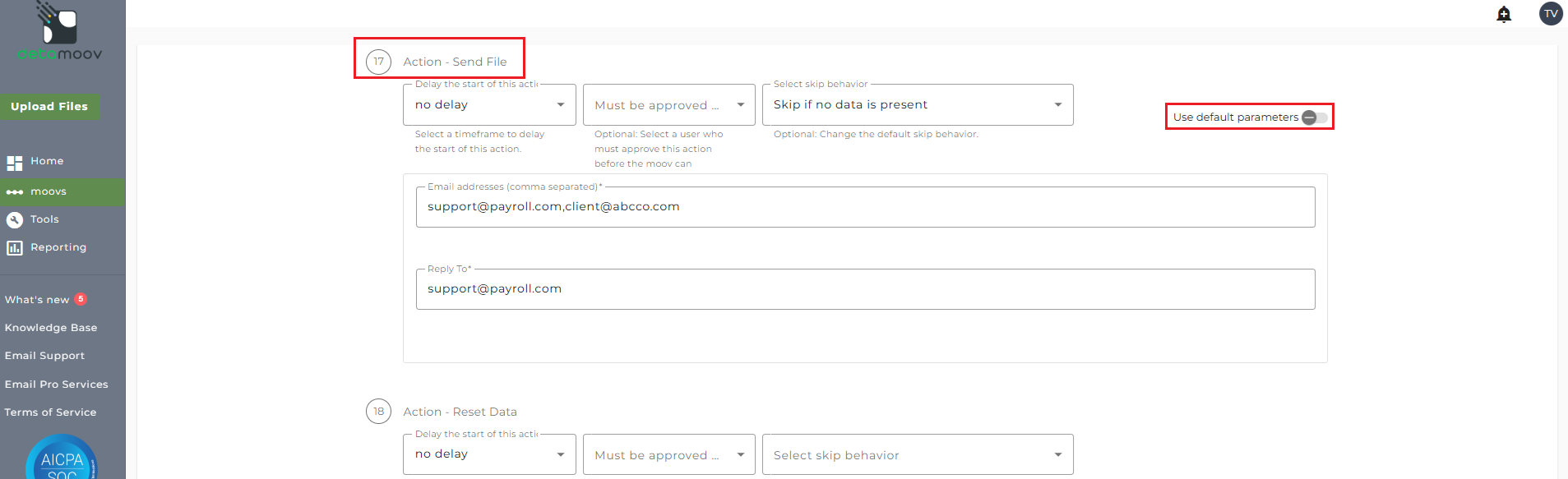
To override the send file step, locate the step 17: Action - Send File and toggle the "Use default parameters" off and enter/remove email addresses from Email Address and Reply To fields. If you would like to enter multiple email addresses, separate them with a comma.
Transformation Override - Balance for Goal Amount
NestEggs will send the employee Loan Goal Amount in the feedback file. If any loan Deduction in isolved does not have the Declining Balance enabled, then a transformation override is required to remove the mapping for the Deduction Goal Amount field.
Note: The NestEggs Deduction Feedback to isolved moov contains 6 separate Transform steps. The following information relates to step 20: Action - Transform only.
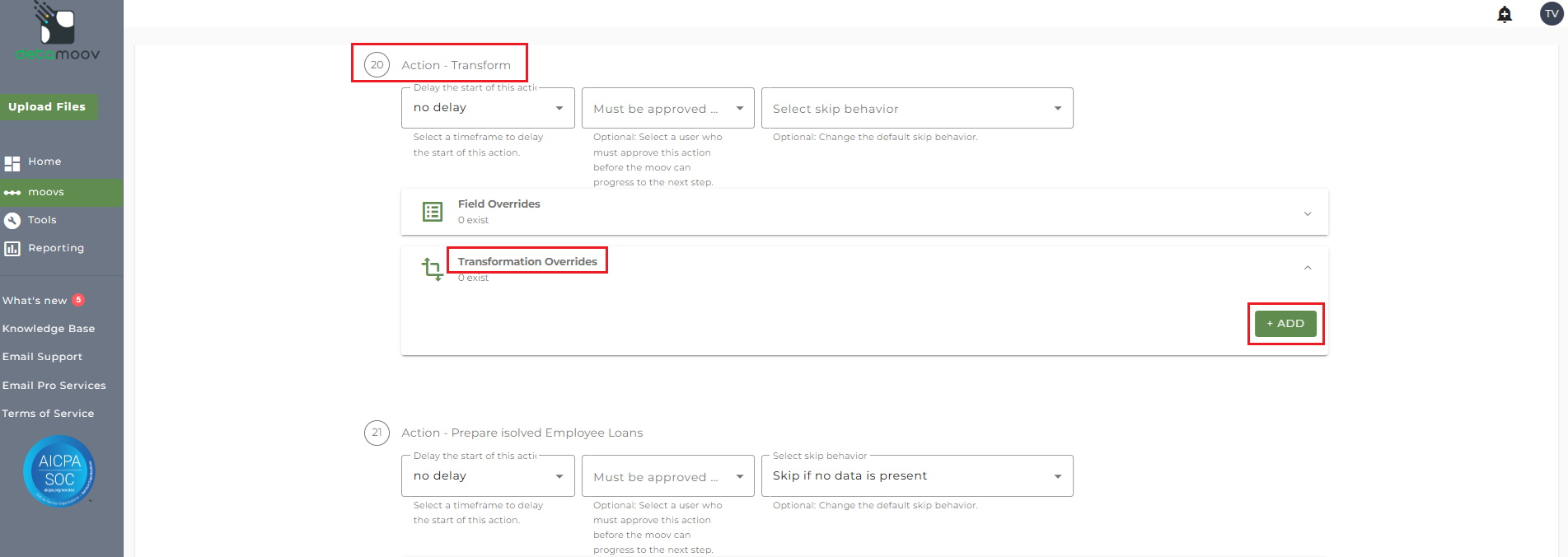
To provide a transformation override, locate step 20: Action - Transform, expand the Transformation Overrides panel and click ADD.
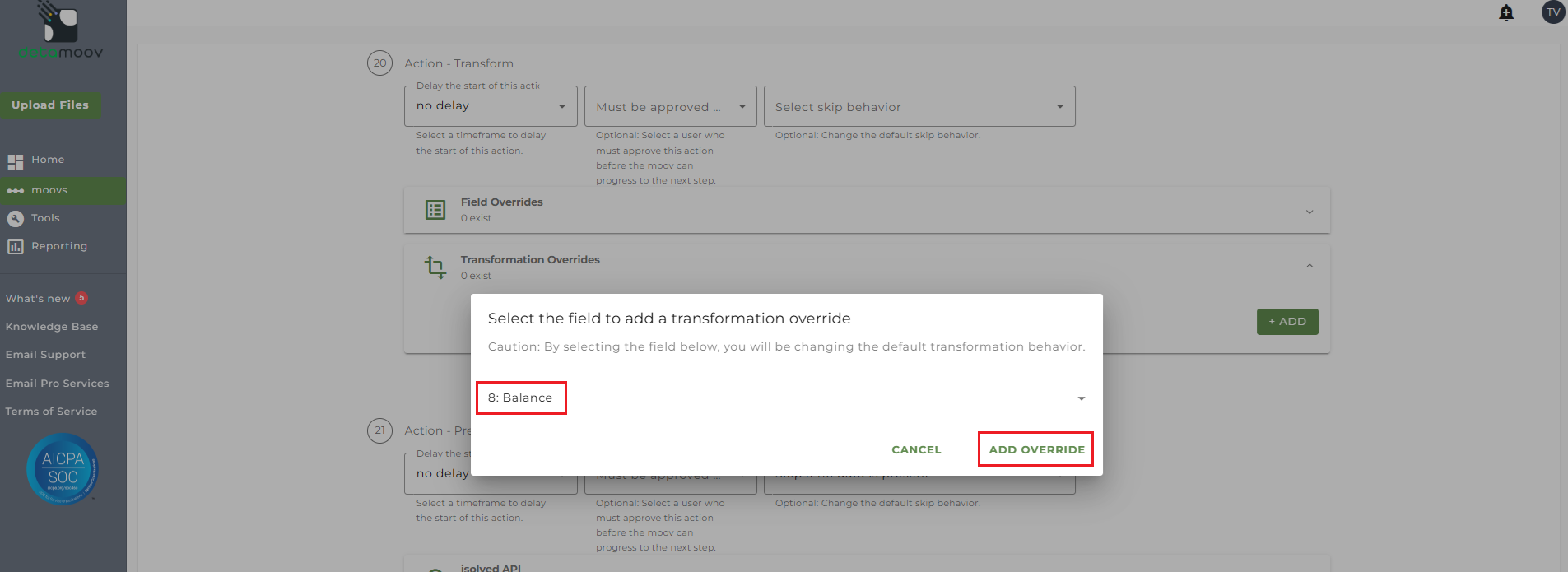
Then select field 8: Balance and click ADD OVERRIDE.
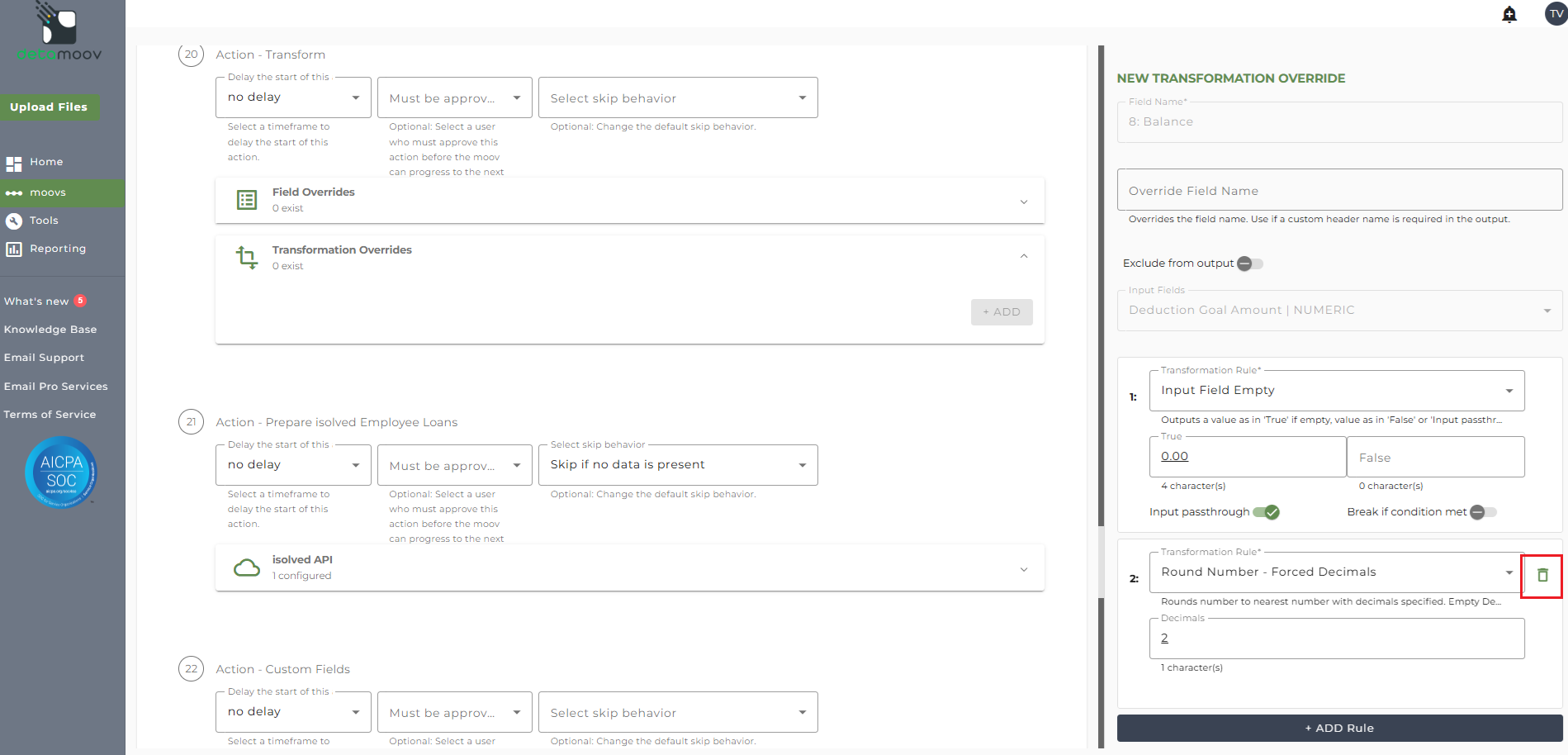
On the side panel that appears, hover over the Round Number - Forced Decimals and click the Trash Can icon.
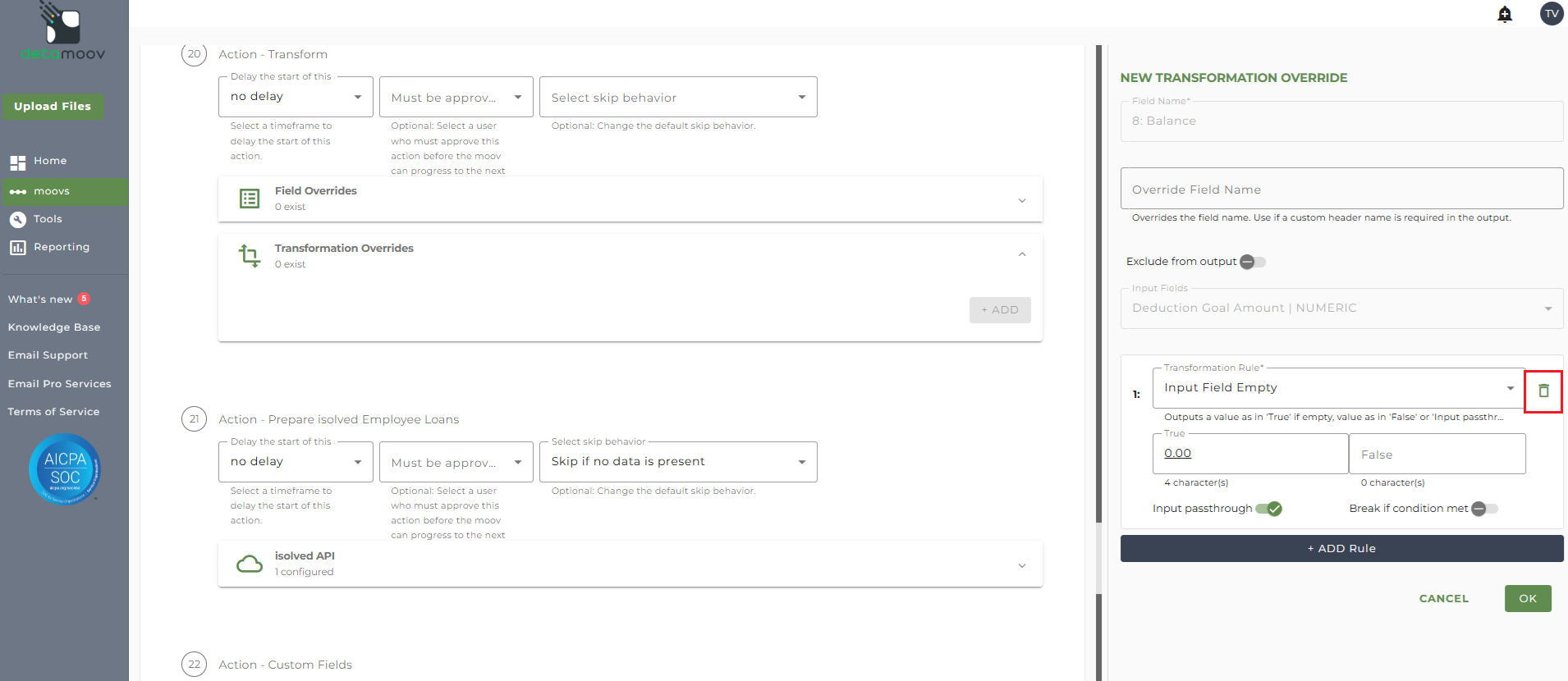
Then hover over the Input Field Empty rule and click the Trash Can Icon.
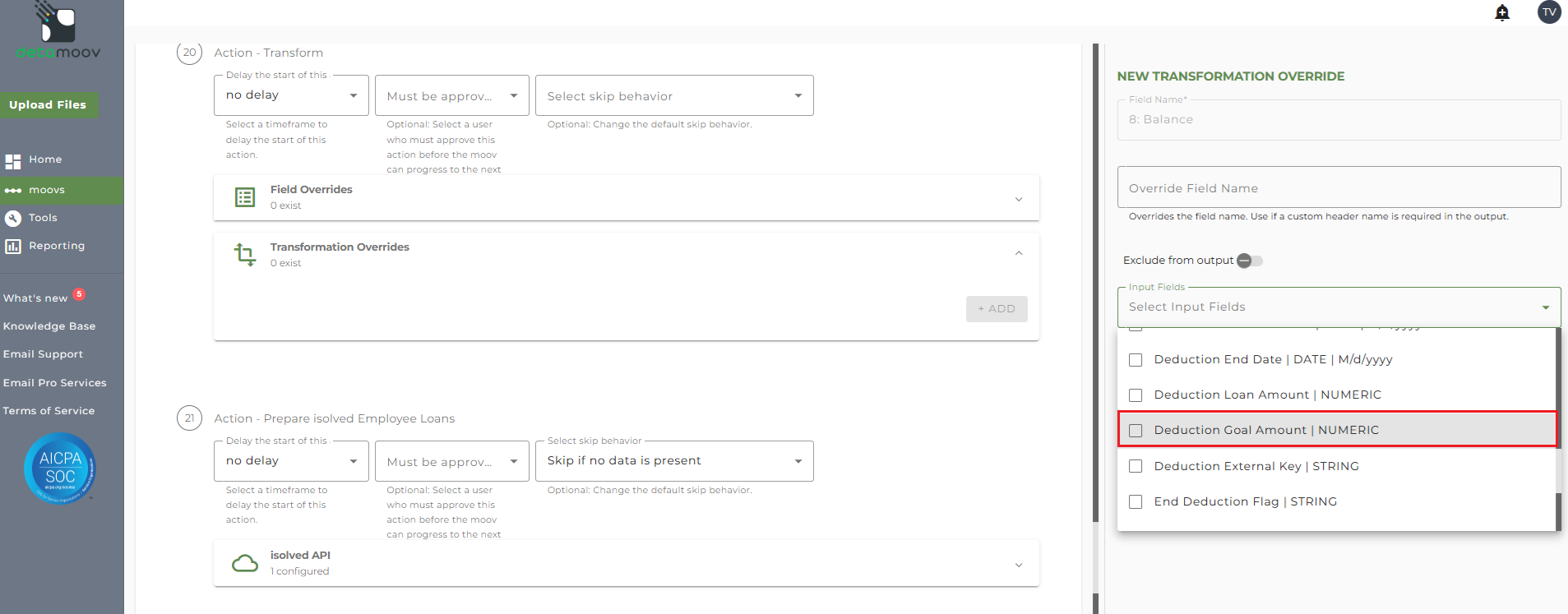
Then click the Input Fields dropdown and uncheck the 'Deduction Goal Amount' field and click OK.
Send File Step Override - Employee Loans
At the beginning of this article you configured the send file step for the moov to send a notification once the moov had completed. You also have the ability to configure the send file step for each client configuration if you wish to add or remove email addresses per client.
To override the send file step, locate the step 28: Action - Send File and toggle the "Use default parameters" off and enter/remove email addresses from Email Address and Reply To fields. If you would like to enter multiple email addresses, separate them with a comma.