The Deferral Rates for an employee are received from the PrismHR API and formatted into a pipe-separated string in the following format:
electivePercent|electiveAmount|postTaxPercent|postTaxAmount|catchupPercent|catchupAmount|rothPercent|rothAmount|rothCatchupPct|rothCatchupAmt
An example of an employee Deferral Rates string that has a 5% Elective and a 10% Roth deferral would be:
5||||||10|||
You can use this string to parse out the amount when mapping to a retirement provider that requires these values.
Certain providers may require the Deferral Rate values to be sent in their retirement format. For Example, The Standard may require the following fields to be populated for each employee:
20: CONTRIBUTION RATE PRE-TAX
21: CONTRIBUTION FLAT DOLLAR PRE-TAX
22: CONTRIBUTION RATE ROTH
23: CONTRIBUTION FLAT DOLLAR ROTH
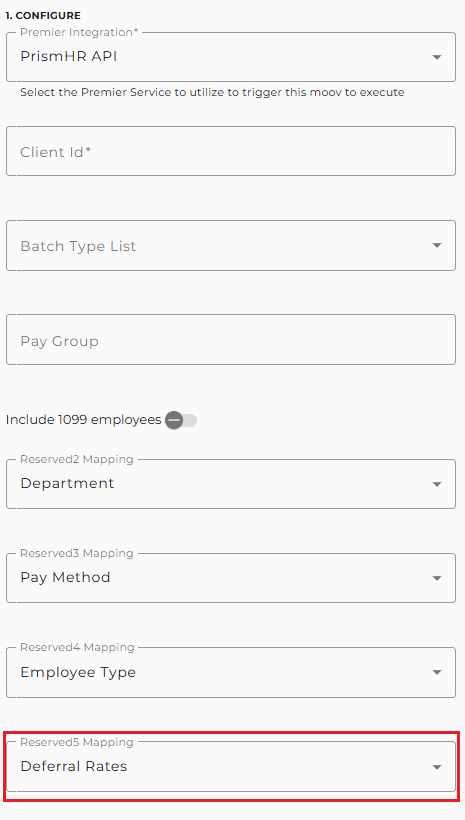
To map the PrismHR Deferral Rates values to these fields, first map the Deferral Rates to a Reserved field in the PrismHR Premier configuration:
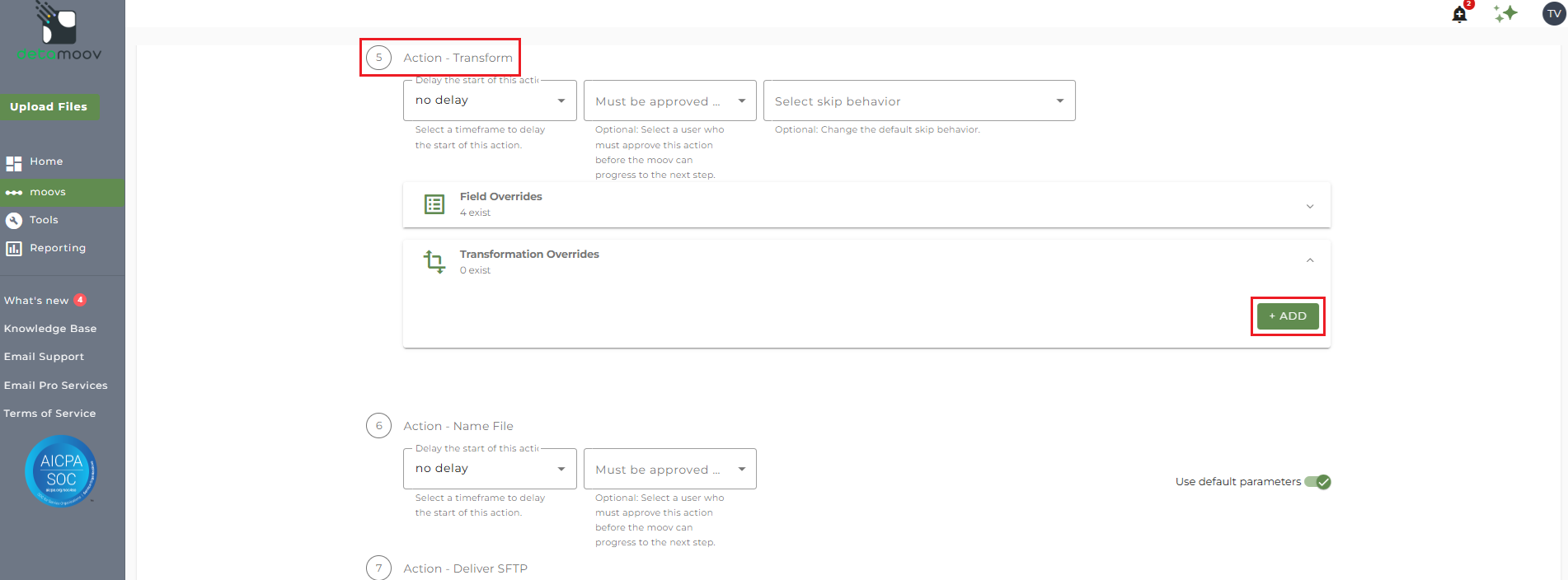
Then locate the Action - Transform step of the configuration and expand the Transformation Overrides section and click ADD.
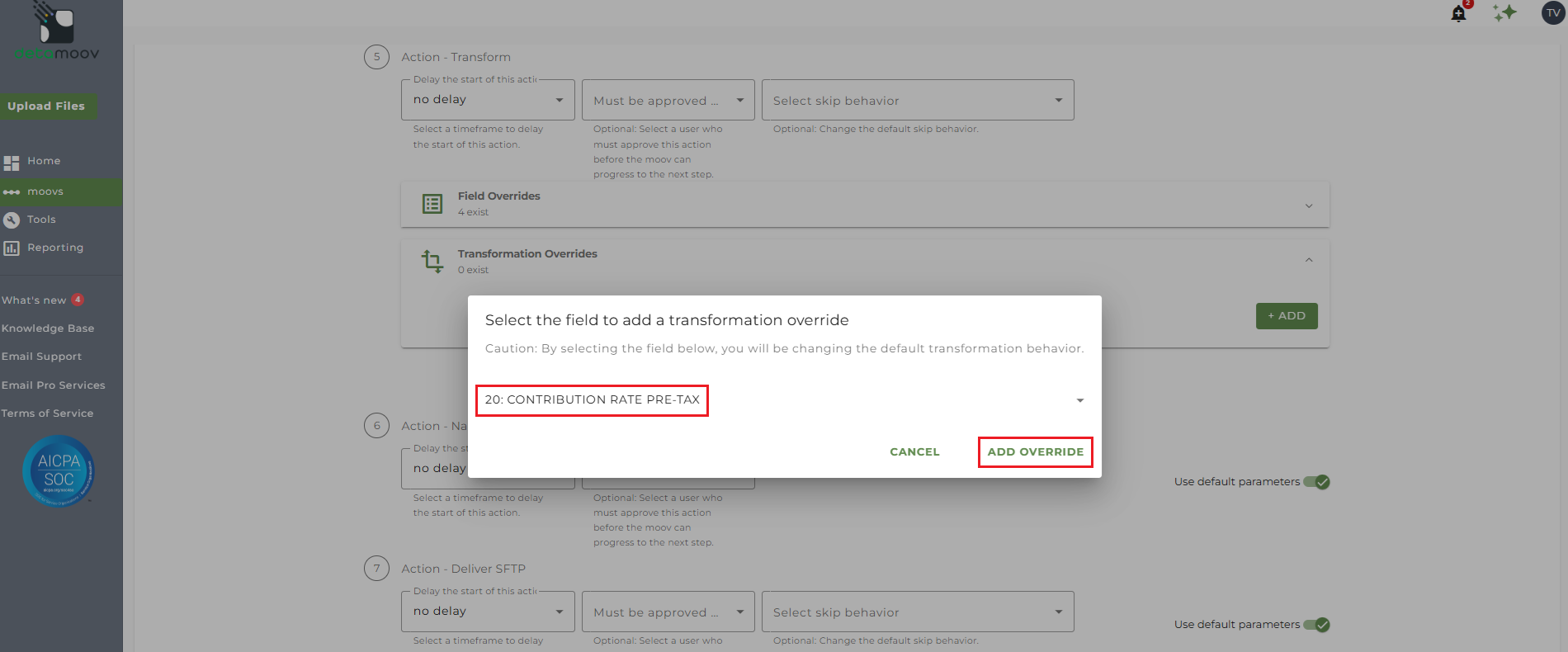
In our example above, the employee has a Pre-Tax elective of 5% and a Roth of 10%.
For Pre-Tax select field 20: CONTRIBUTION RATE PRE-TAX and click ADD OVERRIDE.
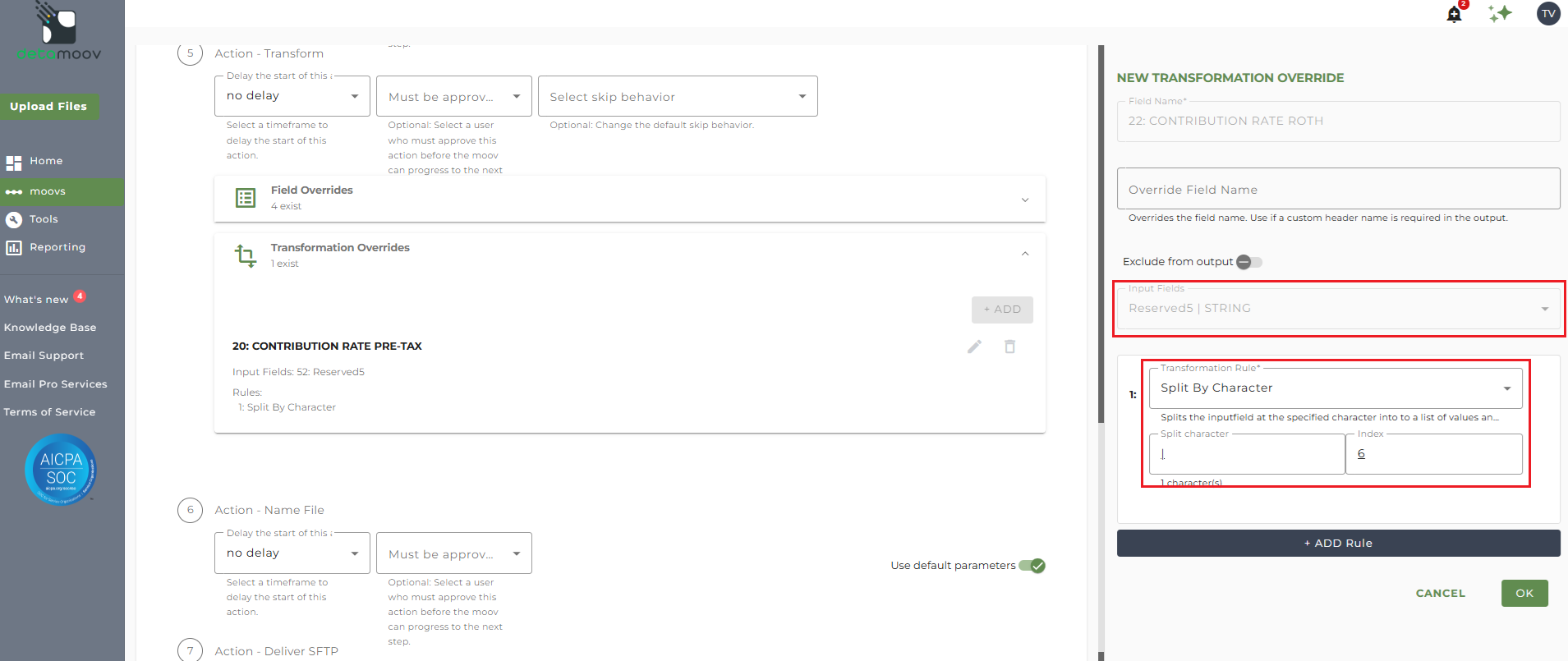
In the Input Fields dropdown, select the Reserved field the Deferral Rates were mapped to in the PrismHR Premier configuration. For our example, we'll select Reserved5.
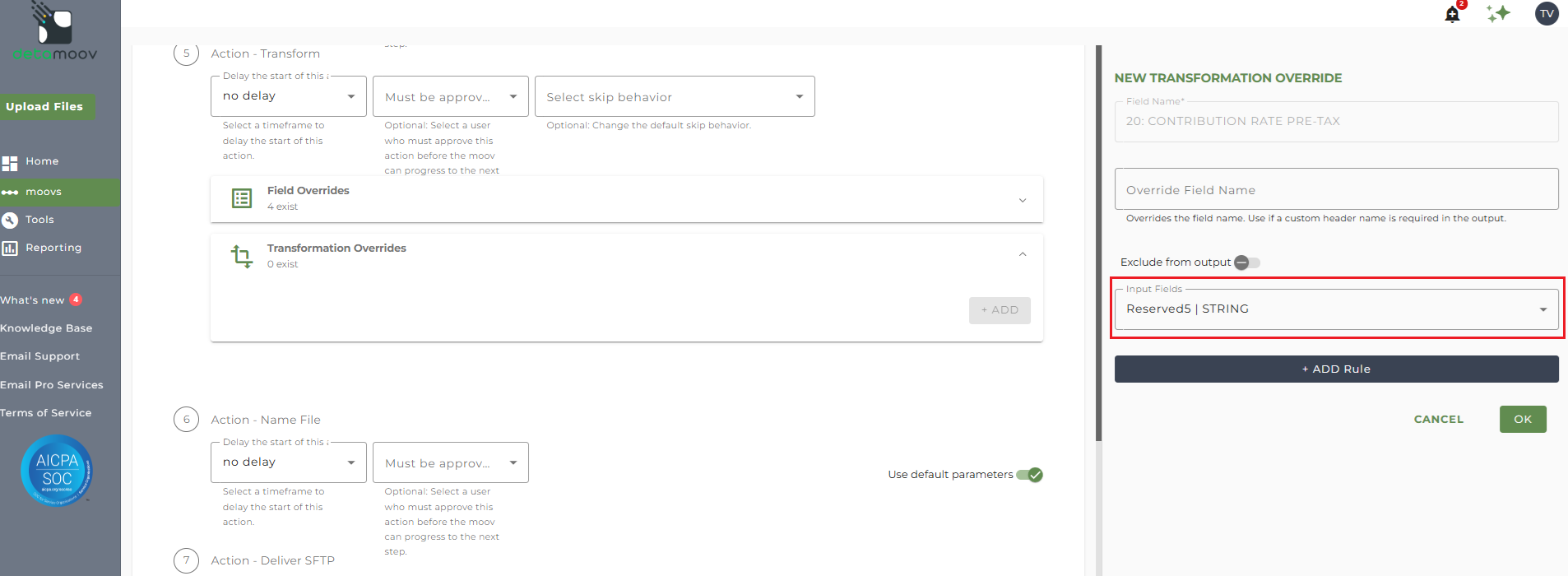
Then click ADD Rule and select the 'Split by Character' rule. The Split By Character transformation rules uses a zero-based index to return a specific Deferral Rate from the string.
The table below provides the Deferral Rate Type and its related Index number:
| Deferral Rate Type | Index |
|---|---|
| Elective Percent | 0 |
| Elective Amount | 1 |
| Post Tax Percent | 2 |
| Post Tax Amount | 3 |
| Catch Up Percent | 4 |
| Catch Up Amount | 5 |
| Roth Percent | 6 |
| Roth Amount | 7 |
| Roth Catch Up Percent | 8 |
| Roth Catch Up Amount | 9 |
In the Split Character field enter in a pipe-character. Then enter in the Index value that corresponds with the Deferral Rate Type you want to map to that field. For our example, we would enter in 0 for the Pre-Tax value and click OK.
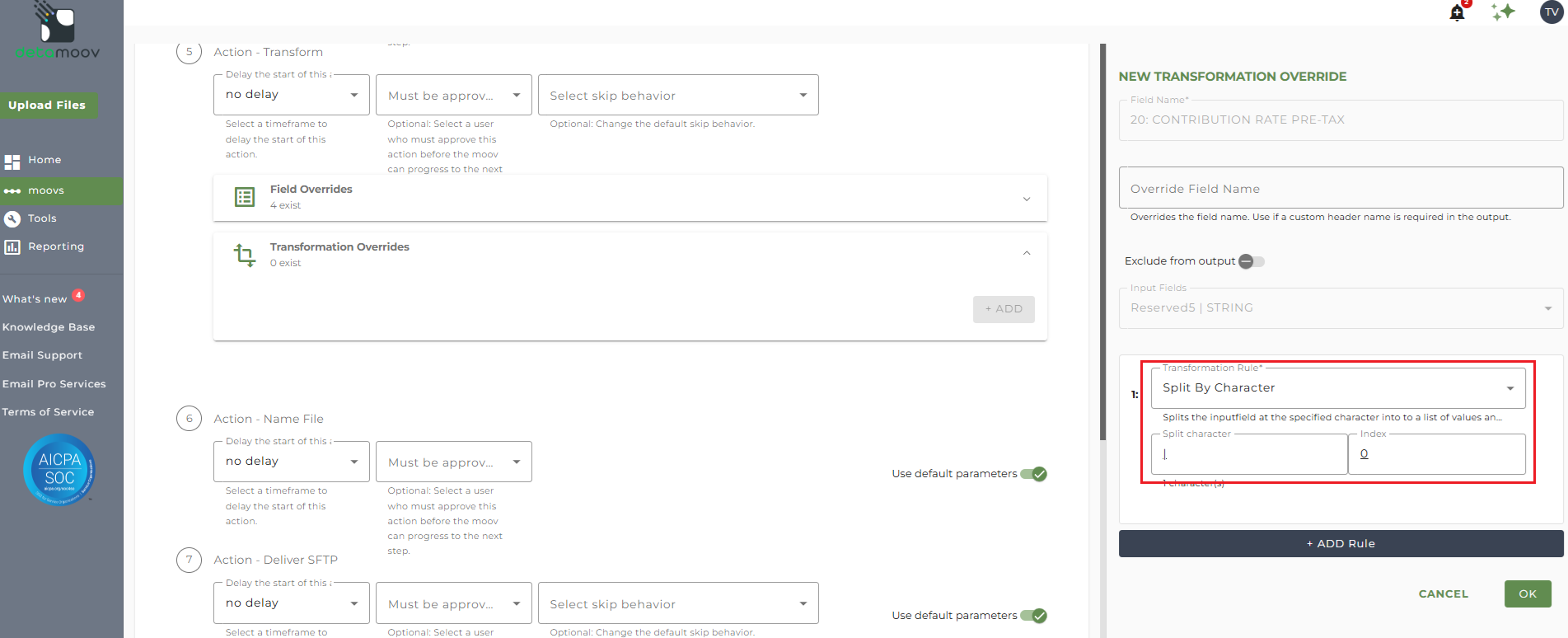
This would be repeated for the 22: CONTRIBUTION RATE ROTH field using Reserved5 as the Input Field and 6 as the Index.