

When integrating isolved for payroll to retirement providers, detamoov captures the contribution and census data via the API and converts it to our Standard 401k specifications. Although most of the employee data is captured, there may be a need for additional data for a specific retirement provider. detamoov utilizes the Reserved fields in the Standard 401k to provide flexibility in mapping certain data elements during the client configuration process.
The following table shows the isolved data elements mapped to the Standard 401k Reserved fields:
|
Standard 401k Field |
isolved Data Element |
|
Reserved1 |
Eligible Wages |
| Reserved2 - Reserved5 |
Annual Salary Deferral Rates EE PostTax Amount EE PostTax Percent EE PreTax Amount EE PreTax Percent EE Roth Amount EE Roth Percent Employment Category Code Job Code Organization 1 Value Organization 1 Value Description Organization 2 Value Organization 2 Value Description Organization 3 Value Organization 3 Value Description Organization 4 Value Organization 4 Value Description Organization 5 Value Organization 5 Value Description Pay Group Name Pay Type Personal Email Address Total Loan Repayment |
The Reserved field mappings are available when configuring a client for isolved Premier Integration:
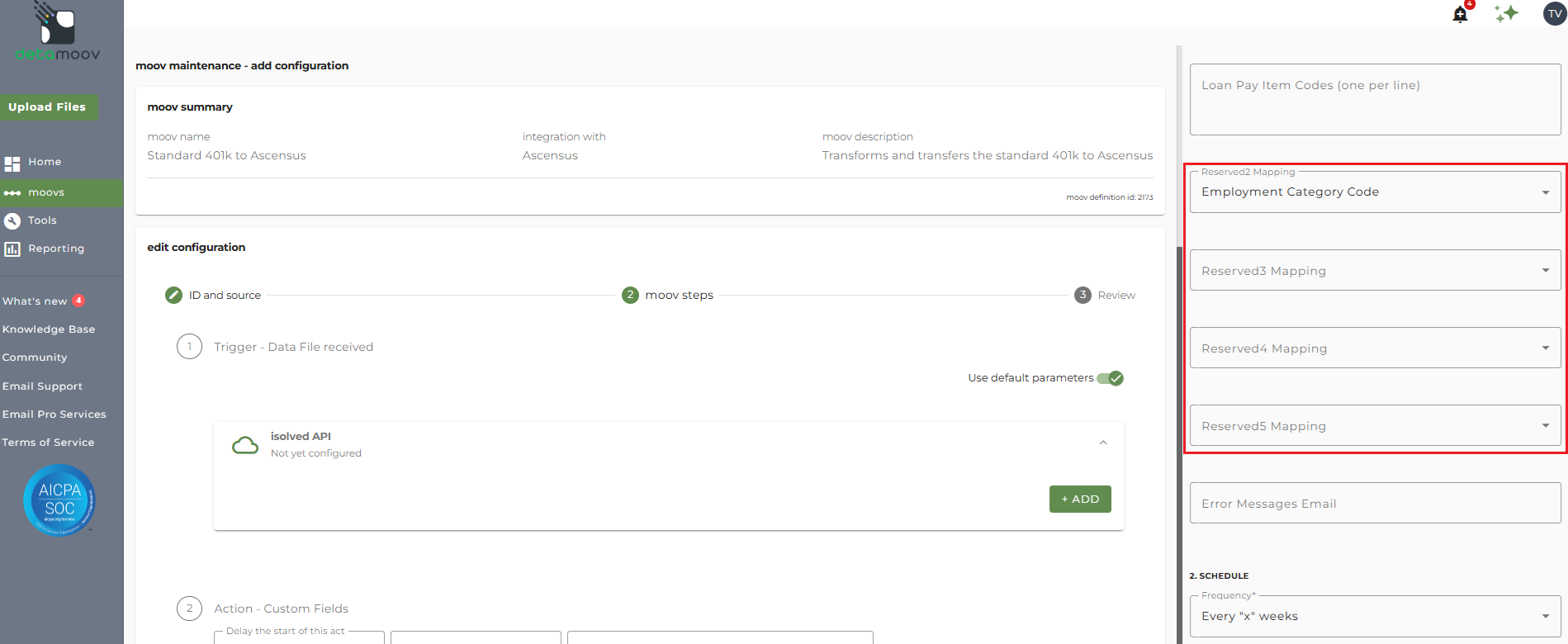
The Reserved fields are available as Input Fields in the transformation step of the moov and can be used to override existing transformation behavior.
For example, Empower may require that the Part Time/Full Time Indicator is set for your client's plan, but detamoov does not set this field by default.
First, select the Employment Category Code in one of the Reserved fields. For this example, we've set Reserved2 to Employment Category Code in the Premier Integration.
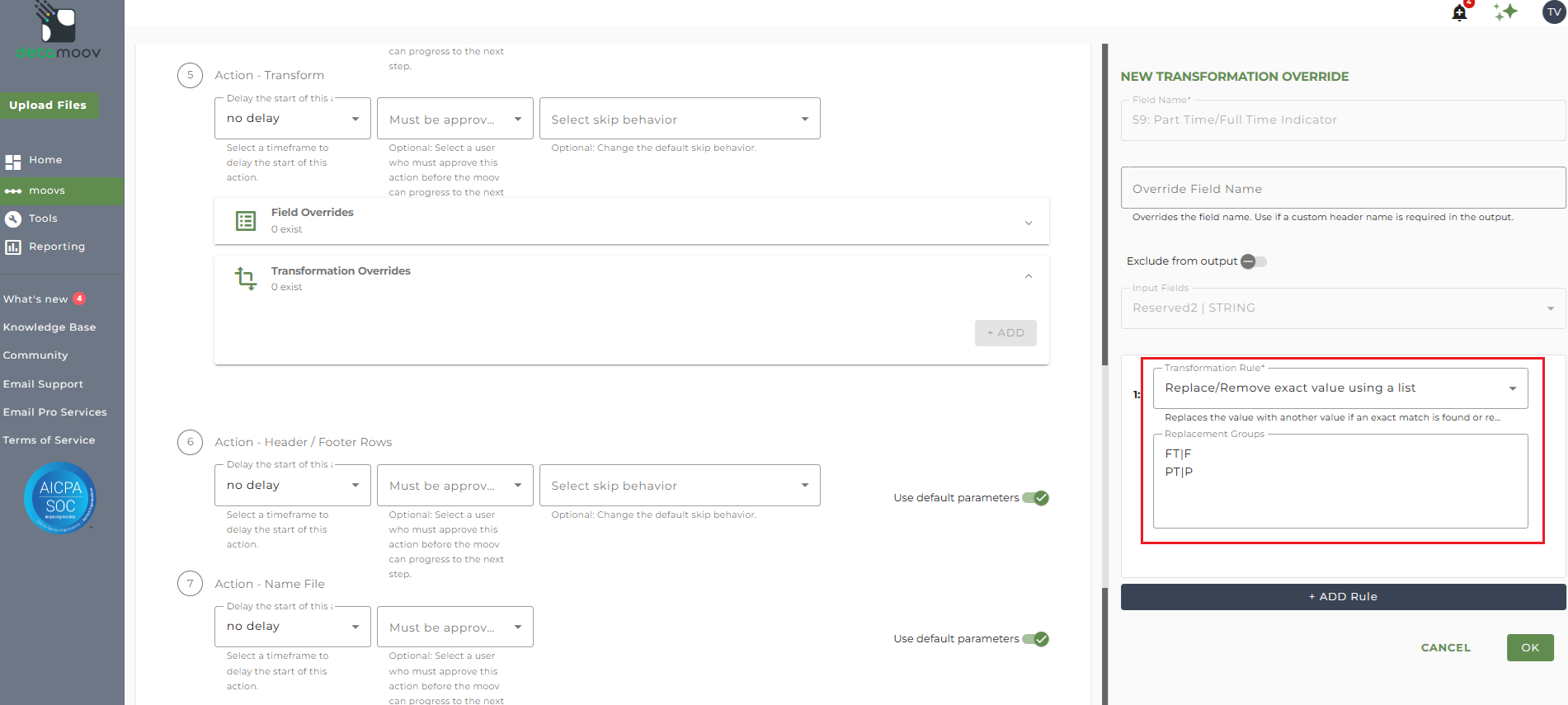
To update the Empower Part Time/Full Time Indicator field mapping, locate the Action - Transform step, expand the Transformation Overrides section, and click ADD.
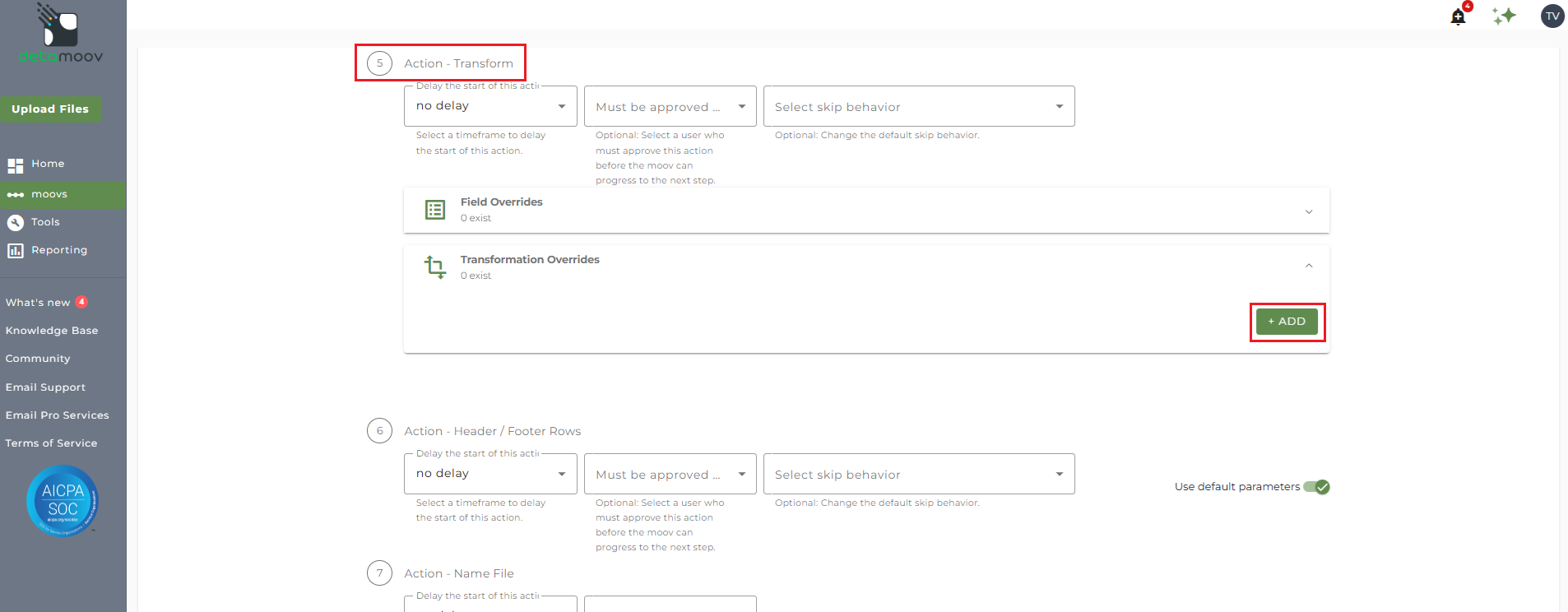
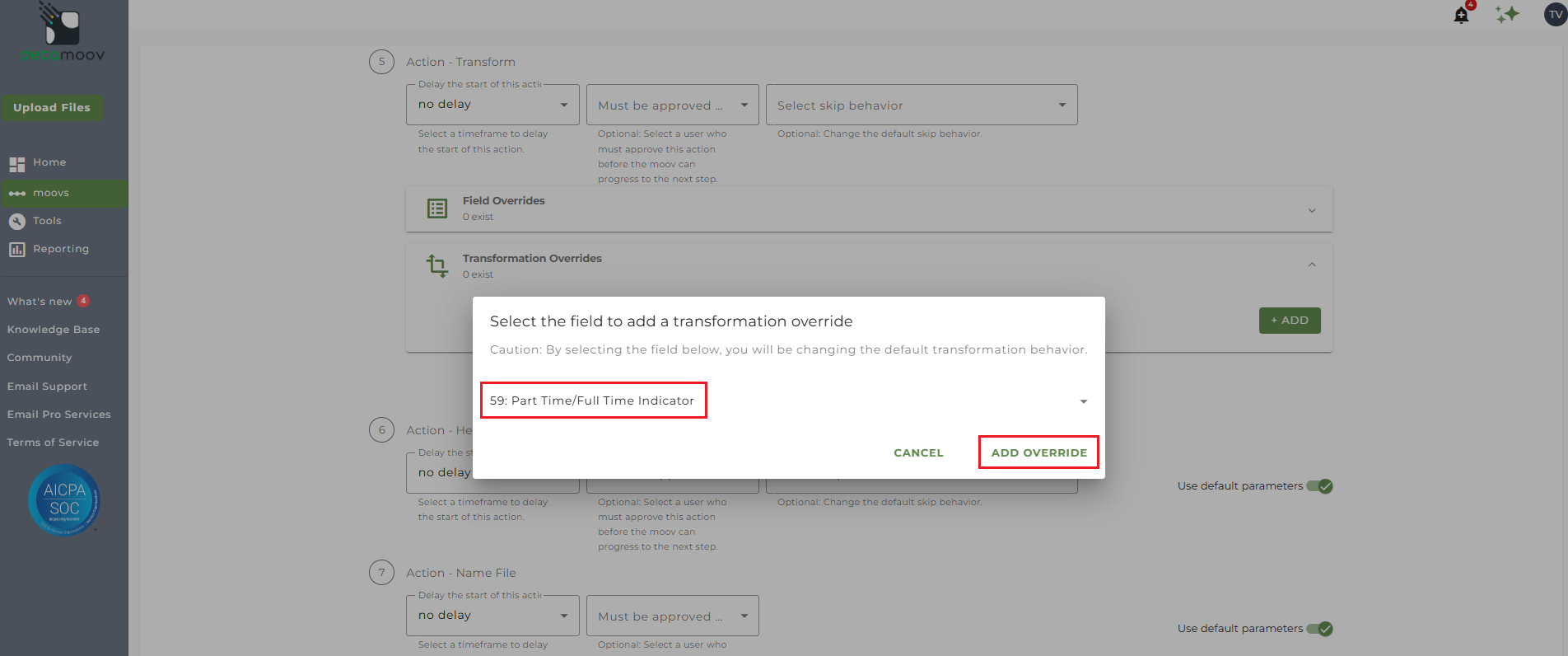
Then select the Part Time/Full Time Indicator field from the dropdown menu and click Add Override.
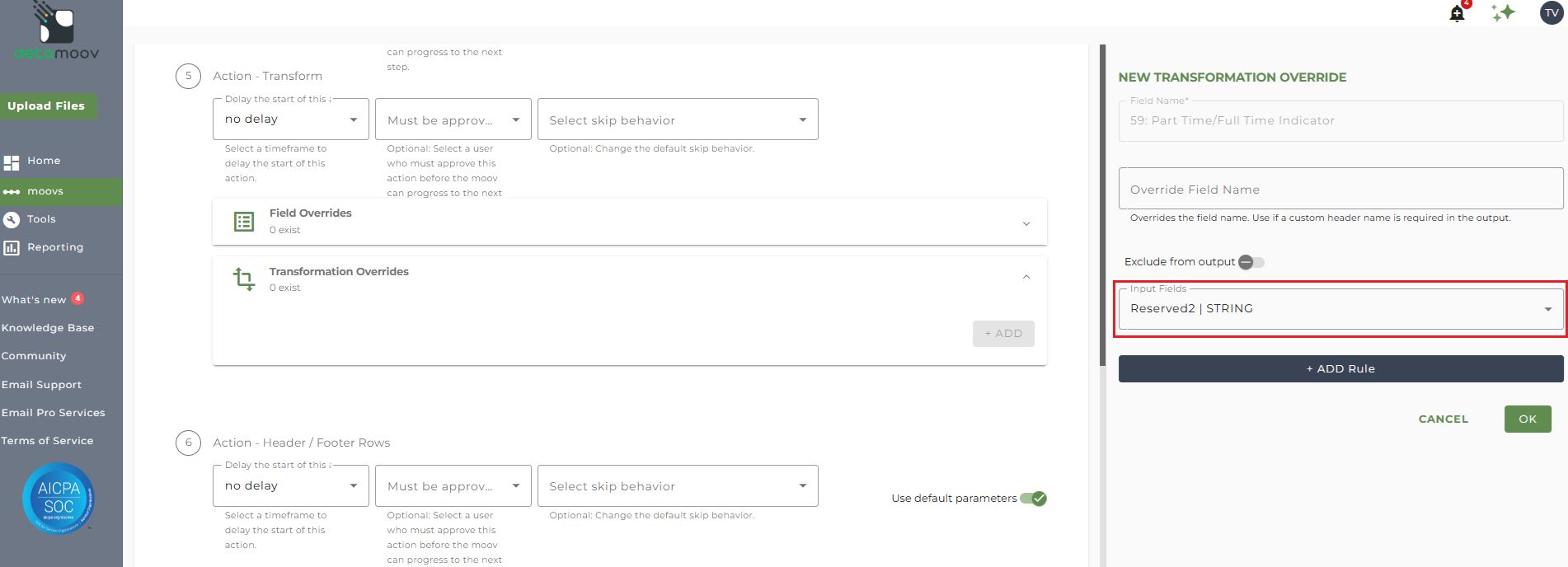
Then select the Reserved field mapped from the isolved field from the Input Fields dropdown and click Add Rule.
Select the 'Replace/Remove exact value using a list' rule and enter in the following Replacement Groups to replace the isolved value with the required Empower value, and click OK:
FT|F
PT|P
To complete the configuration for your client, click the Next button at the bottom of the page and then the Save button on the moov summary page.

