

When integrating CoAd SPAY for payroll to retirement providers, detamoov captures the contribution and census data via the API and converts it to our Standard 401k specifications. Although most of the employee data is captured, there may be a need for additional data for a specific retirement provider. detamoov utilizes the Reserved fields in the Standard 401k to provide flexibility in mapping certain data elements during the client configuration process.
The following table shows the isolved data elements mapped to the Standard 401k Reserved fields:
|
Standard 401k Field |
SPAY Data Element |
|
Reserved2 - Reserved5 |
EE PreTax Amount EE PreTax Percent EE Roth Amount EE Roth Percent EE PostTax Amount EE PostTax Percent Deferral Rates Pay Unit Code |
Pay Unit Code is the only data element that is set by default. This can be changed depending on the retirement provider requirements.
These field mappings are shown when configuring a client for the CoAd SPAY Premier Integration.
For example, The Standard may require that the employee deferral amounts are set for each employee, but detamoov does not set these fields by default. The employee deferrals can be set as Reserved fields on the Premier Integration, and then selected as Input Fields on the Action - Transform step as an override.
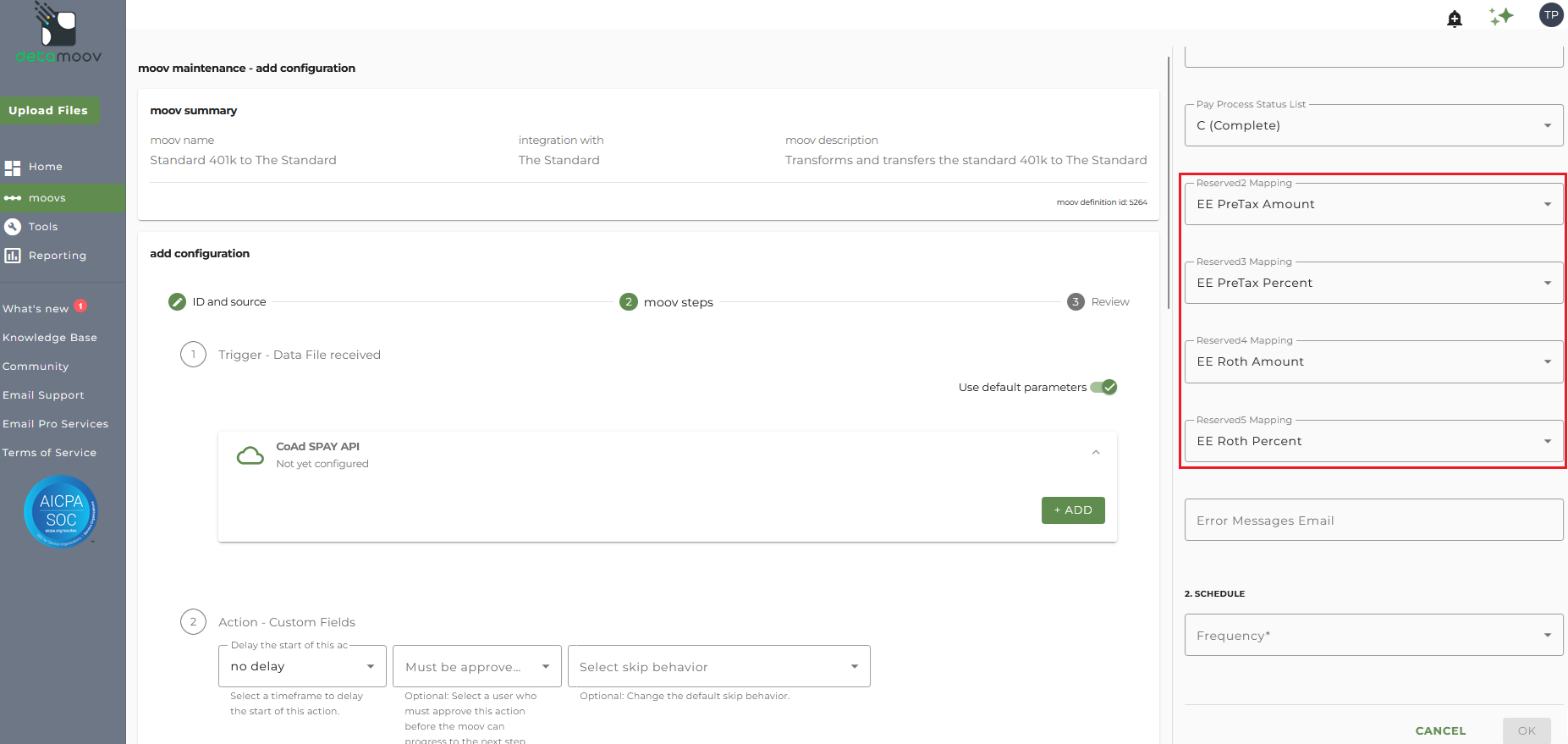
In this example, The SPAY Premier Integration Reserved fields have been set as follows during the client configuration to The Standard. These Reserved field mappings will need to be set on each integration you create:
EE PreTax Amount (Reserved2)
EE PreTax Percent (Reserved3)
EE Roth Amount (Reserved4)
EE Roth Percent (Reserved5)
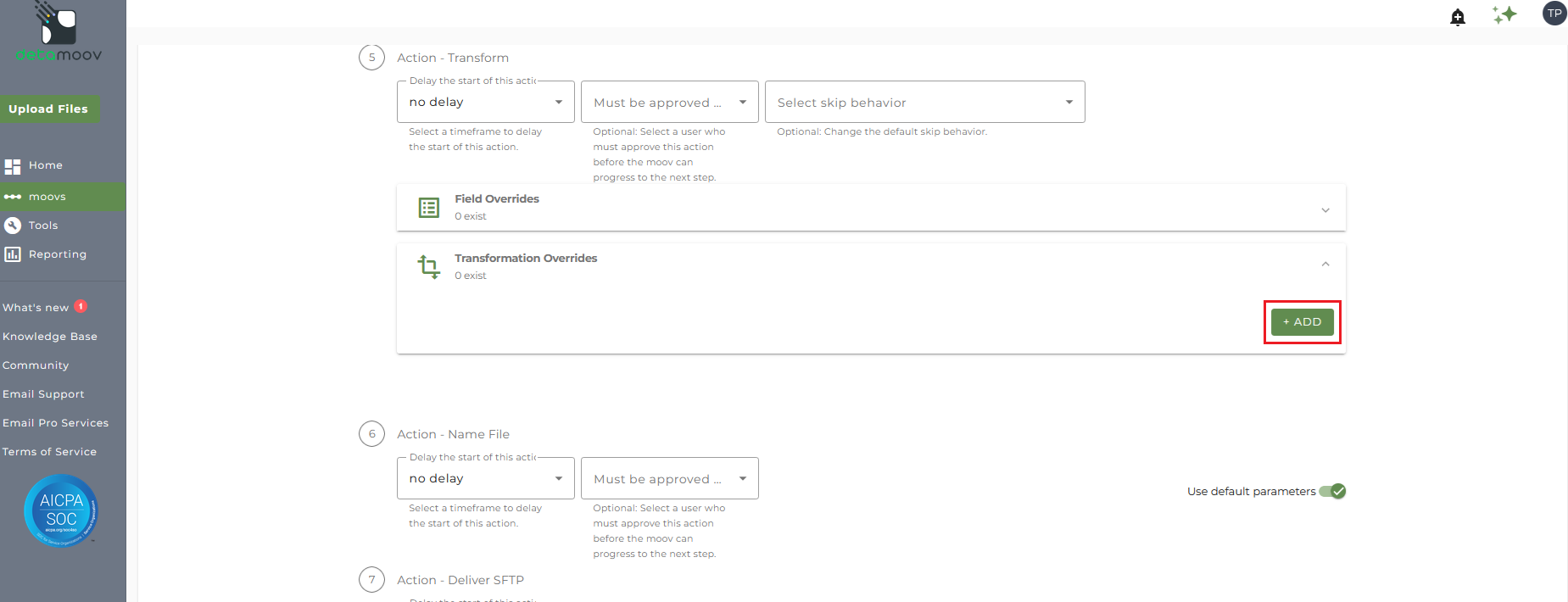
To update the Input Field mapping to a Reserved field, locate the Action - Transform step, expand the Transformation Overrides section, and click ADD.
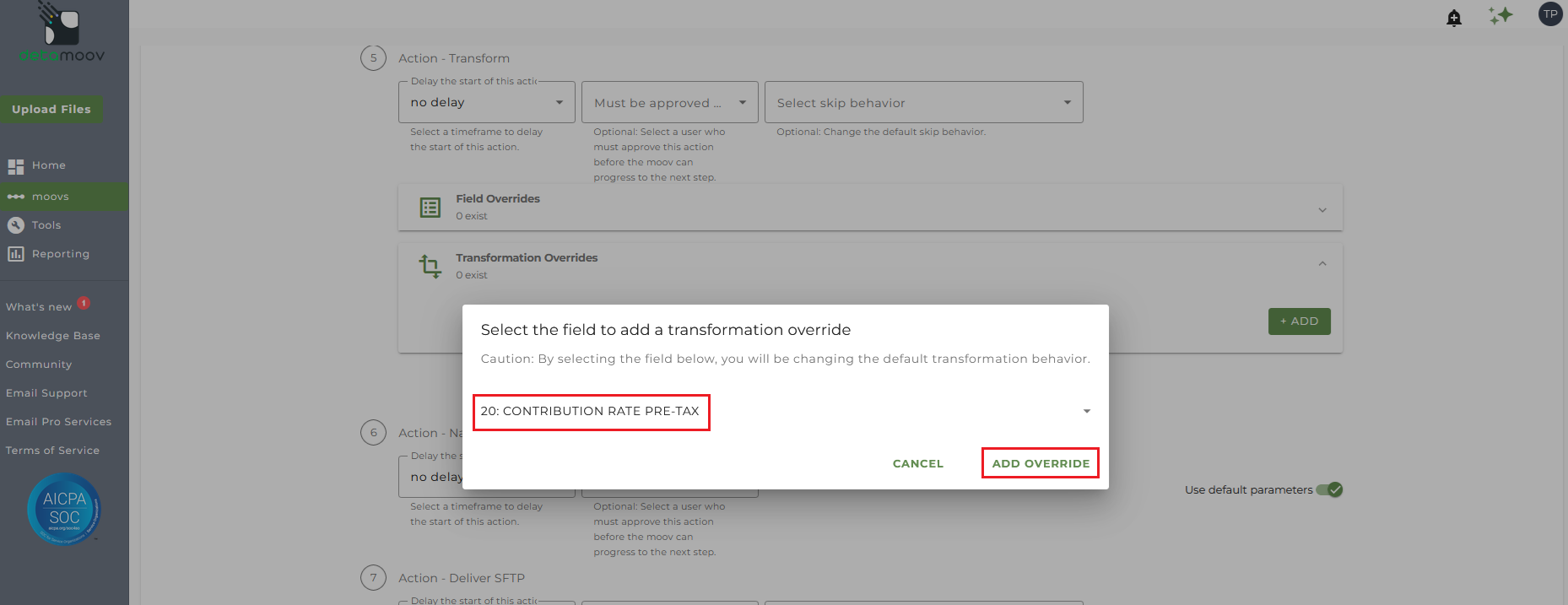
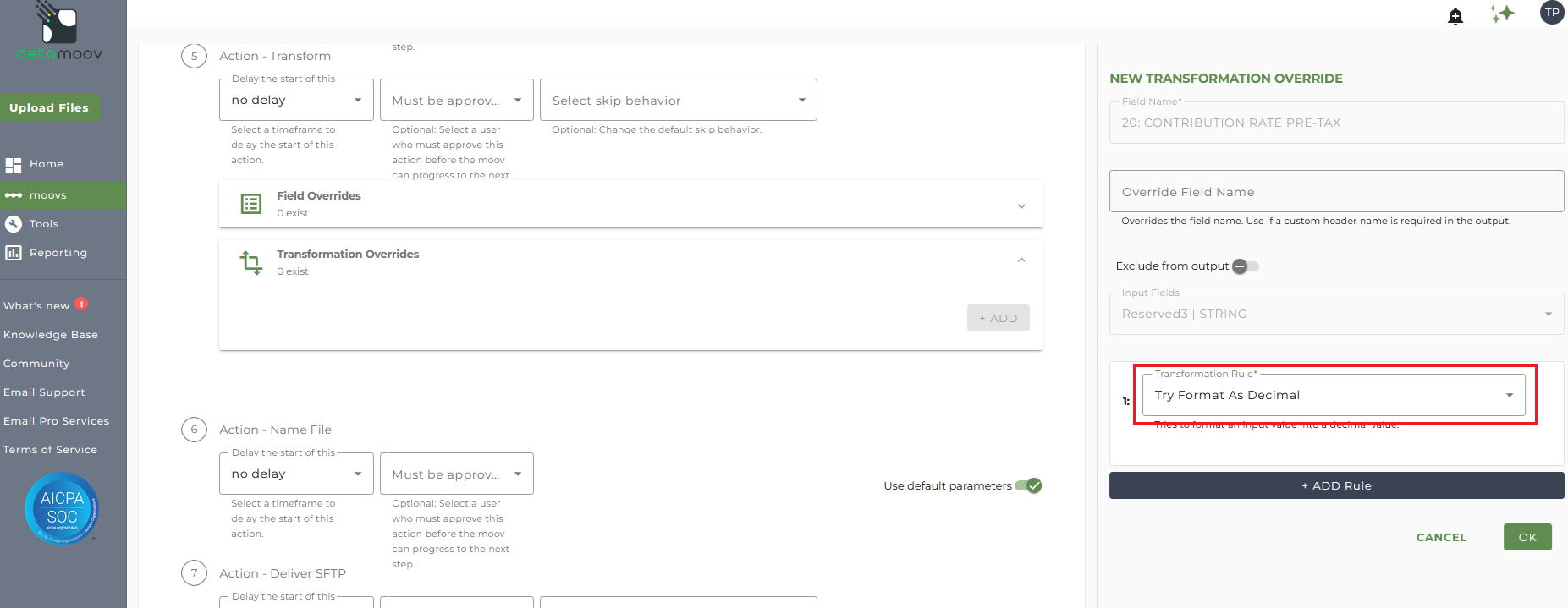
Select the appropriate Output field and click the ADD OVERRIDE button. For The Standard example, we've selected field 20: CONTRIBUTION RATE PRE-TAX, which maps to Reserved3 in the SPAY Premier Integration.
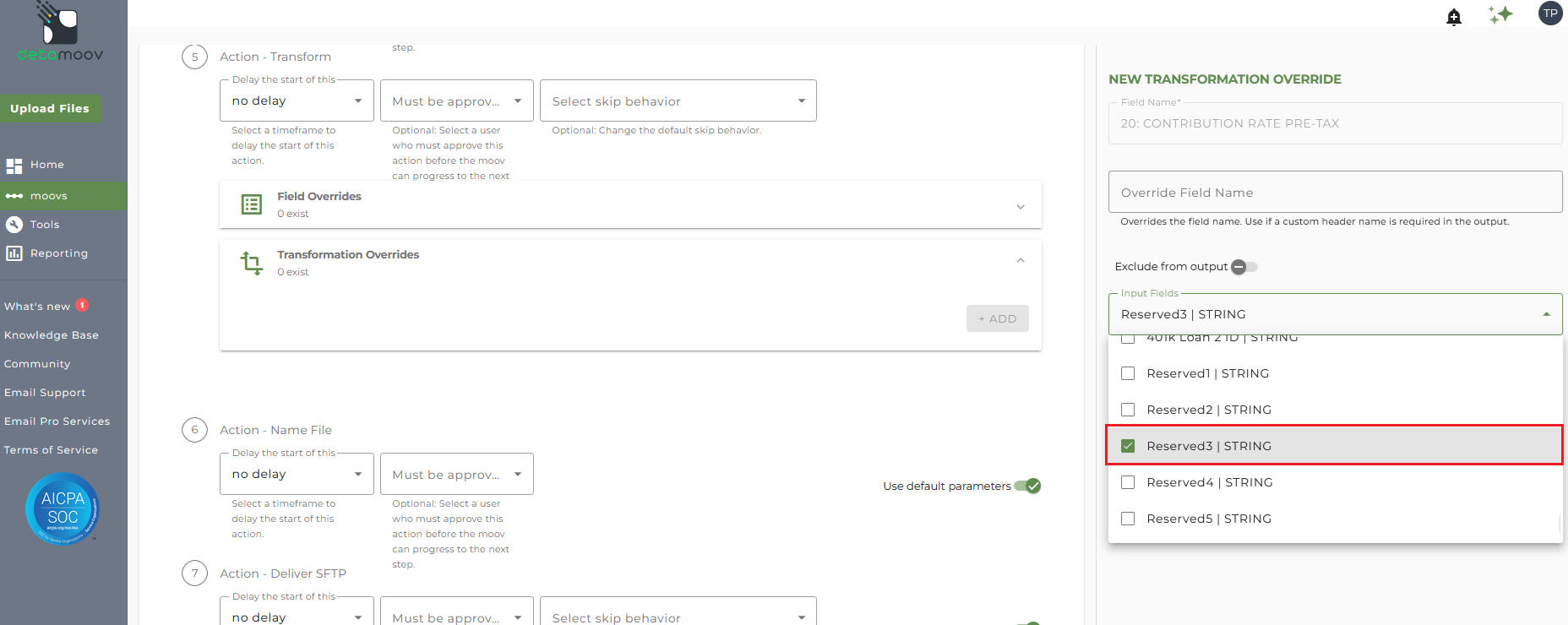
On the panel that appears on the right, select the appropriate Reserved field from the Input Fields dropdown menu. In The Standard example, reserved3 has been mapped to the EE PreTax Percent field in the Premier Integration.
Click ADD RULE and select the 'Try Format as Decimal' rule.
Click ADD RULE again, select the 'Round Number' rule and enter 2 into the Decimals field, and click OK.
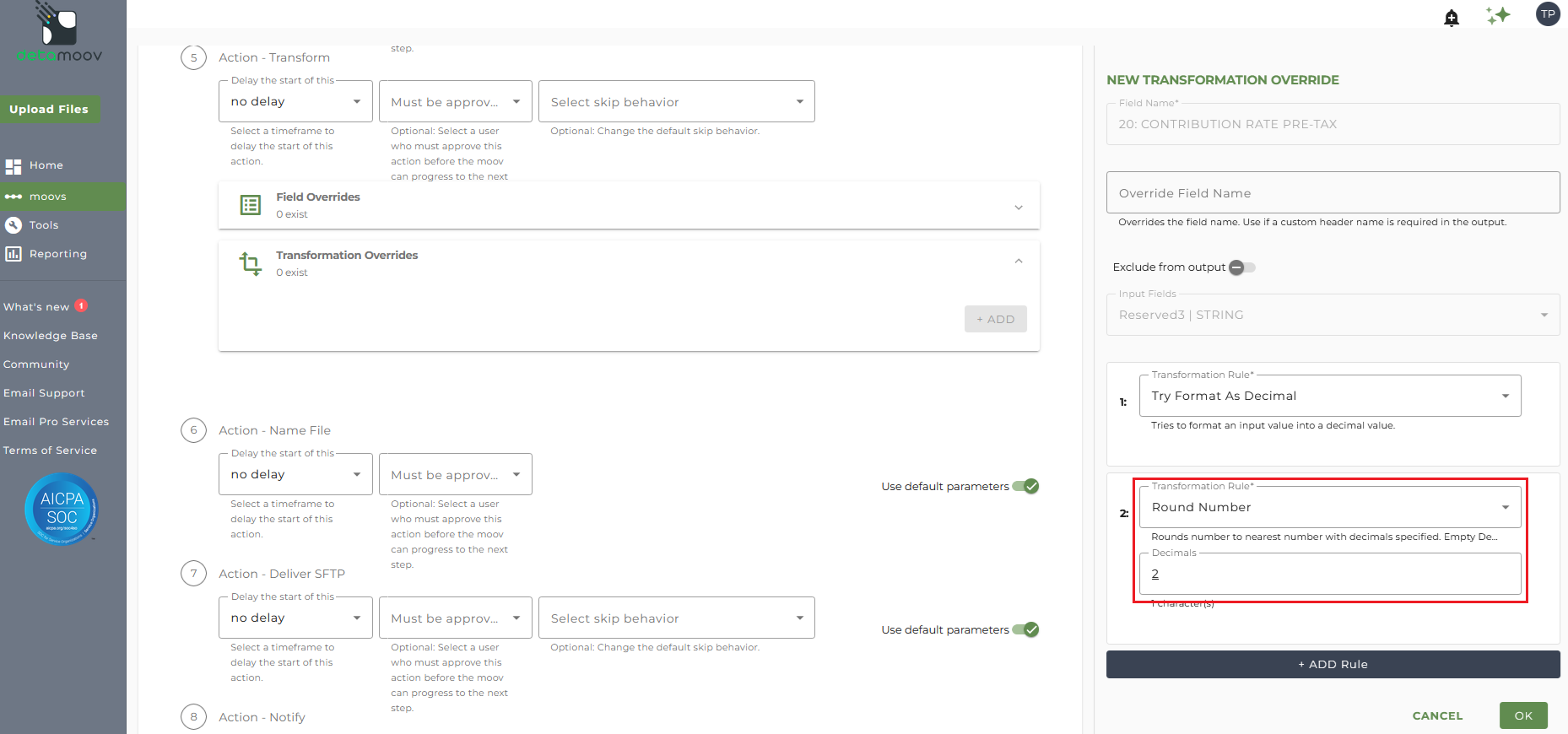
NOTE: A Transformation Override will need to be created for each of the 4 fields mentioned above. Please ensure that they all are mapped to the appropriate Reserved field.
To complete the configuration for your client, click the Next button at the bottom of the page and then the Save button on the moov summary page.

