

This article provides a step-by-step guide for isolved partners to leverage detamoov for automated payroll report delivery to clients via email. This process allows you to transfer payroll reports (typically summaries or check registers) in PDF format and have detamoov handle the email distribution.
- Streamlined Workflow: Automate report delivery, saving time and effort.
- Convenience for Clients: Deliver reports directly to their inbox.
Configuring isolved and detamoov SFTP
To start automating reports from isolved you will need to create a detamoov SFTP User on your account and use it to set up an isolved data transmission for your reports.
For information on how to create a detamoov SFTP user, see the SFTP Maintenance article.
For information on setting up an isolved data transmission, see the Configuring a system level data transmission setting to detamoov article.
Configuring a Client for the Send Report as Attachment via Email moov
A pre-built moov is available in detamoov for you to configure client reporting data transmissions.
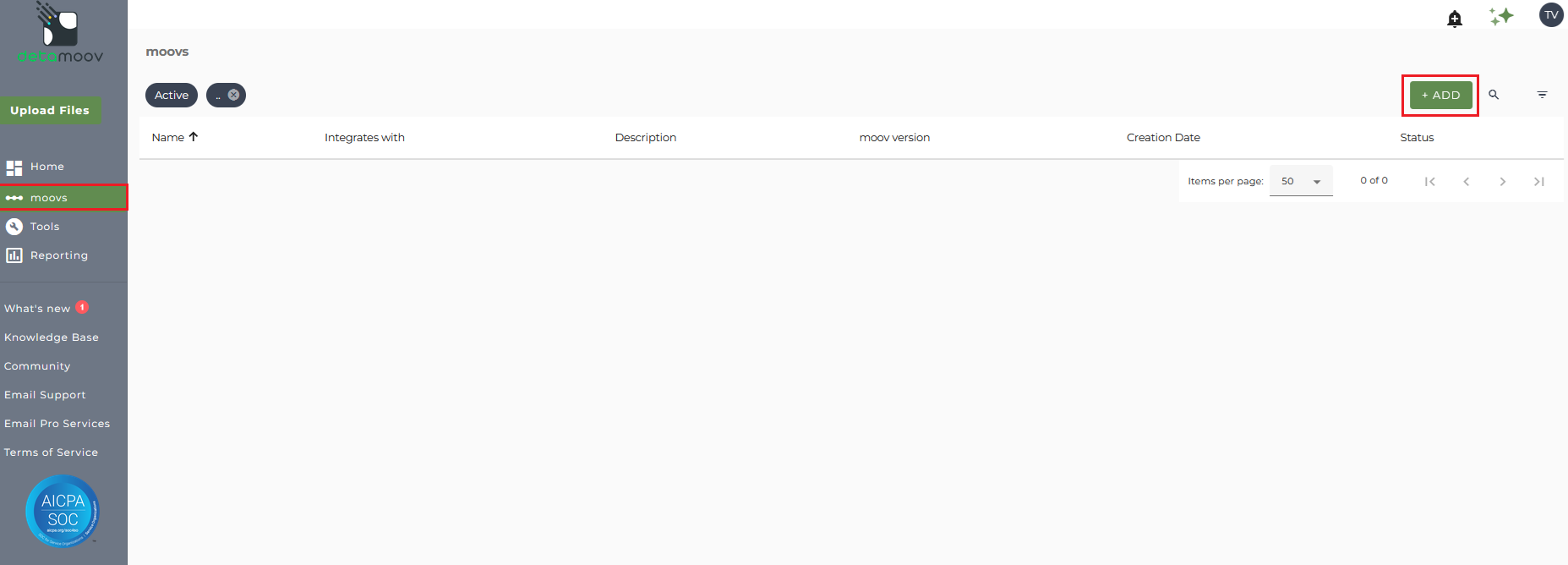
Log in to your detamoov account, click on 'moovs' on the left-hand navigation menu, and click ADD.
Select the 'Other' folder and select the 'Send Report as Attachment via Email' moov.

Click USE THIS MOOV to adopt the moov to your account.

The adoption level Notify Step settings will need to be configured. These settings apply to any client configuration you set up for this specific moov. You will have the ability to override the notification step for each client configuration if you wish to add or remove email addresses per client.
To edit the notification step, click on the cog icon under the Action - Notify step on the left. Then toggle the "Use default parameters" off and enter in the email addresses you would like to receive the notification. If you would like to enter multiple email addresses, separate them with a comma. A Reply to email is also required in the event that a recipient of the notification replies to the email.
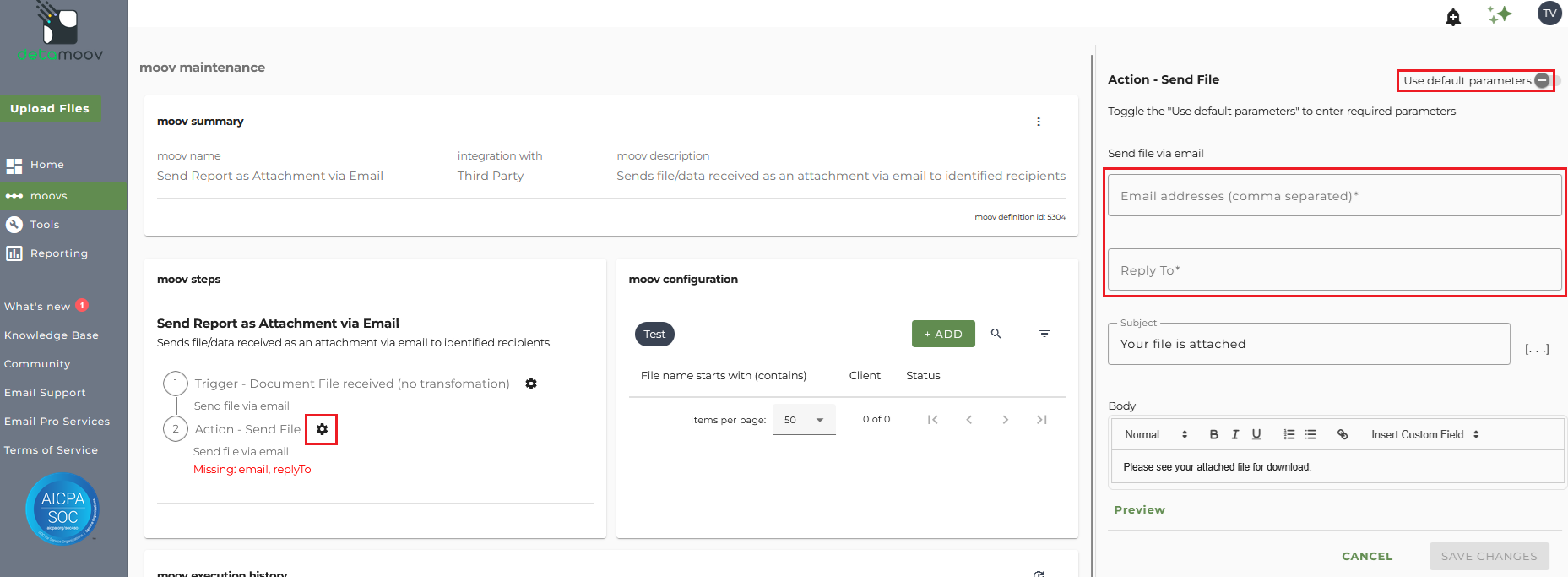
To save your parameters click on the SAVE CHANGES button.
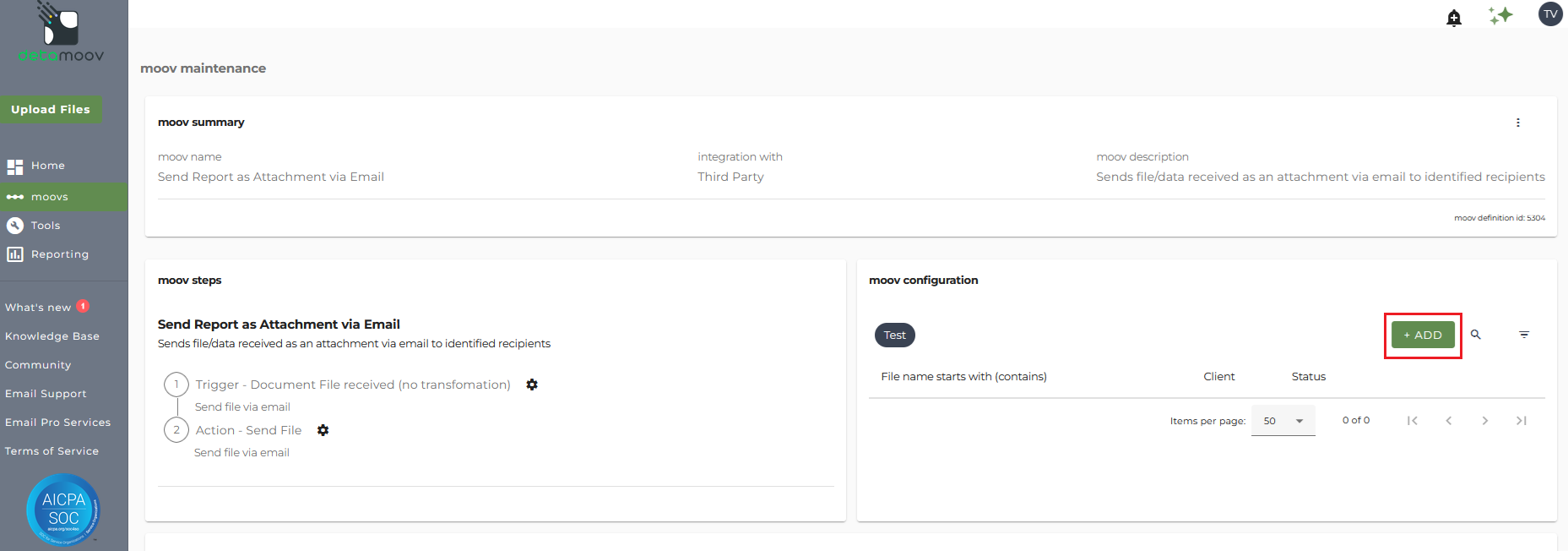
In the moov configuration section, click the ADD button to add a new client to send isolved reports.
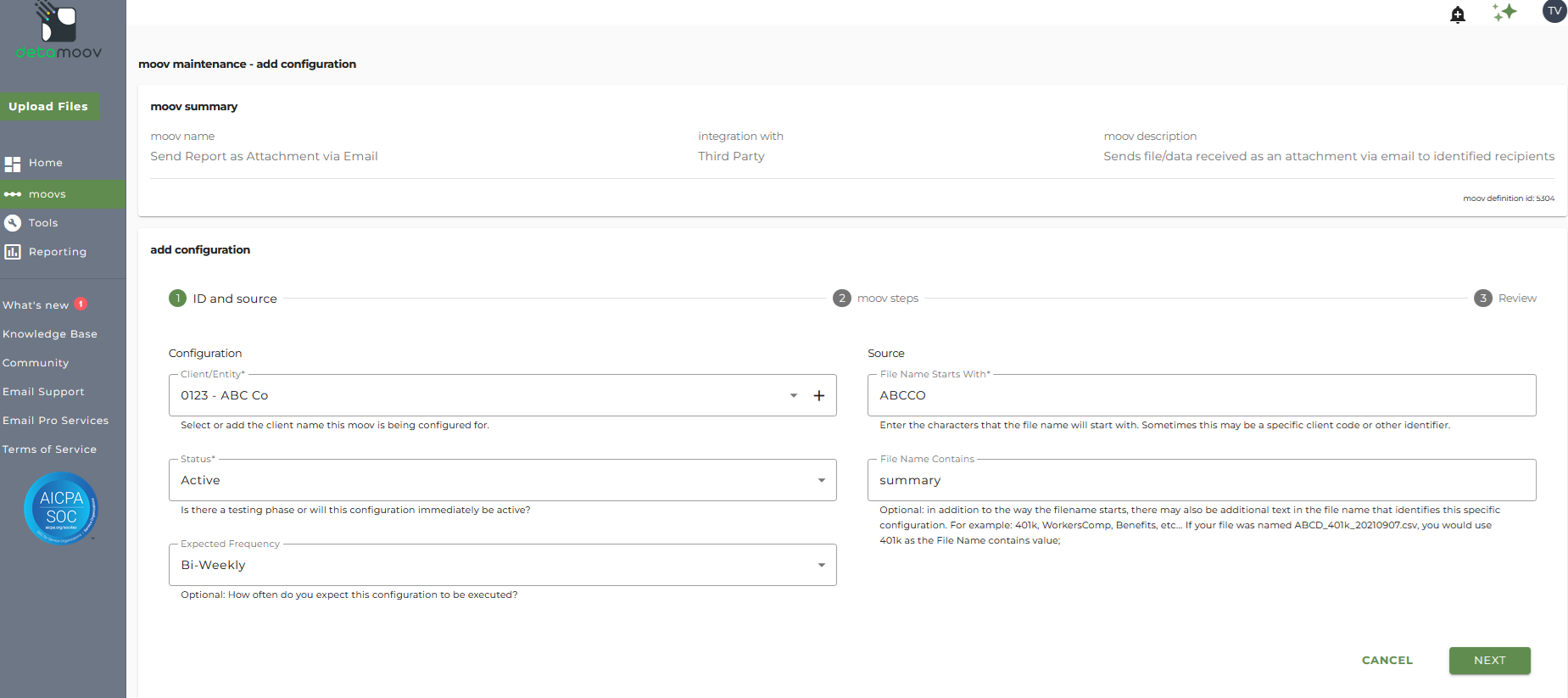
Client/Entity - either select an existing client or click the + sign to create a new client.
Status - set to Active
Expected Frequency - the client's payroll frequency
File Name Starts With - typically the legal company code within isolved. The value entered into this field is important as the file you send to detamoov must start with this value.
File Name Contains - optional value that is included in the file name being transmitted from isolved
Earlier in this article you set up the adoption level Notify Step settings. You have the ability to override the notification step for each client configuration if you wish to add or remove email addresses per client.
To override the notification step, locate the Action - Notify step and toggle the "Use default parameters" off and enter/remove email addresses from Email Address and Reply To fields. If you would like to enter multiple email addresses, separate them with a comma.
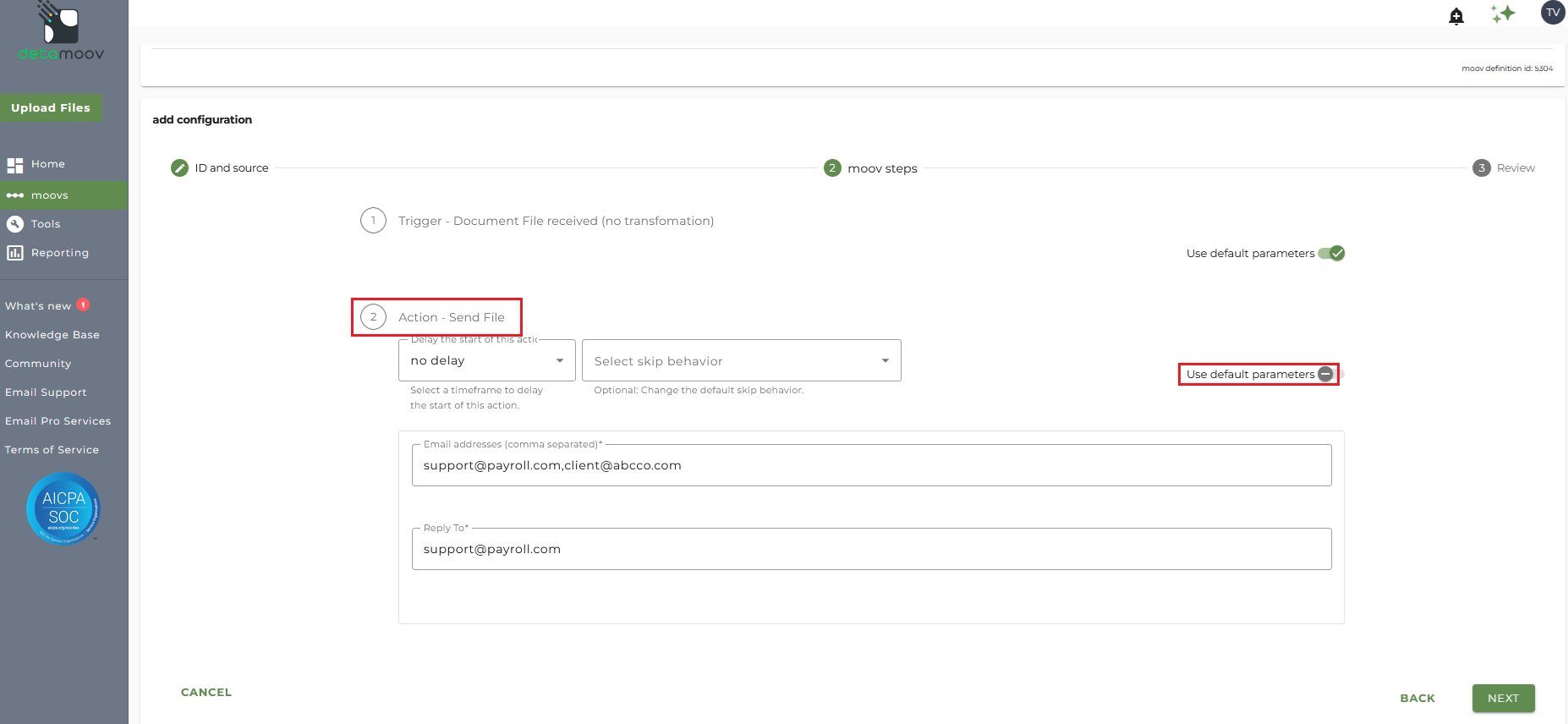
To complete the configuration for your client, click the Next button at the bottom of the page and then the Save button on the moov summary page.
Important Notes:
- Create separate configurations for each report you want to send to a client. Ensure the report name matches the value entered in 'File Name Contains' field.
By following these steps, you can establish an automated workflow for delivering payroll reports to your clients directly from isolved using detamoov's email functionality.

