


This article describes how to configure the AON Deduction Feedback Split by Division moov for the PrimePay SPAY integration. This moov is intended for AON plans that have more than one Division. If your client's plan only has one Division, use the AON Deduction Feedback to PrimePay SPAY moov instead.
If this is the first time you are configuring the AON Deduction Feedback Split by Division moov, please adopt the moov to your account.
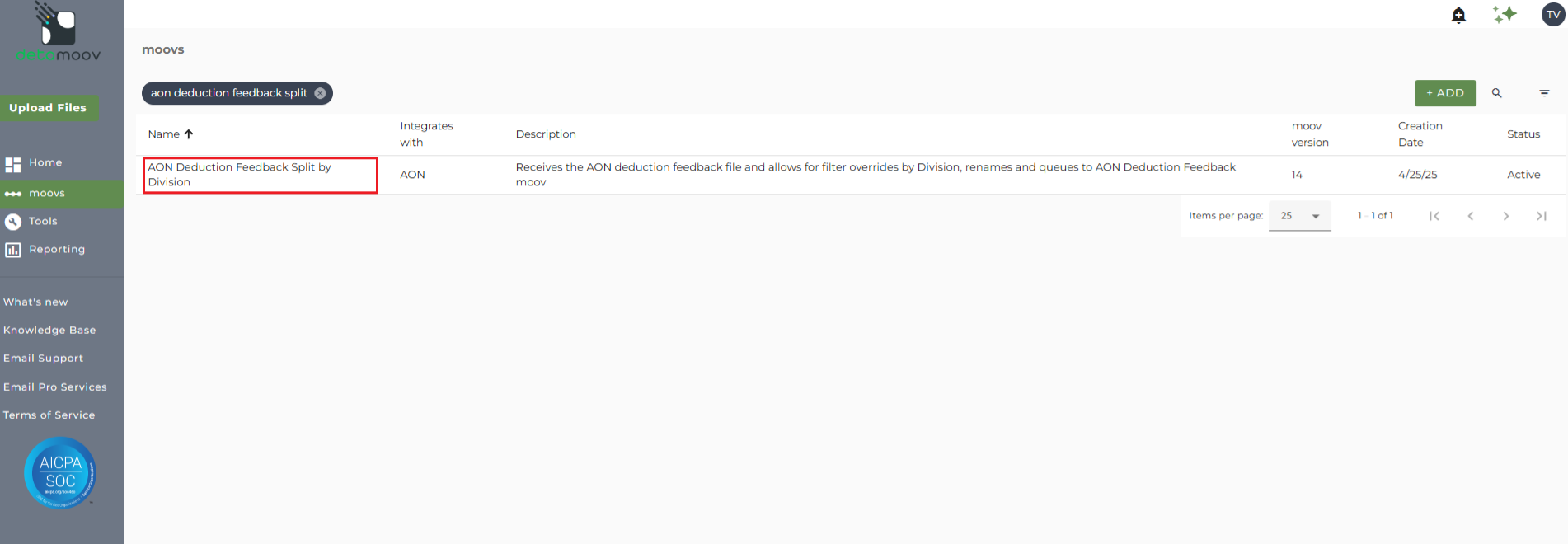
Once the AON Deduction Feedback Split by Division moov has been added to your account, access the moovs section on the left side menu and click on the AON Deduction Feedback Split by Division moov.
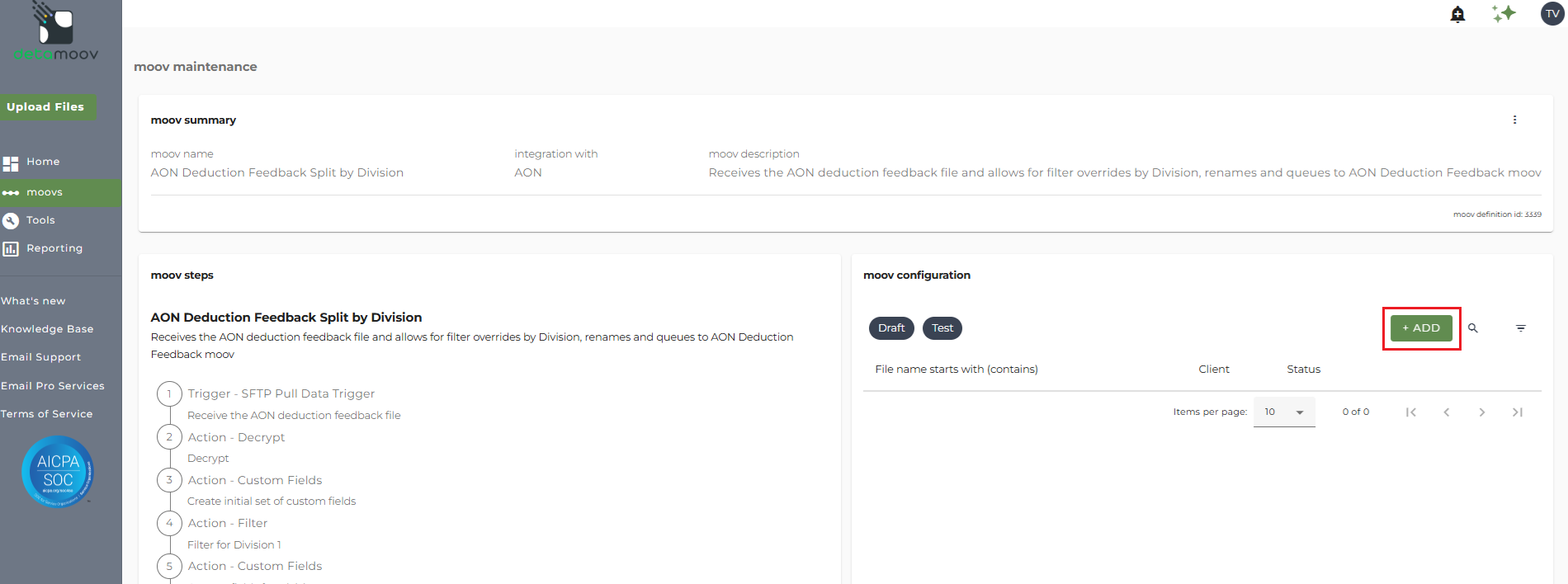
In the moov configuration section, click the Add button to add a new client to the moov.
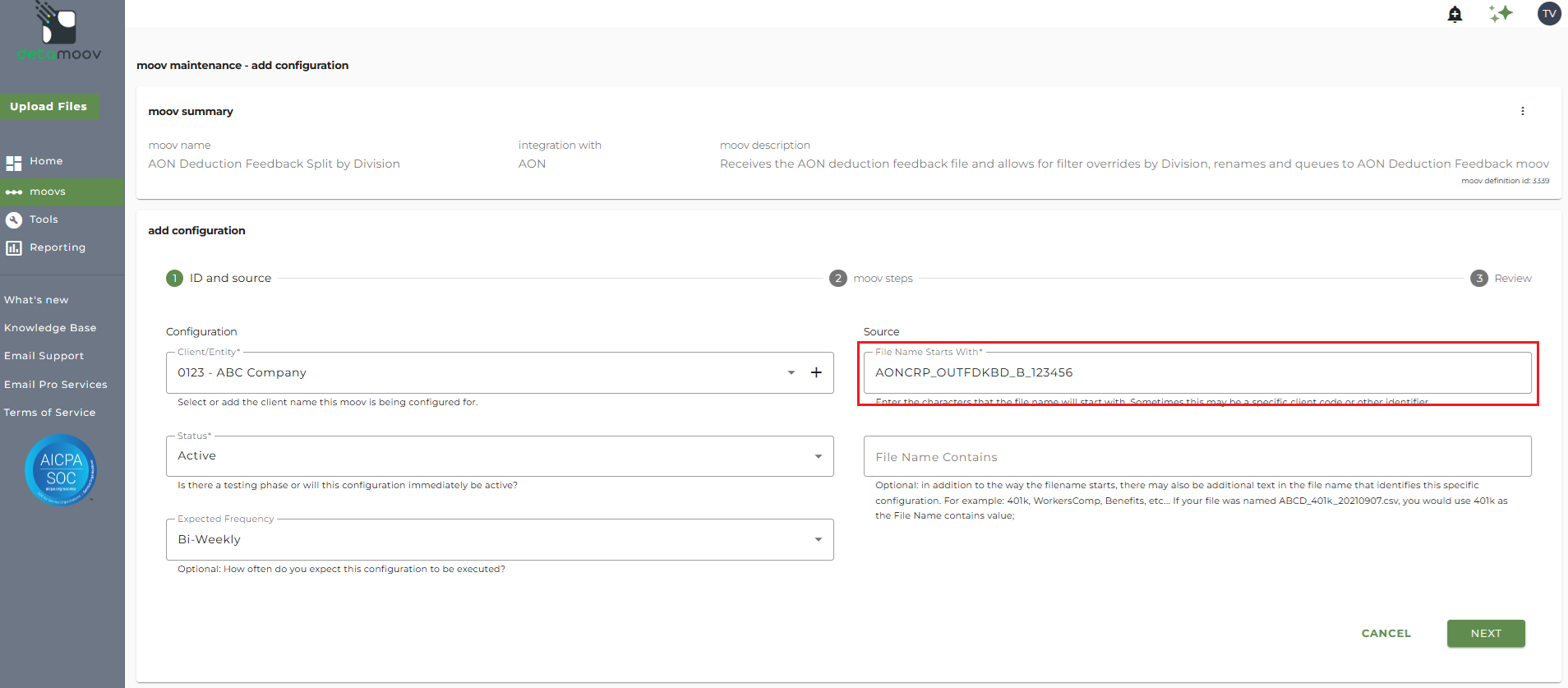
Client/Entity - either select an existing client or click the + sign to create a new client.
Status - Set to Active
Expected Frequency - the client's payroll frequency
File Name Starts With - AONCRP_OUTFDBKD_[Pay Frequency]_[AON Plan Id]
(This value is generated by AON. Please confirm the exact file name with AON to ensure the files for your client are pulled from their SFTP successfully)
File Name Contains -
Note: make sure that the File Name Starts with field matches as this can cause issues pulling the AON deduction feedback file and updating the payroll platform.
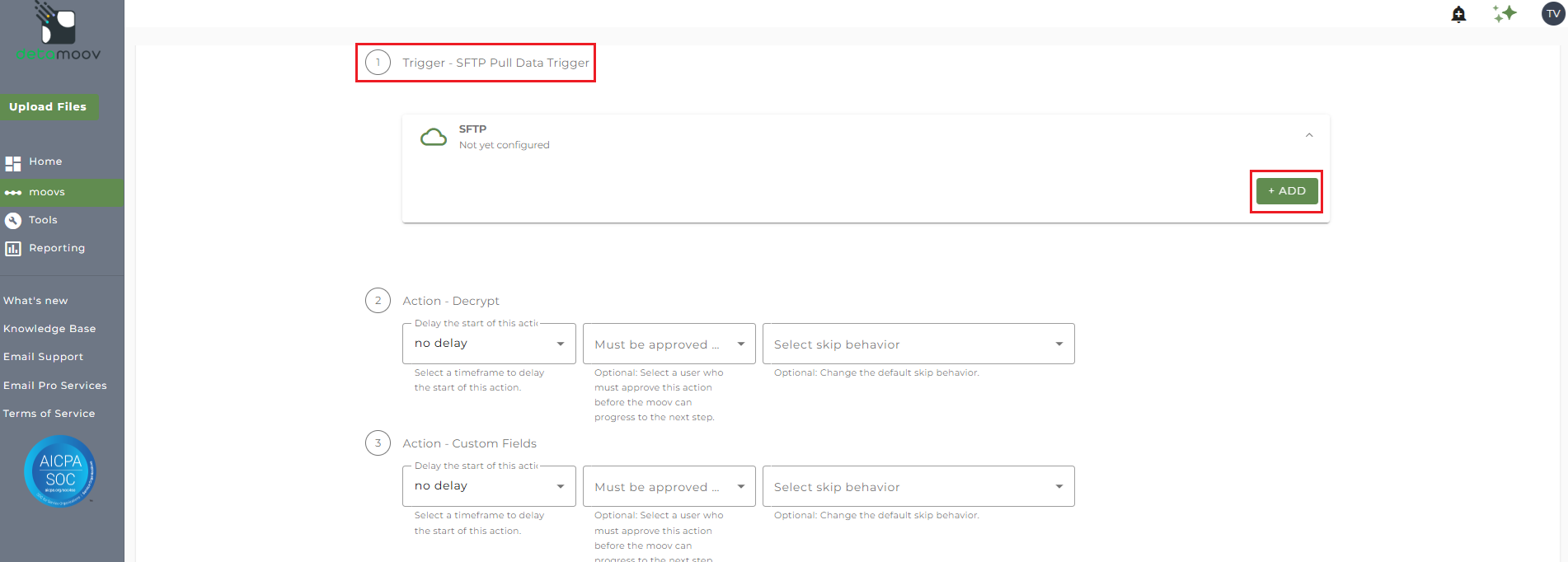
To automate the 360 integration, configure the SFTP schedule. Click the SFTP banner under the Trigger - SFTP Pull Data Trigger step and click Add.
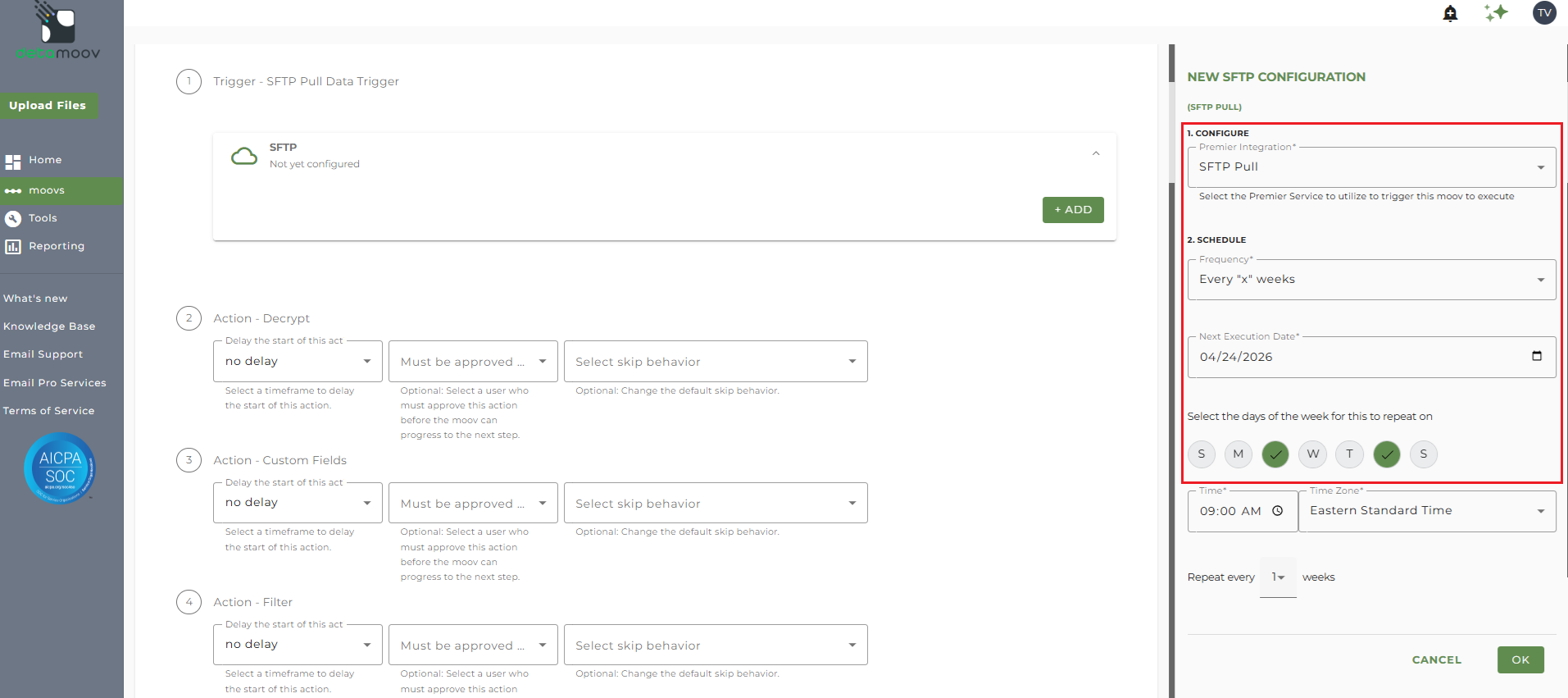
On the New SFTP Configuration section on the right, select the SFTP Pull option from the Premier Integration menu. Then select either "Every X weeks" or "On certain days of the month", depending on how often you would like detamoov to check for new deduction files. We recommend that you check for feedback files at least twice a week. In the example below, we have set up a schedule to check for files twice a week on Tuesdays and Fridays.
Overrides for Filter Step for each Division
To properly split the AON Deduction Feedback file by Division, you will need to provide filter overrides for each division. For example, if our client's AON plan has three Divisions that we expect in the feedback file, then we need to set filter overrides for the first three filter steps. If there are four Payroll Sites, then four filter overrides are needed, and so on.
To set a filter override, click on the Filter Overrides panel, click the ADD button.
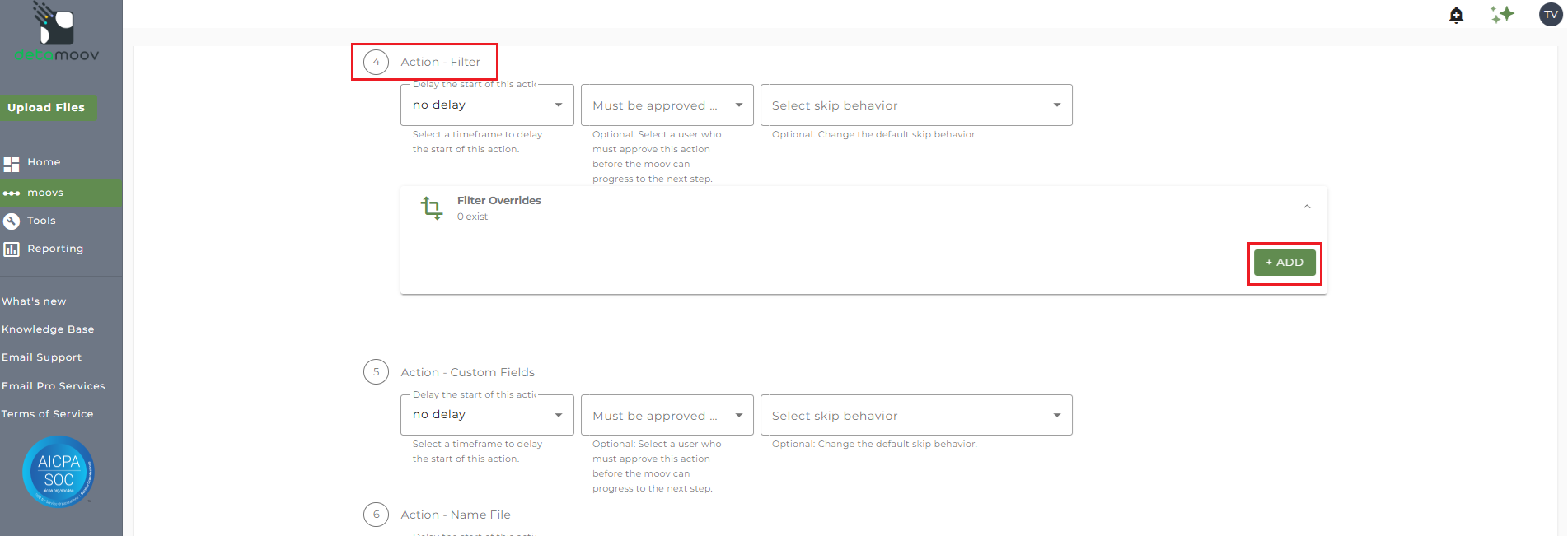
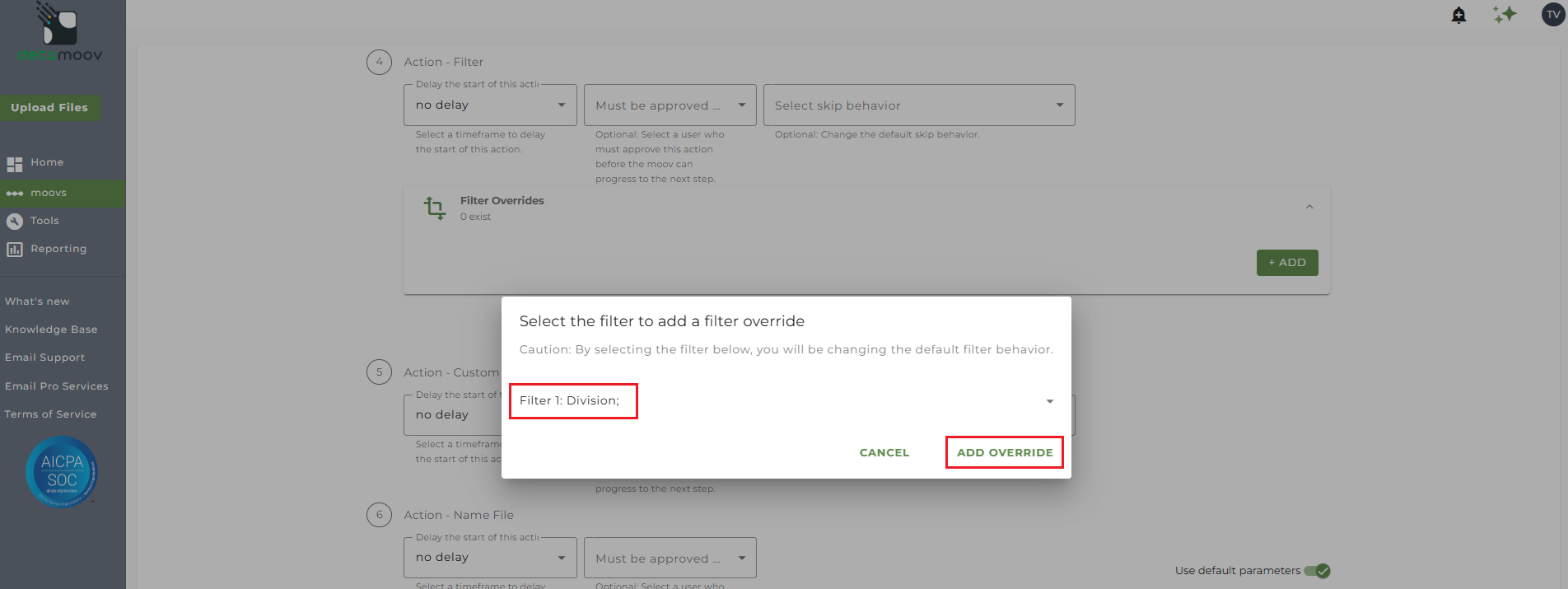
Then select Filter 1: Division and click ADD OVERRIDE.
The default filter is set to filter out any record where the value is not 9999. You will need to replace the value 9999 with the Division you expect in the feedback file and click OK.
If you do not know the Division values for your client's plan, please contact AON.
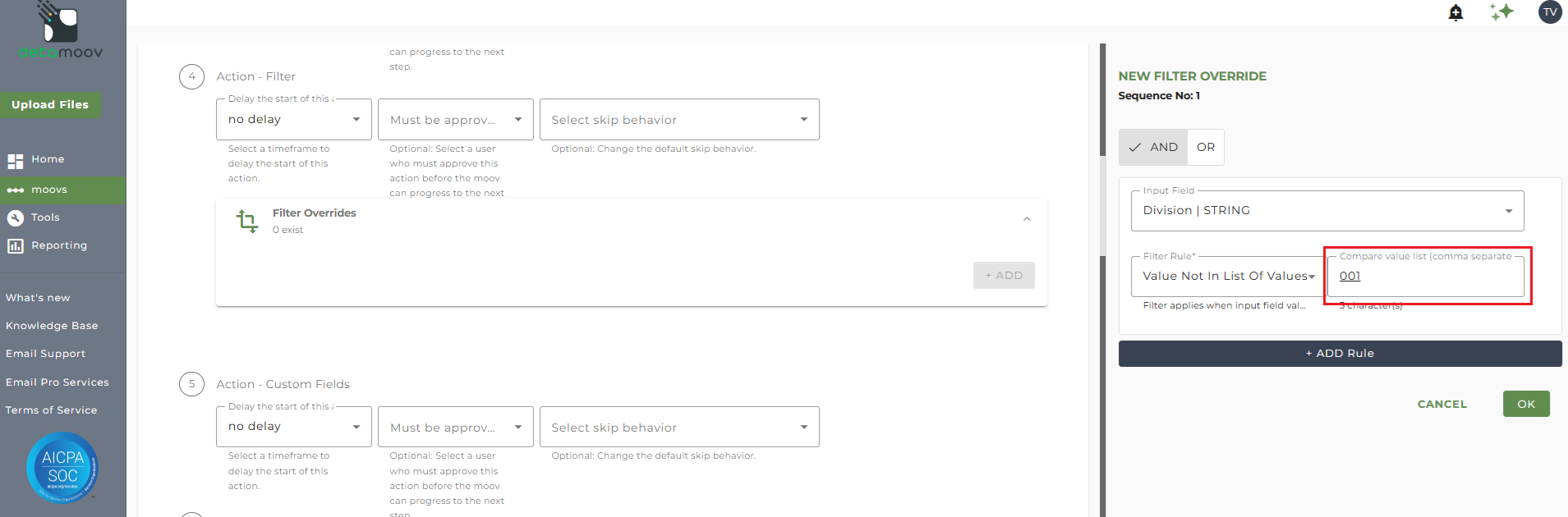
The above filter override will need to be repeated for each Division you expect in the feedback file. Any other Filter steps beyond the number of Division you expect should not be changed.
Here is a table showing the steps that need a filter override based on the number of Divisions expected in the feedback file:
| Number of Divisions | Filter Steps to Override |
|---|---|
| 2 | Step 4, 9 |
| 3 | Step 4, 9, 14 |
| 4 | Step 4, 9, 14, 19 |
| 5 | Step 4, 9, 14, 19, 24 |
Once you have provided a filter override for each Division, scroll to the bottom of the page and Click Next. Then click Save on the summary page.
Configuring a client for the AON Deduction Feedback to PrimePay SPAY moov
Each client Division will need to be separately configured for the AON Deduction Feedback to PrimePay SPAY moov. To configure your client please add the AON Deduction Feedback to PrimePay SPAY moov to your account by following these steps.
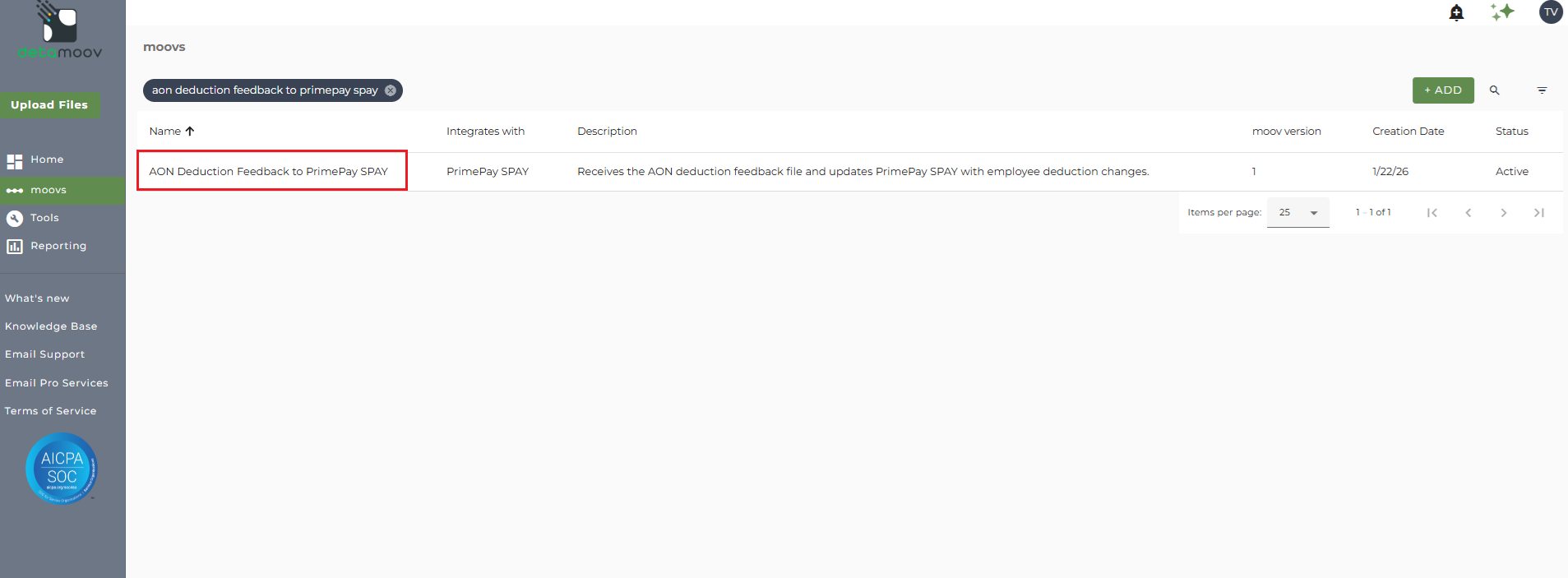
Once the AON Deduction Feedback to PrimePay SPAY moov has been added to your account, access the moovs section on the left side menu and click on the AON Deduction Feedback to PrimePay SPAY moov.
The AON Deduction Feedback to PrimePay SPAY moov provides a notification once the moov is complete with a summary of the retirement plan and loan changes that were made in PrimePay SPAY. The notification can be sent to any email address you wish and can also be configured to send to multiple email addresses.
To edit the send file step, click on the cog icon under the Action - Send File step on the left. Then toggle the "Use default parameters" off and enter in the email addresses you would like to receive the notification. If you would like to enter multiple email addresses, separate them with a comma. A Reply to email is also required in the event that a recipient of the notification replies to the email.
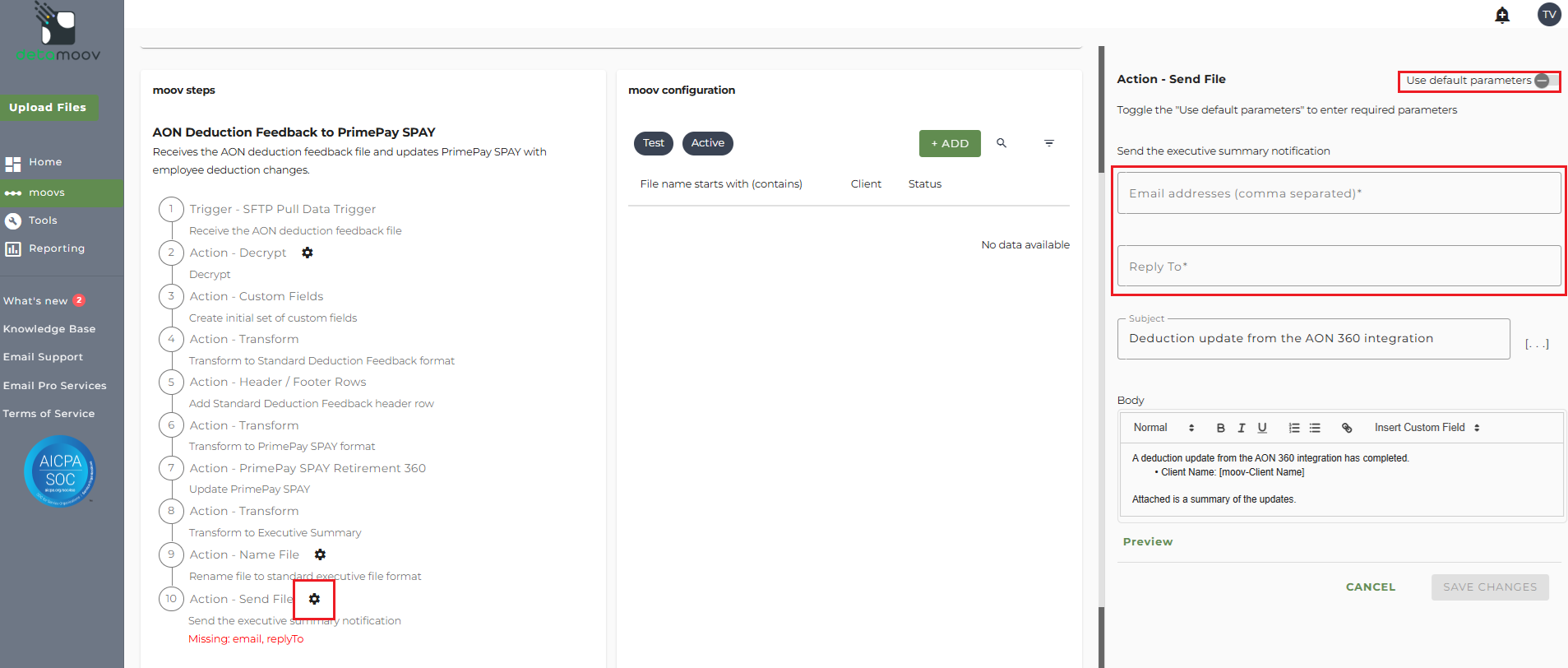
Note: these settings apply to any client configuration you set up for this specific moov. You also have the ability to configure the send file step for each client configuration if you wish to add or remove email addresses per client.
To save your parameters click on the Save Changes button.
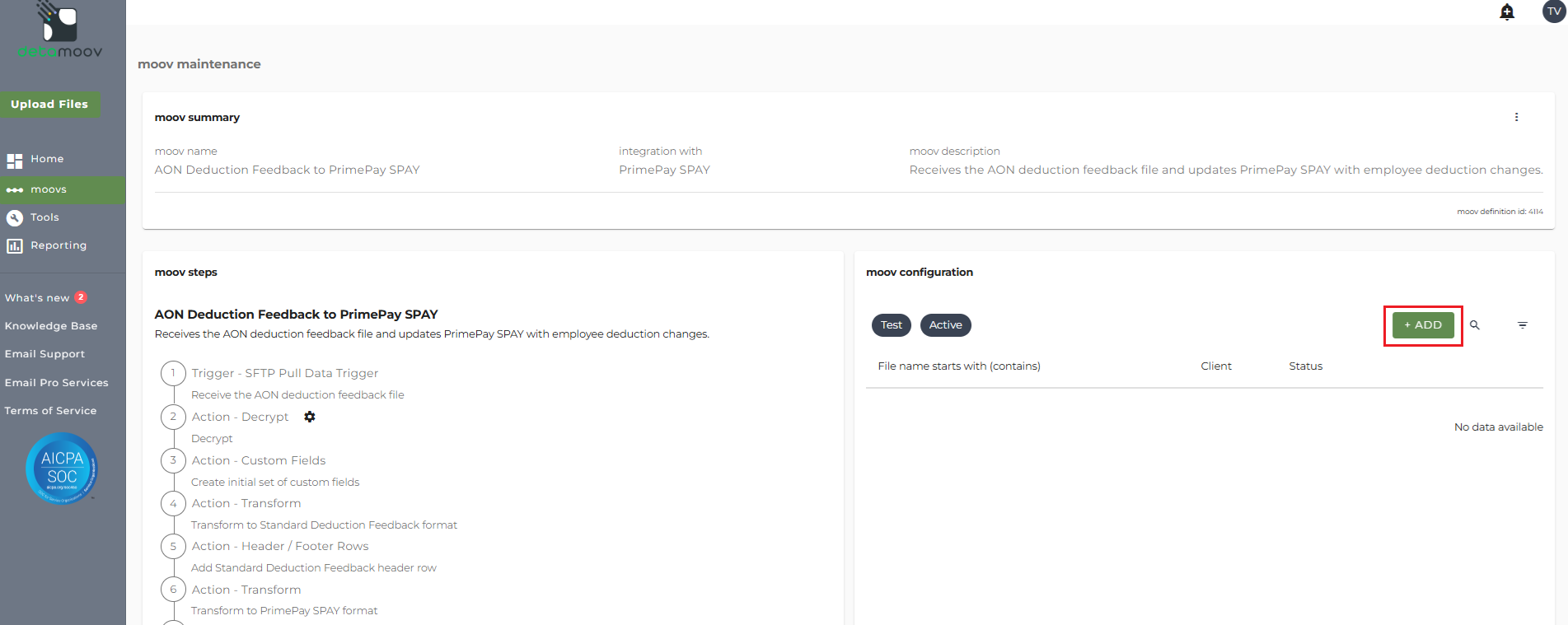
In the moov configuration section, click the Add button to add a new client to the moov.
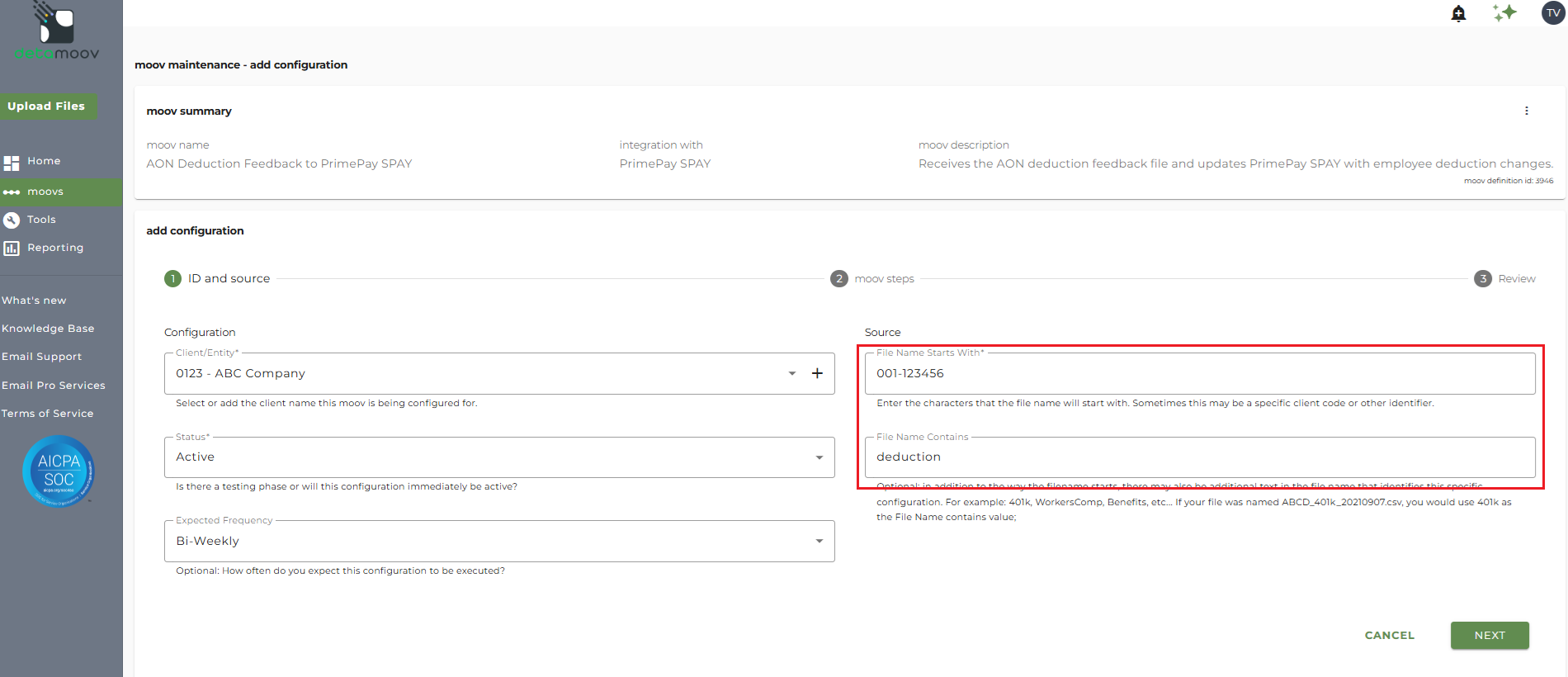
Client/Entity - either select an existing client or click the + sign to create a new client.
Status - Set to Active
Expected Frequency - the client's payroll frequency
File Name Starts With - [Division Id]-[AON Plan Id]
File Name Contains - deduction
Note: make sure that the File Name Starts With and File Name Contains fields are correct as this can cause issues updating PrimePay SPAY.
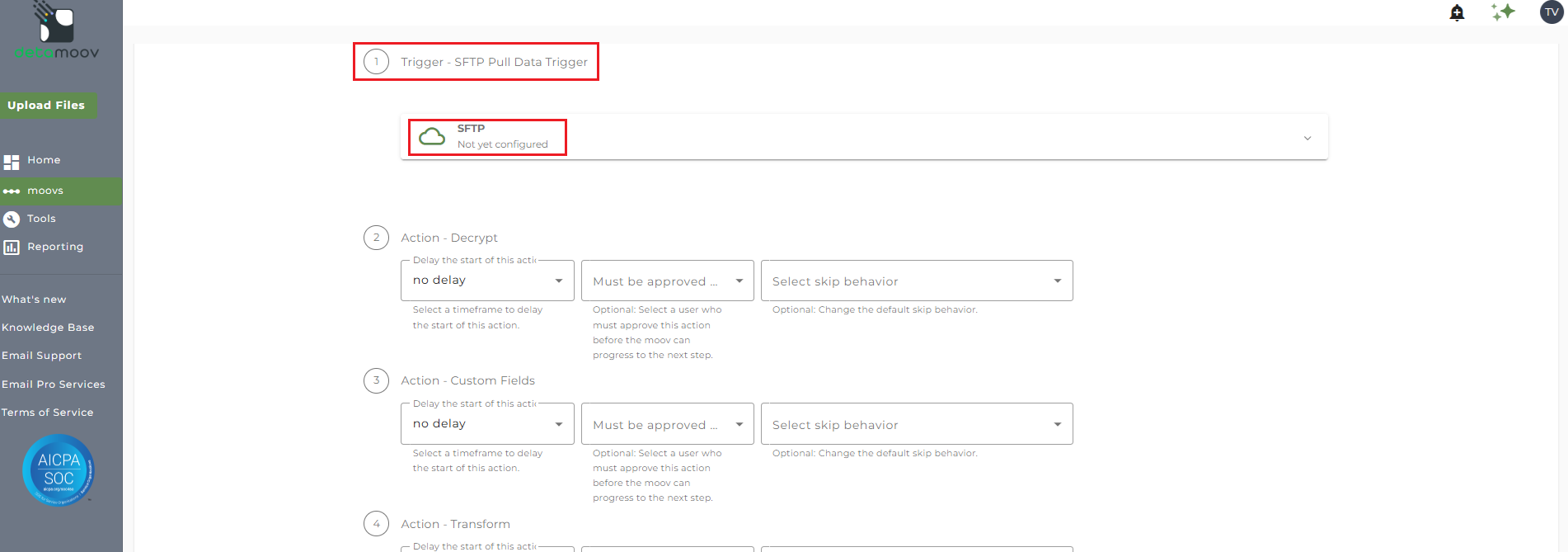
It is important to note that the SFTP Pull Data Trigger step should not be configured when you are using the Split by Division moov. The SFTP panel should be left as 'Not yet configured'.
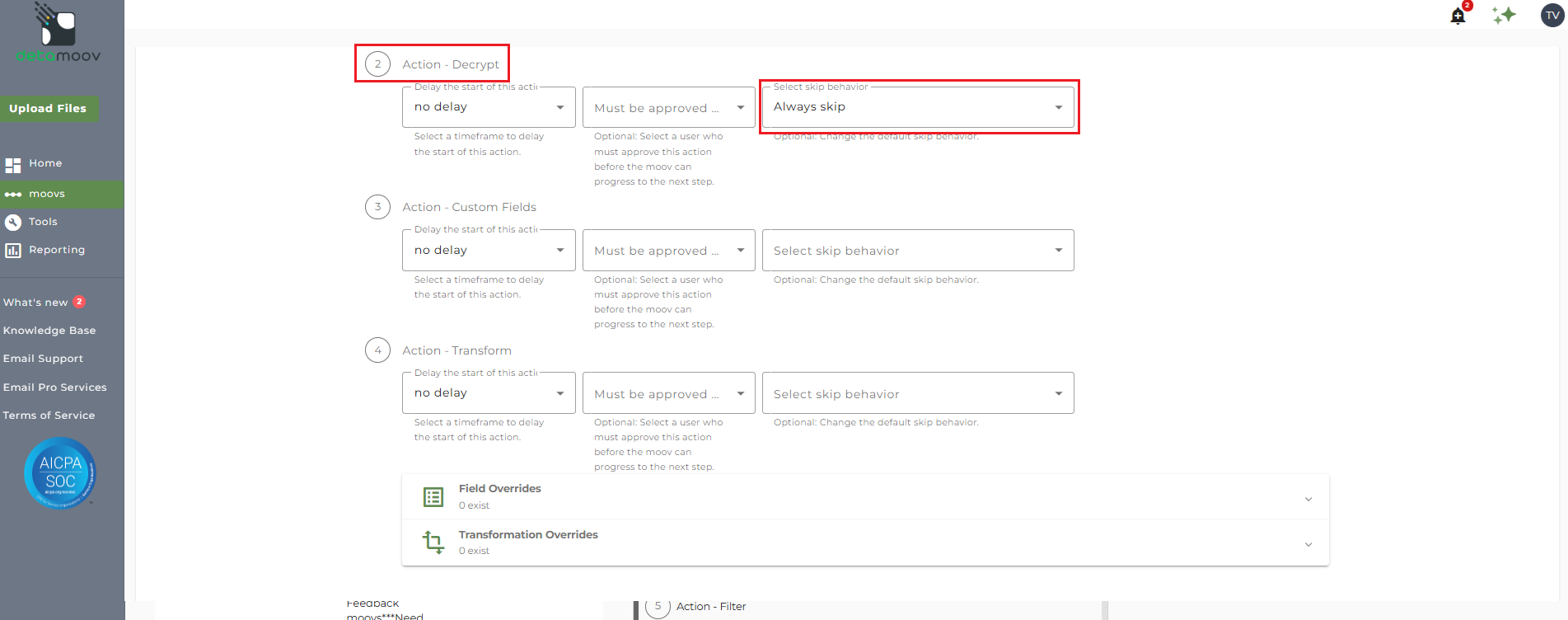
The decryption on the AON Deduction Feedback to PrimePay SPAY moov is handled on the Split By Division moov and needs to be disabled. To disable the decryption, locate the Action - Decrypt step and set the 'Select skip behavior' to "Always Skip".
IMPORTANT: This should only be disabled if you are using the Split by Division moov along with the AON Deduction Feedback to PrimePay SPAY moov.
Configure the PrimePay SPAY Retirement 360 Step
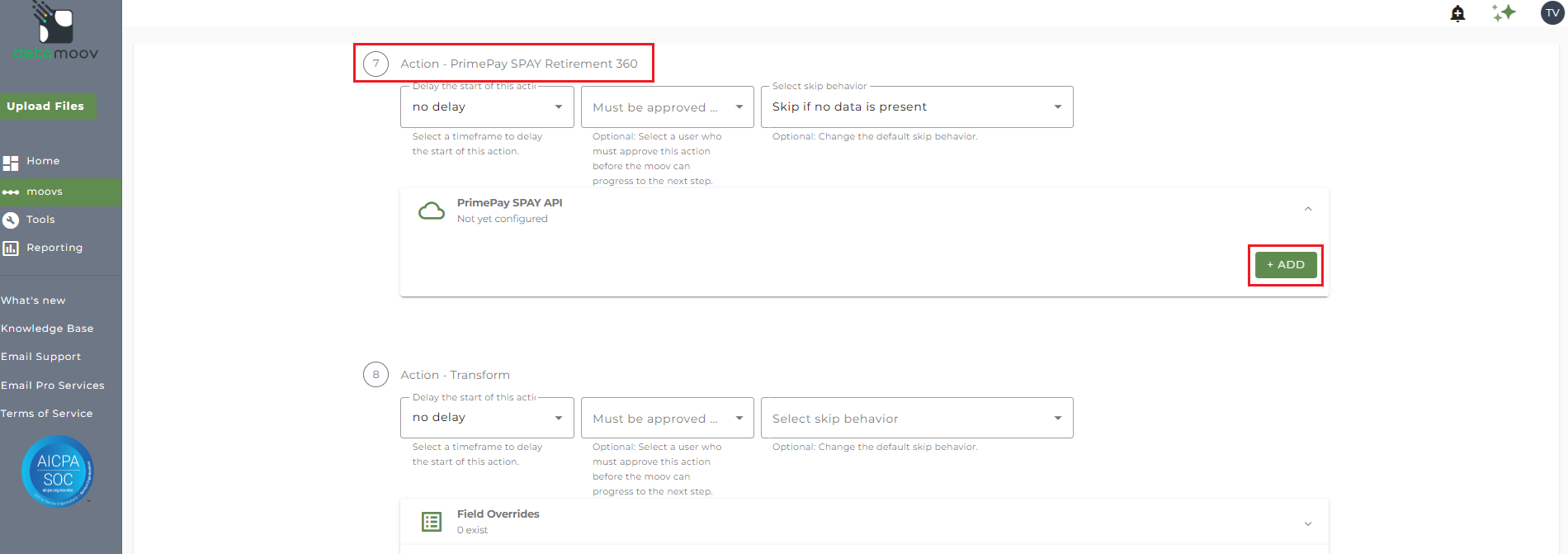
To configure the PrimePay SPAY Retirement 360 step for you client, locate the Action - PrimePay SPAY Retirement 360 step, expand the PrimePay SPAY API panel and click ADD.
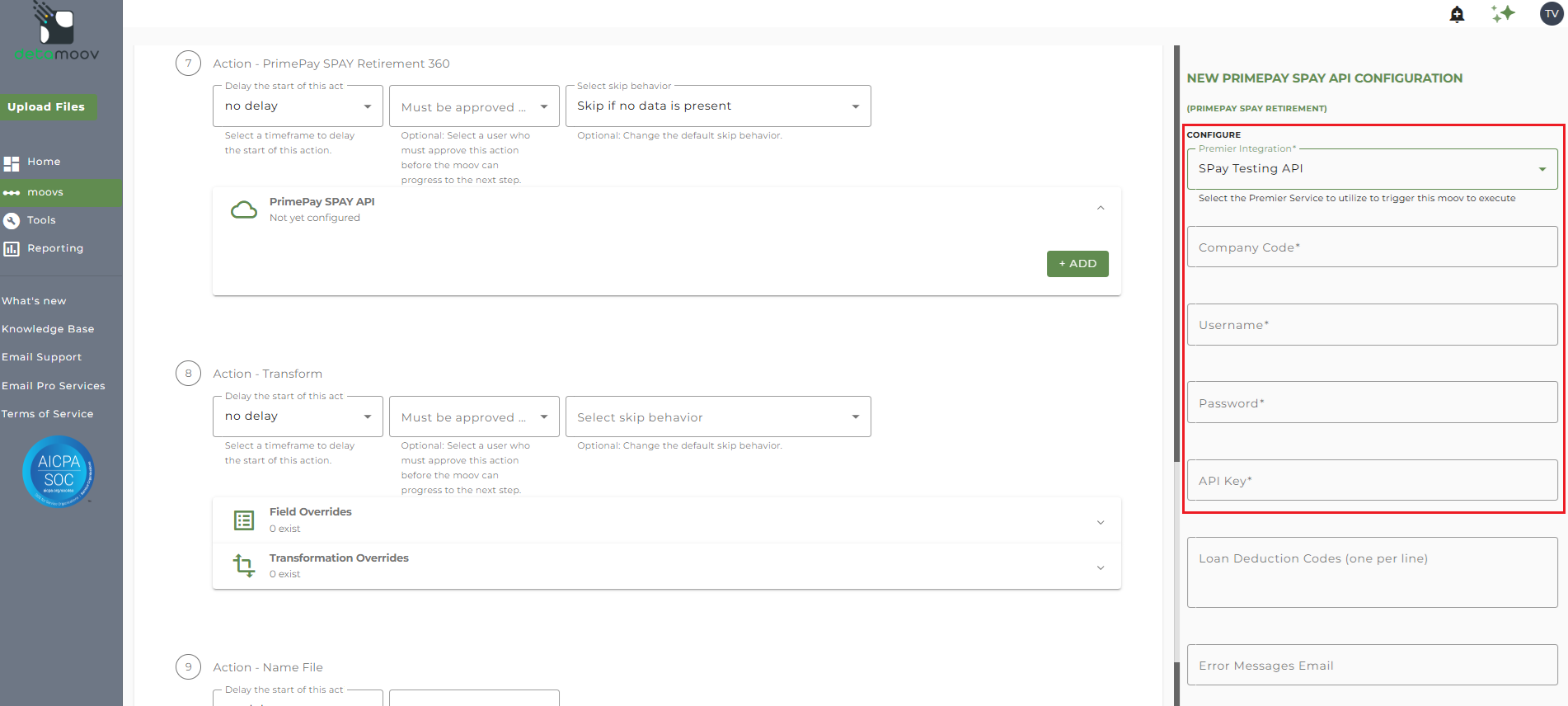
On the side panel that appears, select your PrimePay SPAY Premier Integration and enter in the following credentials:
Company Code
Username
Password
API Key
Loan Deduction Codes - this field can be left blank as AON sends loan changes in a separate feedback file
You can also enter in one or more email addresses in the Error Messages Email. If left blank, all detamoov users on your account will receive emails if the PrimePay SPAY API import fails.
Click OK to complete the PrimePay SPAY Retirement 360 configuration.
At the beginning of this article you configured the send file step for the moov to send a notification once the moov had completed. You also have the ability to configure the send file step for each client configuration if you wish to add or remove email addresses per client.
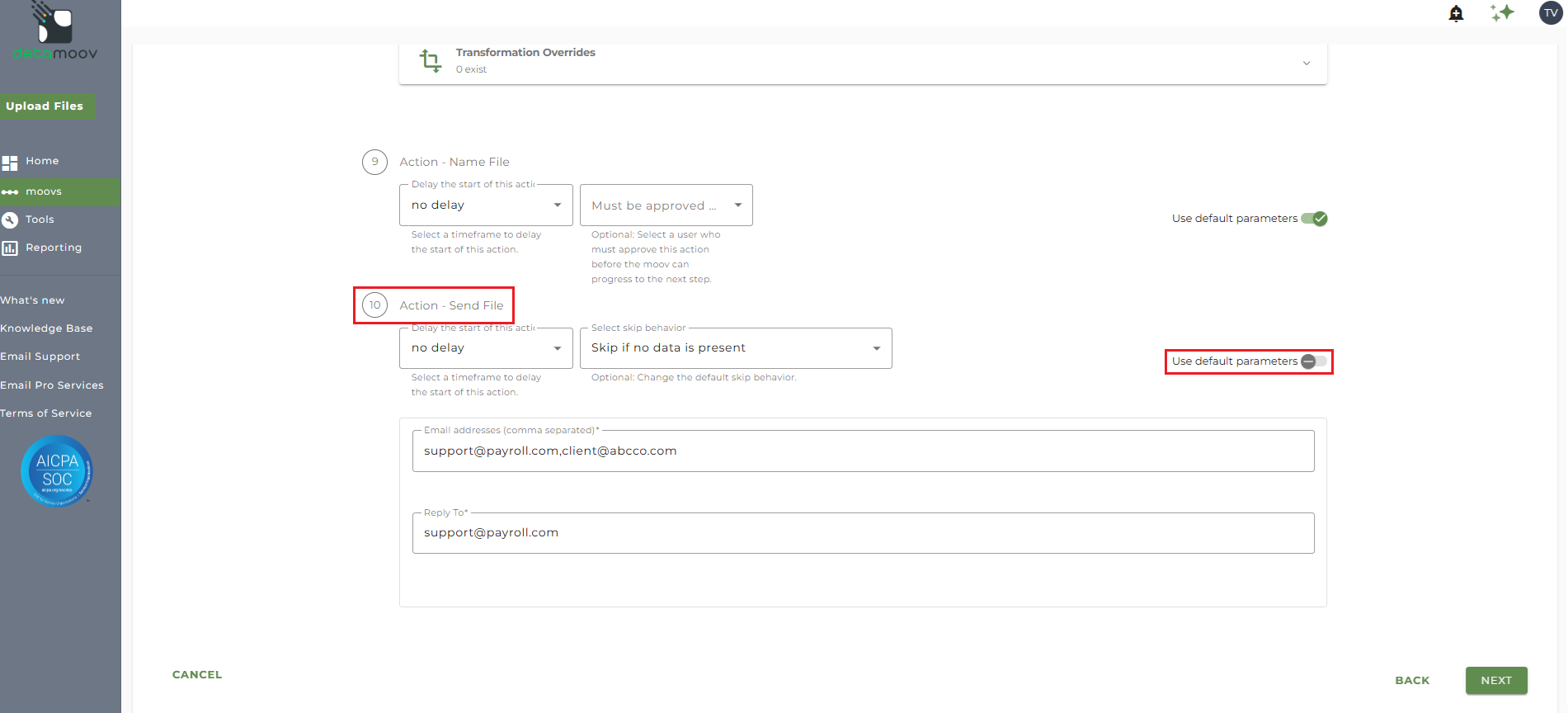
To override the send file step, locate the Action - Send File step and toggle the "Use default parameters" off and enter/remove email addresses from Email Address and Reply To fields. If you would like to enter multiple email addresses, separate them with a comma.
To complete the configuration for your client, click the Next button at the bottom of the page and then the Save button on the moov summary page.

