

This article describes how to configure a client for the Fidelity Deduction Feedback to isolved Deferred Comp Update moov definition used for 360 integration. Each client configuration will vary based on their plan specification and will need to be configured accordingly.
The Fidelity Deduction Feedback to isolved Deferred Comp Update moov will process standard deduction changes submitted by Fidelity. For plans that participate in supplemental or bonus payroll deductions, detamoov will send a summarized notification of the supplemental or bonus amounts of what is received in the feedback data, as a summary only; no changes will be made in payroll by detamoov for supplemental or bonus records.
Notes on Fidelity plans with supplemental or bonus deductions:
- The Fidelity feedback data does not indicate if a supplemental or bonus record amount is a per-payroll deduction or a one-time lump sum
- For plans with these options enabled, participant records that do not have these deductions will be received from Fidelity as zero-filled and included in the summarized notification that is sent.
To proceed in configuring the isolved moov, you will need the isolved API premier service enabled on your detamoov account. In isolved you will need to have the detamoov API enabled. If not currently enabled, please contact isolved support to enable the detamoov API for you within your isolved environment. Once complete, isolved support will send your API credentials to detamoov for us to add these into your detamoov account.
Once the API credentials have been added to your detamoov account, you will need to give the client access to the detamoov API user. Please see Configuring client access to the detamoov API user article.
Create an SFTP Account in detamoov
Fidelity will send the deduction feedback file to detamoov via SFTP. To create an SFTP account, make sure you are logged in with an administrator level account. Click on your initials in the top right corner and select the Admin Console link.

Within the Admin Console, select the Settings tab and click on the SFTP row. Once the SFTP area expands, click the ADD button to add a new SFTP account.

The side sheet will be where you'll enter information on your new SFTP account. All fields are required. Here's some information on each field:
- Username: required, cannot contain spaces and must be unique across all SFTP accounts.
- Password: required and must adhere to the standard detamoov password requirements.
- Confirmation password: required and must match the password field exactly (case sensitive).
- Description: required and used to describe why you're creating this account.
Once you've entered all the information above, click the SAVE button and your account will be created.
Provide Fidelity with the SFTP credentials created above to allow them to send the deduction feedback files for your client.
Host: sftp.prod.detamoov.com
Port: 22
Username: username created above
Password: password created above
Fidelity - Electronic Data Transmission Connectivity Form
You will need to complete the Fidelity Electronic Data Transmission (EDT) connectivity form to enable 360. For more information, please see the Fidelity - Electronic Data Transmission Connectivity Form article.
After the isolved Premier Integration has been activated on your account and the SFTP account has been created, please add the Fidelity Deduction Feedback to isolved Deferred Comp Update moov to your account by following these steps.
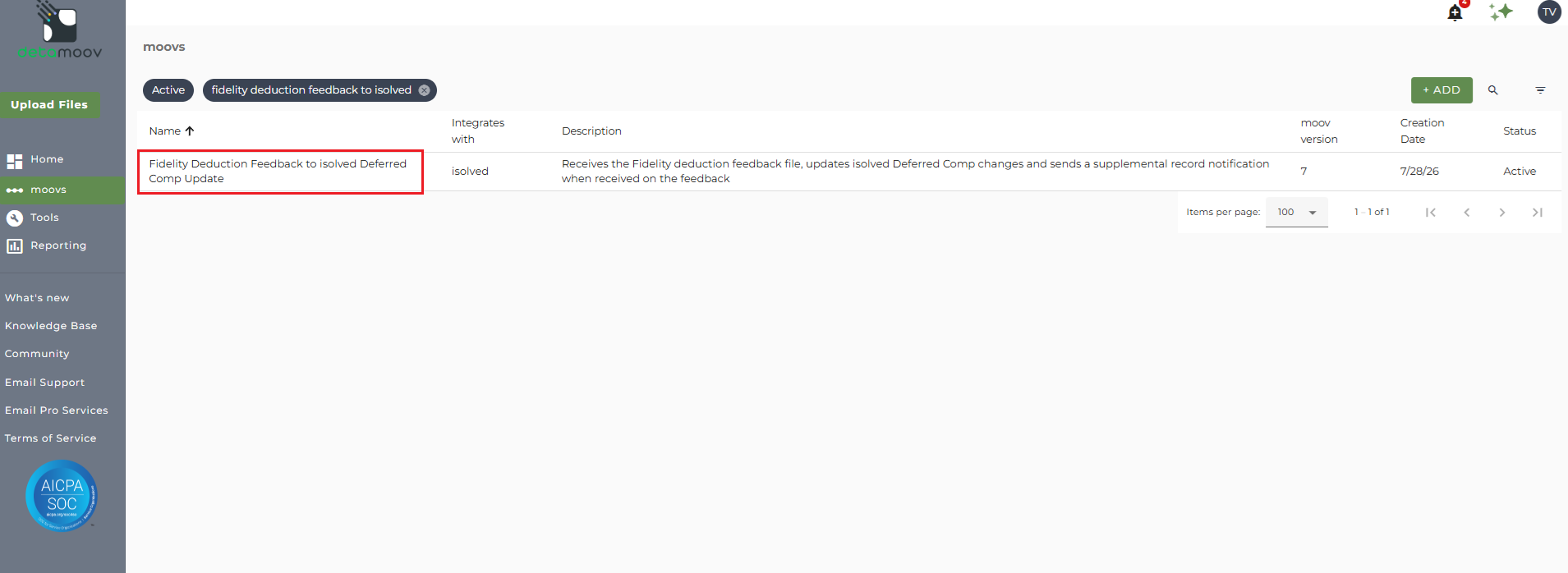
Once the Fidelity Deduction Feedback to isolved Deferred Comp Update moov has been added to your account, access the moovs section on the left side menu and click on the Fidelity Deduction Feedback to isolved Deferred Comp Update moov.
detamoov will prepare the Fidelity deduction data before importing it to isolved. During the preparation step, if the Pay Item or Benefit Plan are missing or invalid, or if an error occurs connecting to the isolved API, a validation report will be sent via email.
Note: If the Pay Item is missing or invalid, or there is an error connecting to the isolved API, those employee records will be filtered out of the isolved import. Records that do not have a Benefit Plan will be allowed to import into isolved, but no update will be made to the Deferred Comp for the employee.
An example of the validation report generated:

To ensure that you receive the validation notifications, click the cog icon under step 12: Action - Validate File on the left. Then toggle the "Use default parameters" off and enter in the email addresses you would like to receive the notification. If you would like to enter multiple email addresses, separate them with a comma. A Reply to email is also required in the event that a recipient of the notification replies to the email.
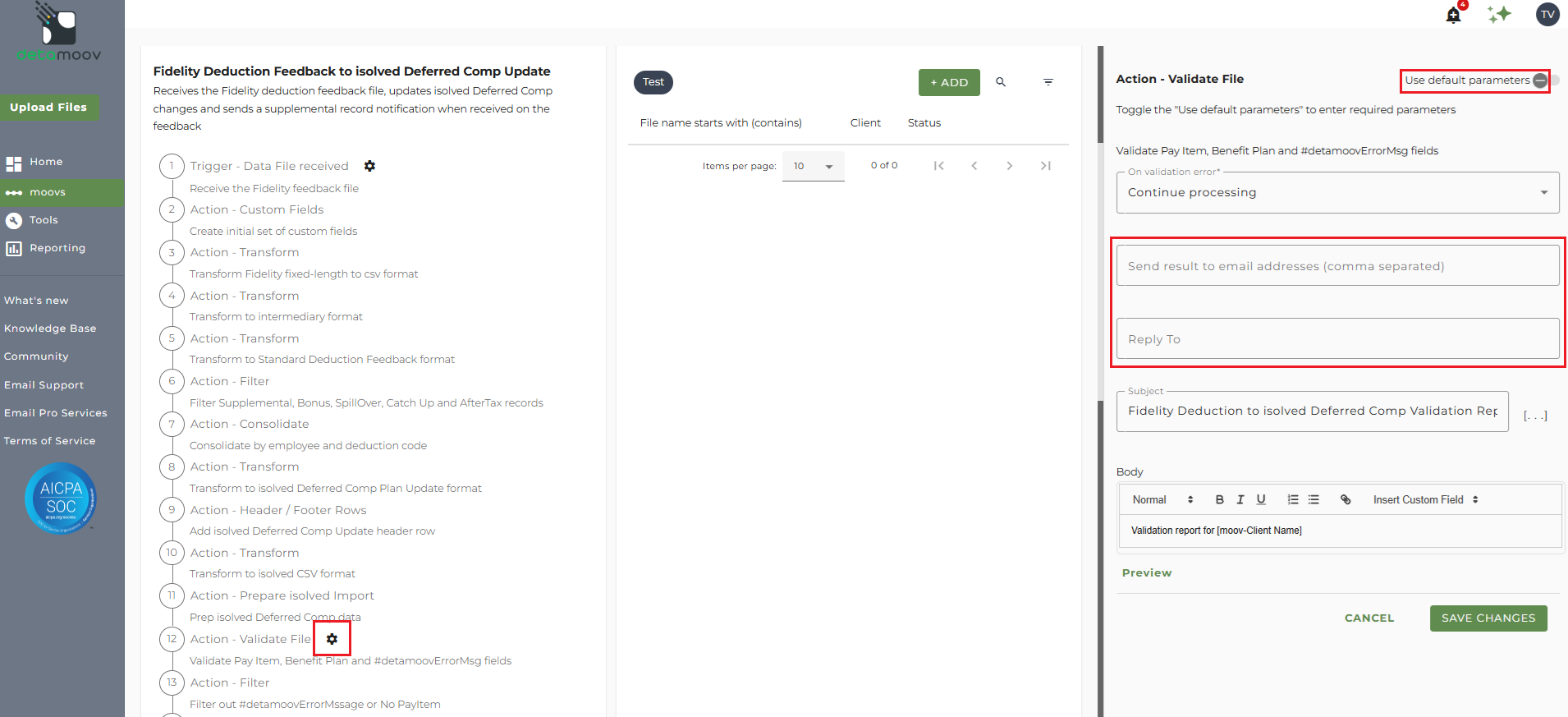
To save your parameters click the SAVE CHANGES button.
Send File Settings - Executive Summary
The Fidelity Deduction Feedback to isolved Deferred Comp Update moov provides a notification once the moov is complete with a summary of the deferred comp updates that were sent to isolved. The notification can be sent to any email address you wish and can also be configured to send to multiple email addresses.
To edit the send file step, click on the cog icon under step 19: Action - Send File on the left. Then toggle the "Use default parameters" off and enter in the email addresses you would like to receive the notification. If you would like to enter multiple email addresses, separate them with a comma. A Reply to email is also required in the event that a recipient of the notification replies to the email.
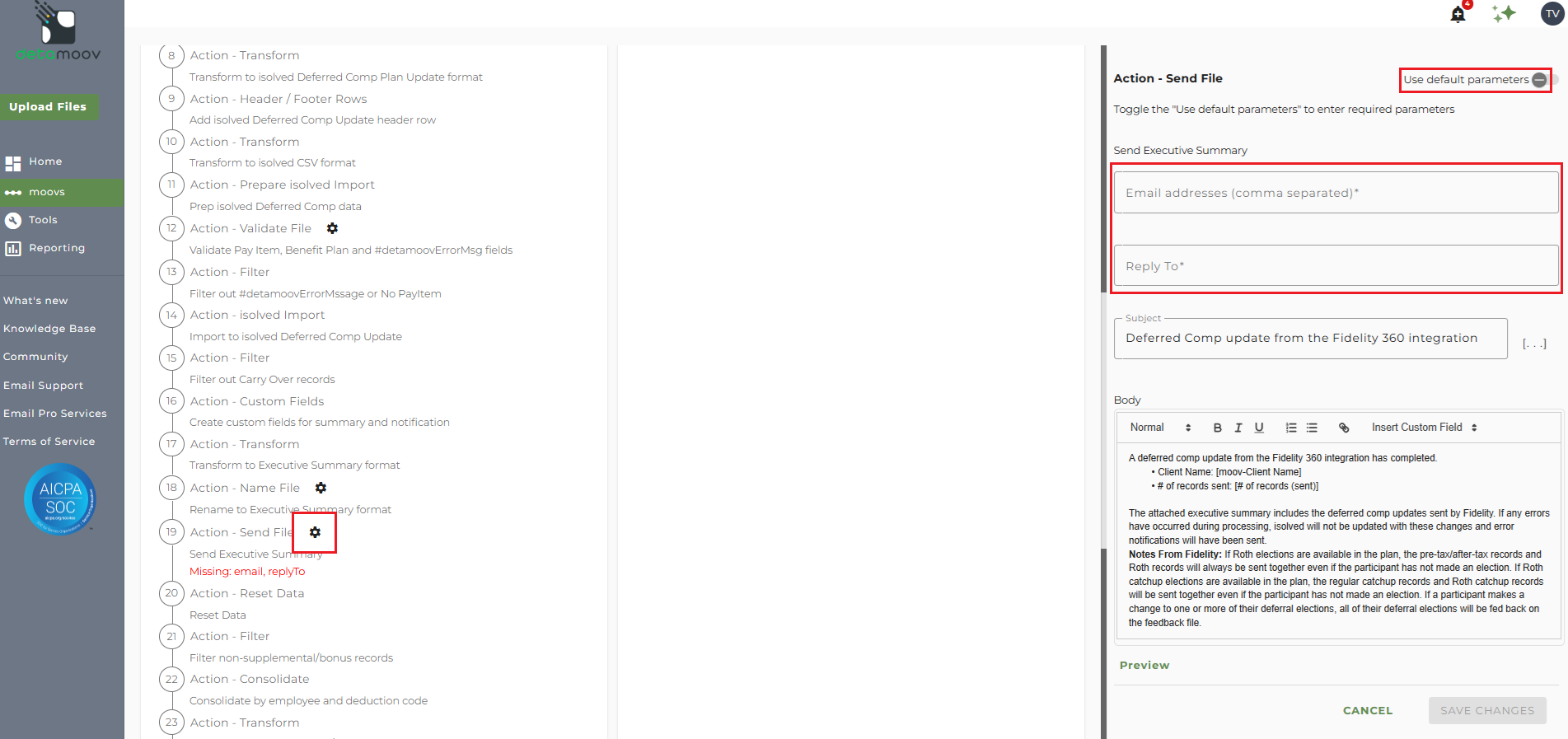
Note: these settings apply to any client configuration you set up for this specific moov. You also have the ability to configure the send file step for each client configuration if you wish to add or remove email addresses per client.
To save your parameters click the SAVE CHANGES button.
Send File Settings - Supplemental/Bonus records
The Fidelity Deduction Feedback to isolved Deferred Comp Update moov provides a notification for plans that have a Supplemental or Bonus option with a summary of these deductions sent by Fidelity. The notification can be sent to any email address you wish and can also be configured to send to multiple email addresses.
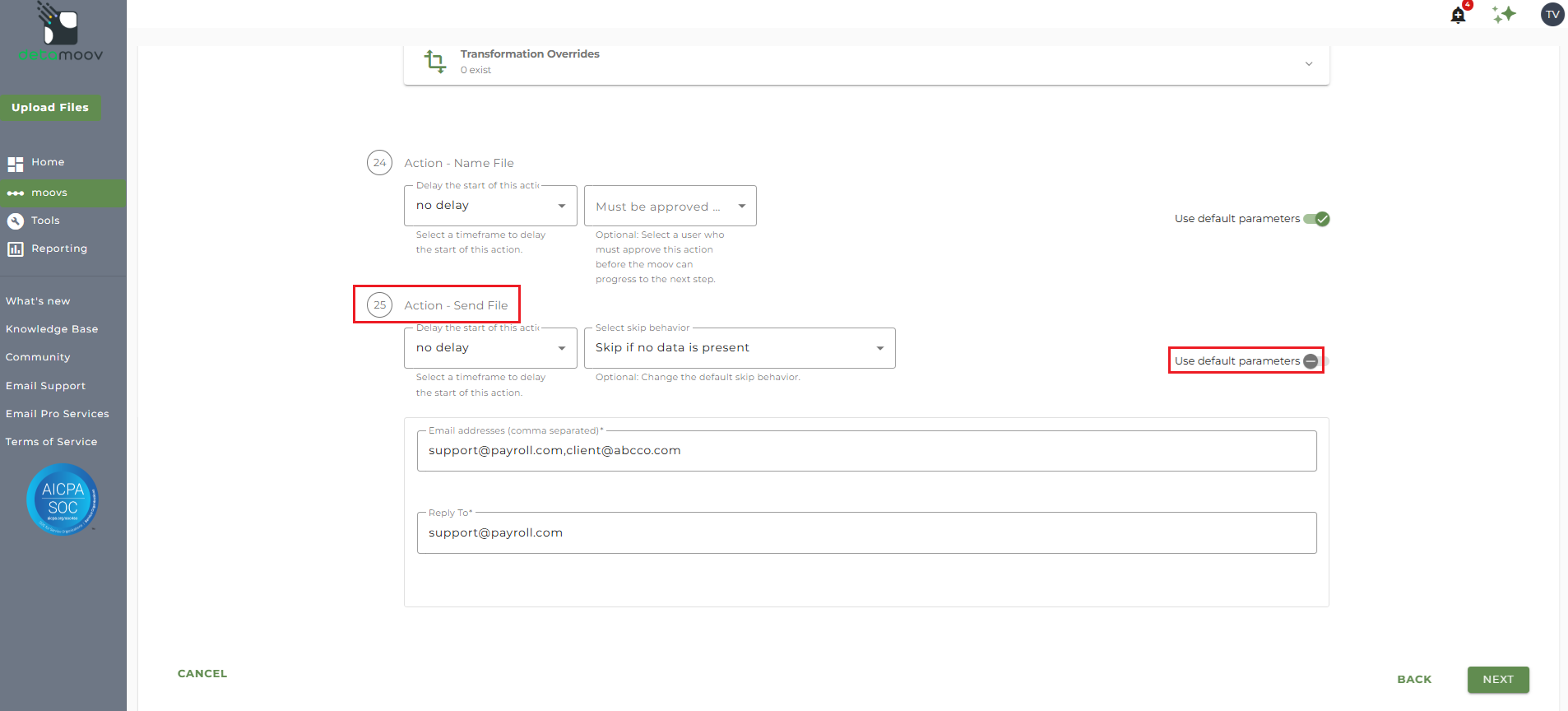
To edit the send file step, click on the cog icon under step 25: Action - Send File on the left. Then toggle the "Use default parameters" off and enter in the email addresses you would like to receive the notification. If you would like to enter multiple email addresses, separate them with a comma. A Reply to email is also required in the event that a recipient of the notification replies to the email.
This step must be configured with at least one email address and a Reply to email even if the plan doesn't have a Supplemental or Bonus option.
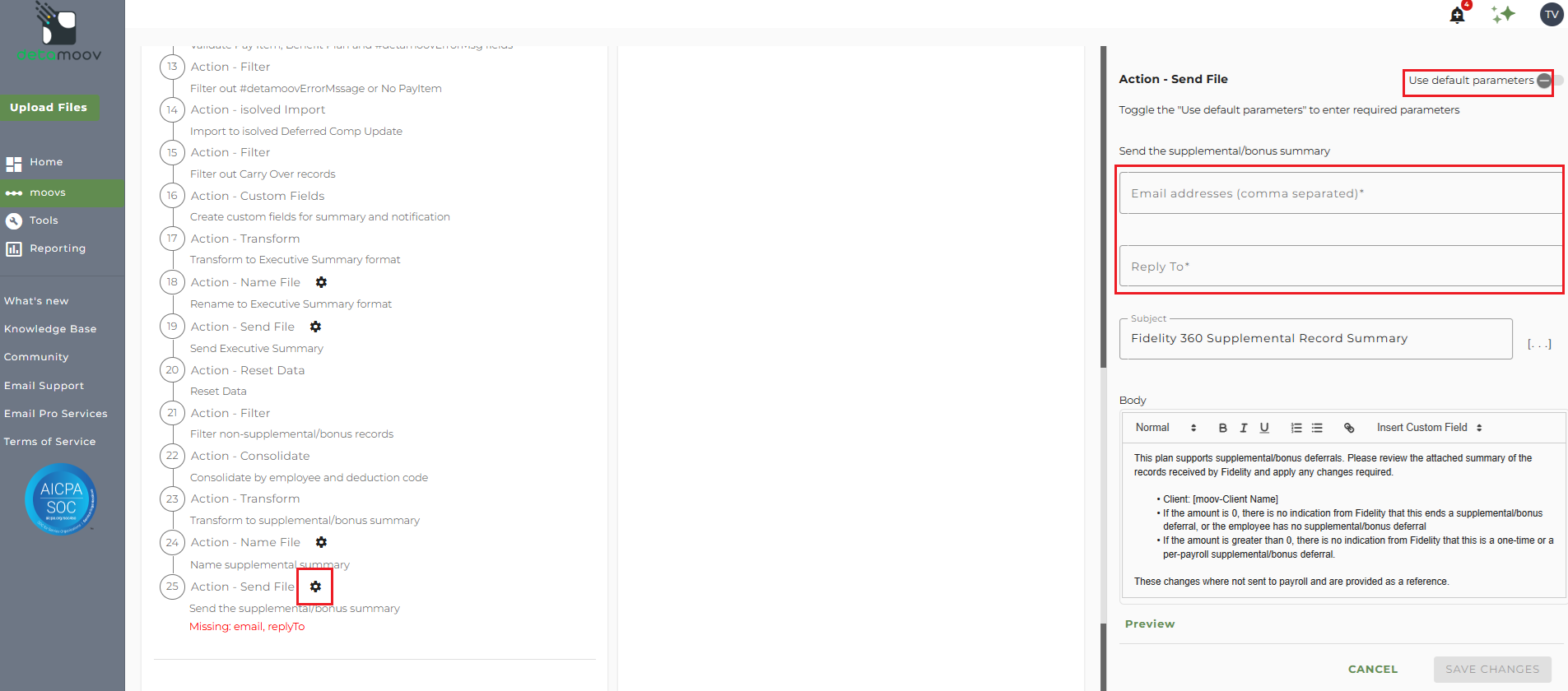
Note: these settings apply to any client configuration you set up for this specific moov. You also have the ability to configure the send file step for each client configuration if you wish to add or remove email addresses per client.
To save your parameters click the SAVE CHANGES button.
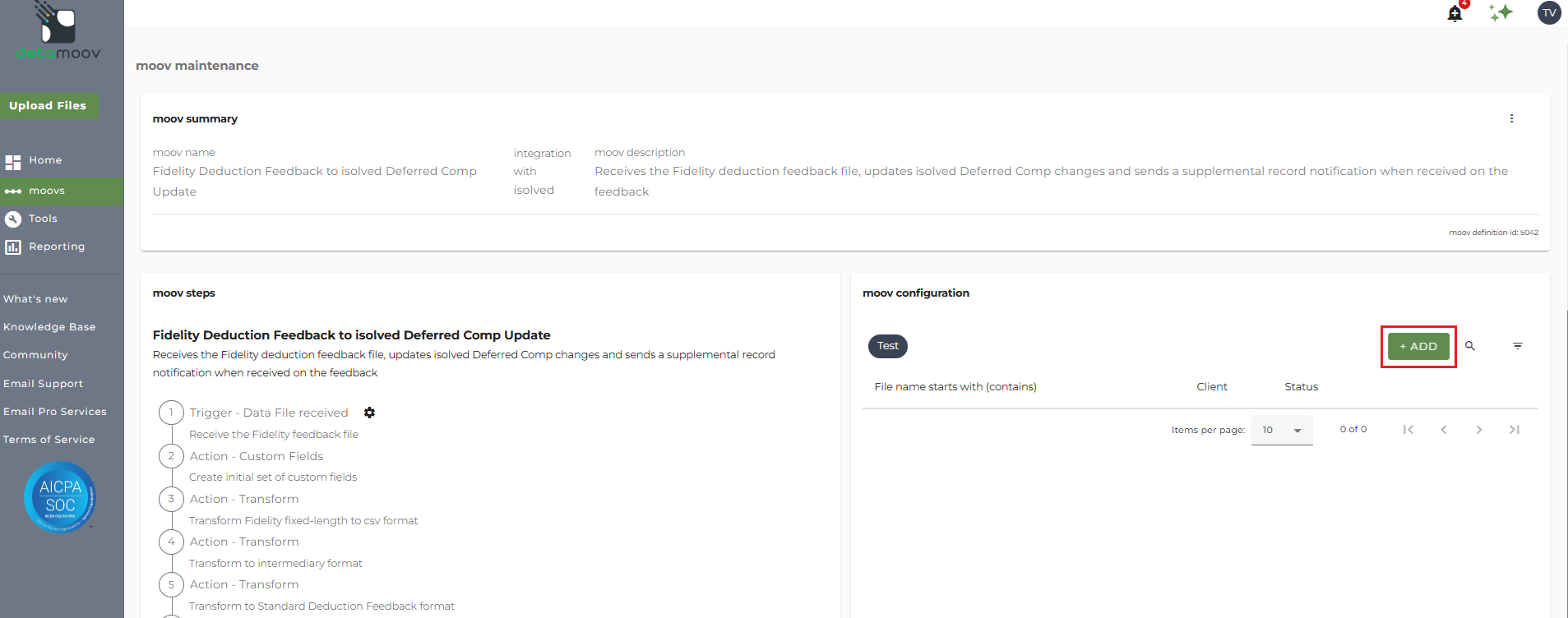
In the moov configuration section, click the ADD button to add a new client to the moov.
Client/Entity - either select an existing client or click the + sign to create a new client.
Status - Set to Active
Expected Frequency - the client's payroll frequency
File Name Starts With - odc[Fidelity provided value]
File Name Contains - def
Note: make sure that the File Name Starts with field matches as this can cause issues pulling the Fidelity feedback file and updating isolved.
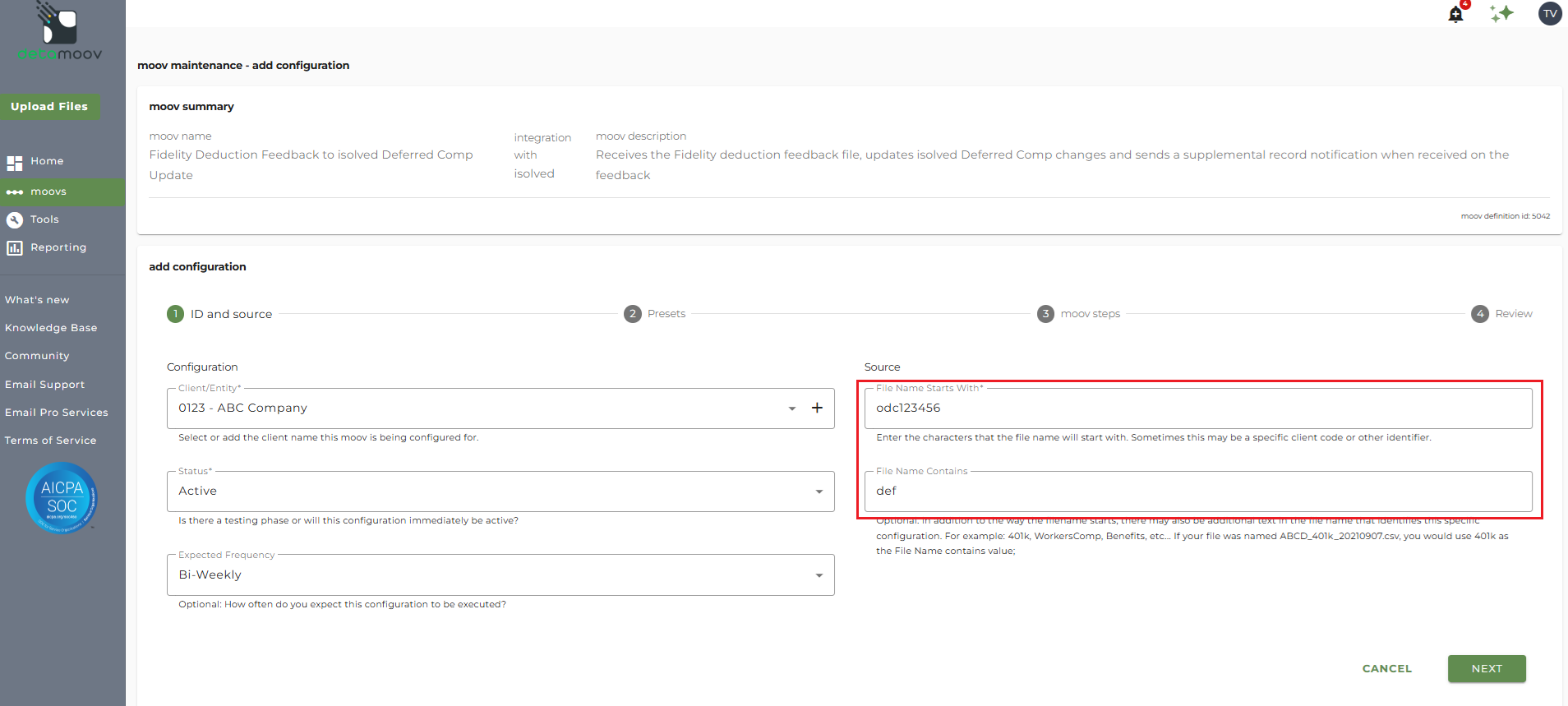
Click the NEXT button once you have completed the ID and source section.
To make configuring the isolved API easy, detamoov allows you to provide preset data for your client. On step 2: Presets you can fill in information that will be used to connect to your client's isolved account to make the necessary updates from Fidelity.
- Premier Integration: Select your isolved Premier Integration from the dropdown
- Client Code: Enter the client code from isolved
- Legal Company Code: Enter the legal company code from isolved
- Pay Group Name: Enter the pay group name (case-sensitive) from isolved
- Pay Item Codes (one per line): Enter the deferred comp plan Pay Item Codes for your client's plan. Enter these as they appear in the Code field inside isolved for each Pay Item, one code per line
- Deferred Comp Plan Update Import Type: This field is set and should be left as 'Deferred Comp Plan Update' by default
- Duplicate employee row for each active legal company found: Select this option if your client has employees in multiple legal companies and you want the deduction changes to apply to all legal companies
- Apply Pay Group for each row: Select this option if you want the Pay Group to be applied to each employee row
- Import Key: This field is set and should be left as 'SSN' by default
- isolved Error Messages Email: Allows you to limit who receives notifications if there are errors when connecting to the isolved API. Enter one or more email addresses (separated by a comma), or leave this field blank and all detamoov users on your account will receive the notifications
- isolved Validation Messages Email: Allows you to limit who receives notifications if there are validation issues when connecting to the isolved API. Enter one or more email addresses (separated by a comma), or leave this field blank and all detamoov users on your account will receive the notifications
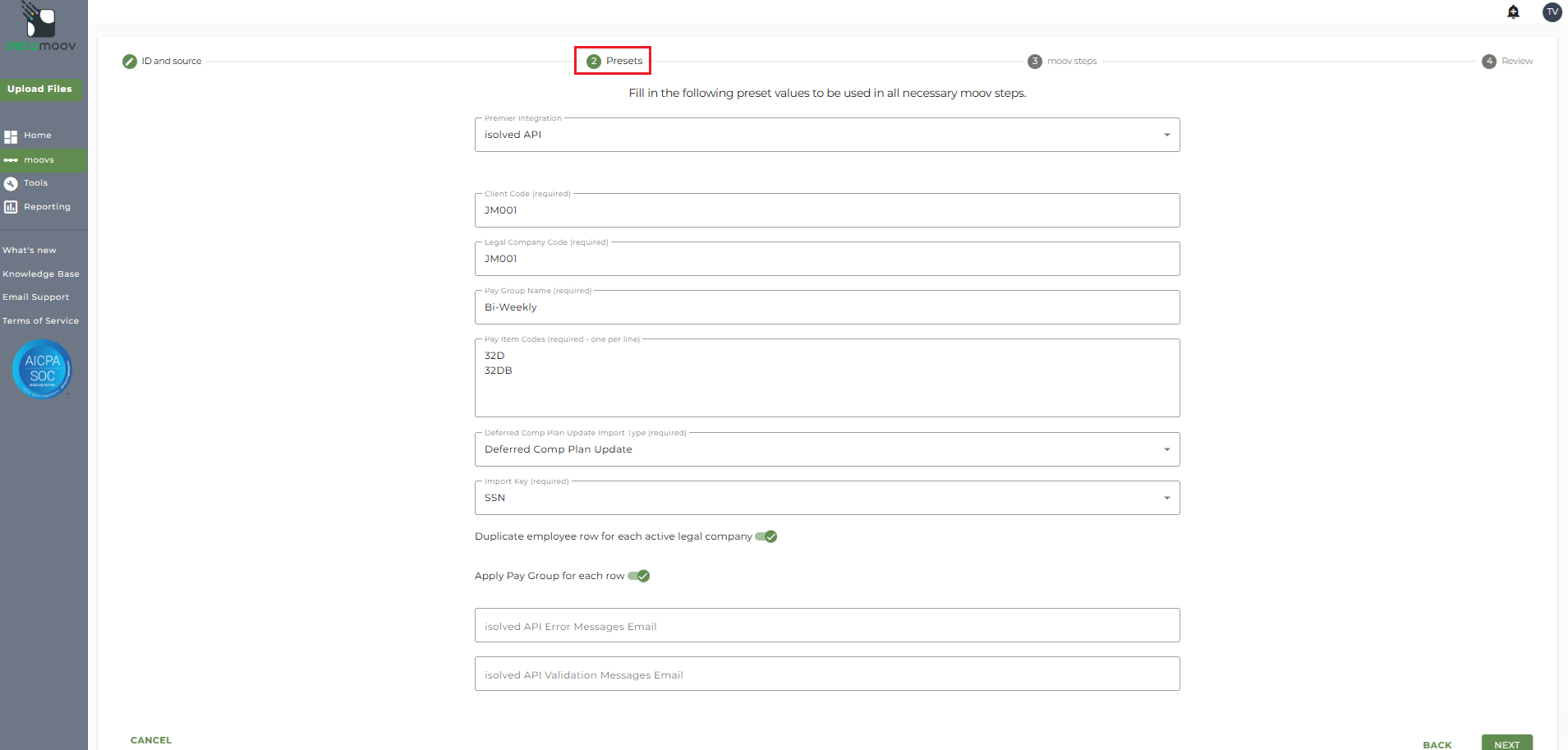
Once you have entered in the presets click the NEXT button at the bottom of the page.
Fidelity Deduction Feedback File Format
The Fidelity Deduction Feedback file is sent in a fixed-length format where each deduction is identified by a Record Identifier. Below is a table showing the Fidelity Record Identifiers and the corresponding deduction type:
| Record Identifier | Deduction Type | Notes |
| 01 | Participant Identification | |
| 02 | PreTax/AfterTax Percent | Supported |
| 02 | PreTax/AfterTax Percent Supplemental |
Not supported in detamoov Sent in a summary |
| 02R | Roth Percent | Supported |
| 02R | Roth Percent Supplemental |
Not supported in detamoov Sent in a summary |
| 04 | PreTax/AfterTax Dollar Amount | Supported |
| 04 | PreTax/AfterTax Dollar Amount Supplemental |
Not supported in detamoov Sent in a summary |
| 04R | Roth Dollar Amount | Supported |
| 04R | Roth Dollar Amount Supplemental |
Not supported in detamoov Sent in a summary |
| 05 | Status Code | |
| 06 | Spillover Percent | Not supported in detamoov |
| 06C | Catch Up Percent | Supported |
| 06R | Roth Catch Up Percent | Supported |
| 07 | Spillover | Not supported in detamoov |
| 07C | Catch Up Dollar Amount | Supported |
| 07R | Roth Catch Up Dollar Amount | Supported |
| TT1 | Trailer Record |
Certain records are automatically sent for a participant when your client's plan has an available election, even if the participant has not made an election. For example:
If Roth elections are available in the plan, the Pre-Tax/After-Tax records and Roth records will always be sent together.
If Roth Catch Up elections are available in the plan, the regular Catch Up records and Roth Catch Up records will always be sent together.
If a participant changes one or more of their deferral elections, all of their deferral elections will be fed back on the feedback file.
In most situations isolved will handle Catch Up automatically and these records (if sent by the provider) will be filtered out. However, there are cases where a separate catch up deduction could be used on a Benefit Plan. If your client's Benefit Plan does not handle catch up amounts automatically, you can override the current filter to allow them to be sent to isolved.
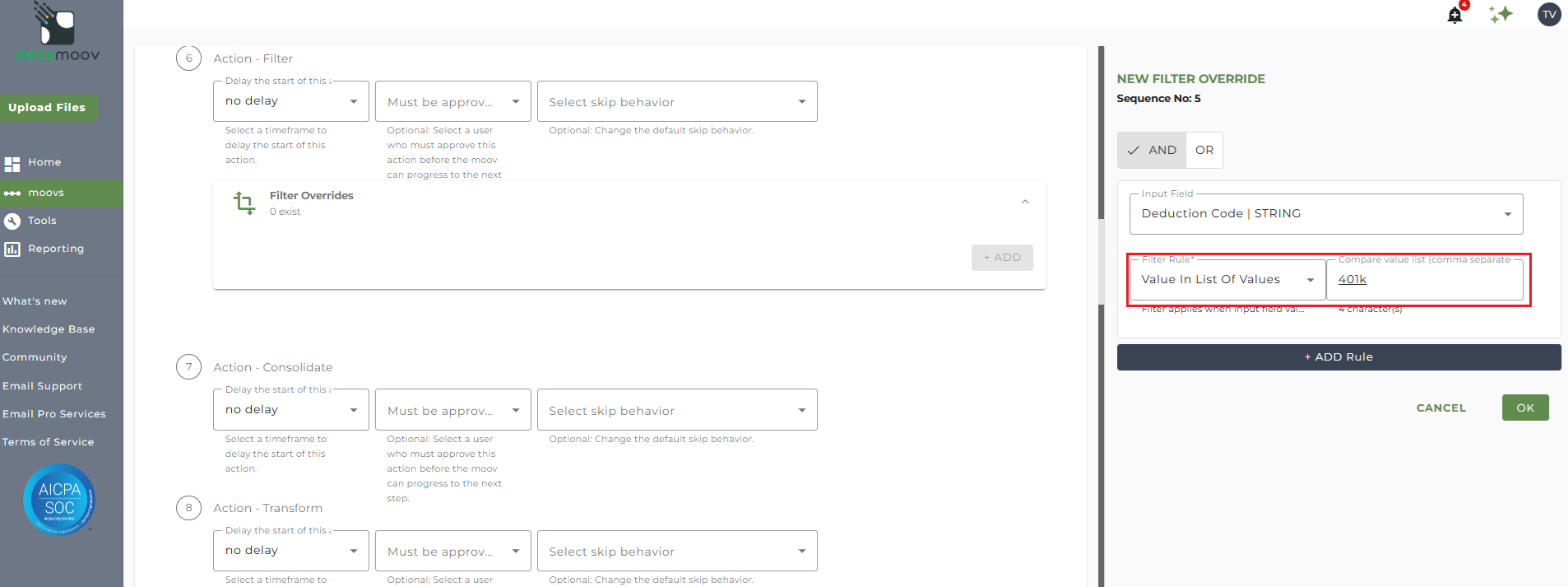
To remove override, locate step 6: Action - Filter and expand the Filter Overrides section and click ADD.
Note: There are four separate Filter steps on the Fidelity Deduction Feedback to isolved Deferred Comp Update moov. Make sure you are creating the filter override on step 6: Action - Filter.
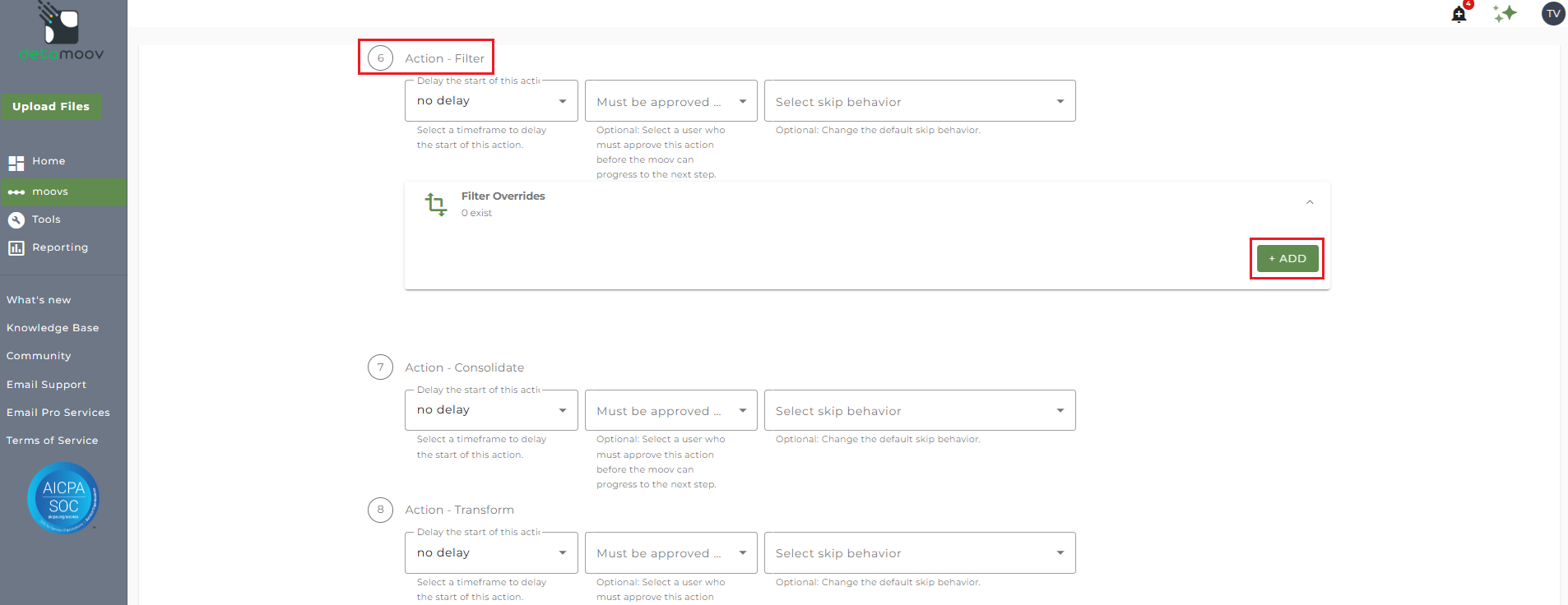
Select Filter 4: Deduction Code from the dropdown menu and click ADD OVERRIDE.
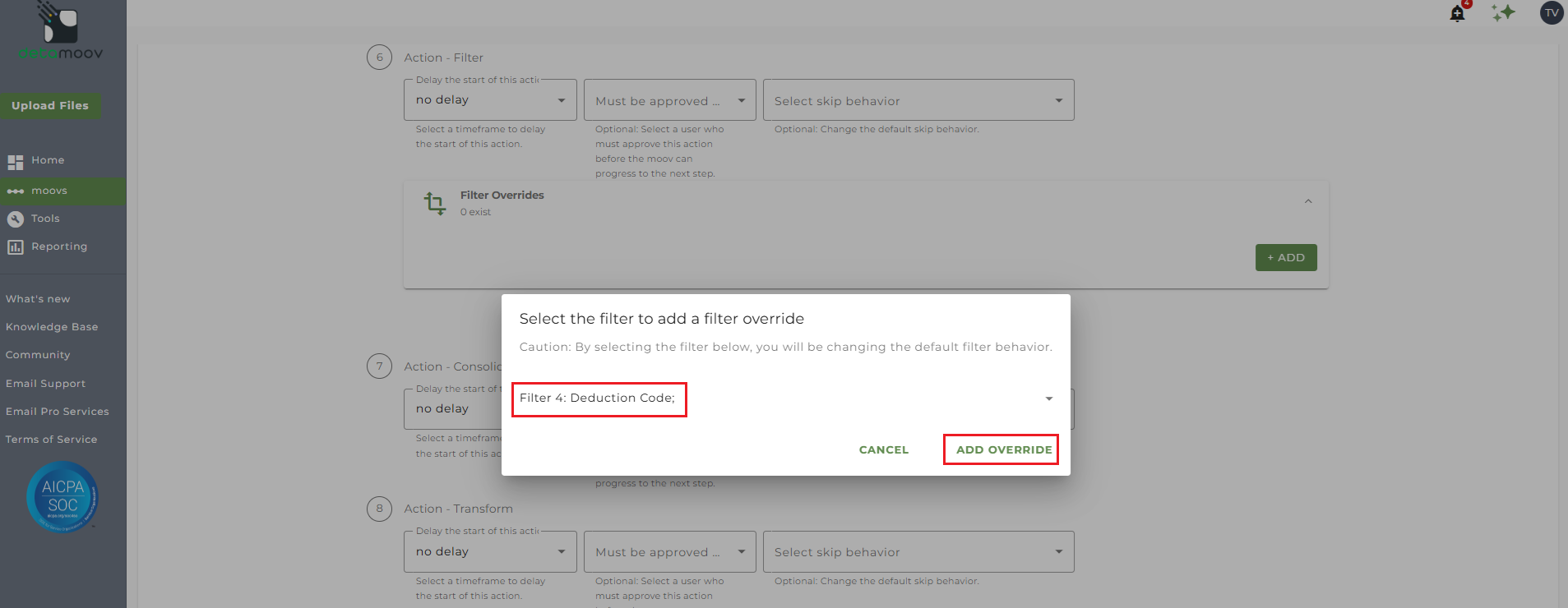
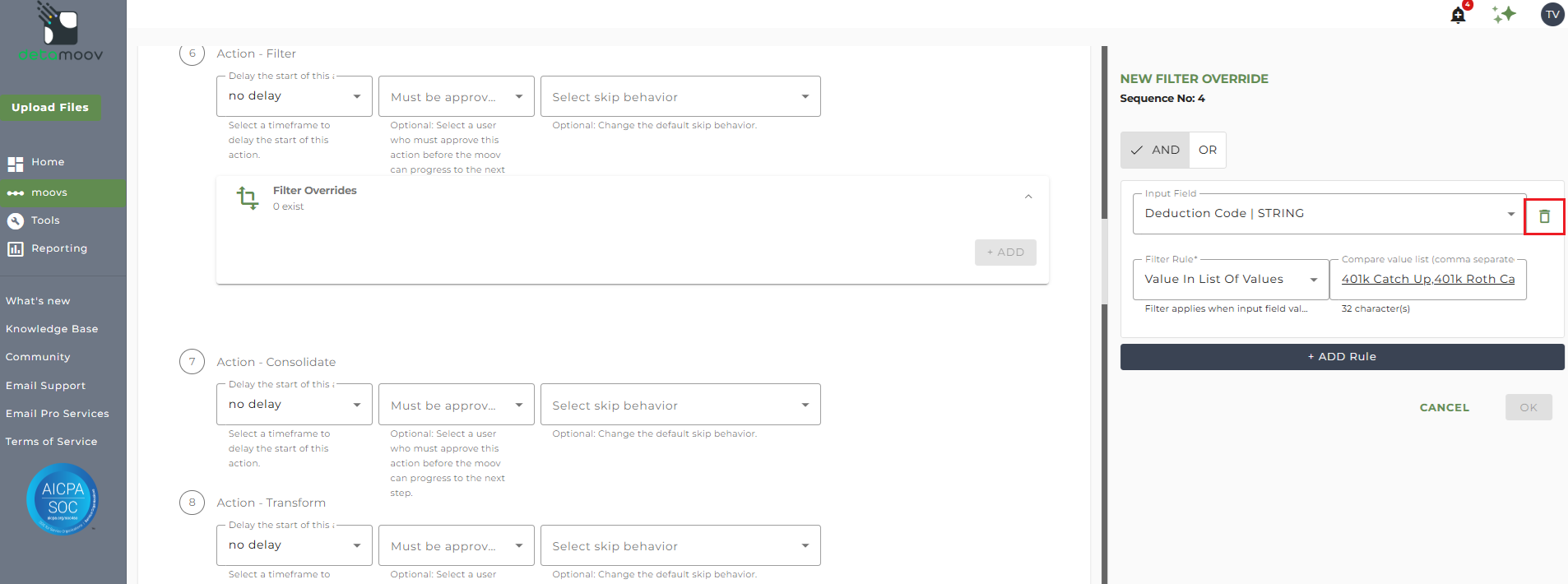
Hover over the Deduction Code|STRING, click the Trashcan icon and click OK.
Filter Override - Pre-Tax/After-Tax
The Pre-Tax and After-Tax deductions exist on the same record in the Fidelity Deduction Feedback file. detamoov needs to create both of these deductions from the record as we have no way of knowing if your client's plan has one or the other, or both. So we create a filter to remove the After-Tax record by default and allow you to override the default settings.
Remove the After-Tax filter
If your client's plan has an After-Tax contribution then you will need to remove the default filter rule to allow detamoov to send the appropriate deduction.
To create a filter override locate step 6: Action - Filter , expand the Filter Overrides section and click ADD.
Note: There are four separate Filter steps on the Fidelity Deduction Feedback to isolved Deferred Comp Update moov. Make sure you are creating the filter override on step 6: Action - Filter.
Select Filter 5: Deduction Code from the dropdown menu and click ADD OVERRIDE.
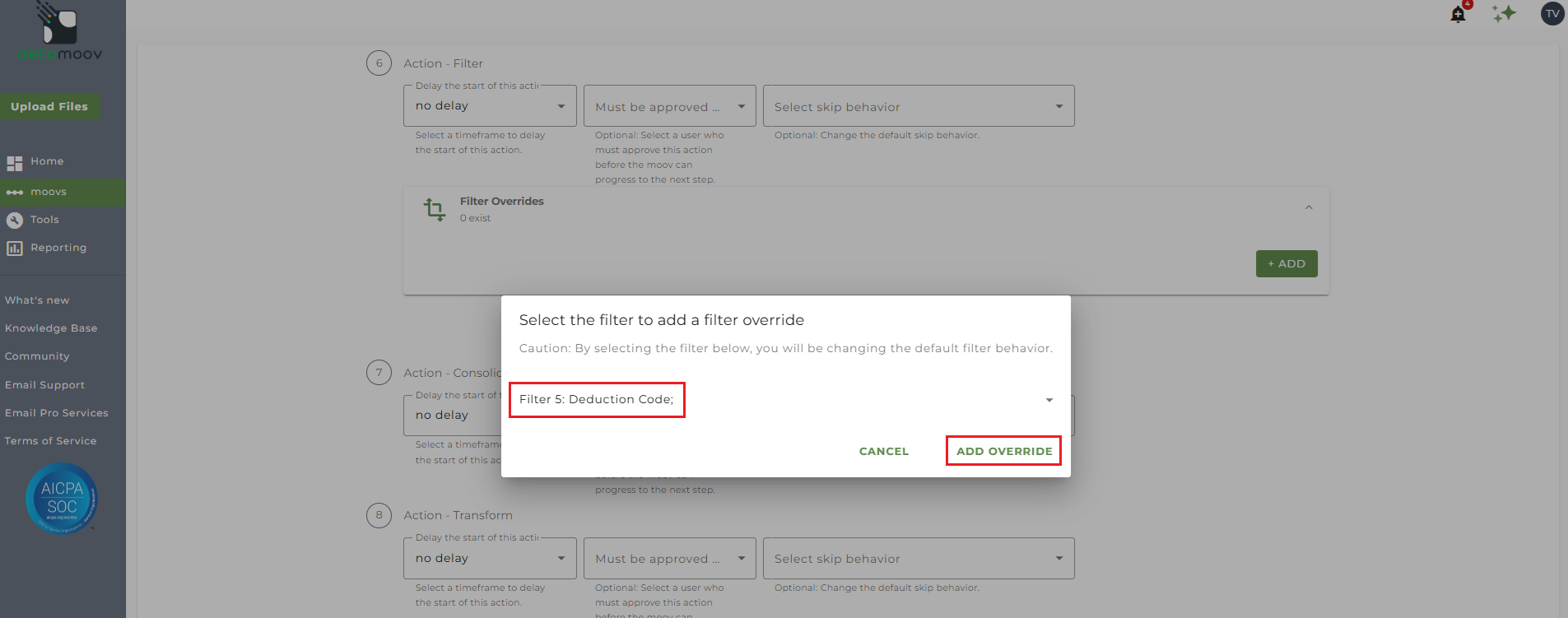
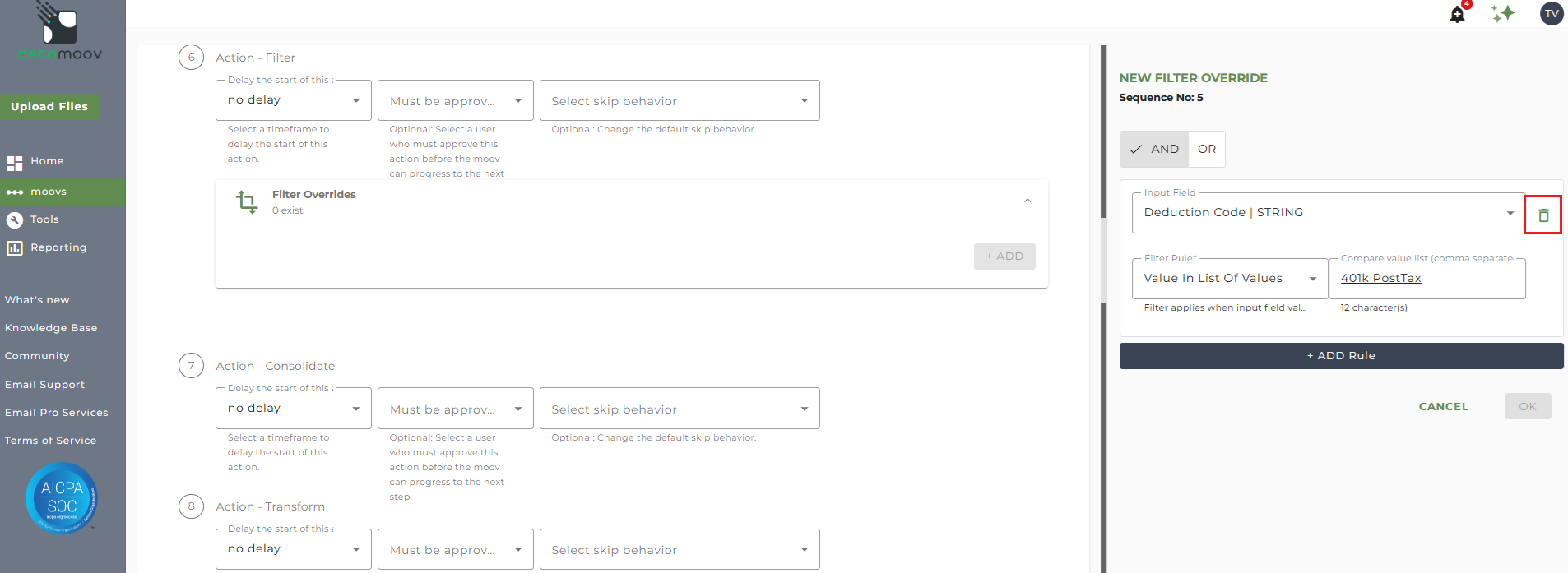
On the right-hand side, hover over the Deduction Code | STRING field and click the trash can icon and click OK.
Add a Pre-Tax filter
If your client's plan has an After-Tax contribution, but doesn't have a Pre-Tax contribution, then you will need to change the default filter rule to allow detamoov to send the appropriate deduction.
To create a filter override locate step 6: Action - Filter, expand the Filter Overrides section and click ADD.
Note: There are four separate Filter steps on the Fidelity Deduction Feedback to isolved Deferred Comp Update moov. Make sure you are creating the filter override on step 6: Action - Filter.
Select Filter 5: Deduction Code from the dropdown and click ADD OVERRIDE.
On the right-hand side, replace the text "401k PostTax" with the text "401k" and click OK.
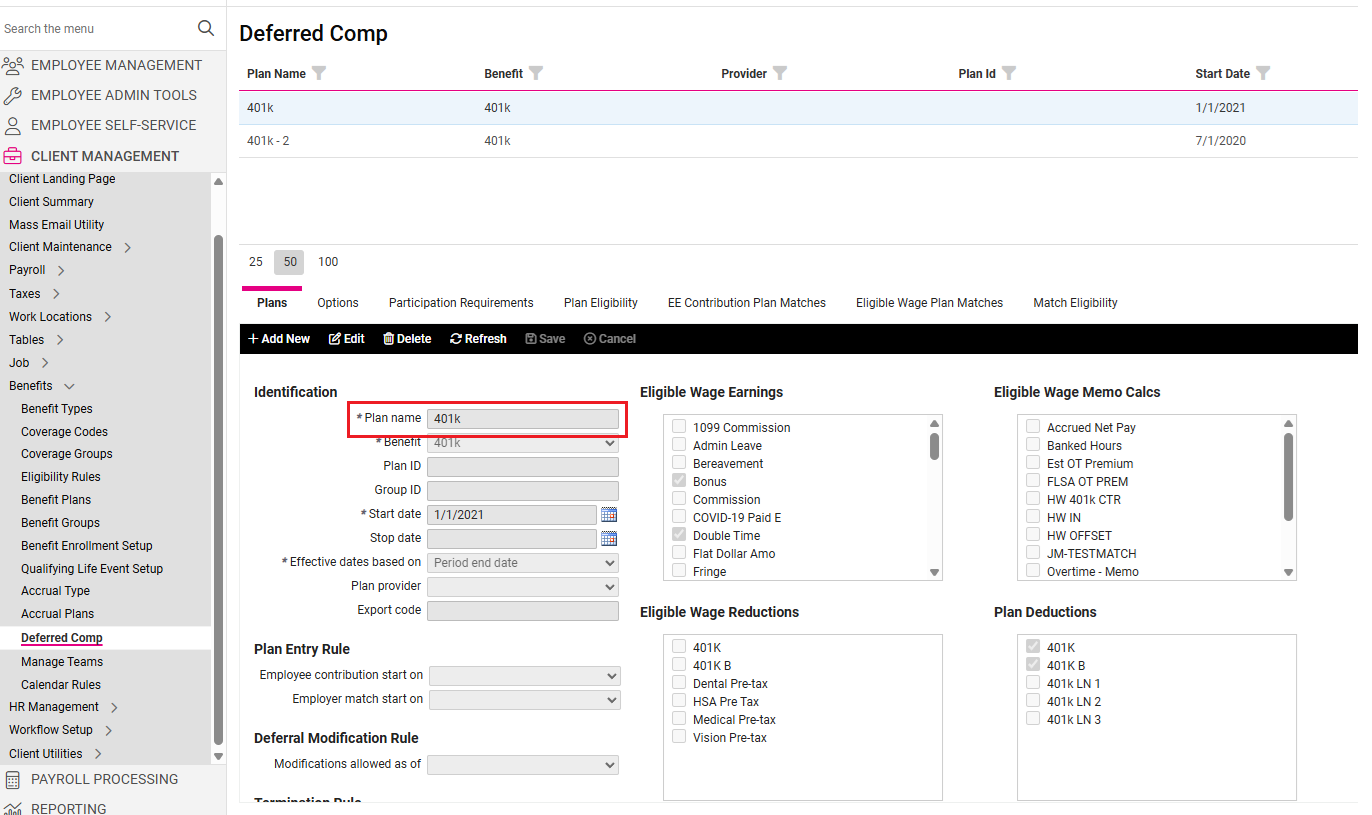
Before detamoov can prepare the Fidelity deduction data for import, you must provide your client's isolved Benefit Plan name using a Field Override.
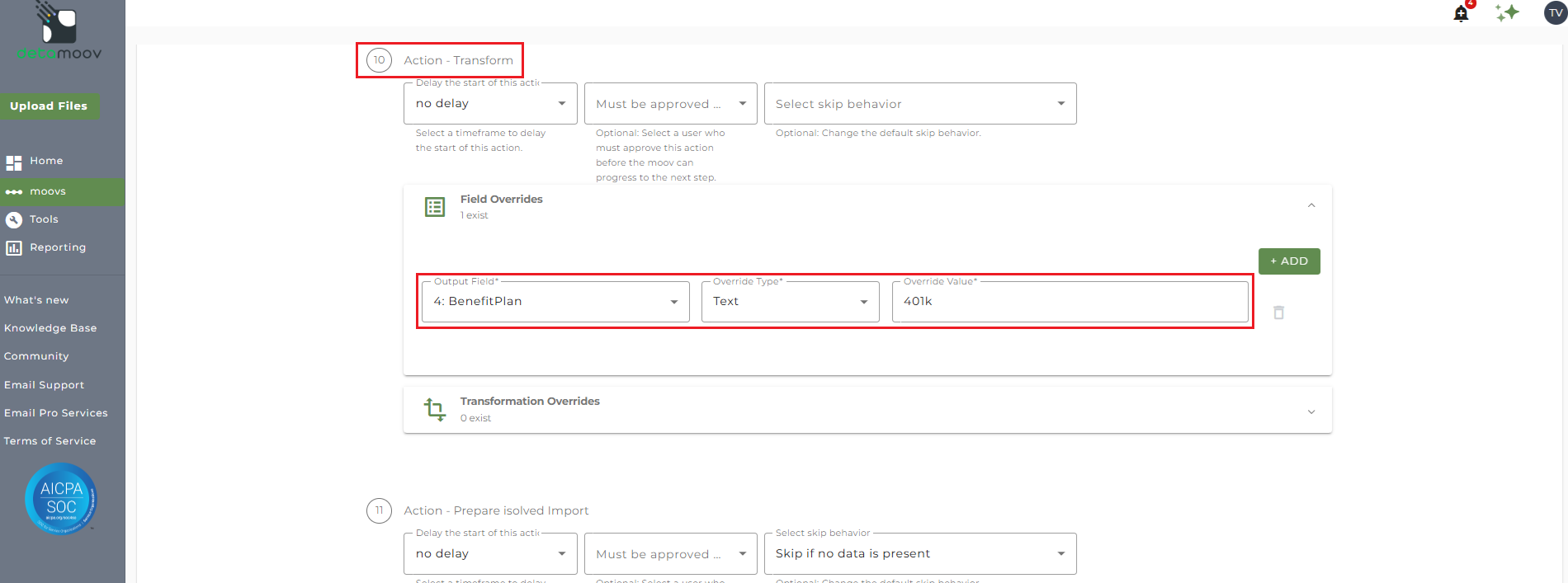
To create a field override, locate step 10: Action - Transform and expand the Field Overrides section.
IMPORTANT: the isolved API will allow a record to be imported if there is no Benefit Plan specified. If no Benefit Plan is specified on the record, isolved will not make changes to the employee's Deferred Comp Benefit.
NOTE: There are seven separate Transform steps on the Fidelity Deduction Feedback to isolved Deferred Comp Update moov. Make sure you are creating the field override on step 10: Action - Transform.
Then click the ADD button and select field 4: Benefit Plan and enter your client's isolved Benefit Plan name in the Override value field.
Transformation Override - Pay Item
To ensure proper mapping from the Fidelity deduction record to the isolved Pay Item, a transformation override is required. The table below shows the Fidelity deduction record for the employee and the code detamoov uses in the transformation:
| Fidelity Record Identifier | Fidelity Deduction | detamoov Code |
| 02 | Pre-Tax Percent | 401k |
| 02 | After-Tax Percent | 401k PostTax |
| 04 | Pre-Tax Dollar Amount | 401k |
| 04 | After-Tax Dollar Amount | 401k PostTax |
| 02R | Roth Percent | 401k Roth |
| 04R | Roth Dollar Amount | 401k Roth |
| 06C | Pre-Tax Catch Up Percent | 401k Catch Up |
| 06R | Roth Catch Up Percent | 401k Roth Catch Up |
| 07C | Pre-Tax Catch Up Dollar Amount | 401k Catch Up |
| 07R | Roth Catch Up Dollar Amount | 401k Roth Catch Up |
Override Existing Pay Item Mapping
Each configuration requires that a transformation override be provided to convert the detamoov code to the isolved Pay Item code.
Below is an example of an isolved Deduction. detamoov uses the value in the Code field as show below:
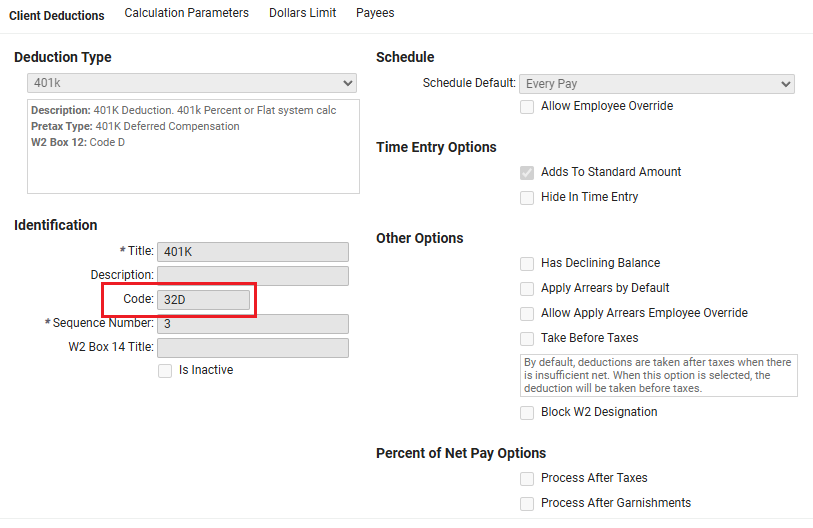
As an example, say that detamoov receives the a PreTax deduction record 02 and converts it to '401k'. By default, no Pay Item codes are set in detamoov and you will need to provide a transformation override for the Pay Item field to replace the detamoov 401k value. In our deduction above, the Pay Item code for 401k is '32D'.
To provide a transformation override, locate step 10: Action - Transform, expand the Transformation Overrides panel and click ADD.
Note: There are seven separate Transform steps on the Fidelity Deduction Feedback to isolved Deferred Comp Update moov. Make sure you are creating the transformation override on step 10: Action - Transform.
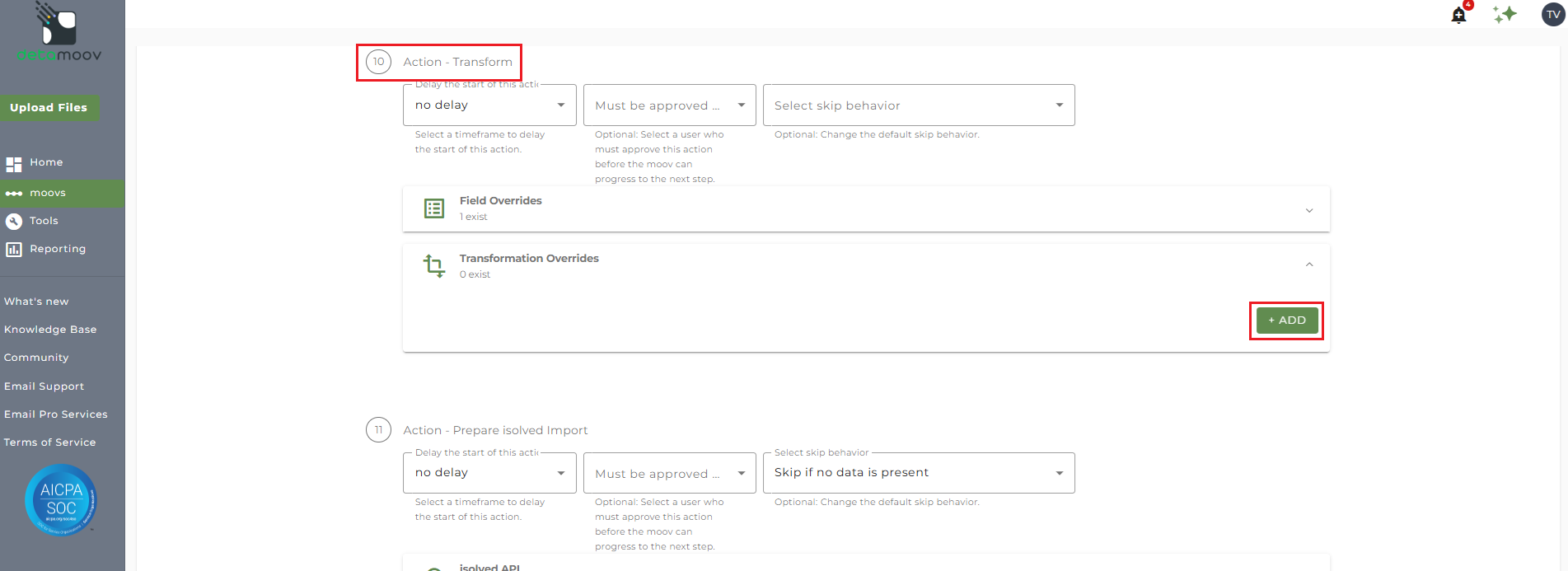
Then select field 8: PayItem from the dropdown menu and click ADD OVERRIDE.
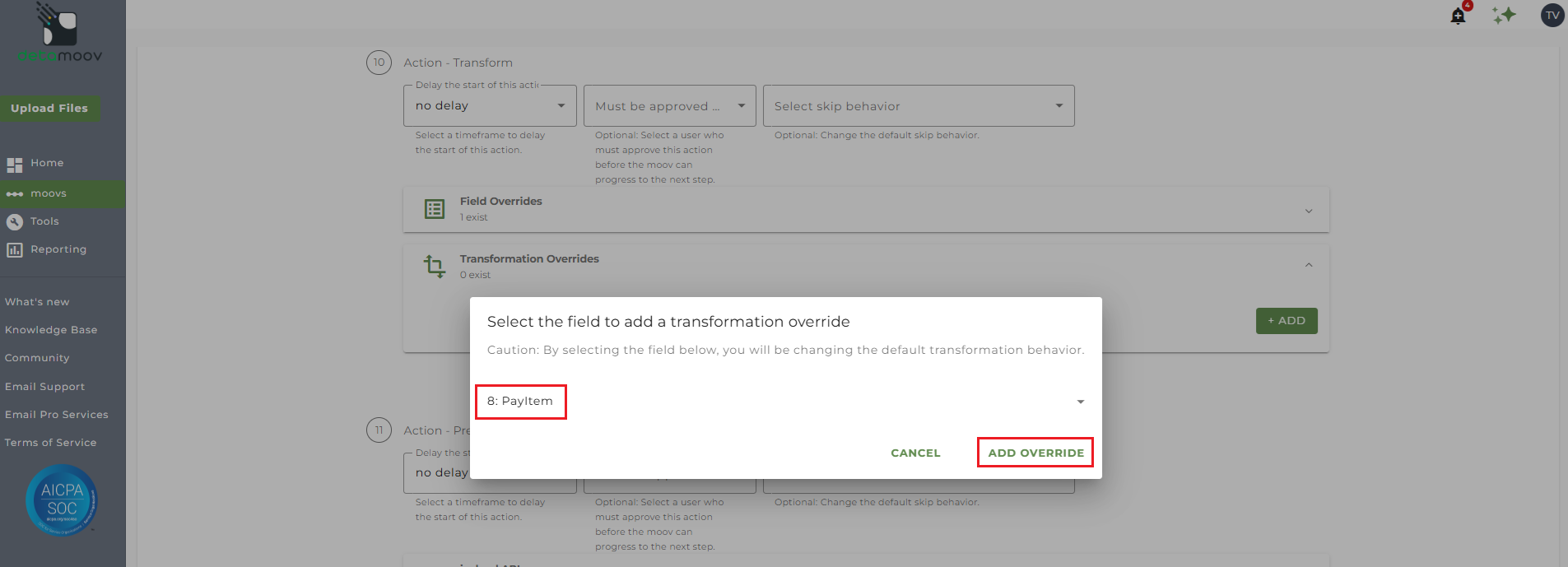
On the side panel that appears, in the Replacement Groups field, replace the right side of 401k| with your client's deduction code.
Note: isolved PayItem codes entered in the PayItem field always start with an upper-case 'D'. In our example, we will add D32D after the pipe character and then click OK.
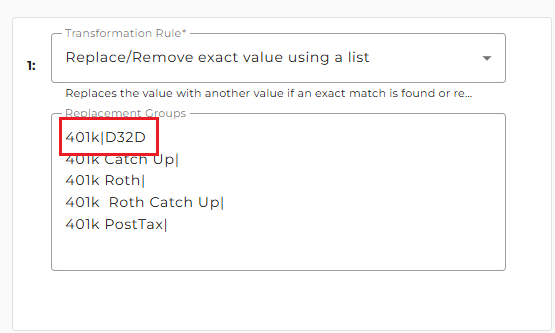
Provide any additional deduction code replacements with any other Pay Item codes in your client's plan.
Send File Step Override - Executive Summary
At the beginning of this article you configured the send file step for the moov to send a notification once the moov had completed. You also have the ability to configure the send file step for each client configuration if you wish to add or remove email addresses per client.
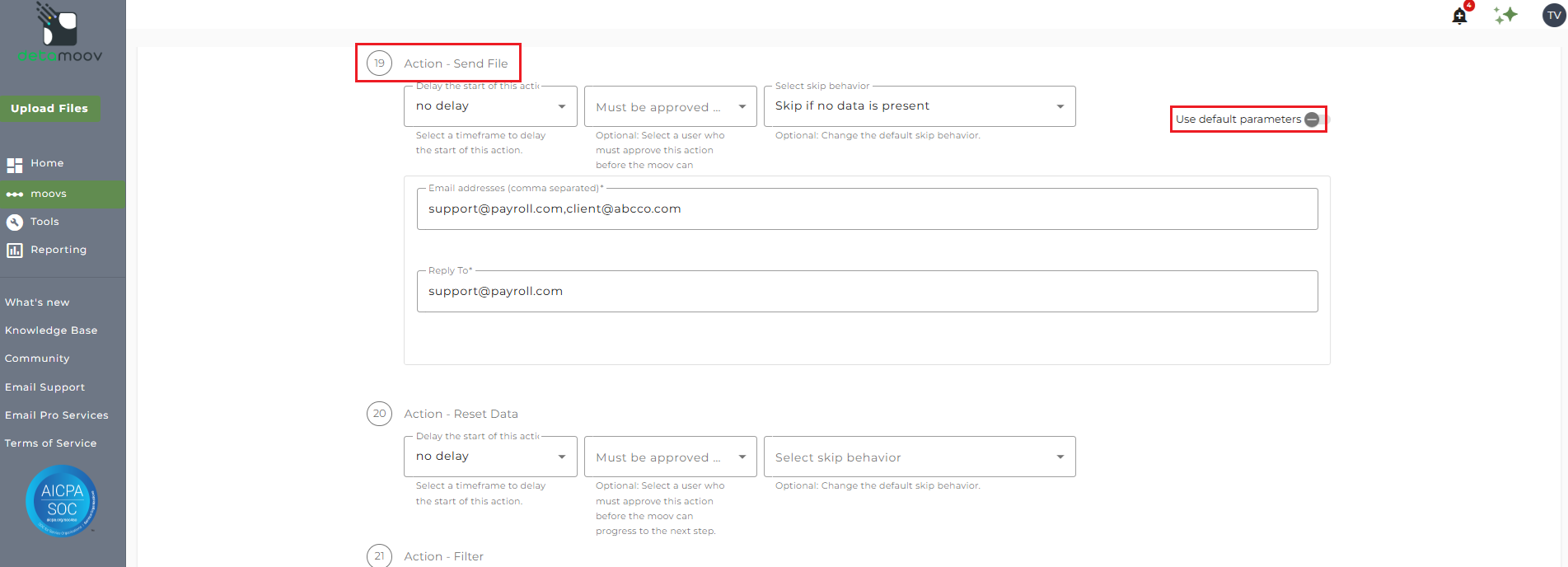
To override the send file step, locate step 19: Action - Send File and toggle the "Use default parameters" off and enter/remove email addresses from Email Address and Reply To fields. If you would like to enter multiple email addresses, separate them with a comma.
Filter Override - Supplemental or Bonus
Remove the After-Tax Supplemental or Bonus filter
The Pre-Tax and After-Tax supplemental or bonus deductions exist on the same record in the Fidelity Deduction Feedback file. detamoov needs to create both of these deductions from the record as we have no way of knowing if your client's plan has one or the other, or both. So we create a filter to remove the After-Tax Supplemental record by default and allow you to override the default settings.
If your client's plan has an After-Tax contribution with a supplemental or bonus option, you will need to remove the default filter rule to allow detamoov to send the appropriate deduction.
To create a filter override locate step 21: Action - Filter, expand the Filter Overrides section and click ADD.
Note: There are four separate Filter steps on the Fidelity Deduction Feedback to isolved Deferred Comp Update moov. Make sure you are creating the filter override on step 21: Action - Filter.
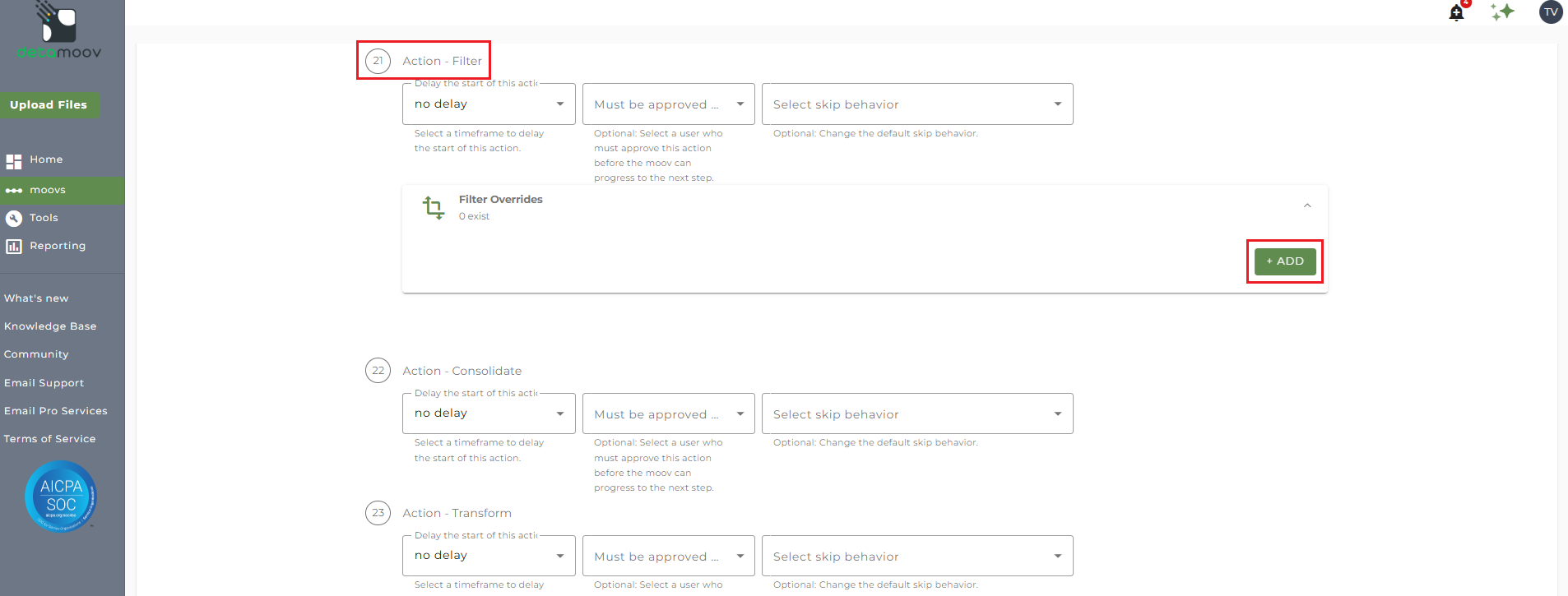
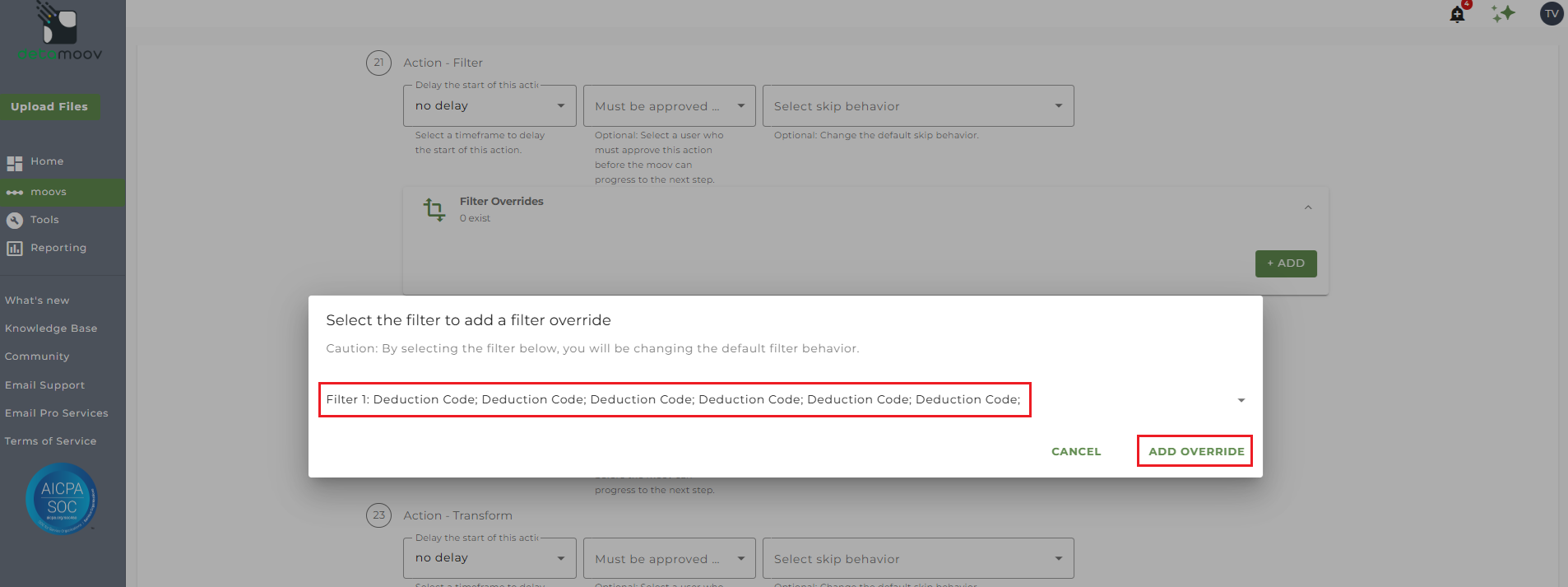
Select Filter 1: Deduction Code from the dropdown menu and click ADD OVERRIDE.
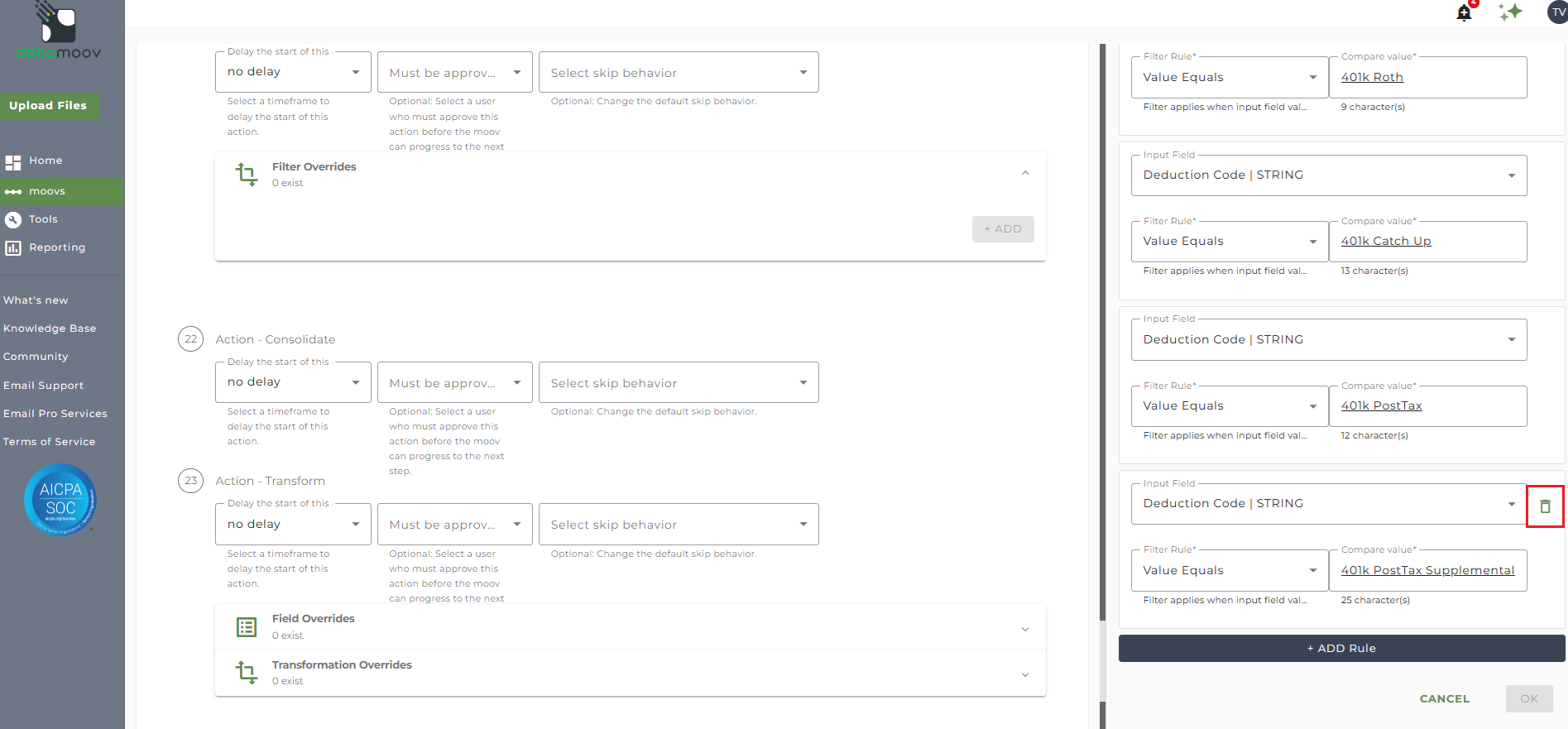
On the right-hand side, scroll to the bottom of the Filter Rules. Hover over the Deduction Code | STRING field for "401k PostTax Supplemental" and click the trash can icon and click OK.
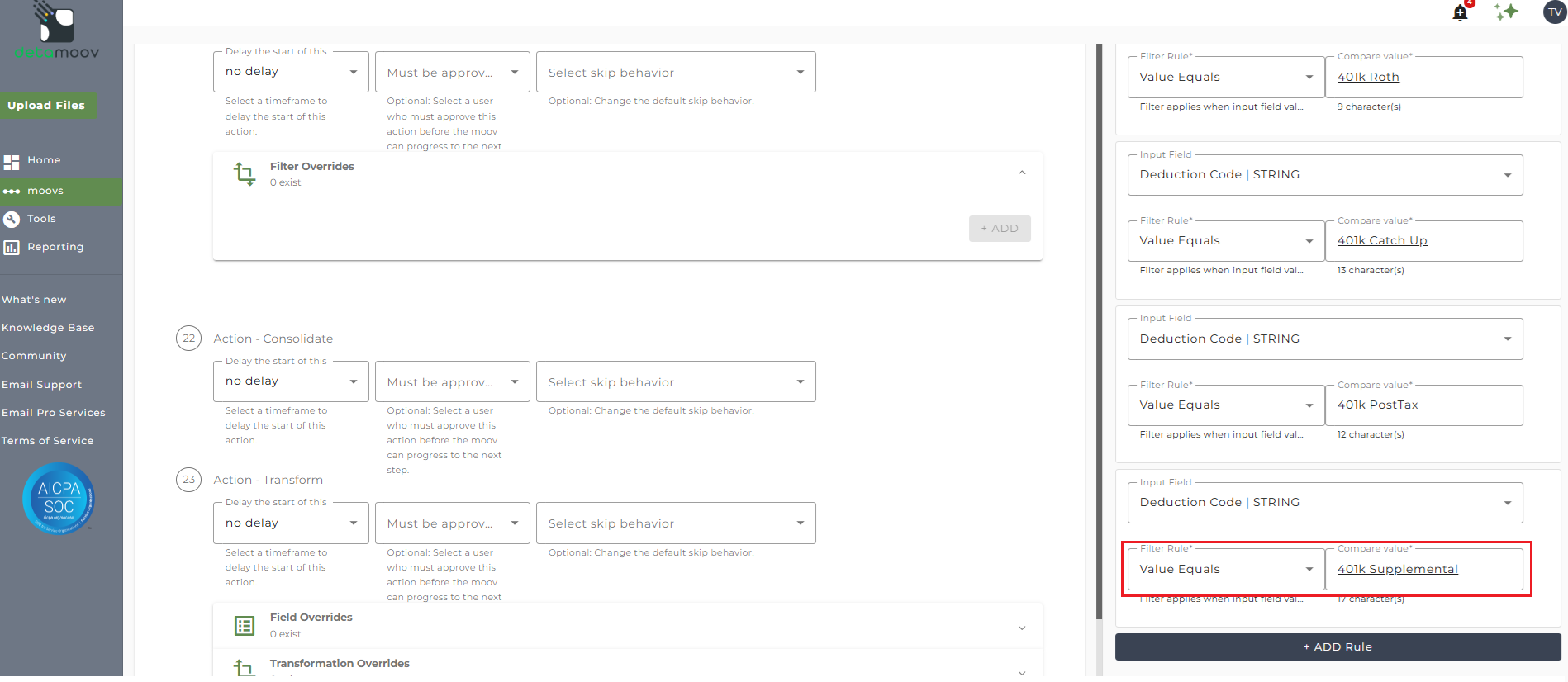
Add a Pre-Tax Supplemental or Bonus filter
If your client's plan has an After-Tax contribution with a supplemental or bonus option, but doesn't have a Pre-Tax contribution with a supplemental or bonus option, then you will need to change the default filter rule to allow detamoov to send the appropriate deduction.
To create a filter override locate step 21: Action - Filter, expand the Filter Overrides section and click ADD.
Note: There are four separate Filter steps on the Fidelity Deduction Feedback to isolved Deferred Comp Update moov. Make sure you are creating the filter override on step 21: Action - Filter.
Select Filter 1: Deduction Code from the dropdown menu and click ADD OVERRIDE.
On the right-hand side, replace the text "401k PostTax Supplemental" with the text "401k Supplemental" and click OK.
Send File Step Override - Supplemental/Bonus records
At the beginning of this article you configured the send file step for the moov to send a summary of supplemental/bonus records received from Fidelity. You also have the ability to configure the send file step for each client configuration if you wish to add or remove email addresses per client.
To override the send file step, locate step 25: Action - Send File and toggle the "Use default parameters" off and enter/remove email addresses from Email Address and Reply To fields. If you would like to enter multiple email addresses, separate them with a comma.
To complete the configuration for your client, click the Next button at the bottom of the page and then the SAVE button on the moov summary page.
Fidelity sends the updates to loans in a separate file and requires that you configure the Fidelity Loan Feedback to isolved Loan Deduction Update moov. If your client's plan has loans, please see the How to configure the Fidelity Loan Feedback to isolved Loan Deduction Update moov article.

