

This article describes how to configure a client for the T. Rowe Price (direct) Deduction Feedback to PrismHR moov definition used for 360 integration. Each client configuration will vary based on their plan specification and will need to be configured accordingly.
NOTE: this moov is only to be used for direct integration to T. Rowe Price. If your client's T. Rowe Price plan goes through SS&C, there is no feedback integration currently available.
PrismHR - Configure a Web Service/API User
Before detamoov can update deductions in PrismHR, the Allowed Methods for Retirement Providers to PrismHR Integrations (known as "360") must be added to the Web Service/API User. These methods can be found in the Configuring a Web Service/API User in PrismHR article.
After the PrismHR Premier Integration has been activated on your account, please add the T. Rowe Price (direct) Deduction Feedback to PrismHR moov to your account by following these steps.
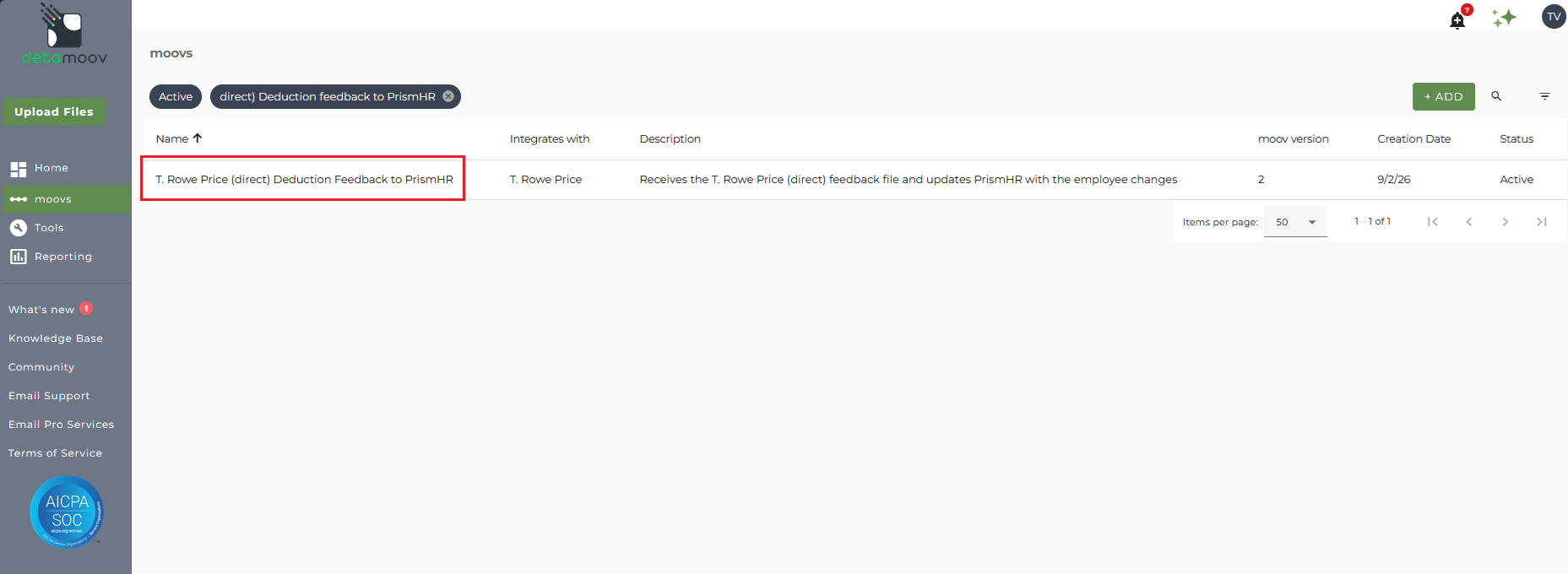
Once the T. Rowe Price (direct) Deduction Feedback to PrismHR moov has been added to your account, access the moovs section on the left side menu and click on the T. Rowe Price (direct) Deduction Feedback to PrismHR moov.
Send File Settings - Executive Summary
The T. Rowe Price (direct) Deduction Feedback to PrismHR moov provides a notification once the moov is complete with a summary of the retirement plan changes that were sent to PrismHR. The notification can be sent to any email address you wish and can also be configured to send to multiple email addresses.
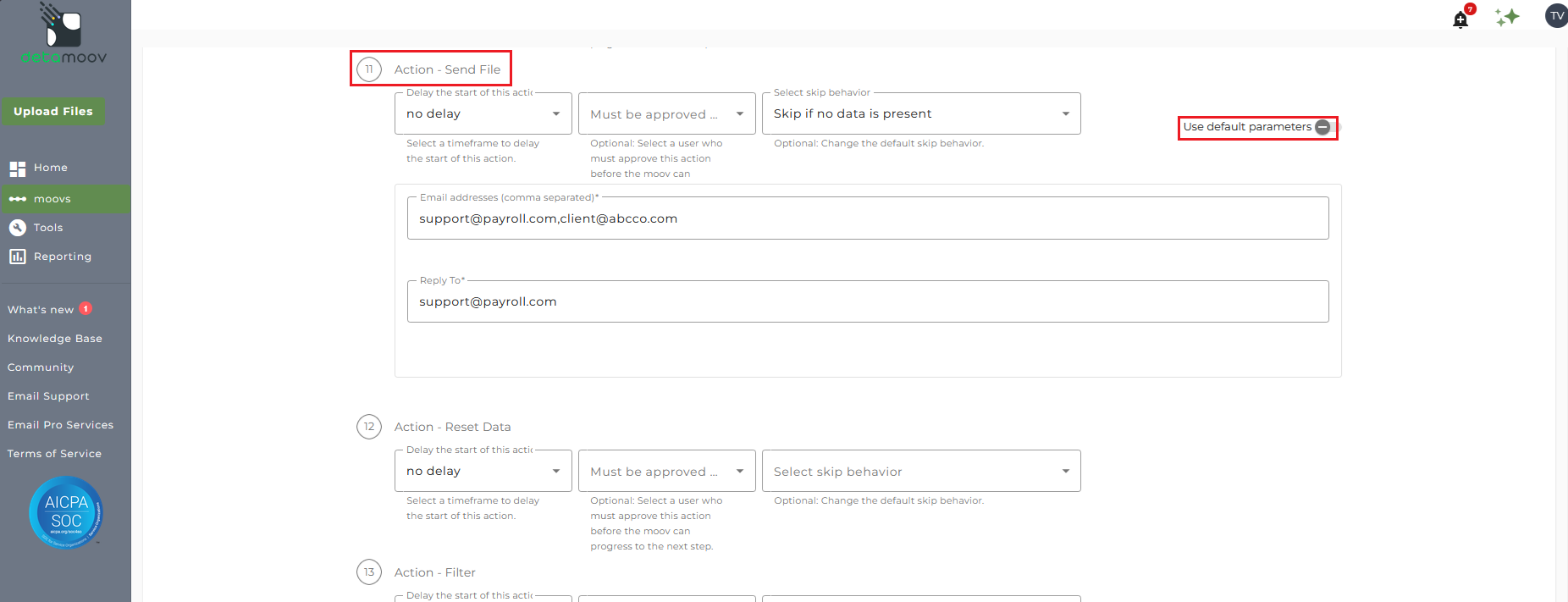
To edit the send file step, click on the cog icon under the step 11: Action - Send File on the left. Then toggle the "Use default parameters" off and enter in the email addresses you would like to receive the notification. If you would like to enter multiple email addresses, separate them with a comma. A Reply to email is also required in the event that a recipient of the notification replies to the email.
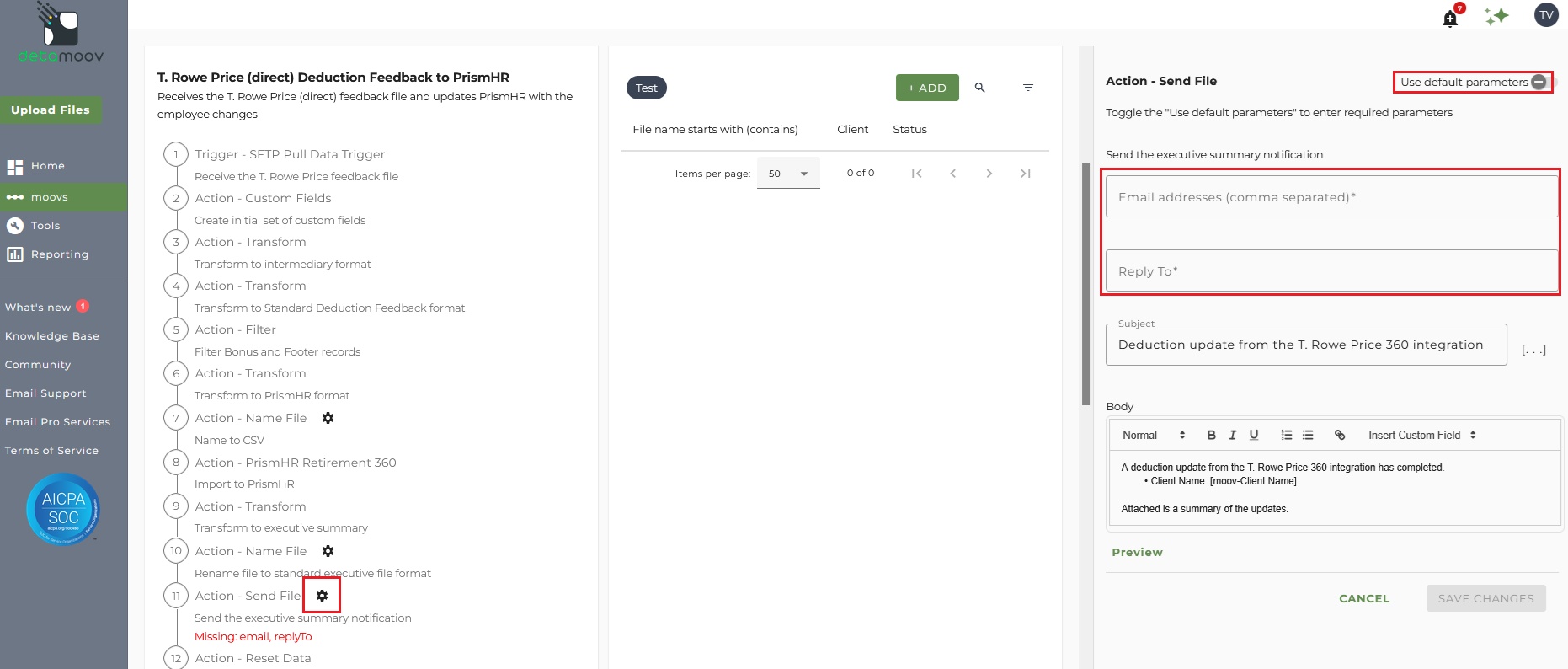
Note: these settings apply to any client configuration you set up for this specific moov. You also have the ability to configure the send file step for each client configuration if you wish to add or remove email addresses per client.
To save your parameters click on the Save Changes button.
Send File Settings - Supplemental Summary
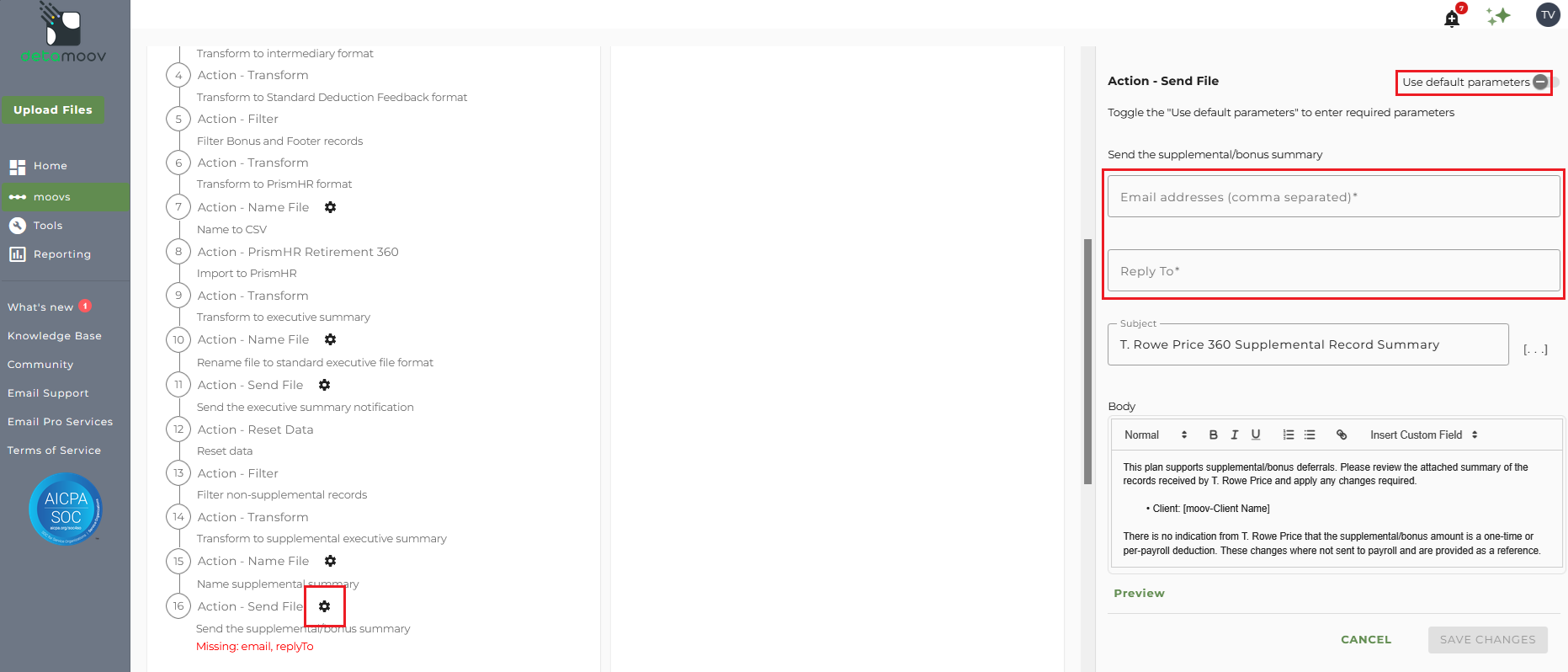
The T. Rowe Price (direct) Deduction Feedback to PrismHR moov provides a notification when supplemental records are identified in the feedback data sent by T. Rowe Price. The notification can be sent to any email address you wish and can also be configured to send to multiple email addresses.
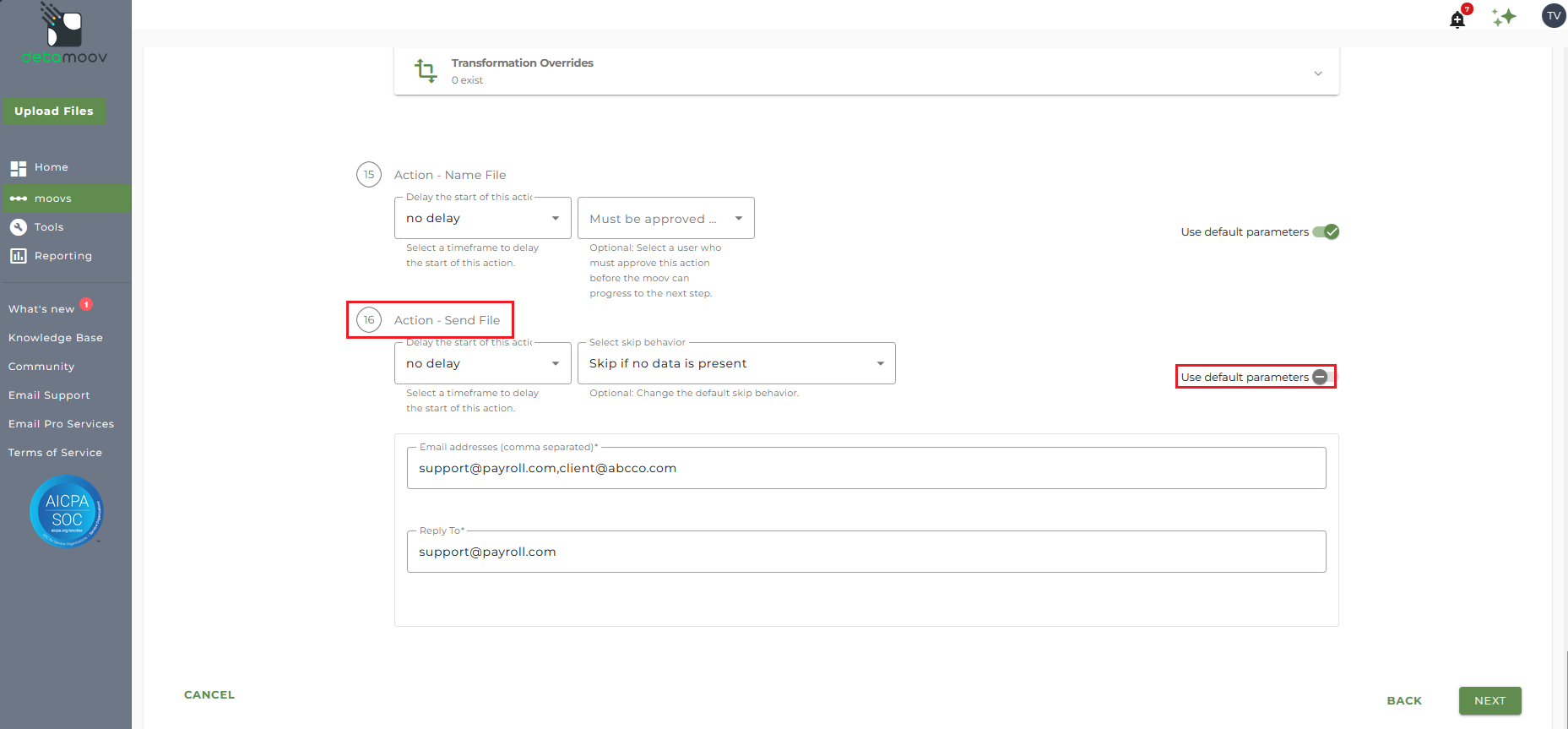
To edit the send file step, click on the cog icon under step 16: Action - Send File on the left. Then toggle the "Use default parameters" off and enter in the email addresses you would like to receive the notification. If you would like to enter multiple email addresses, separate them with a comma. A Reply to email is also required in the event that a recipient of the notification replies to the email.
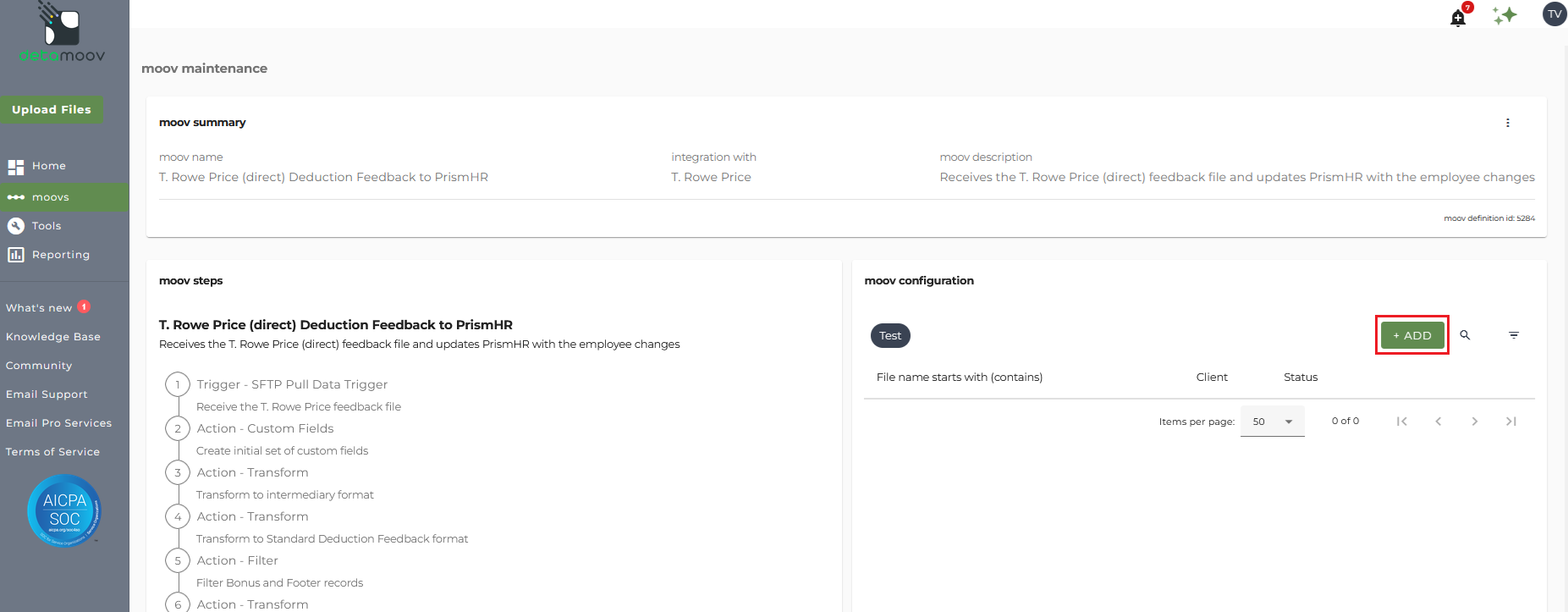
In the moov configuration section, click the ADD button to add a new client to the moov.
Client/Entity - either select an existing client or click the + sign to create a new client.
Status - Set to Active if you are pulling productions files, or Testing for test files.
Expected Frequency - the client's payroll frequency
File Name Starts With - XS[TRP Plan Id] for production files or TS[TRP Plan Id] for test files
T. Rowe Price may provide test files for feedback. If you do not have a test environment in payroll, we suggest you notify them that production files should be sent.
File Name Contains -
Note: make sure that the File Name Starts with field matches as this can cause issues pulling the T. Rowe Price feedback file and updating PrismHR.
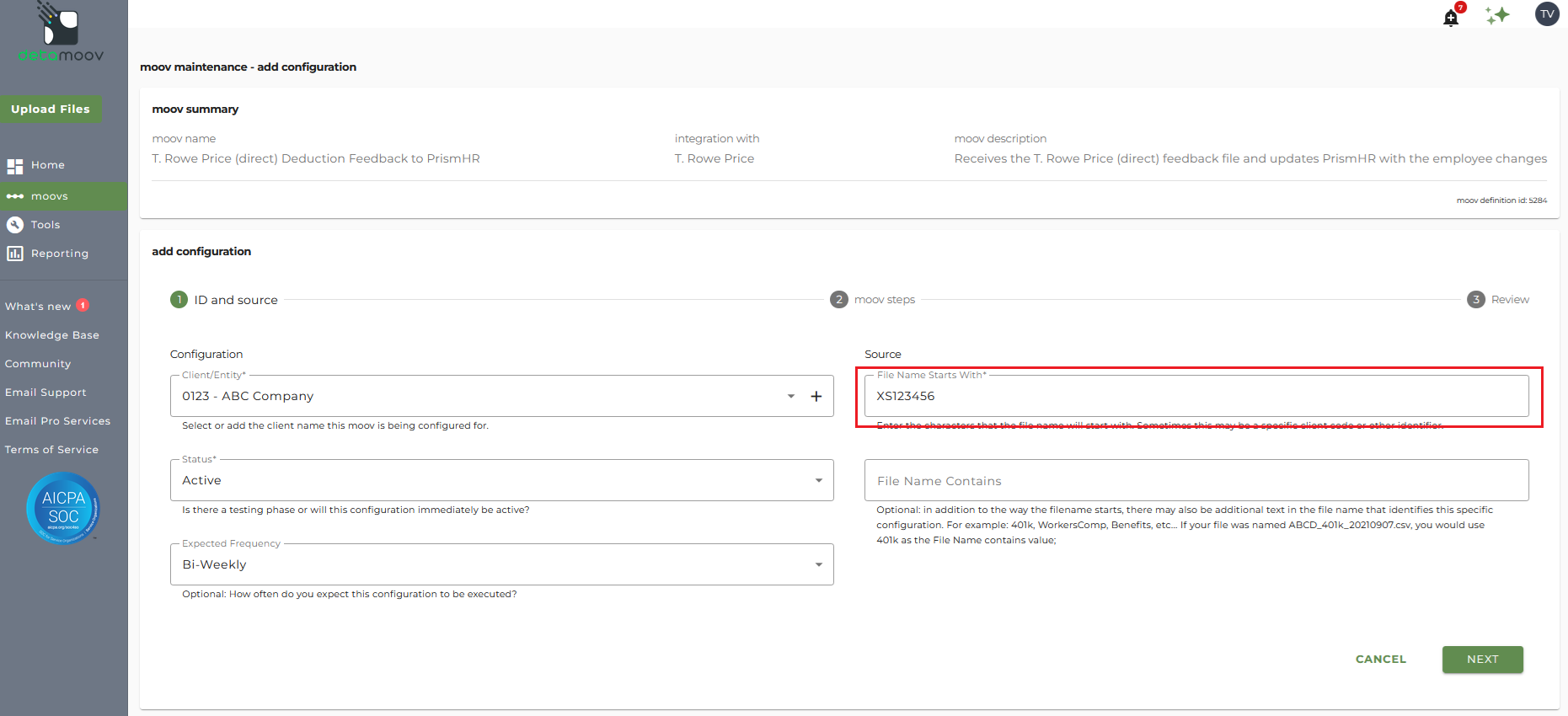
Click Next once you have completed the ID and source section.
T. Rowe Price makes the feedback files available for your client in the following schedules:
Bi-monthly payroll - every Wednesday
Bi-weekly payroll - every Friday
To ensure that the feedback files are pulled, you will need to automate the 360 integration by configuring the SFTP schedule. Click the SFTP banner under the Trigger - SFTP Pull Data Trigger step and click Add.
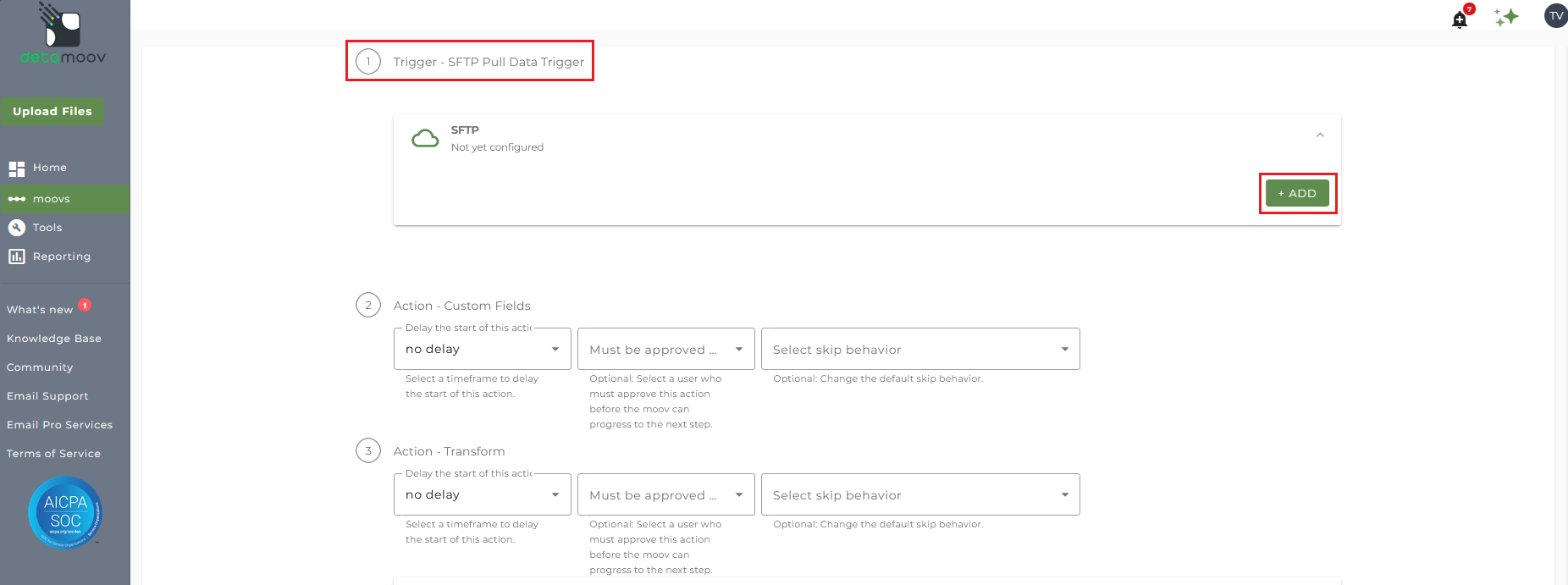
On the New SFTP Configuration section on the right, select the SFTP Pull option from the Premier Integration menu. Then select either "Every X weeks" or "On certain days of the month", depending on how often you would like detamoov to check for new feedback files. We recommend that you check for feedback files at least twice a week. In the example below, we have set up a schedule to check for files twice a week on Tuesdays and Fridays.
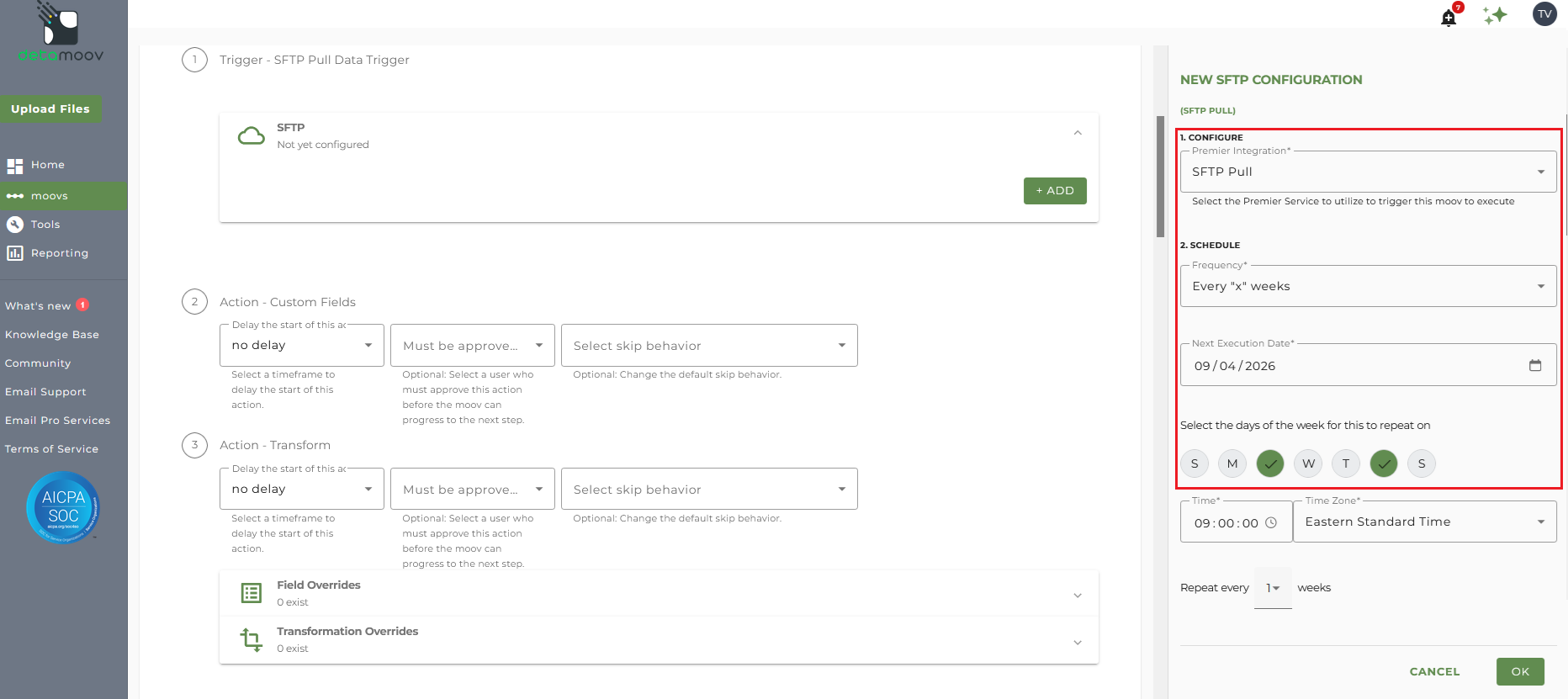
Click OK once you have created your SFTP configuration.
Transformation Overrides - T. Rowe Price Source Codes
The source codes that indicate the deduction type are set up by T. Rowe Price and may be different per plan. To ensure that your client's plan is updated correctly, you may need to provide the source codes as a transformation override. Please review the plan documentation to determine if this is a requirement.
By default, detamoov expects the following Source values:

Note: if a bonus deferral is available for the plan, the Source code default value is 'X'.
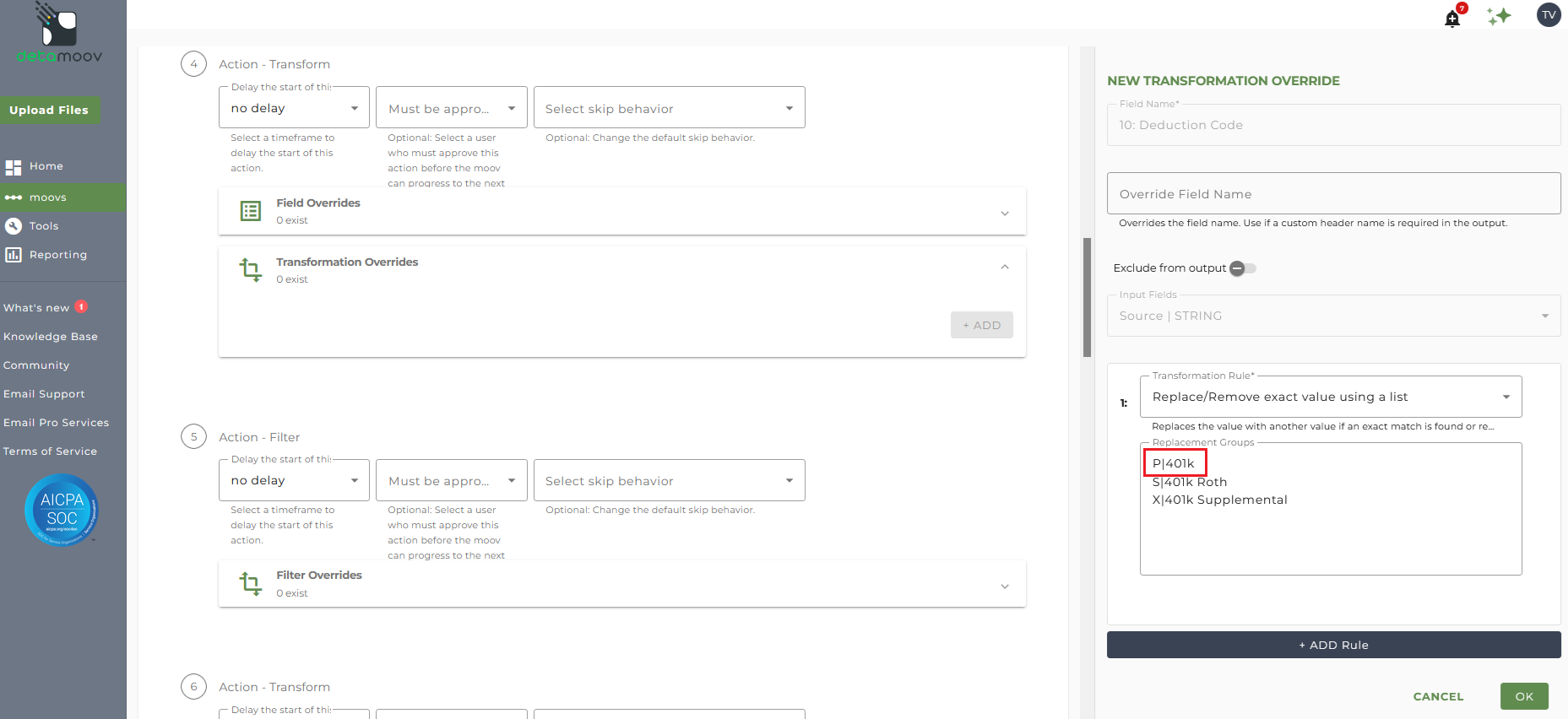
If your client's plan has different Source code values, you will need to change the default values. For example, if T. Rowe Price provides source code 'P' for Pre-Tax, you will need to update the default mappings.
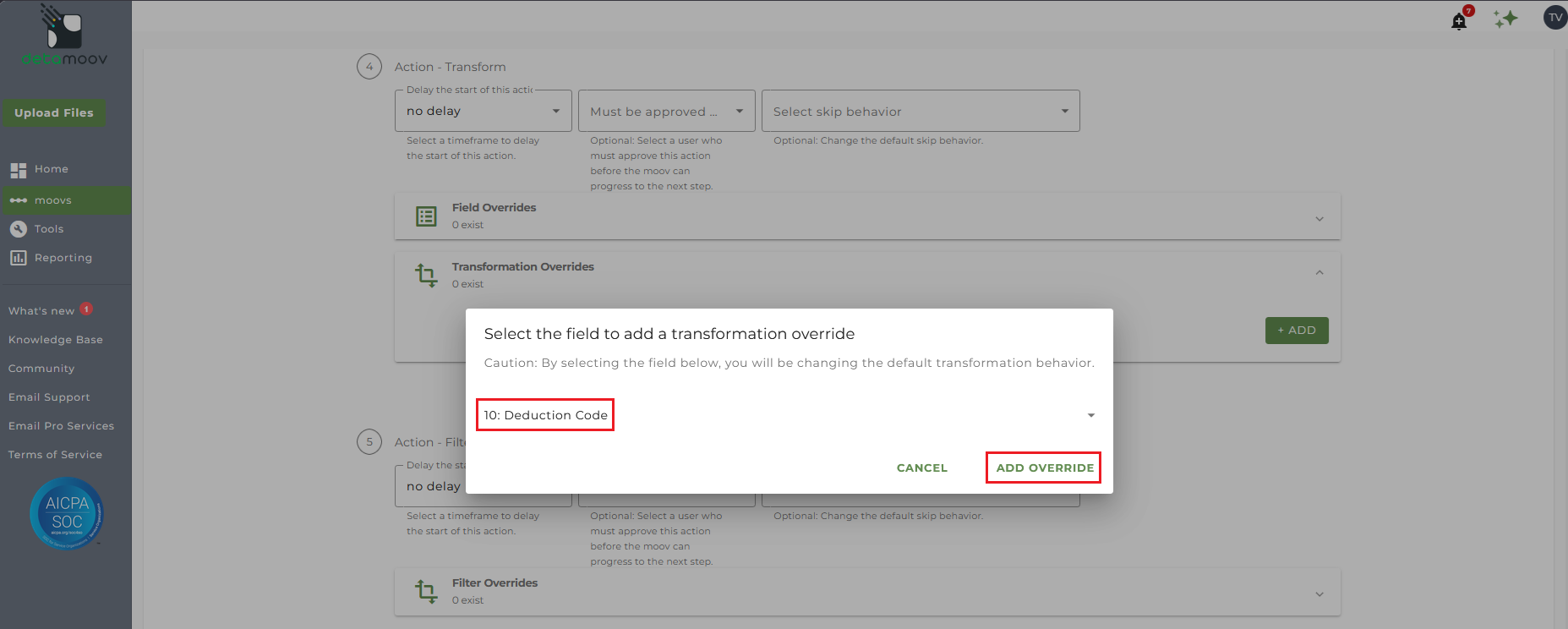
To provide the plan-specific Source codes for your client, locate step 4: Action - Transform, click the Transformation Overrides panel and click the ADD button.
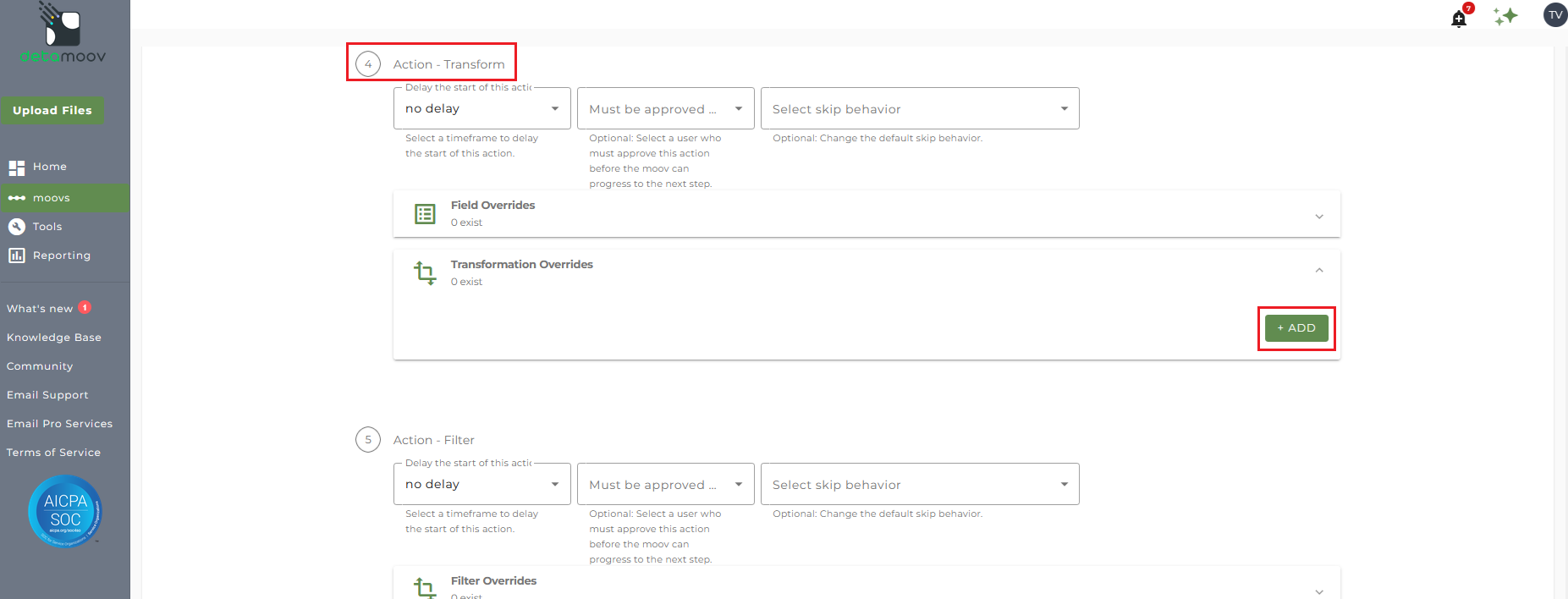
Select field 10: Deduction Code and click ADD OVERRIDE.
In the Replacement Groups field, replace the default value on the left-hand side of the pipe character with your plan's Source code. Using our example above, we replaced the default value 'A' for Pre-Tax with 'P'. Click OK to continue.
The PrismHR Plan ID is required for detamoov to update changes via their API. A field override is required to provide this as the Plan ID in T. Rowe Price may be different from the Plan ID in PrismHR.
The PrismHR Plan ID can be found in Benefit Plan Maintenance/Retirement Plans:

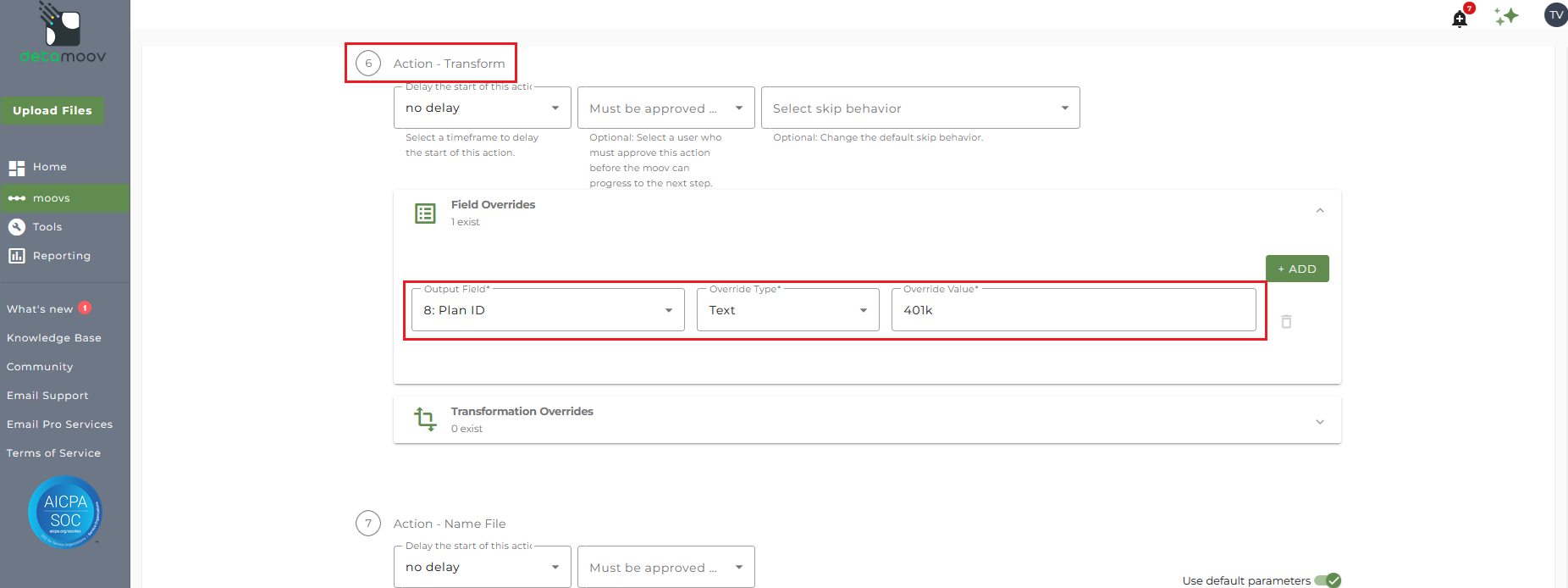
To create a field override locate step 6: Action Transform and expand the Field Overrides section.
NOTE: There are five separate Transform steps on the T. Rowe Price (direct) Deduction Feedback to PrismHR moov. Make sure you are creating the field override on step 6: Action - Transform.
Then click the ADD button and select field 8: Plan ID and enter the PrismHR Plan ID in the Override value field.
Configure the PrismHR Retirement 360 Step
To configure the PrismHR Retirement 360 step for your client, locate the Action - PrismHR Retirement 360 step, expand the PrismHR API panel and click ADD.
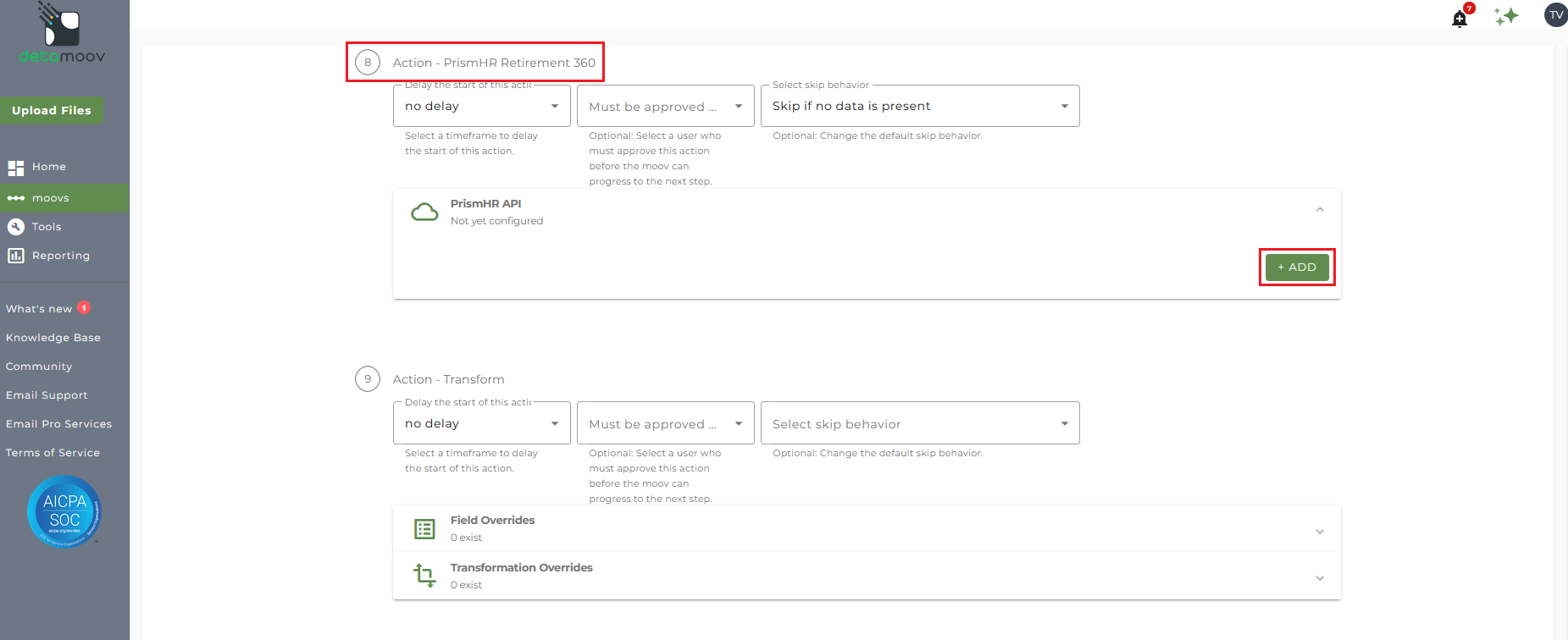
On the side panel that appears, select your PrismHR Premier Integration and enter in the Client Id.
Multiple PrismHR Clients
T. Rowe Price deduction feedback data may include employees that are under the same PrismHR plan, but are in different PrismHR Clients. The example below shows two employees on the same T. Rowe Price plan. Both employees are on the same PrismHR plan, but are in different PrismHR Clients:
| Employee | TRP Plan | PrismHR Plan | PrismHR Client |
| Mike Smith | ABCCO | 401k | 106 |
| Sally Jones | ABCCO | 401k | 107 |
If your client's plan has multiple Clients in PrismHR you must use the Multi-Entity Group feature. This feature will allow detamoov to send updates to multiple PrismHR clients that are tied to a single plan using a Multi-Entity Group. For more information on this feature, please see the Using Multi-Entity Groups article on how to use a Multi-Entity Group on your configuration.
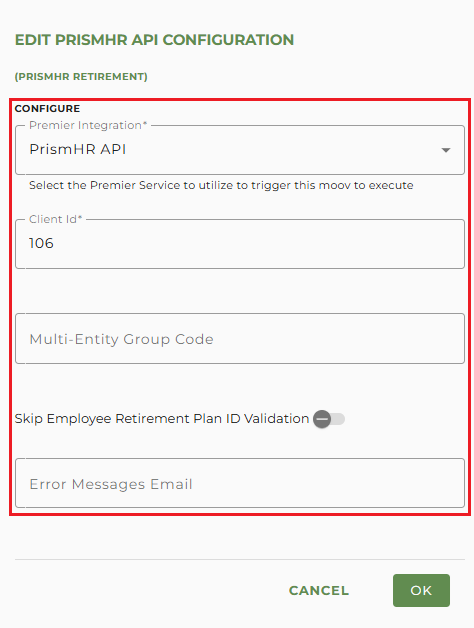
Optionally, you can toggle the 'Skip Employee Retirement Plan ID Validation' switch on. This is applicable when your client has multiple retirement plans inside PrismHR and you don't want detamoov to validate the Plan ID field for each employee. If this option is toggled on, detamoov will skip the validation of the employee retirement plan ID when updating existing deferrals and loans. Since most situations require retirement plan ID validation, this option is toggled off by default.
You can also enter in one or more email addresses in the Error Messages Email. If left blank, all detamoov users on your account will receive emails if the PrismHR Retirement 360 step fails.
Click OK to complete the PrismHR Retirement 360 configuration.
Send File Step Override - Executive Summary
At the beginning of this article you configured the send file step for the moov to send a notification once the moov had completed. You also have the ability to configure the send file step for each client configuration if you wish to add or remove email addresses per client.
To override the send file step, locate step 11: Action - Send File and toggle the "Use default parameters" off and enter/remove email addresses from Email Address and Reply To fields. If you would like to enter multiple email addresses, separate them with a comma.
To complete the configuration for your client, click the Next button at the bottom of the page and then the Save button on the moov summary page.
Send File Step Override - Supplemental Summary
At the beginning of this article you configured the send file step for the moov to send a notification when supplemental records are identified. You also have the ability to configure the send file step for each client configuration if you wish to add or remove email addresses per client.
To override the send file step, locate step 16: Action - Send File and toggle the "Use default parameters" off and enter/remove email addresses from Email Address and Reply To fields. If you would like to enter multiple email addresses, separate them with a comma.
To complete the configuration for your client, click the Next button at the bottom of the page and then the Save button on the moov summary page.
Plans with T. Rowe Price Loans
T. Rowe Price sends the updates to loans in a separate file and requires that you configure the T. Rowe Price (direct) Loan Feedback to PrismHR moov. If your client's plan has loans, please see the How to configure the T. Rowe Price (direct) Loan Feedback to PrismHR moov article.

